karlette.dll is a genuine Steinberg VST plug-in file used by the older Cubase VST ecosystem. It is not a Windows component, Microsoft runtime, or ordinary application executable.
Karlette is a legacy delay effect distributed through Steinberg’s VST Classics Vol. 2 package and older Cubase installations. The safest fix is to reinstall it from Steinberg’s official installer, then make sure your VST host scans the correct plug-in folder.
Do not download a loose copy of karlette.dll from a random DLL website. Those files may contain malware, belong to the wrong architecture, or leave the original installation and host-compatibility problem unresolved.
Fix 1: Reinstall Karlette from Steinberg’s official package
Time needed: 10–20 minutes
The most likely cause is that Karlette was removed when Cubase was uninstalled, moved to another drive, cleaned by antivirus software, or replaced during a manual VST-folder change.
The Tool Desk
Outbyte Driver Updater FREEFix the driver behind crashes, sound loss and screen glitchesFind Drivers →Outbyte PC Repair FREEClear out junk files and repair common Windows errorsFree Scan →#1 Best Overall
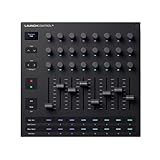
- Powerful integration with all major DAWs: Launch Control XL 3 features deep integration with Ableton Live, Logic Pro, FL Studio, Cubase, HUI and more
- Connect all your hardware: MIDI In, Out, and Out2/Thru ports enable custom-mapped control for all your hardware synths and effects — no computer needed
- Perfect for hybrid setups: Combine your external gear, DAW, and essential plugin parameters into one intuitive Custom Mode for the ultimate hybrid setup
- The creative control surface: Redesigned with eight faders, 24 endless encoders, 16 customisable buttons, and a crisp OLED display for real-time feedback
- Create your own mappings: Effortlessly map MIDI parameters with Components. Store up to 15 Custom Modes for any software, hardware, or hybrid workflow
Steinberg’s unsupported-software download page for VST Classics Vol. 1 & 2 includes the Windows package containing Neon and Karlette. It provides separate PC and PC 64-bit downloads. Use that package if you no longer have the original Cubase installer.
Reinstall VST Classics Vol. 2
- Open Steinberg’s official support site.
- Search for VST Classics Vol. 1 & 2.
- Open the result hosted on Steinberg’s domain.
- Locate the Windows download section.
- Choose the PC installer for a 32-bit host or the PC 64-bit installer for a 64-bit host.
- Download the installer to a local folder.
- Right-click the installer and select Run as administrator.
- Follow the setup wizard.
- When asked for a VST plug-in location, choose the folder used by your host for VST2 plug-ins.
- Restart Windows if the installer requests it.
- Open Cubase or your other VST host and rescan plug-ins.
Do not assume that installing the 64-bit edition guarantees compatibility with every current 64-bit host. Architecture is only one part of the problem. The host must also support the legacy VST2 format and the older plug-in itself.
If you still have the original Cubase media
Use the installer for the specific Cubase version that originally supplied Karlette:
- Insert the installation media or mount the installer.
- Right-click
Setup.exeand select Run as administrator. - Choose Modify, Repair, or the equivalent custom-install option.
- Select the VST plug-in components.
- Complete the installation.
- Rescan plug-ins from inside the host.
How to tell whether this worked
The installation succeeded if:
karlette.dllappears in the selected VST2 folder.- Your host lists Karlette after a plug-in scan.
- A new project can load the effect without a missing-file message.
If the installer completes but the file is not present, check antivirus quarantine before trying another download.
Fix 2: Match the plug-in architecture to the host
Time needed: 5–15 minutes
A 32-bit plug-in cannot normally load directly inside a 64-bit-only host. A 64-bit plug-in also does not solve a problem in a 32-bit host if the host expects the other architecture.
Steinberg provides separate PC and PC 64-bit installers for VST Classics. Choose the edition that matches the host process, not simply the edition that matches the Windows installation.
Check whether the host is 32-bit or 64-bit
The exact menu varies by program, but these methods usually work:
- Open the host’s Help menu.
- Select About.
- Look for
32-bit,64-bit, or the program architecture. - If it is not shown, open Task Manager while the host is running.
- Select the Details tab.
- Right-click a column heading and enable Platform if available.
You can also check the installation folder. A program installed under C:Program Files (x86) is commonly 32-bit, while C:Program Files commonly contains 64-bit software. This is a clue, not absolute proof.
Recommended Free Tools
Choose the correct fix
- For a 32-bit host, install the PC edition.
- For a 64-bit host that still supports legacy 32-bit VST plug-ins, use the appropriate supported bridge.
- For a 64-bit-only host that rejects old 32-bit plug-ins, use a compatible older host or replace Karlette with a current delay plug-in.
- Do not copy a 32-bit DLL into a 64-bit system directory to force it to load.
A message saying the file is “not designed to run on Windows” can indicate a wrong architecture, a damaged file, or a file that is not actually from Steinberg. It does not prove that Windows itself is missing a runtime.
Fix 3: Add the correct VST2 folder and rescan
Time needed: 5–10 minutes
A common failure is that karlette.dll exists, but Cubase or another host is no longer scanning the folder that contains it. This often happens after moving a VST directory, reinstalling Windows, changing drives, or importing an old project on another computer.
Find the folder containing Karlette
- Press
Win + Eto open File Explorer. - Search the locations where you normally keep plug-ins.
- Search for
karlette.dll. - Right-click the result and select Open file location.
- Copy the folder path from the File Explorer address bar.
The file should be in a Steinberg or VST plug-in directory. It should not normally be in:
Rank #2

- Next-Gen Music Production and Beat Maker Essential - USB-powered MIDI keyboard controller with 25 mini velocity-sensitive keys, optimized for studio or beat production, piano-style performance, synth leads, sample triggering
- Real-Time Control and Navigation - 8x assignable 360° knobs, a vibrant full-color screen and push/turn encoder for hands-on access to settings, presets, and DAW functions, without reaching for a computer
- Iconic MPC Pads with RGB Feedback - 8 velocity- and pressure-sensitive MPC pads deliver an iconic finger-drumming experience, plus dynamic visual feedback to match your performance in studio or on the go
- Studio Instrument Collection Included - A powerful VST/AU and standalone virtual suite packing 1000+ pro-grade drums, keys, synths, bass, FX from AIR, Akai Pro and Moog, plus MPK Mini IV integrated controls
- Pre-Mapped DAW Integration - Get producing in under 15 minutes with Ableton Live Lite 12, Logic Pro, FL Studio and more; comes with an expanded DAW-mapped transport section for uninterrupted workflow
C:WindowsSystem32
C:WindowsSysWOW64
Add the path in Cubase
Menu names differ slightly between Cubase generations, but the process is generally:
- Open Cubase.
- Open Studio.
- Select VST Plug-in Manager.
- Open the plug-in-path settings, often shown with a gear icon.
- Add the folder containing
karlette.dll. - Confirm the change.
- Start a new plug-in scan.
- Search for Karlette in the results.
Steinberg’s current documentation commonly refers to VST2 locations such as a VstPlugins folder and VST3 locations such as VST3. Karlette is a VST2 plug-in, so adding only a VST3 folder will not make it appear.
Other VST hosts have similar settings under Preferences, Settings, Plug-ins, or Plug-in Manager.
If several copies exist
Multiple VST folders can contain duplicate copies. Keep the copy installed by the verified Steinberg package and remove or disable confusing duplicates from the host’s scan paths. Do not delete a file merely because its name matches unless you have confirmed which copy the host is loading.
Fix 4: Check whether the host still supports legacy VST2 plug-ins
Time needed: 5–30 minutes
Steinberg discontinued VST2 development, and modern hosts may not load every old VST2 or 32-bit plug-in. A missing-file message can sometimes be a compatibility problem in disguise.
What’s actually slowing this PC down?
Pick the symptom - the matching free tool is one click away.
Check the host’s documentation for:
- VST2 support
- 32-bit plug-in support
- VST bridging
- Plug-in blacklisting
- Plug-in quarantine or validation logs
If the host sees the file but refuses to load it, reinstalling the same DLL repeatedly will not change the host’s format support.
Your practical choices are:
- Use an older compatible host that supports the plug-in.
- Use a host-supported bridge, if available.
- Restore the plug-in in a separate legacy project environment.
- Replace Karlette with a current VST3 delay effect.
- Export or freeze tracks from an older system if you only need to preserve an existing project.
Do not claim that a 64-bit installer works in every modern 64-bit host. VST2 support and legacy plug-in support remain host-dependent.
Fix 5: Check antivirus quarantine
Time needed: 5–10 minutes
Security software may quarantine a genuine legacy DLL because older plug-ins can have unusual packaging or behavior. It can also remove a modified or counterfeit replacement.
Check Windows Security
- Open Start.
- Type Windows Security and open it.
- Select Virus & threat protection.
- Choose Protection history.
- Look for an event involving
karlette.dllor the Steinberg installer. - Expand the event to inspect its path and detection details.
Only restore the file if it came from the genuine Steinberg installer or a backup you trust. If the file came from a random download site, remove it rather than creating an exclusion.
After a legitimate restore:
- Reinstall the Steinberg package.
- Run another antivirus scan.
- Open the VST host.
- Rescan the plug-in directory.
If the file is quarantined again, leave it isolated and contact Steinberg or your security vendor with the detection name and file path. Do not disable antivirus protection permanently to make an old plug-in load.
Fix 6: Remove and reinstall the plug-in cleanly
Time needed: 10–20 minutes
A partial installation can leave a DLL that exists but fails validation. This may produce “could not be loaded,” “missing or corrupted,” or a generic Windows message stating that the file is not designed to run on Windows.
Rank #3

- Low-profile, multi-function control surface
- New track select and marker advance parameters
- Supports numerous software titles including major DAW programs
- Close Cubase and every other audio application.
- Open Settings with
Win + I. - Select Apps.
- Open Installed apps or Apps & features.
- Uninstall the relevant Steinberg VST Classics or old Cubase component if it appears.
- Restart Windows.
- Delete only the leftover Karlette file from the old VST folder if you know it belongs to the failed installation.
- Run the official Steinberg installer as administrator.
- Select the correct PC or PC 64-bit package.
- Choose the VST2 folder used by the host.
- Rescan the folder.
If Windows reports that the file is missing but the host also reports that a plug-in cannot be validated, reinstalling the complete package is safer than replacing only the DLL.
Fix 7: Repair Windows components only when other programs are failing
Time needed: 15–30 minutes
karlette.dll is a third-party VST plug-in, so System File Checker and DISM do not normally restore it. Use these commands when Windows components are also damaged, Windows Update is failing, or several unrelated applications report system-file problems.
Free tools Windows power users keep installed
One-click scans. No signup required.
Run DISM
- Open Start.
- Type
Terminal. - Right-click Windows Terminal and select Run as administrator.
- Select Yes at the User Account Control prompt.
- Enter:
DISM /Online /Cleanup-Image /RestoreHealth
- Wait for the operation to finish.
- Restart Windows.
Run System File Checker
Open an elevated Terminal again and run:
sfc /scannow
Wait until verification reaches 100 percent, then restart the computer and test the host.
Microsoft documents these repairs through its Windows image repair and Windows Update troubleshooting guidance. They repair protected Windows components, not normally a Steinberg VST file.
Repeating SFC and DISM without knowing what changed can waste time while the real problem remains an old plug-in installer or an unsupported host. Outbyte PC Repair can scan for system problems and show what needs attention; its repair functions require the full version, but reinstalling the Steinberg package remains the definitive fix for this application-specific DLL.
Fix 8: Check audio drivers and host hardware configuration
Time needed: 10–20 minutes
A driver will not usually restore karlette.dll, but a host may fail during startup when its audio device or ASIO driver is also broken. This is worth checking when Cubase crashes or refuses to open even after Karlette is restored.
- Right-click Start.
- Select Device Manager.
- Expand Sound, video and game controllers.
- Right-click your audio interface or sound device.
- Select Update driver.
- Choose Search automatically for drivers.
- Restart Windows if a driver is installed.
- In Cubase, open Studio > Studio Setup.
- Select the audio system and choose the correct ASIO driver.
If the problem began immediately after a driver update, open the device’s Properties, select the Driver tab, and use Roll Back Driver if that button is available.
Outbyte Driver Updater can reduce the manual work of hunting through hardware vendors and comparing driver versions; its scan is available before the full-version driver installation, and it is not required to reinstall Karlette or fix a VST compatibility problem.
Independent reader supportYour contribution helps us test, update, and keep practical guides available for everyone.Why regsvr32 karlette.dll usually does not help
regsvr32 is designed for DLLs that expose a registration entry point such as DllRegisterServer. It is not a general DLL repair command.
A VST plug-in is normally discovered by the audio host from a configured plug-in path. It is not installed like an ActiveX control or a Windows COM component. Running:
Quick wins for a faster PC:
Clear out junk files and repair common Windows errorsFree Scan →Scan for outdated or missing drivers - takes under a minuteDriver Scan →Repair Windows errors before they cause bigger problemsFix Now →regsvr32 karlette.dll
may produce an error such as “DllRegisterServer entry point was not found.” That result does not mean Windows needs another copy of the file.
Do not register Karlette globally, and do not place it in System32 or SysWOW64. Those directories are for Windows components and system libraries. Copying a plug-in there can create duplicate paths, architecture confusion, and security risks without making Cubase scan it.
What caused the error?
The wording usually points toward the cause:
| Message pattern | Most likely cause | Correct response |
|---|---|---|
karlette.dll was not found |
File removed or folder moved | Reinstall Steinberg VST Classics and configure the VST2 path |
karlette.dll is missing or corrupted |
Partial installation, quarantine, or damaged file | Check antivirus, then reinstall the complete package |
karlette.dll could not be loaded |
Wrong path, architecture, or unsupported host | Confirm scan path, host architecture, and VST2 support |
not designed to run on Windows |
Wrong architecture, truncation, corruption, or malware | Remove the file and reinstall from Steinberg |
| Project reports a missing plug-in | Project remembers Karlette but the plug-in is absent | Restore the same plug-in and rescan |
Generic DLL error wording is not proof that Windows itself is missing a runtime. Visual C++ Redistributables, DirectX, Windows Update, SFC, and DISM are not the primary fixes for this Steinberg plug-in unless the error identifies a separate Windows dependency.
Rank #4
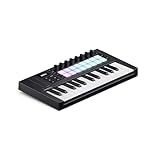
- The Creative Controller: Launchkey is an all-in-one DAW controller with premium keybeds and 16 responsive FSR pads for drumming, clip launching, and more
- Seamless DAW Integration: Launchkey works with all major DAWs, offering intuitive workflows for Ableton Live, Logic, Cubase, Reason, Reaper, FL Studio, and Ardour
- Go Beyond Finger Drumming: Launchkey’s FSR drum pads with polyphonic aftertouch also serve as step sequencers, clip launchers, chord triggers, and more
- Everything in the box: Ableton Live Lite, Cubase LE, Novation Play, sounds from GForce, Klevgrand, Orchestral Tools, Native Instruments, and free Melodics lessons
- Powerful Creative Tools: Never hit a wrong note with Scale Mode, trigger lush chords from a single key or drum pad, and create and mutate wild arpeggios
If Karlette loads but the project still reports it as missing
A project can remember a plug-in even after the plug-in has been removed. Reinstalling karlette.dll may make the effect available again, but it does not guarantee that every old preset, automation setting, or plug-in state will be restored.
Windows Errors? Fix Them Before They Spread
Repair common Windows errors and clear accumulated junk for a smoother, more stable PC - no reinstall needed.Free scan · no reinstallOutdated Drivers Are Slowing You Down
One free scan finds every outdated or missing driver and matches the right update for your exact hardware.Free scan · exact hardware matchTry this sequence:
- Install the matching Steinberg package.
- Add its VST2 folder to the host.
- Rescan plug-ins.
- Open the project again.
- Check whether the project points to a duplicate or different plug-in path.
- Confirm that the same host architecture is being used.
- Look for the host’s plug-in blacklist or failed-scan list.
- If the original project still cannot restore the effect, open a backup made before the plug-in was removed.
Do not overwrite the project until you confirm that the restored plug-in behaves correctly.
When to use System Restore
System Restore is a last resort. Consider it only if:
- Karlette worked before a clear system or software change.
- You no longer have the original Steinberg installer.
- The failure affects other applications as well.
- A suitable restore point exists.
System Restore is not a substitute for reinstalling VST Classics Vol. 2. It can also remove recently installed applications or drivers, so back up current projects first.
Frequently asked questions
Is karlette.dll a Windows file?
No. It is a Steinberg VST plug-in associated with the older Cubase VST ecosystem. It should normally live in a VST2 plug-in directory.
Do these 3 things before closing this tab:
1Clear out junk files and repair common Windows errors2Fix the driver behind crashes, sound loss and screen glitches3Repair Windows errors before they cause bigger problemsIs Karlette malware?
The genuine file installed by Steinberg is a legitimate plug-in. A loose copy from an unknown source cannot be trusted merely because its filename is correct. Verify the installer source and inspect antivirus history.
Which product installs karlette.dll?
Steinberg’s VST Classics Vol. 2 package includes Karlette. Older Cubase installations may also have supplied it.
Should I copy it into System32?
No. Copy it to the VST2 folder selected by the official installer and scanned by your audio host.
Should I install Visual C++ or DirectX?
Not as the first fix. Karlette is not a Microsoft runtime. Install or repair those components only when the error specifically identifies a separate dependency.
Do I need the 32-bit or 64-bit installer?
Choose the edition matching the host that must load the plug-in. A 64-bit Windows installation does not automatically mean every audio host or plug-in is 64-bit.
Why does Cubase still reject it after reinstalling?
The host may no longer support the legacy VST2 or 32-bit plug-in, may be scanning another folder, or may have blacklisted the file after a failed scan.
Can regsvr32 repair it?
Normally, no. VST plug-ins are discovered through the host’s plug-in path rather than global DLL registration.
What if no fix works?
Record the exact error, the host version and architecture, the path containing karlette.dll, the installer used, and any antivirus detection. Then contact Steinberg or the host vendor. A clean user profile can also help identify damaged host settings.
What’s actually slowing this PC down?
Pick the symptom - the matching free tool is one click away.
Quick Recap
Product prices and availability are accurate as of the date/time indicated and are subject to change. Any price and availability information displayed on Amazon at the time of purchase will apply.



