Quick wins for a faster PC:
Scan for outdated or missing drivers - takes under a minuteDriver Scan →Repair Windows errors before they cause bigger problemsFix Now →l1.dll is not a Windows system file. It is an older Waves Audio Ltd plug-in module associated with the L1 Ultramaximizer, so the safest fix is to repair the Waves installation rather than download a replacement DLL.
A DAW, audio editor, video editor, or older Waves host may report that l1.dll is missing, cannot be loaded, is corrupt, or is not designed to run on Windows. Follow the fixes below in order.
Fix 1: Reinstall L1 through Waves Central
Time needed: 10–20 minutes, plus any download time
This is the most likely solution when Waves files were removed, a DAW was reinstalled, an old backup was restored, or a Waves installation was only partially completed.
#1 Best Overall

- 𝗖𝗼𝗺𝗽𝗮𝘁𝗶𝗯𝗹𝗲 𝘄𝗶𝘁𝗵 𝗧𝗵𝗲 𝗘𝗣𝗜𝗖𝗘𝗡𝗧𝗘𝗥 𝗖𝗼𝗻𝗰𝗲𝗿𝘁 𝗦𝗲𝗿𝗶𝗲𝘀: Use as a replacement remote for your digital bass restoration processor. Works with all Limited and Special Edition versions.
- 𝗖𝗼𝗺𝗽𝗮𝘁𝗶𝗯𝗹𝗲 𝘄𝗶𝘁𝗵 𝗦𝗲𝗹𝗲𝗰𝘁 𝗔𝘂𝗱𝗶𝗼𝗖𝗼𝗻𝘁𝗿𝗼𝗹 𝗔𝗺𝗽𝗹𝗶𝗳𝗶𝗲𝗿𝘀: Including ACM-1.300, ACX-300.1, ACX-600.1, ACX-650.5, LC-1.800, LC-4.800, LC-5.1300, LC-6.1200, A800.1, A1500.1, A600.4, and A1100.5.
- 𝗖𝗼𝗺𝗽𝗮𝘁𝗶𝗯𝗹𝗲 𝘄𝗶𝘁𝗵 𝗦𝗲𝗹𝗲𝗰𝘁 𝗔𝘂𝗱𝗶𝗼𝗖𝗼𝗻𝘁𝗿𝗼𝗹 𝗟𝗶𝗻𝗲 𝗢𝘂𝘁𝗽𝘂𝘁 𝗖𝗼𝗻𝘃𝗲𝗿𝘁𝗲𝗿𝘀: Including LC2i, LC2i PRO, LC5iPRO, LC6i, LC7i, and LC7iPRO.
- 𝗖𝗼𝗺𝗽𝗮𝘁𝗶𝗯𝗹𝗲 𝘄𝗶𝘁𝗵 𝗦𝗲𝗹𝗲𝗰𝘁 𝗔𝘂𝗱𝗶𝗼𝗖𝗼𝗻𝘁𝗿𝗼𝗹 𝗣𝗿𝗼𝗰𝗲𝘀𝘀𝗼𝗿𝘀: Including Matrix Plus and The EPICENTER Concert Series.
- 𝗖𝗼𝗺𝗽𝗮𝘁𝗶𝗯𝗹𝗲 𝘄𝗶𝘁𝗵 𝗦𝗲𝗹𝗲𝗰𝘁 𝗔𝘂𝗱𝗶𝗼𝗖𝗼𝗻𝘁𝗿𝗼𝗹 𝗟𝗲𝗴𝗮𝗰𝘆 𝗣𝗿𝗼𝗱𝘂𝗰𝘁𝘀: Including LC6, LC8, Overdrive Plus, 6XS, and The Original EPICENTER (bypass not supported).
- Close your DAW and any other audio applications.
- Open Start and search for Waves Central.
- Launch Waves Central. If it is not installed, download Waves Central from the official Waves website.
- Sign in to the Waves account that owns L1 Ultramaximizer or the bundle containing it.
- Select Install Products.
- Open My Products.
- Select L1 Ultramaximizer or the licensed Waves bundle that contains it.
- Click Install.
- Wait for the installation to finish, then restart Windows if Waves Central requests it.
- Open the DAW and rescan its plug-ins.
If L1 appears in the plug-in list and loads on an audio track, the repair worked. If it appears but is disabled or opens in demo mode, continue with the licensing steps below.
Do not copy l1.dll into C:WindowsSystem32, C:WindowsSysWOW64, or your DAW’s program folder. Waves normally installs and discovers its plug-ins through its own installer and host system.
Fix 2: Activate the Waves license
Time needed: 5–10 minutes
A missing license usually does not produce the same error as a missing DLL, but an inactive license can make L1 disappear, fail validation, or load in demo mode.
- Open Waves Central.
- Sign in to the correct Waves account.
- Select Licenses.
- Locate the license for L1 Ultramaximizer or its bundle.
- Choose the destination:
- Computer to activate it on this PC, or
- A connected Waves-supported USB device if that is where your license is stored.
- Complete the activation.
- Return to Install Products and reinstall L1 if necessary.
- Restart the DAW and rescan the plug-ins.
If the license is attached to another computer or USB device, move or activate it through Waves Central according to the account’s available options. If you do not own L1 or a bundle containing it, reinstalling the DLL will not provide a valid license.
Fix 3: Rescan plug-ins in the DAW
Time needed: 5–15 minutes
Sometimes the Waves files are installed correctly, but the host has an old scan result or is looking in the wrong plug-in location.
- Open the DAW or audio application.
- Open its Preferences, Settings, or Plug-in Manager window.
- Find the section for VST, VST3, Audio Units, or plug-in discovery.
- Confirm that the Waves plug-in location used by your installation is included in the scan paths.
- Start a full plug-in rescan.
- If the host offers a failed-plug-in list, remove L1 from that list or select Rescan failed plug-ins.
- Restart the host after the scan completes.
Do not move l1.dll manually to make it visible. A random copy may have the wrong architecture, belong to a different Waves generation, or lack dependent files.
If L1 is visible in Waves Central but absent from the DAW, check the host’s supported Waves plug-in format and architecture. Some older hosts cannot load newer plug-in formats, while some newer 64-bit hosts cannot load an old 32-bit plug-in directly.
Fix 4: Match the Waves version to Windows and the host
Time needed: 15–30 minutes
L1 is associated with older Waves software, so compatibility is especially important when opening an old project on a newer computer.
Free tools Windows power users keep installed
One-click scans. No signup required.
Rank #2

- TACTILE AUDIO CONTROL – This inline audio volume controller features a smooth, weighted aux volume knob, giving you precise, physical adjustment over your sound without touching your device.
- PREMIUM SIGNAL QUALITY – Built as a passive audio signal attenuator, this compact input attenuator provides clean aux volume control with zero distortion, hiss, or power requirements.
- UNIVERSAL 3.5MM AUX COMPATIBILITY – Connects instantly to all standard 1/8-inch (3.5mm) audio equipment. Perfect for fine-tuning sound levels on headphones, PC gaming headsets, tablets, smartphones, and portable speakers.
- COMPACT & TRAVEL READY – The lightweight, ultra-portable form factor fits seamlessly into any setup. Ideal for clutter-free office desks, remote work-from-home configurations, or tossed in a bag for mobile audio use.
- DURABLE PROFESSIONAL BUILD – Engineered with high-grade internal components and a rugged outer casing designed to withstand daily wear and tear. Delivers a reliable connection and a tactile feel built for long-lasting daily use.
Waves’ legacy catalog includes L1 Ultramaximizer with separate V9 installers, including V9.92, V9.6, and V9.3. Use the version required by the project and host instead of automatically installing the newest available software.
Important compatibility points include:
- Waves V9.92 supports 64-bit Windows 7 SP1, Windows 8.1, and Windows 10.
- Waves V9.3 is required for Waves plug-ins on 32-bit Windows 7, 8.1, or 10.
- Software earlier than V9.92 cannot coexist with versions above V10.
- Multiple Waves generations may work side by side, but not every combination is officially tested.
To check your Windows architecture:
- Press Windows key + I.
- Select System.
- Select About.
- Look at System type.
To check the host architecture, open the DAW’s Help, About, or System Information screen. A 32-bit Waves plug-in needs a compatible 32-bit host or a suitable bridge. A 64-bit host cannot necessarily load an old 32-bit Waves DLL directly.
For an older project, use the official Waves legacy installer that matches the project’s Waves generation. If Waves Central does not offer the required version, use the official offline installer for that version rather than a third-party DLL archive.
A newer Waves installation can also disrupt older V9 plug-ins. If the problem began immediately after installing or updating another Waves generation, reinstall the required V9 version and follow Waves’ side-by-side compatibility instructions.
Fix 5: Check antivirus quarantine
Time needed: 5–10 minutes
Security software may quarantine a plug-in after an update, file restoration, or scan.
- Open Windows Security.
- Select Virus & threat protection.
- Select Protection history.
- Look for an entry involving Waves, L1, or the path where Waves is installed.
- Confirm whether the file was quarantined.
- If the installation originally came from Waves Central or an official Waves installer, restore it only after confirming the detection and path.
- Reinstall L1 through Waves Central if there is any uncertainty.
- Rescan the plug-ins in the DAW.
If the file is quarantined again, do not repeatedly restore it or create a broad antivirus exclusion. Investigate the security alert and reinstall from the official Waves source. A replacement downloaded from a DLL site can be modified, incompatible, or bundled with unwanted software.
Fix 6: Repair the Waves installation instead of registering the DLL
Time needed: 10–20 minutes
regsvr32 is not a general DLL repair command. It is intended for DLLs that expose registration functions such as DllRegisterServer, commonly used by COM, OLE, or ActiveX components.
A Waves audio plug-in is normally installed and discovered through Waves Central and the host application. Registering l1.dll is therefore not a standard fix and may only produce another error, such as a missing entry point or incompatible module.
Recommended Free Tools
Rank #3
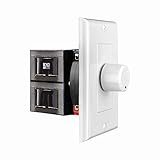
- HIGH POWER: The SVC100 is rated at 100 Watts per channel with minimal bass roll-off. It includes front mounted adjustable jumpers to add up to eight pairs of 8 ohm speakers simultaneously.
- VOLUME CONTROL: The controls allow you to adjust the volume of a pair of speakers independently of other speakers in a house audio system. They are ideal for both softer and higher volume locations.
- IMPEDANCE PROTECTION: This feature of SVC100 assists in stabilizing the ohm load going back to the amp or receiver with parallel connections to avoid overheating and damaging expensive equipment by matching the impedance.
- KNOB: Wire a 12-step linear rotary-style knob for a wide range of listening volumes. Includes junction box and screws as well as white, ivory and almond trim plates to match any room decor.
- DESIGN: For dedicated audio zones, the décor plates install easily into a wall and work with almost any system. It accepts up to 14 gauge wiring and fits in a standard gang box with a 2.9” depth.
Do not run this as a repair:
regsvr32 l1.dll
Instead, reinstall L1 from Waves Central, activate the license, and rescan the host. If the host says that the “specified module could not be found,” the named file may exist while one of its dependent libraries is missing. Reinstalling the complete Waves product is safer than trying to identify and copy individual dependencies.
Fix 7: Check for broader Windows corruption
Time needed: 15–30 minutes
Use Windows repair commands only when other applications also report missing or damaged files, Windows behaves abnormally, or files repeatedly disappear. SFC does not normally restore a third-party Waves plug-in.
Microsoft recommends running DISM before System File Checker.
- Open Start.
- Search for Command Prompt.
- Right-click Command Prompt and select Run as administrator.
- Run:
DISM.exe /Online /Cleanup-image /Restorehealth
- Wait for it to finish.
- Then run:
sfc /scannow
- Restart Windows.
- Reinstall L1 through Waves Central and rescan the DAW.
DISM repairs the Windows component store, while SFC checks protected Windows system files. Neither command is a substitute for reinstalling L1.
When manually running DISM and SFC repeatedly becomes difficult, Outbyte PC Repair can scan for broader Windows problems and show what needs attention; repairs are completed by the full version, and reinstalling Waves remains the definitive fix for this app-specific DLL.
If SFC reports that it could not repair some files, review the Windows repair result and address the broader Windows problem before troubleshooting Waves again.
Fix 8: Update Windows and check storage
Time needed: 15 minutes, plus restart time
This step is relevant when multiple unrelated files become corrupted or disappear.
- Press Windows key + I.
- Select Windows Update.
- Select Check for updates.
- Install available updates.
- Restart the computer.
- Check whether files on the system drive are repeatedly disappearing or becoming unreadable.
- If storage problems are suspected, use the drive manufacturer’s diagnostic process or Windows’ available drive-health information.
Do not use Device Manager to repair l1.dll. It is a Waves application plug-in, not a Windows device driver. Device Manager is relevant only if the computer also has a separate audio hardware or driver problem.
Crashes, No Sound, or Screen Glitches?
Random freezes, missing sound and display glitches usually trace back to one bad driver. Find and replace yours safely.Free scan · under a minutePC Slower Than It Used to Be?
A free scan shows the junk files, broken settings and background clutter dragging Windows down - then fixes them in one click.Free scan · Windows 10 & 11If the wider issue involves outdated or mismatched hardware drivers, Outbyte Driver Updater can scan for stale drivers and identify updates; the driver installation is completed by the full version, but it does not replace reinstalling the Waves L1 product.
Fix 9: Remove and reinstall the affected Waves generation
Time needed: 20–40 minutes
Use this when Waves Central repeatedly fails, the installation is visibly incomplete, or the problem began after several Waves versions were installed and removed.
Rank #4

- Desktop controlled plug-in brings the legendary TC 1210 to your DAW
- Dedicated desktop interface with intuitive hands-on control and visual feedback
- Carefully modeled on the TC 1210 Spatial expander + stereo chorus/Flanger rack unit
- Exceptional modulation effects for a thick, warm and lively sound
- Extremely musical widening effect grants a radically Spacious stereo image
- Back up current projects and note the Waves version used by them.
- Close all DAWs and audio applications.
- Open Settings with Windows key + I.
- Select Apps.
- Open Installed apps or Apps & features.
- Locate the relevant Waves software.
- Uninstall only what is necessary for the affected Waves generation.
- Restart Windows.
- Install the required version through Waves Central or the official Waves legacy installer.
- Activate the license.
- Open the DAW and perform a full plug-in rescan.
Do not remove every Waves version blindly if older projects depend on a specific generation. Record the version and host requirements first.
What the different errors mean
“l1.dll was not found”
The host attempted to load L1 but could not find the module at the expected location. The installation may be missing, the host may be scanning the wrong location, or antivirus software may have removed it.
Do these 3 things before closing this tab:
1Repair Windows errors before they cause bigger problems2Scan for outdated or missing drivers - takes under a minute3Clear out junk files and repair common Windows errors“The file l1.dll is missing or corrupted”
The file may be damaged, incomplete, or incompatible with the host. Reinstall the complete Waves product instead of replacing only the DLL.
“Failed to load l1.dll”
The host found the file but could not initialize it. Check Waves version compatibility, host architecture, licensing, and dependencies.
“The specified module could not be found”
This wording does not always mean that l1.dll itself is absent. A dependent library may be missing or incompatible. A complete official reinstall is safer than copying dependencies from another computer.
“Not designed to run on Windows”
The file may be damaged, built for the wrong architecture, or from a Waves generation that is not compatible with the current Windows and host combination.
The Tool Desk
Outbyte Driver Updater FREEScan for outdated or missing drivers - takes under a minuteDriver Scan →Outbyte PC Repair FREEClear out junk files and repair common Windows errorsFree Scan →Do not download l1.dll from random websites
A standalone DLL download can contain malware, use the wrong architecture, belong to a different Waves generation, or fail because the license and dependent files are still missing. Copying it from another computer can also create version and licensing problems.
Windows uses defined DLL search paths, so placing an untrusted DLL beside an application can create a DLL-loading security risk. It can also hide the real issue by making the host load an unintended file.
Best Value

- Wide Compatibility: The 1Mii Computer Speakers can work with any devices that has a standard 3.5mm AUX audio out jack, any brands or models of Windows(7/8/10/11) or Linux PCs, MacOS laptops, desktop monitors, laptops.
- Enhanced Stereo Sound: Built-in dual 3W stereo speakers of the desktop speakers can deliver you loud, clear vocals and all the details you want to hear clearly, providing immersive Hi-Fi audio listening and immersive gaming experience. The 3.5mm wired speaker is perfect for you to enjoy wonderful movies, videos, music and games. For best audio quality, use a USB power adapter to reduce static.
- Rotary Volume Control Knob: With the front rotary knob of the PC speakers, you can steplessly adjust the volume level as you wish. No matter loud and immersive action movie or quiet and peaceful music, the desk speakers can always satisfy your needs. No need to find out the volume setting on your device and no complicate operations, just rotate and enjoy.
- Mini and Space-saving for Desk: The PC speaker size is only 26 x 6 x 6.3 cm/ 10.2 x 2.4 x 2.5 in, it can fit into any corner on your desk, table, shelf or other narrow space under your desktop monitor or PC. Under the laptop speakers are anti-slip silicone pads to prevent unwanted scratches from your furniture or electronics. Elegant and delicate design, simple but classic to match your room style.
- Plug and Play: Just connect the speaker with your powered device or DC power adapter via USB-A cable, then plug the 3.5mm audio cable into the 3.5mm AUX out jack, rotate the volume knob to moderate volume level. For some device you might need to switch the audio output to the speaker. Then the computer speakers for desktop pc are ready to play stereo music for you. The USB-A and AUX audio cables are connected as one for neat organization, also you can divide them as you like. Warm Tips: The speaker is not compatible with some products, please check whether your device has an AUX outport before purchase. The USB charging cable and 3.5mm audio cable must be inserted at the same time to work.
Use Waves Central or the official Waves installer for L1. Use Microsoft repair tools only for broader Windows corruption.
Common causes of an l1.dll failure
| Likely cause | What to do |
|---|---|
| Waves installation is missing | Reinstall L1 or its licensed bundle through Waves Central |
| Wrong Waves generation | Install the version required by the project and host |
| 32-bit and 64-bit mismatch | Match the plug-in, host, and Windows architecture |
| DAW has not rescanned | Run a full plug-in rescan in the host |
| License is inactive | Activate the license in Waves Central |
| Antivirus quarantine | Verify the alert, then reinstall from Waves |
| Missing dependency | Reinstall the complete Waves product |
| Windows-wide corruption | Run DISM, then SFC |
| Untrusted manual DLL copy | Remove it and reinstall from Waves |
FAQ
Is l1.dll part of Windows?
No. l1.dll is associated with Waves Audio’s L1 Ultramaximizer. It is not a Windows system DLL, DirectX component, or Microsoft runtime.
Which program installs l1.dll?
The L1 Ultramaximizer plug-in, usually installed as part of a Waves product bundle or an older Waves installer.
Can I fix it by downloading the DLL?
You should not. Install L1 from Waves Central or the official Waves legacy installer instead.
Should I copy it to System32 or SysWOW64?
No. Those folders are for Windows components and use architecture-specific behavior. Copying a Waves plug-in there is not a supported repair.
Should I reinstall Visual C++, DirectX, or .NET?
There is no verified basis for treating those as the normal fix for this Waves plug-in. Repair the Waves installation first.
What’s actually slowing this PC down?
Pick the symptom - the matching free tool is one click away.
Why does the file work in one DAW but not another?
The hosts may use different plug-in formats, scan paths, architectures, or compatibility rules. Rescan the failing host and verify that its architecture matches the Waves version.
What if I only see api-ms-win-...-l1-...dll?
That is a different filename and refers to a Windows API-set component. Do not confuse it with the exact file l1.dll. Use Windows repair guidance only if the API-set error is part of broader Windows corruption.
What information should I give Waves support?
Provide the exact error text, Windows version, DAW and version, Waves version, host architecture, plug-in path, license status, and the steps already attempted.
Quick Recap
Product prices and availability are accurate as of the date/time indicated and are subject to change. Any price and availability information displayed on Amazon at the time of purchase will apply.
What’s actually slowing this PC down?
Pick the symptom - the matching free tool is one click away.



