
PC Slower Than It Used to Be?
A free scan shows the junk files, broken settings and background clutter dragging Windows down - then fixes them in one click.Free scan · Windows 10 & 11Outdated Drivers Are Slowing You Down
One free scan finds every outdated or missing driver and matches the right update for your exact hardware.Free scan · exact hardware matchSome Microsoft webcams have built-in microphones, but the brand name alone does not answer the question. Microsoft’s Modern Webcam includes a microphone that is turned off by default. The LifeCam HD-3000 specification lists an integrated omnidirectional microphone, while the LifeCam VX-3000 specification lists a unidirectional noise-cancelling microphone. Other Microsoft webcam models may differ, so check the exact model and its official documentation before buying or troubleshooting.
What the Microsoft name does—and does not—tell you
A webcam can provide video only, video plus audio, or audio that requires a separate headset or microphone. Microsoft has sold models in all kinds of configurations over time, including current products and legacy LifeCam devices. Consequently, saying that a Microsoft webcam always has a microphone is too broad.
As an Amazon Associate I earn from qualifying purchases.
The reliable question is: Which Microsoft webcam model is it, and what does Microsoft list for that model? Look for the model name on the camera, its packaging, the product page, or the device name shown by your computer. Then compare that exact name with the manufacturer’s specification sheet. A camera that looks similar to another model can have a different microphone design or different default settings.
What’s actually slowing this PC down?
Pick the symptom - the matching free tool is one click away.
Microsoft webcam models documented with microphones
| Model | Microphone listed? | Default state | Published microphone information |
|---|---|---|---|
| Microsoft Modern Webcam | Yes, a built-in microphone | Turned off by default | Microsoft Support documents the microphone and provides an enablement procedure through Microsoft Accessory Center. The support instructions do not specify a directionality pattern or frequency range. |
| Microsoft LifeCam HD-3000 | Yes, an integrated microphone | Not stated in the technical data sheet | Omnidirectional; 200 Hz–20 kHz frequency range, according to Microsoft’s technical data sheet. |
| Microsoft LifeCam VX-3000 | Yes, a built-in microphone | Not stated in the technical data sheet | Unidirectional, noise-cancelling microphone, according to Microsoft’s technical data sheet. |
These entries confirm microphones on the named models only. They are examples, not a complete catalog of every Microsoft webcam ever sold. The specifications also describe hardware design; they do not constitute an independent test of loudness, clarity, background-noise rejection, or suitability for a particular game.
#1 Best Overall

- 720p HD widescreen video - 720p sensor captures true HD quality video at up to 30 fps.
- World-class optics - Auto Focus, High-precision glass element lens
- Clear, high-quality video - ClearFrame Technology for smooth, detailed video.
- Crystal-clear audio - Digital, noise-canceling microphone helps improve speech quality.
- Aluminum body
Modern Webcam: microphone included, disabled initially
Microsoft’s Modern Webcam has a built-in microphone, but Microsoft ships it turned off by default. A camera can therefore appear to work normally for video while contributing no audio input to a game, meeting app, or recording program. Turning on the microphone is a separate configuration step.
Microsoft says the Modern Webcam is certified for Microsoft Teams using its default settings, including the built-in microphone turned off. The company cautions that enabling the built-in microphone could affect that certification. This is a statement about Microsoft’s certification configuration, not a claim that the microphone is defective or unusable.
How to turn on the Modern Webcam microphone
Microsoft’s documented route uses Microsoft Accessory Center. Follow these steps for the Modern Webcam:
- Download and open Microsoft Accessory Center on the computer connected to the webcam.
- Plug in the Modern Webcam and wait for it to appear in the app.
- Select Modern Webcam from the device list.
- Open Webcam settings.
- Turn on Webcam microphone.
- In Microsoft Teams, open Settings > Devices and select the desired camera and audio devices.
Microsoft also notes that Teams can use the computer’s existing microphone and speakers instead of the webcam’s microphone. That option can be preferable if you want to retain the certified default configuration or already have a headset with better placement near your mouth.
Rank #2

- High-fidelity microphone - For more natural, detailed audio
- ClearFrame Technology - for smooth, detailed video
- Auto Focus and Advanced high-precision glass lens optics
- 1080p HD widescreen sensor - for superior sharpness and 16:9 image quality
- TrueColor Technology - automatically delivers bright and colorful video, in virtually all lighting conditions
If the switch is missing
Confirm that Accessory Center identifies the device as Modern Webcam rather than another camera. Disconnecting and reconnecting the USB cable, then reopening the app, can help the device list refresh. If the camera is visible but the microphone control is absent, check that you are following the Modern Webcam instructions; the same control path is not established for every LifeCam model or every operating system.
LifeCam HD-3000: omnidirectional microphone
Microsoft’s LifeCam HD-3000 technical data sheet lists an integrated microphone with an omnidirectional pickup pattern. It gives a microphone frequency range of 200 Hz–20 kHz. That number is a manufacturer specification from the technical data sheet; the publication year is not stated in the accessed document.
“Omnidirectional” means the microphone is designed to pick up sound from around the capsule rather than concentrating on one front-facing direction. In a quiet room, that can make speaking position less critical. In a noisy room, it can also allow more surrounding sound into the recording. The specification does not tell you how much noise reduction the finished recording will have, and it should not be treated as a guarantee of voice quality.
Free tools Windows power users keep installed
One-click scans. No signup required.
The HD-3000 is a legacy product reference. A Microsoft Store listing surfaced for the Netherlands says the model is unavailable there. That regional listing does not establish worldwide stock, discontinuation status in every market, or compatibility with a particular computer. If you are considering this model, verify the seller’s exact model number, condition, included cable, operating-system support, and return policy.
Rank #3
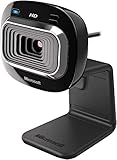
- True 720p HD Video - Post true HD video to online video sites.
- 16:9 Widescreen - For cinematic video recording.
- Clear, High Quality Video
- Noise Cancelling Microphone - Crystal-clear audio and built-in unidirectional microphone with acoustic noise cancellation.
- Universal Attachment Base - Work on your desktop, laptop, or notebook.
LifeCam VX-3000: unidirectional, noise-cancelling microphone
Microsoft’s LifeCam VX-3000 technical data sheet describes a unidirectional noise-cancelling microphone. A unidirectional design generally emphasizes sound arriving from one direction, usually the speaker’s position, while reducing some sound arriving from elsewhere. “Noise-cancelling” is the manufacturer’s description of the microphone design; it is not an independent measurement of how much room noise will be removed.
The VX-3000 document does not provide a microphone frequency range or a default on/off state in the specification information reviewed. Do not transfer the HD-3000’s 200 Hz–20 kHz figure to the VX-3000, and do not assume that a control documented for the Modern Webcam applies to this older LifeCam.
How to check a Microsoft webcam before purchase
Use a model-first checklist rather than relying on a product family name or a photograph:
Quick wins for a faster PC:
Fix the driver behind crashes, sound loss and screen glitchesFind Drivers →Clear out junk files and repair common Windows errorsFree Scan →- Record the exact model. “Modern Webcam,” “LifeCam HD-3000,” and “LifeCam VX-3000” are different products with different documented microphone descriptions.
- Find an official specification. Look for wording such as “built-in microphone,” “integrated microphone,” or a microphone type in Microsoft’s documentation.
- Check the default state. The Modern Webcam’s microphone is off by default, so microphone presence does not mean audio is immediately available.
- Separate design from quality. Omnidirectional, unidirectional, and noise-cancelling describe pickup characteristics, not a ranking of clarity.
- Confirm availability in your market. A listing can be unavailable in one country while stock or support differs elsewhere.
- Verify compatibility for your use. Older LifeCam documentation may not describe current operating systems, game clients, or meeting applications.
If a seller does not show a model number or an official specification, treat the microphone feature as unverified. Do not infer it from a USB plug, a lens design, or the fact that another Microsoft webcam includes audio.
Rank #4

- 1080p HD widescreen sensor - For superior sharpness and image quality.
- Advanced high-precision optics - Auto Focus, High-precision glass element lens
- Clear, high-quality video -TrueColor Technology automatically delivers bright and colorful video,
- High-fidelity microphone - For more natural, detailed audio.
- 1080p HD widescreen sensor - For superior sharpness and image quality
Troubleshooting when the webcam microphone is not available
1. Establish whether the hardware should have a microphone
Identify the camera model first. If it is a Modern Webcam, remember that Microsoft ships its built-in microphone disabled. If it is an HD-3000 or VX-3000, Microsoft’s specifications list a microphone, but the documents do not establish identical controls or behavior across operating systems.
2. Apply the model-specific setting
For Modern Webcam, use Accessory Center > Modern Webcam > Webcam settings and turn on Webcam microphone. This is the documented Microsoft procedure. Do not search for that exact switch in a LifeCam utility unless Microsoft’s documentation for your model provides it.
3. Select the intended input in the application
In Teams, Microsoft’s documented path is Settings > Devices. Select the intended camera and audio devices there. Other applications and games have their own audio-input menus; choose the webcam microphone only after the camera is connected and recognized.
4. Check for device competition
A headset, laptop microphone, controller, or another USB camera may be selected instead. If an application shows several inputs, compare the names carefully and speak while watching its input indicator or test meter. This confirms which device is receiving sound without assuming that the webcam is the active source.
Best Value

- 720p HD video chat
- High precision glass element lens for sharp image quality
- TrueColor Technology with face tracking for bright and colorful video
- Premium sound recording
- 360° rotation
5. Test outside the game or meeting
Use the computer’s normal audio recorder or microphone test to distinguish a hardware or system issue from an application-specific setting. If the microphone works there but not in a game, the game’s selected input, permissions, or voice-chat configuration needs attention. If it fails everywhere, reconnect the webcam, confirm the model-specific setting, and check the manufacturer’s support information for that model.
What the microphone specifications mean for gaming
For game chat, the practical question is not only whether a capsule exists but whether the application can select it and whether its pickup pattern suits the room. An omnidirectional HD-3000 may capture a player who shifts position, along with more room sound. A unidirectional, noise-cancelling VX-3000 is described as favoring a narrower direction, which may help in some setups but still depends on placement and surrounding noise. Microsoft does not publish a comparative sound-quality test for these models in the documents cited here.
The Modern Webcam’s default-off behavior is especially important for players who expect plug-and-play voice chat. Video may appear in a game while the microphone remains unavailable until Accessory Center enables it. If you prefer a headset or a separate desktop microphone, leave the webcam microphone off and select the other device in the game’s audio settings.
Do these 3 things before closing this tab:
1Scan for outdated or missing drivers - takes under a minute2Clear out junk files and repair common Windows errors3Fix the driver behind crashes, sound loss and screen glitchesDo microphone specifications predict voice quality?
Only partially. A frequency range such as 200 Hz–20 kHz describes the range listed by the manufacturer, not the response curve, sensitivity, self-noise, automatic gain behavior, or intelligibility in a real room. Directionality describes where the microphone is intended to hear from, not how cleanly it will reproduce speech. Placement, distance, keyboard noise, room reflections, and the application’s processing can all change the result.
For that reason, the HD-3000’s frequency figure should not be used to declare it better than the VX-3000, and the VX-3000’s noise-cancelling description should not be treated as a measured performance rating. The available Microsoft documents establish the presence and stated design of the microphones, not a winner in audio quality.
Bottom line for buyers and owners
Yes, some Microsoft webcams have microphones: the Modern Webcam, LifeCam HD-3000, and LifeCam VX-3000 are documented examples. The Modern Webcam’s microphone is built in but turned off by default and can be enabled in Microsoft Accessory Center. The HD-3000 lists an omnidirectional microphone with a 200 Hz–20 kHz range, while the VX-3000 lists a unidirectional noise-cancelling microphone. Because Microsoft’s lineup includes different generations and configurations, always verify the exact model, default setting, compatibility, and local availability before relying on it for game chat or calls.
Quick Recap
Product prices and availability are accurate as of the date/time indicated and are subject to change. Any price and availability information displayed on Amazon at the time of purchase will apply.

