Start with this diagnostic checklist
Before copying any file, answer these questions:
- Which program displays the
movreader.dllerror? - Does it appear when Windows starts, when opening a media file, or only when launching one older application?
- Is the affected program 32-bit or 64-bit?
- Does the error show a path for
movreader.dll? - Was the file recently quarantined by antivirus software?
- Is the program installed locally, on a network share, or from old installation media?
Crashes, No Sound, or Screen Glitches?
Random freezes, missing sound and display glitches usually trace back to one bad driver. Find and replace yours safely.Free scan · under a minuteWindows Errors? Fix Them Before They Spread
Repair common Windows errors and clear accumulated junk for a smoother, more stable PC - no reinstall needed.Free scan · no reinstallmovreader.dll is generally an application component, not a Windows component. The safest repair is therefore to identify the program requesting it and repair or reinstall that program using its original installer.
What movreader.dll belongs to
The best-documented identity of movreader.dll is Uncompressed MOV reader, a 32-bit multimedia component associated with the Helix Producer SDK, also called the Helix DNA Producer SDK. The SDK was originally developed by RealNetworks, Inc. and was used by older media production and conversion software.

As an Amazon Associate I earn from qualifying purchases.
This does not mean every file named movreader.dll belongs to Helix. The filename is not unique. A separate movReader.dll is used in the Windows FileIO plug-in set for Foundry Nuke. FormatFactory installations have also been documented with a file of this name inside a bundled RealMedia codec directory. Those files must be judged by their location, parent application, publisher, and signature rather than by the basename alone.
movreader.dll is not shown to be part of Windows. Do not treat it like a system file and do not begin by placing it in C:WindowsSystem32 or C:WindowsSysWOW64.
#1 Best Overall

- INTEL Intel Core Ultra 9 U9 285K 3.7GHz (5.5GHz Turbo Boost) CPU Processor | 2TB Gen4 NVMe M.2 SSD – Up to 30x Faster Than Traditional HDD | 420mm AIO Liquid CPU Cooler with ARGB Fans, say goodbye to outdated and inefficient air coolers.
- NVIDIA Geforce RTX 5080 16GB GDDR7 Graphics Card (Brand may vary) | 64GB DDR5 RAM 6000 RGB Gaming Memory with Heat Spreader | Windows 11 Home 64-bit
- 802.11 AC | No Bloatware | Graphic output options include 1 x HDMI, and 1 x Display Port Promised, Additional Ports may vary | USB Ports Including 2.0, 3.0, and 3.2 Gen1 Ports | HD Audio and Mic | Free Gaming Keyboard and Mouse
- High-spec AIO liquid coolers used, delivering unmatched cooling performance for a perfect operational experience and unparalleled cooling performance. With hardware unrestricted by temperature limits, you can unleash its full potential. Whether gaming, creating, or working, you'll never suffer from thermal throttling again. | Skytech Legacy Gaming Case with Tempered Glass, Black | 1 Year Warranty on Parts and Labor | Free Technical Support | Assembled in the USA
- This powerful gaming PC is capable of running all your favorite games such as Call of Duty, Fortnite, Escape from Tarkov, Grand Theft Auto V, Valorant, World of Warcraft, League of Legends, Apex Legends, PLAYERUNKNOWN’s Battlegrounds, Overwatch 2, Counter-Strike 2, Battlefield V, Minecraft, ELDEN RING Shadow of the Erdtree, Rocket League, Baldur’s Gate 3, Dota 2, HELLDIVERS 2, Monster Hunter, Terraria, Rainbow Six Siege, Dragon’s Dogma 2, Black Myth Wukong, Marvel Rivals, more at Ultra settings, detailed 4K Ultra HD resolution, and smooth 60+ FPS gameplay.
Older public metadata describes a known Helix-associated build as Win32 and lists version and size information. Those details are legacy third-party metadata, not current official specifications for every file with this name. Do not use a reported version or file size as the only test of authenticity.
RealNetworks states that Helix Producer products are no longer available for licensing. If the original SDK or application installer is no longer available, recovering the application from a verified backup or installation disc may be necessary.
Fix 1: Repair the application that reports the error
This is the fastest and most reliable fix when the program is still installed.
Free tools Windows power users keep installed
One-click scans. No signup required.
Repair a Microsoft Store or modern Windows application
- Open Start.
- Select Settings.
- Select Apps.
- Select Installed apps.
- Find the application that reports the error.
- Select the three-dot menu beside it.
- Choose Advanced options.
- Select Repair.
- Start the application again.
Repair normally preserves the application’s settings and documents. If the error remains, return to the same screen and use Reset only if you understand that it may remove application data.
Repair classic desktop software
- Press
Win+R. - Type
appwiz.cpl. - Press Enter.
- Select the affected application.
- Look for Repair, Change, or Modify.
- Follow the installer prompts.
- Restart Windows if the installer requests it.
- Test the application before making any manual DLL changes.
Some older applications do not expose a repair option. In that case, use the application’s original setup program and select a repair or maintenance option if offered.
Reinstall when repair is unavailable
- Back up the application’s project files, presets, templates, and license information.
- Close the affected application.
- Open Settings > Apps > Installed apps.
- Select the program and choose Uninstall.
- For older software, you can also open Control Panel > Programs > Programs and Features.
- Restart Windows after uninstalling.
- Run the original vendor installer.
- Install the same application edition that created the files you need.
- Launch the program and test the operation that previously failed.
The installer should place the correct copy in the application’s own directory. Reinstalling the owning program remains the definitive fix for an application-specific missing DLL.
Fix 2: Check whether Windows Security quarantined the file
Antivirus software may remove or quarantine a damaged, altered, or suspicious DLL. It may also flag an old component because of its age, packaging, or behavior.
Recommended Free Tools
- Open Start.
- Type Windows Security.
- Open the application.
- Select Virus & threat protection.
- Select Protection history.
- Review detections matching the application name, its installation folder, or
movreader.dll. - Expand the detection to see its original path and action.
- Do not restore the file merely because the filename matches the error.
- Confirm that the path belongs to the application you intended to install.
- Check the file’s publisher and digital signature if the file is available.
- If the file is legitimate and the detection is a false positive, follow your organization’s security policy before allowing it.
- Prefer repairing or reinstalling the application instead of restoring an isolated file.
A file named movreader.dll in a temporary folder, download directory, or unexpected system directory deserves additional investigation. Scan the computer and do not place that copy beside an application until its provenance is clear.
Microsoft warns that allowing a malicious file can put the device at risk. If you cannot establish where the file came from, leave it quarantined and obtain a clean application installer.
Fix 3: Confirm the application and DLL architecture
The documented Helix-associated component is 32-bit. Many older multimedia applications are also 32-bit, even when installed on 64-bit Windows.
A 32-bit application needs compatible 32-bit DLLs and dependencies. It should not be repaired by replacing its file with an unrelated 64-bit DLL. The System32 and SysWOW64 folders are also not interchangeable drop-in locations. Their names are confusing because Windows uses file-system redirection for 32-bit software.
To check the application architecture:
- Open the application’s installation folder.
- Right-click the main executable.
- Select Properties.
- Open the Details tab and note the product and file information.
- If the application documentation identifies it as 32-bit, use the application’s original 32-bit installer and dependencies.
- Do not copy a file from another application simply because both files are called
movreader.dll.
You can also inspect the process while it is running:
- Start the application, if possible.
- Press
Ctrl+Shift+Esc. - Open Task Manager.
- Select Details.
- Right-click the column headings and enable Select columns if needed.
- Add the Platform column where available.
- Check whether the process is listed as 32-bit or 64-bit.
If the application is 32-bit, an x86 runtime may be required even on x64 Windows. Install Microsoft Visual C++ Redistributable only when the application installer or vendor documentation identifies it as a dependency. The Redistributable architecture must match the application.
Fix 4: Check for a missing dependency
The message “The specified module could not be found” does not always mean that movreader.dll itself is absent. Windows may have found the named DLL but failed to load one of its dependent DLLs.
This can happen after:
- An incomplete application installation
- Removal of an old codec or runtime
- A damaged application folder
- A mismatched 32-bit or 64-bit dependency
- A missing file in the application’s search path
Start with the application installer’s repair function. It is safer than guessing which runtime is missing.
What’s actually slowing this PC down?
Pick the symptom - the matching free tool is one click away.
Rank #2
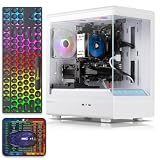
- This Sea View Tower Computers PC Gaming Desktop Is Ideal For a Variety Of Tasks Including But Not Limited To Business, Entertainment, Gaming, Learning, Home, Live Streaming, Photo And Video Editing, Streaming, Trading And More
- This Prebuilt Gaming PC Runs a Variety Of Popular PC Games, Including Fortnite, Call of Duty: Warzone, Escape from Tarkov, Grand Theft Auto V, World of Warcraft, League of Legends, Jedi Survival, Apex Legends, Overwatch, CSGO, Battlefield V, Minecraft, The Golden Ring, The Division 2, And Hogwarts Legacy With An FPS Of Over 60+
- This i7 DesktopTower Gaming PC Has An Intel Core i5 Processor At Up To 3.9GHz | 16GB of RAM | 512GB High-speed SSD | Genuine Windows 11 Home 64-Bit
- Tower Gaming PC Desktop: The Gaming PC Comes With 2x USB 3.0 | 6x USB 2.0 | 1x RJ-45 | 1x Serial | Wi-Fi | AMD Radeon RX 590 8G GDDR5 Video Card | 1x HDMI | 1x DisplayPort| 1x DVI
- Prebuilt ower Gaming PC Features And Accessories: This Tower Gaming PC Comes With RGB Case Lighting | RGB Fan x4,丨Gaming keyboard x1丨 Gaming Mouse x1丨 Mouse Pad x1 | Lifetime Free Technical Support
Consider Visual C++ Redistributable only when identified
Do not install every Visual C++ package in an attempt to resolve the error. If the installer or application documentation specifies a Microsoft Visual C++ runtime:
- Confirm whether the application is x86 or x64.
- Obtain the matching package from Microsoft’s supported Visual C++ Redistributable documentation.
- Install the required architecture.
- Restart Windows if requested.
- Test the application again.
The current Redistributable may not recreate an old Helix component. It supplies runtime libraries, not the vendor’s application DLL.
Do not assume DirectX or .NET is the answer
Windows Update, DirectX, and .NET are not established direct fixes for movreader.dll. Install or repair them only when the application’s own requirements identify them.
Windows Features can help confirm whether an optional Windows component is disabled, but enabling random legacy features is not a substitute for repairing the application:
Quick wins for a faster PC:
Fix the driver behind crashes, sound loss and screen glitchesFind Drivers →Clear out junk files and repair common Windows errorsFree Scan →- Press
Win+R. - Type
optionalfeatures. - Press Enter.
- Review the listed Windows features.
- Enable a feature only when the application documentation specifically requires it.
- Select OK and restart if prompted.
Fix 5: Repair Windows components when other programs also fail
Because movreader.dll is not a Windows system DLL, System File Checker will not recreate it. These commands are useful when Windows itself has damaged components that are affecting many applications.
Open an elevated Command Prompt:
- Open Start.
- Type
cmd. - Right-click Command Prompt.
- Select Run as administrator.
- Run:
DISM.exe /Online /Cleanup-Image /RestoreHealth
- Wait for it to finish.
- Then run:
sfc /scannow
- Restart Windows.
- Test the affected application.
DISM repairs the Windows image, while SFC checks protected Windows system files. Neither command is expected to restore a vendor-owned movreader.dll that was removed from an application folder.
If you are repeatedly hunting through repair logs and cannot tell which Windows component changed, Outbyte PC Repair can perform a free scan showing reported problems, while repair is handled by the full version. It is optional, and reinstalling the application remains the definitive fix when that application owns movreader.dll.
Fix 6: Update or reinstall a related driver only when diagnostics point to it
A graphics or audio driver is not a standard cause of a missing application-local movreader.dll. Consider a driver only when:
- The failure began after a graphics or audio change
- The error names a video or audio application
- Device Manager shows a warning
- Event Viewer identifies a driver dependency
- The application vendor specifically requires a driver update
To inspect devices:
- Right-click Start.
- Select Device Manager.
- Expand Display adapters, Sound, video and game controllers, and any relevant device category.
- Right-click the suspected device.
- Select Properties.
- Open the General tab and check Device status.
- Open the Driver tab and note the provider, date, and version.
- Use Update Driver only with a driver from the hardware or computer manufacturer.
- Restart Windows and test the application.
If a recent driver update caused the problem, select Roll Back Driver when that button is available. If the device is malfunctioning, uninstalling the device and then restarting can allow Windows to redetect it, but use the manufacturer’s instructions for specialized hardware.
Manually checking dozens of driver versions is tedious and makes it easy to choose the wrong architecture; Outbyte Driver Updater provides a free scan showing reported driver issues, while driver installation is handled by the full version. It is not required for this DLL, and repairing the application is still the correct fix when the error is application-specific.
Fix 7: Use System Restore after a clearly identified change
System Restore is appropriate only when the error began after a known software installation, update, or configuration change and a suitable restore point exists.
- Press
Win+R. - Type
rstrui.exe. - Press Enter.
- Select Next.
- Choose a restore point from before the failure began.
- Select Scan for affected programs if available.
- Review the changes.
- Select Next, then Finish.
- Allow Windows to restart.
- Test the application.
System Restore is not a replacement for a clean application reinstall. Avoid it when you cannot identify a useful restore point or when restoring system state could remove important business software changes.
Do these 3 things before closing this tab:
1Clear out junk files and repair common Windows errors2Fix the driver behind crashes, sound loss and screen glitches3Repair Windows errors before they cause bigger problemsWhy copying movreader.dll is usually wrong
Random DLL download sites are unsafe sources for this file. A downloaded copy may contain malware, belong to a different product, use the wrong architecture, have incompatible dependencies, or simply fail to fix the damaged installation.
Do not copy movreader.dll to:
C:WindowsSystem32C:WindowsSysWOW64- A random folder on the
PATH - Another application’s installation directory
Manual copying is reasonable only when all of these conditions are met:
- The file came from the same application’s verified installer, backup, or quarantine record.
- Its original application path is known.
- Its publisher and signature are acceptable.
- Its architecture matches the application.
- It is placed back in the original application directory.
Application-local DLLs are normally found beside the executable or in an application-specific subfolder. Changing the search path or placing an unknown DLL in a system directory can cause version conflicts and DLL-preloading risks.
Independent reader supportYour contribution helps us test, update, and keep practical guides available for everyone.Why regsvr32 usually does not fix this error
regsvr32 registers DLLs that expose a registration entry point such as DllRegisterServer. It is mainly used for self-registering COM or ActiveX components.
There is no evidence that the Helix MOV reader is a self-registering COM server. Therefore, this is not a normal repair:
regsvr32 movreader.dll
It may return an error stating that the entry point was not found. That does not prove the file is missing or that Windows is damaged. If an application’s official installer specifically instructs you to register its DLL, follow that application-specific instruction and use the correct 32-bit or 64-bit regsvr32 for the component. Otherwise, repair the application instead.
Verify a surviving copy before using it
If you find several copies, compare each one with the application that contains it.
Check the path and product details
- Right-click the file.
- Select Properties.
- Open General and record the full location.
- Open Details.
- Review Description, Product name, Company, and File version.
- Open Digital Signatures, if present.
- Select the signature and choose Details.
- Confirm that Windows reports the signature as valid.
The file’s parent directory is often more informative than its name. A Nuke plug-in should remain with Nuke. A Helix-associated file should remain with the application that installed the Helix component. Do not replace one with the other.
Calculate a hash
From Command Prompt, run:
certutil -hashfile "C:PathTomovreader.dll" SHA256
Replace the path with the actual file location. A hash is useful when comparing a file against a known-good backup or an installer supplied by the same vendor. A hash by itself does not establish that a file is safe unless you have a trusted value for comparison.
If reinstalling does not help
Work through these checks in order:
- Confirm that you reinstalled the exact program named in the error.
- Check whether the installer placed
movreader.dllbeside the correct executable. - Temporarily review antivirus history for a second quarantine event.
- Check the application’s installation log if it has one.
- Test the program with a new Windows user profile if the failure may be profile-specific.
- Look in Event Viewer under Windows Logs > Application for the failing executable and the named module.
- Determine whether the error names a missing dependency rather than the main DLL.
- Confirm that the application is using the expected installation path and not an obsolete shortcut.
- Remove duplicate, unofficial copies from the application directory only after preserving evidence and following your organization’s change policy.
- Restore the application from a verified backup or original installation media.
If the original Helix SDK installer is unavailable, practical choices may be limited to recovering an old backup, locating the organization’s installation media, or replacing the dependent application with a supported product. Do not fill the gap with a similarly named DLL from another program.
Frequently asked questions
Is movreader.dll a Windows file?
No evidence supports that conclusion. It is a third-party multimedia component associated most strongly with the Helix DNA Producer SDK. Treat it as an application-owned file.
Which program installed my copy?
The error window alone may not identify the owning program. Check the executable that displays the error, the file path, the shortcut target, and Event Viewer. The same basename can occur in Helix-related software, Foundry Nuke plug-ins, FormatFactory installations, and other legacy media products.
The Tool Desk
Outbyte PC Repair FREEClear out junk files and repair common Windows errorsFree Scan →Outbyte Driver Updater FREEFix the driver behind crashes, sound loss and screen glitchesFind Drivers →Should I install Visual C++, DirectX, or .NET?
Only if the application installer or documentation identifies the runtime as required. These packages do not supply the Helix MOV reader itself.
Will Windows Update restore it?
No. Windows Update is not expected to provide this third-party application DLL.
Can I copy it from another computer?
Only if the other computer has the same application edition, architecture, and verified installation, and you have permission to use that software. Reinstalling from the original installer is safer and restores related dependencies together.
Is the file malware?
The filename alone proves nothing. Check the full path, publisher, digital signature, hash, and parent application. A copy in a temporary or download directory should be treated cautiously. A security detection should be reviewed through Windows Security before any restoration.
Why does the message say “module could not be found” when the file exists?
The loader may be unable to find a dependency required by movreader.dll. Repair the application and identify the next missing component rather than repeatedly replacing the named file.
Can I put it in System32?
No. That is not the normal installation location for this application-local component and can create conflicts or security problems.
Is regsvr32 required?
Not normally. There is no evidence that the Helix MOV reader requires COM registration. Use the application’s repair or reinstall process instead.
Quick Recap
Product prices and availability are accurate as of the date/time indicated and are subject to change. Any price and availability information displayed on Amazon at the time of purchase will apply.
What’s actually slowing this PC down?
Pick the symptom - the matching free tool is one click away.




