What mssp232.dll is
mssp232.dll is a 32-bit Microsoft proofing and spelling engine used by older Office-family applications. It is normally loaded when a program starts spell-checking, which is why Word, FrontPage, Works, Project, Creative Writer or Outlook may open normally but fail when you check spelling.
It is not a normal Windows component, Visual C++ runtime, DirectX file or .NET file. The safest fix is to identify the application that requests it, then repair or reinstall that application’s proofing tools from its original installer or Microsoft’s supported repair process.




| Identification | Verified detail |
|---|---|
| File | mssp232.dll |
| Role | Legacy Microsoft spelling and proofing engine |
| Architecture | 32-bit |
| Reported version | 1.63.5626.0 |
| Reported size | Approximately 0.13 MB |
| Usual folder | C:Program FilesCommon FilesMicrosoft SharedProof |
| Related files | Mssp2_en.lex, mssp32.dll, MSSpell3.dll, language-specific proofing files |
The exact product installed on a computer cannot be identified from the filename alone. Historically, this engine was used by Microsoft Word and Office 97/2000-era installations, FrontPage, Project, Works, Creative Writer and spell-check integrations used by Outlook or Outlook Express.
First, identify the application behind the error
Read the complete error message and note which program displayed it. Examples include:
#1 Best Overall
- “Word cannot find the spelling file MSSpell3.dll or mssp232.dll for English (US).”
- “Found an Error in spelling files.”
- “FrontPage cannot find the spelling file.”
- “Creative Writer had trouble spell checking your document.”
- An Office or Project Setup message stating that
MSSP232.DLLorMSSP2_EN.LEXcannot be found.
If the error appears only after selecting Spelling, Editor, Tools > Spelling, or a similar command, the proofing installation is the likely problem. If the application fails before its main window appears, the missing file may be one of several damaged application components, so repair the parent program rather than replacing this DLL alone.
Do not assume that a current Microsoft 365 installation should contain this exact filename. Modern Office versions generally use newer proofing components, while Office 97, Office 2000, FrontPage, Works and Creative Writer may depend on the older engine.
Fix 1: Repair current Microsoft Office
Use this path for Microsoft 365 and supported desktop Office installations.
- Save your documents and close Word, Outlook and every other Office program.
- Right-click Start and select Installed apps. On some Windows builds, open Settings > Apps > Installed apps.
- Find Microsoft 365 or Microsoft Office in the list.
- Select the three-dot menu beside it and choose Modify.
- Select Quick Repair, then choose Repair.
- Restart Windows and test spell-checking.
- If the error remains, repeat the process and select Online Repair. This is the more complete repair and may require Office to be downloaded again.
Microsoft documents these steps in its guide to repairing an Office application.
Do these 3 things before closing this tab:
1Repair Windows errors before they cause bigger problems2Scan for outdated or missing drivers - takes under a minute3Clear out junk files and repair common Windows errorsA successful repair lets Word or the affected Office application open its proofing command without requesting mssp232.dll. If the exact filename is still requested after Online Repair, the installation may be a legacy Office generation or the file may belong to a different program.
Fix 2: Reinstall proofing tools from legacy installation media
For Office 97/2000, FrontPage, Project, Works or Creative Writer, use the original licensed CD, network installation source or installer.
- Insert the installation disc or connect the original installation source.
- Open Control Panel.
- Select Programs > Programs and Features.
- Select the affected Microsoft program.
- Choose Change, Modify or Repair, depending on what the installer provides.
- If a feature tree appears, locate Proofing Tools, Spelling, Grammar, Shared Office Features or the relevant language component.
- Set that feature to install on the local computer.
- Complete Setup and restart Windows.
If the application has no maintenance option, run its original Setup.exe as an administrator. Right-click the installer, select Run as administrator, and choose repair or reinstall when offered.
The matching dictionary is important. English installations may require Mssp2_en.lex; other languages use their own proofing files. Replacing only mssp232.dll can leave the dictionary, shared-file path, language files or related components missing.
Quick wins for a faster PC:
Scan for outdated or missing drivers - takes under a minuteDriver Scan →Repair Windows errors before they cause bigger problemsFix Now →Fix the driver behind crashes, sound loss and screen glitchesFind Drivers →If Setup asks for a source path, use the same CD, network share or installation folder used for the original installation. Do not point it to a random DLL collection or copy an unrelated file from another computer.
Fix 3: Check the proofing language
A missing language component can look like a missing DLL problem, especially when only documents assigned to one language fail.
In a supported version of Word:
- Open Word.
- Select File > Options.
- Select Language.
- Review Office authoring and proofing languages.
- Find the required language.
- If it is marked unavailable, choose the option to install or enable it.
- Restart Word and test a document using that language.
Microsoft explains this process in its instructions for changing Office proofing-tool languages.
Also check the document itself. Select the text, open Review > Language > Set Proofing Language, and choose the intended language. If only one language fails, the problem may be an unavailable dictionary rather than a missing mssp232.dll.
Fix 4: Check antivirus quarantine
Security software, cleanup utilities or an administrator may have removed a legacy file. This is a possible cause, but do not restore a DLL simply because its filename matches an error.
- Open Windows Security.
- Select Virus & threat protection.
- Choose Protection history.
- Look for an event involving the affected program or its proofing folder.
- Confirm that the file came from the original Microsoft installation media or a repaired installation.
- Restore or allow it only when its origin is trusted.
- Run a full malware scan.
- Repair the parent application afterward.
Do not disable antivirus protection to install an unknown copy. If the file was quarantined because of suspicious behavior, leave it isolated and reinstall the application from trusted media instead.
Rank #3
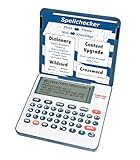
- English Dictionary and Thesaurus in One Device: Features a robust English dictionary with 80,000 headwords and 250,000 definitions, plus 15,000 synonyms and 12,000 antonyms to build vocabulary and fluency.
- Built-In English Grammar and Test Tools: Includes English lessons like irregular verbs, verb conjugation, noun/adjective inflection, confusables, and vocabulary banks for TOEFL, GRE, SAT, GMAT, and TOEIC prep.
- Word Solvers for Learning and Fun: Unlock your word skills with Crossword Solver, Anagram Solver, and Word Builder tools that help you solve puzzles, find anagrams, and build new words from scrambled letters.
- Interactive Word Games Included: Features classic educational games like Hangman, Conjumania, Flashcards, Spelling Bee, Word Train, Synonym Game, and more to make language learning fun and engaging.
- Portable Digital Device with LCD Screen: Lightweight and battery-powered, this device includes a zoomable 3-inch screen, adjustable contrast, keyboard sound control, and spell correction tools for everyday use.
Fix 5: Check the legacy shared-file path
This advanced step applies mainly to old Office and Outlook Express installations. It is not a normal repair for Microsoft 365.
Historical Microsoft troubleshooting references the registry location:
What’s actually slowing this PC down?
Pick the symptom - the matching free tool is one click away.
HKEY_LOCAL_MACHINESoftwareMicrosoftShared Tools
An incorrectly configured SharedFilesDir value can prevent the application from finding the Proof folder. Before changing anything:
- Press Win + R, type
regedit, and press Enter. - Approve the administrator prompt.
- Select the key you intend to change.
- Choose File > Export and save a backup.
- Check whether
SharedFilesDirpoints to the folder containingProof. - Confirm that the path ends with a trailing backslash when the legacy application expects one.
- Close Registry Editor and test the program.
Do not create registry values based only on a guessed path. If the folder or proofing files are absent, correct registry data will not solve the problem. Rerun the original Setup program instead.
Fix 6: Use the correct architecture
mssp232.dll is a 32-bit file. A 32-bit legacy Office program needs its 32-bit proofing dependencies even when it runs on 64-bit Windows 10 or Windows 11.
Do not replace it with a 64-bit DLL. Do not copy it into C:WindowsSystem32 or C:WindowsSysWOW64 merely because those folders contain system libraries. The normal location is the application’s shared proofing directory, such as:
C:Program FilesCommon FilesMicrosoft SharedProof
The correct path can vary with the original installation and Windows architecture. Let the application installer place the files where its configuration expects them.
If the legacy program installs successfully but behaves incorrectly on current Windows, compatibility may be the limiting factor. Try the program’s shortcut properties: right-click the shortcut, select Properties > Compatibility, and use compatibility settings only as a controlled test. If repair still fails, consider running the original application inside a suitable virtual machine with its supported operating system and licensed installation media.
Fix 7: Check Windows components only when other programs also fail
Because mssp232.dll is an application proofing component, Windows system-file repair is not the first treatment. Use it when multiple unrelated Windows applications show corruption, Windows features are failing, or system files were damaged.
- Right-click Start and select Terminal (Admin) or Command Prompt (Admin).
- Run:
DISM.exe /Online /Cleanup-Image /RestoreHealth
- Wait for it to complete.
- Then run:
sfc /scannow
- Restart Windows and retest the affected application.
Microsoft documents DISM image repair and System File Checker. These commands repair Windows components, not necessarily the proofing files installed by old Office software.
Recommended Free Tools
Repeatedly running SFC and DISM without knowing what changed can make troubleshooting circular. Outbyte PC Repair can scan for issues and show what it identifies, while the full version performs the repair; reinstalling the affected Office or legacy application remains the definitive fix for this file.
Independent reader supportYour contribution helps us test, update, and keep practical guides available for everyone.Fix 8: Update or reinstall related drivers only for broader failures
A graphics, printer or input driver is not a normal cause of a missing spelling engine. Consider driver work only if the application also crashes during printing, text input, display rendering or other hardware-related operations.
To check manually:
- Right-click Start and select Device Manager.
- Expand the relevant category, such as Display adapters, Printers, Keyboards or Human Interface Devices.
- Right-click the device and select Update driver.
- Choose Search automatically for drivers.
- If the device is malfunctioning, select Properties > Driver and review its status.
- Use Uninstall device only when you have a trusted replacement driver or Windows can reinstall it.
- Restart Windows and test again.
Outbyte Driver Updater can show which drivers are stale instead of making you hunt through many device entries; its free scan identifies issues, while the full version installs updates. It is not a substitute for reinstalling the program that owns mssp232.dll.
What not to do
Do not download an isolated DLL
Random DLL download sites can provide malware, the wrong version or the wrong architecture. Even a genuine-looking copy may not include Mssp2_en.lex, Csapi3t1.dll, language files or the registry configuration required by the application.
The Tool Desk
Outbyte PC Repair FREERepair Windows errors before they cause bigger problemsFix Now →Outbyte Driver Updater FREEFix the driver behind crashes, sound loss and screen glitchesFind Drivers →The safe sources are the affected program’s original installer, installation media, Microsoft Office repair, or an official Microsoft proofing or language package. No current standalone Microsoft download for this exact legacy filename has been verified.
Do not use System32 as a universal fix
Copying mssp232.dll into System32 can create another mismatch and does not repair the application’s proofing configuration. Keep application files with the application that installed them.
Best Value
Do not register it blindly
regsvr32 is intended for DLLs that expose registration entry points such as DllRegisterServer. A spelling engine is not made functional merely by registering it.
If this command produces an error such as “DllRegisterServer was not found,” that does not prove mssp232.dll is corrupt. Reinstall the proofing feature instead.
PC Slower Than It Used to Be?
A free scan shows the junk files, broken settings and background clutter dragging Windows down - then fixes them in one click.Free scan · Windows 10 & 11Crashes, No Sound, or Screen Glitches?
Random freezes, missing sound and display glitches usually trace back to one bad driver. Find and replace yours safely.Free scan · under a minuteFAQ
Is mssp232.dll a Windows system file?
No. It is associated with legacy Microsoft application proofing tools, not a normal Windows component in System32 or SysWOW64.
Why does the error appear during spell-checking?
The application may load the spelling engine only when proofing starts. The main program can therefore open normally while spell-checking fails.
Can mssp32.dll or MSSpell3.dll replace it?
Not automatically. Those are related but distinct proofing components, and Office generations can use different engines. Install the files selected by the affected program’s Setup process.
What if mssp232.dll exists but spell-check still fails?
Check for the matching .lex dictionary, the selected proofing language, related proofing files and the legacy SharedFilesDir configuration. Repairing the parent application is safer than replacing individual files.
Will Office repair restore this exact filename?
Not necessarily. Current Microsoft 365 may use newer proofing components. If an old program specifically requests mssp232.dll, repair or reinstall that legacy program using its original media.
Should I run System Restore?
Only if the failure clearly began after a recent system change and a suitable restore point exists. System Restore is not a replacement for reinstalling missing application proofing tools.
Quick Recap
Product prices and availability are accurate as of the date/time indicated and are subject to change. Any price and availability information displayed on Amazon at the time of purchase will apply.



