USB Loader GX can launch GameCube games stored on a USB drive or an SD card by passing them to Nintendont, the GameCube loader that runs as a Homebrew Channel app. The setup has three parts: install both programs, place each game image in the folder layout Nintendont expects, and select the storage device that holds the games. The project documentation describes storage categories, not tested drive models, so a specific hard drive, enclosure or card should be treated as something to verify rather than assume.
What you need before you start
- A Wii, or a Wii U running in vWii mode. The USB Loader GX README gives separate instructions for Wii and Wii U vWii, including different cIOS packages, so follow the section that matches your console.
- USB Loader GX and Nintendont, both installed as Homebrew Channel applications.
- A storage device. The options are a USB hard drive, a USB SD reader, or an SD card in the console’s slot. Each is covered in the storage section below.
- GameCube images in ISO, GCM or CISO format, made from discs you own.
Install USB Loader GX and Nintendont
Install USB Loader GX
- Place the USB Loader GX application files on the console’s SD card, following the installation steps in the project’s README.
- Install a compatible d2x cIOS package for your setup. On a Wii, use the Wii instructions; on a Wii U, use the vWii instructions. The README also describes cIOS slots and bases, so match the package to the slot your configuration uses.
- Treat the forwarder and the database update as optional. The README marks both as non-essential to getting GameCube games running.
Install Nintendont
- Create the folder
/apps/Nintendont/on the SD card. - Copy the Nintendont files into that folder. The Nintendont README lists
boot.dol,meta.xmlandicon.pngas the application files. - Open the Homebrew Channel on the console and confirm that Nintendont appears in the app list.
Arrange GameCube files on the storage device
Nintendont reads GameCube images from a /games/ folder on the storage device. Single-disc and two-disc games follow different naming rules, as shown below.
| # | Preview | Product | Price | |
|---|---|---|---|---|
| 1 |

|
Gamecube Console Platinum (Renewed) | $155.17 | Buy on Amazon |
| 2 |

|
Nintendo Gamecube System Console - Jet Black (Renewed) | $140.00 | Buy on Amazon |
| 3 |
|
GameCube (Jet Black) (Renewed) | $172.42 | Buy on Amazon |
| 4 |
|
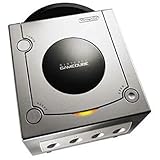
Gamecube Console Platinum | $164.99 | Buy on Amazon |
| 5 |

|
GameCube Console - Indigo (Renewed) | $187.69 | Buy on Amazon |
| Game type | Accepted image formats | Where it goes | Required filenames |
|---|---|---|---|
| Single-disc game | ISO, GCM or CISO | Directly in /games/, or in an optional subdirectory under it |
Not fixed by the README; the image name is yours to choose |
| Two-disc game | ISO | A subdirectory under /games/ holding both discs |
game.iso for disc one and disc2.iso for disc two |
- Create the
/games/folder at the top level of the USB drive or SD card if it does not already exist. - For a single-disc game, copy the ISO, GCM or CISO file into
/games/or into a subdirectory such as/games/Game Name/. - For a two-disc game, create a subdirectory, then copy the first disc as
game.isoand the second asdisc2.iso. Do not leave the names as the original dump names.
Choose the storage device
The Nintendont README is the most specific source on storage. It warns about USB flash drives, reports that the SD slot on Wii and Wii U can be slow, and recommends 32 KB clusters with FAT32 or exFAT formatting.
| Option | What the Nintendont README says | Practical note |
|---|---|---|
| USB hard drive | Suggested as an alternative when SD-slot performance is poor | Format as FAT32 or exFAT with 32 KB clusters. No specific drive model or capacity is named as compatible, so test your own drive. |
| USB flash drive | Described as potentially problematic | Avoid it as your first choice. Compatibility is not established by the project. |
| SD card in the console slot | Described as slow on Wii and Wii U | Usable for a small library, but slow load times are documented. Performance for a given card is not stated by the project. |
| USB SD reader | Suggested as the fix when the SD slot is slow | Same format rules apply. Reader models are not named in the documentation, so test the reader you own. |
To format with 32 KB clusters on Windows, choose the exFAT or FAT32 option in the format dialog and set the allocation unit size to 32 KB. On other systems, use the equivalent cluster-size setting.
#1 Best Overall
- Includes Nintendo Platinum GameCube Console, Power Cable, AV Cable, and Nintendo Platinum Controller
- Supports instructions for incredible effects -- your games will be brighter, faster, and more dramatic
- External bandwidth of 3.2GB/sec, for really fast gameplay
- The processor creates 6 to 12 million ploygons per second -- no more slowdowns in the middle of the game
Launch a GameCube game
- Start USB Loader GX from the Homebrew Channel.
- Confirm that the storage device holding your games is selected in its device settings.
- Choose the GameCube loader path configured for Nintendont. The project’s community guide uses a conventional
/games/directory example. - Select the game and launch it.
Controllers (optional)
The Nintendont documentation mentions the official Nintendo GameCube controller adapter. It is not required for the storage and loader setup described here. The project does not establish a single control requirement for every hardware configuration, so check the Nintendont README if you plan to use a specific controller setup.
Independent reader supportYour contribution helps us test, update, and keep practical guides available for everyone.Troubleshooting games that do not appear
Work through these checks in order. Most missing-game problems are caught by the first two.
Rank #2
- Includes Nintendo GameCube Jet Black Console, Power Cable, AV Cable, and Nintendo Jet Black Controller for Nintendo GameCube
- The 485MHz processor makes loading & starting the games faster than ever -- no more long load times
- The processor creates 6 to 12 million ploygons per second -- no more slowdowns in the middle of the game
- Supports instructions for incredible effects -- your games will be brighter, faster, and more dramatic
- Check the folder and filenames. Confirm the game sits in
/games/or its subdirectory, and that two-disc games usegame.isoanddisc2.iso. - Check the device and path settings. Make sure USB Loader GX is looking at the correct device and the GameCube path matches the folder you used.
- Check the storage type. A USB flash drive may be the problem, and an SD slot may be slow enough to cause timeouts. Switching to a USB hard drive or USB SD reader is the documented alternative.
- Check the console setup. Confirm you followed the Wii or Wii U vWii instructions, especially for the cIOS package.
- Do not assume a drive defect. If the checks above pass and the game still fails, test the same game on a different device before concluding the drive is at fault. The documentation does not provide a list of tested drives, so a failure on one model does not prove a general problem, and a success on another does not guarantee compatibility.
The USB Loader GX README describes the project’s scope as follows: it lets you play Wii and GameCube games from a USB storage device or an SD card, launch other homebrew apps, create backups and use cheats. Project documentation changes between releases, so check the current README for version numbers and installation steps before you begin.
Quick Recap
Best Value
Rank #4
- Includes Nintendo Platinum GameCube Console, Power Cable, AV Cable, and Nintendo Platinum Controller
- Supports instructions for incredible effects -- your games will be brighter, faster, and more dramatic
- External bandwidth of 3.2GB/sec, for really fast gameplay
- The processor creates 6 to 12 million ploygons per second -- no more slowdowns in the middle of the game
- It also includes 64 sound channels -- you'll feel like you're in the game, with the top-quality audio
Rank #3
- Comes with console, 1 controller, power cord, video cord
- Controller is original OEM (not 3rd party)
- Tested and works well. Nice condition
Product prices and availability are accurate as of the date/time indicated and are subject to change. Any price and availability information displayed on Amazon at the time of purchase will apply.
Do these 3 things before closing this tab:
1Scan for outdated or missing drivers - takes under a minute2Repair Windows errors before they cause bigger problems3Fix the driver behind crashes, sound loss and screen glitches



