If your PS5 stays solid blue or blinks blue instead of changing to white, Sony classifies the indicator state as a console error. It does not prove that the motherboard, power supply, or HDMI port has failed. The cause may be a temporary startup freeze, display-path problem, corrupted system software, storage trouble, or hardware failure.
Work through the checks below in order. Start with cables and a safe power cycle, then use PS5 Safe Mode. Avoid a factory reset or system-software reinstall until less destructive options have failed and important data is backed up.
As an Amazon Associate I earn from qualifying purchases.
What the PS5 blue light means
A normally starting PS5 briefly shows blue and then changes to solid white. Solid white means the console is on. If the light remains blue, blinks blue, or becomes blinking white without completing startup, Sony identifies this as a console error. The light is a symptom, not a component-level diagnosis.
| Indicator | Meaning |
|---|---|
| Blue, then white | Normal startup |
| Solid white | Console is on |
| Solid orange | Rest Mode |
| Blinking orange | Entering Rest Mode |
| Blinking white, solid blue, or blinking blue | Console error or frozen startup |
| No light | Console is off |
See Sony’s power-indicator guide for the official light meanings.
#1 Best Overall
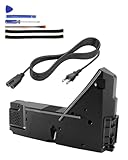
- Wide Compatibility: Internal power supply replacement compatible with PS5, supporting ADP-400DR, ADP-400ER and PA-1401-JT20 power supply models, compatible with CFI-1015A, CFI-1015B, CFI-1115A, CFI-1115B, CFI-1016A/B, CFI-1116A/B, CFI-1002A/B, CFI-1102A/B, CFI-1018A/B and CFI-1118A/B, suitable for PS5 Digital Edition and Ultra HD Console
- Power Adapter Voltage: Game console internal power supply, input voltage is 100-127V, 4.5A 50/60Hz, 200-240V, 2.3A 50/60Hz, output voltage is +12V, 31A, please confirm power supply specifications required by your console before purchasing to ensure perfect compatibility and optimal performance
- Stable Power Support: Replacement internal power supply AC adapter brick can provide stable power support for game console, enhance gaming experience, solve problems such as game lag, shutdown caused by unstable power supply, and improve gaming experience
- High Quality ABS Material: Made of high quality ABS material, has excellent wear resistance and anti-aging properties, is not easy to crack or rust, and can remain stable and reliable even after long term use, providing safer, more durable and longer-lasting power support for equipment
- Easy Installation: Internal power source replacement comes with necessary power cord and screwdriver, allowing direct replacement of original adapter, do not forcefully disassemble during installation to avoid damaging internal components of game console, can search for relevant installation videos for disassembly and installation guidance
First determine whether this is a boot problem or a display problem
A blue light with no picture does not automatically mean the PS5 has failed to boot. The display path can fail while the console is operating.
- Confirm that the cable is connected to the PS5’s HDMI OUT port and the television or monitor’s HDMI input.
- Select the correct HDMI input on the display.
- Connect the PS5 directly to the TV or monitor. Temporarily remove an AV receiver, HDMI switch, soundbar, or capture device.
- Try another HDMI cable and, if possible, another compatible TV or monitor.
- Disconnect external USB storage, USB hubs, and unnecessary accessories.
If the light eventually becomes white, prioritize HDMI, input, resolution, and HDCP troubleshooting. If it never becomes white, continue with the power-cycle and Safe Mode steps.
Power-cycle the PS5 safely
- Press and hold the PS5’s power button until it beeps and the screen goes blank.
- Wait until the indicator stops flashing and turns off completely.
- Remove the power cable.
- Leave the PS5 disconnected for 20 minutes.
- Reconnect the cable and try starting normally.
- If it still fails, try entering Safe Mode.
Normally, do not disconnect AC power while the indicator is lit or blinking: Sony warns that doing so can cause data loss, corruption, or console damage. The 20-minute disconnection above is part of Sony’s specific troubleshooting procedure after the console has been shut down. If the console repeatedly shuts down immediately, smells of burning, has liquid damage, or becomes unusually hot, stop and arrange a repair.
The Tool Desk
Outbyte PC Repair FREEClear out junk files and repair common Windows errorsFree Scan →Outbyte Driver Updater FREEScan for outdated or missing drivers - takes under a minuteDriver Scan →If the problem may be power-related, you can also test another suitable outlet and compatible power cable. Avoid repeatedly forcing shutdowns or unplugging the console while it is attempting to start.
Rank #2

- ps5 power supply for: CFI-1015A/B、CFI-1115A/B、CFI-1016A/B、CFI-1116A/B、CFC-1002A/B、CFI1018A/B (PS5 Digital Edition & Ultra HD game console)
- Attention! To avoid purchasing the wrong model and not being able to use it, please carefully check the model of your PS5 host!
- Power supply model: ADP 400DR&ADP 400ER&PA-1401-JT20 Both can be used
- Voltage: Game machine power supply unit adapter with input voltage of 100‑127V, 4.5A 50/60Hz, 200‑240V, 2.3A 50/60Hz, output voltage of +12V, 31A
- Easy To Install: The console power supply unit is easy to install and use, no drivers or other special settings are required.
Start the PS5 in Safe Mode
- Turn the PS5 off by holding the power button for about three seconds. The indicator should blink briefly and then turn off.
- Press and hold the power button again.
- Release it after the second beep. The second beep occurs about seven seconds after the first.
- Connect the DualSense controller to the PS5 with a USB cable.
- Press the controller’s PS button.
Use a known-good USB cable that supports data, not a charge-only cable. Safe Mode loads basic functions for troubleshooting display output, storage, databases, and system software. Sony’s current instructions are on its PS5 Safe Mode support page.
If Safe Mode does not appear
Try these once, in order:
- Use another HDMI cable.
- Try another TV or monitor.
- Connect directly to the display rather than through an intermediary device.
- Use another data-capable USB cable for the controller.
- Try another compatible power cable or outlet.
- Perform the 20-minute power cycle and retry Safe Mode.
If Safe Mode still cannot be displayed, Sony says the console may require repair. Do not keep repeating forced power cycles indefinitely. Use Sony’s repair diagnostic and hardware support.
Safe Mode options, from safest to most destructive
Choose the option that matches the symptom. Menu labels can vary slightly by system-software version or region, so follow the labels shown on your own console.
Do these 3 things before closing this tab:
1Repair Windows errors before they cause bigger problems2Fix the driver behind crashes, sound loss and screen glitches3Clear out junk files and repair common Windows errors| Option | What it does | Data risk | When to use it |
|---|---|---|---|
| Restart PS5 | Exits Safe Mode and attempts a normal restart. | Low | First attempt after Safe Mode opens. |
| Change Video Output | Changes resolution or HDCP mode. | Low | Safe Mode appears but the normal display is blank or incompatible. |
| Repair Console Storage | Addresses storage-related startup problems without erasing data, according to Sony. | Low | The PS5 does not start properly or reports storage trouble. |
| Clear System Software Cache | Clears cached system data. | Low | System-feature problems or performance issues. |
| Rebuild Database | Scans the drive and creates a new content database. | Generally lower risk; back up first | Database or system-feature problems, such as a deleted game icon remaining. |
| Update System Software | Installs current PS5 system software. | Low if successful | An interrupted update, long period offline, or suspected software damage. |
| Restore Default Settings | Restores settings. Sony says games, apps, screenshots, clips, and saved data remain on the console. | Settings change | A persistent settings-related problem. |
| Reset PS5 | Restores the console to its original state. | Deletes user data | Last resort after backup and less destructive recovery. |
| Reset PS5 (Reinstall System Software) | Removes the system software and installs it again. | Deletes all data | Final software-recovery attempt. |
A practical order is: Restart PS5, then Change Video Output if the issue is a blank screen, followed by Repair Console Storage, Clear System Software Cache, Rebuild Database, and Update System Software as appropriate.
Rank #3

- Compatible with PS5: Please MUST confirm your model before place the order, our photo and video could help to confirm the model!!!!!Other wise it can't work!!!! The power supply replacement compatible with PlayStation 5 PS5 ADP-400DR / ADP-400ER /PA-1401-JT20. For : CFI-1015A/B、CFI-1115A/B、CFI-1016A/B、CFI-1116A/B、CFC-1002A/B、CFI1018A/B (for PS5 Digital Edition & Ultra HD Console).Input voltage of 100‑127V, 4.5A 50/60Hz, 200‑240V, 2.3A 50/60Hz, output voltage of +12V, 31A.
- Replacement Application: When your console meet with the problem of can’t turn on/suddenly shuts down/power indicator light is abnormal/unable to charge or provide power,etc. Replace the new power supply for PS5 400DR, which will help to solve these problem and make the console normal to use.
- Quality Guarantee: For PS5 ADP-400ER internal power Source replacement was test before shipment,and the 400ER power supply are made of good quality, ABS plastic material make it use more accurately and has longer working life,resistant to wear and tear,. The controller will use as a new one after replacing for PA-1401-JT20 console power supply replacement and bring a new life.
- Convenient Installation: Comes with new power cable and set tools. The power cable could help to replace the damaged or loosed power cable, more stable to charge. And the repair tools, help to disassemble the console and install the power supply, save time and convenient to install the new one.
- Suggestion Tips: If do not have any installation experience, we suggest to find the professional to replace for PS5 ADP-400DR / ADP-400ER internal power supply. If you have any problem or need installation guide, please leave a message.
Update or reinstall PS5 system software from USB
Manual update
- Format a USB drive as FAT32 or exFAT.
- Create a folder named
PS5. - Inside it, create
UPDATE. - Download the official update file from Sony’s PS5 system-software page.
- Save it in the
UPDATEfolder using Sony’s required filename and uppercase folder names. - Insert the drive into the PS5.
- Open Safe Mode and select Update System Software > Update from USB Storage Device > OK.
Sony currently says the update process needs approximately 1.1 GB of free space.
Complete reinstallation
- Format the USB drive as FAT32 or exFAT.
- Create
PS5UPDATE. - Download Sony’s official reinstallation file.
- Save it as
PS5UPDATE.PUPinside theUPDATEfolder. - Insert the drive and start Safe Mode.
- Select Reset PS5 (Reinstall System Software).
The reinstallation file needs approximately 1.2 GB of free space, and reinstallation deletes all console data. Use only Sony’s official files. Do not turn off the PS5 during installation, and do not begin an installation immediately before or after a power outage. Modified consoles or unofficial files may fail and can affect warranty or repair eligibility.
Independent reader supportYour contribution helps us test, update, and keep practical guides available for everyone.Use this decision tree
- Safe Mode appears and Restart fails: Try Repair Console Storage, Clear System Software Cache, and then Rebuild Database.
- Safe Mode appears but the screen is blank: Try Change Resolution or Change HDCP Mode, then test another display and HDMI path.
- The problem began after an update or outage: Prioritize Update System Software, using USB if the normal update fails.
- Update fails repeatedly: Use Sony’s official USB procedure. Consider reinstalling only after protecting important data.
- Safe Mode cannot open: Focus on HDMI, display, USB-controller, power-cable, and 20-minute power-cycle checks, then seek repair.
- The blue light returns after a successful reinstall: Hardware failure becomes more likely; professional diagnosis is appropriate.
Possible causes—but do not treat the light as a diagnosis
Potential causes include a temporary startup freeze, corrupted or interrupted system software, storage or database inconsistency, an HDMI or HDCP problem, a faulty power cable or outlet, an external USB device, inadequate ventilation, a damaged HDMI port, internal power-delivery failure, or another internal hardware fault.
Sony’s public support material provides troubleshooting paths for software, display, cables, storage, and repair, but it does not identify one specific failed component for every blue-light case. Do not assume the APU, motherboard, power supply, or HDMI port is defective from the indicator alone.
Rank #4

- FOR 2-PRONG DEVICES: Works with most TVs, monitors, printers, and other devices that require a 2-pin power connector
- COMPATIBILITY: compatible with PS3, PS3 Slim, PS4, PS4 Slim, PS5, Xbox One S, Xbox One X, Xbox Series S, Xbox Series X, Apple TV, many printer, consumer electronics, and power brick models
- FEATURES: High Quality 2 Prong 10ft AC Power Cord, universal power cable is perfect for bedroom, living room office and home use.
- PACKAGE INCLUDE: 1 x High Quality 10ft AC 2 Prong Power Cord
Should you repair or replace the PS5?
| Situation | Best next step |
|---|---|
| Under warranty | Use Sony or an authorized service route before opening the console. |
| Blue light plus no image | Test the HDMI path and Safe Mode video options first. |
| Safe Mode works and data matters | Use non-destructive repair and update options; avoid reset commands. |
| Safe Mode works but software is irrecoverable | Back up what you can, then consider reinstallation. |
| No Safe Mode, repeated blue light, or physical symptoms | Get a professional diagnosis. |
| Out of warranty with a confirmed HDMI-port fault | Compare a reputable microsoldering repair with replacement. |
| Major board or power-supply fault | Compare the complete repair cost and turnaround with a refurbished or new PS5. |
| Inexperienced owner | Avoid DIY internal repair. |
A toolkit or replacement part cannot diagnose the fault. HDMI-port replacement normally requires board-level soldering, while power supplies and other parts can be model-specific. If you are considering third-party parts, check your exact CFI model and warranty status; iFixit’s PS5 parts catalog and repair guides show that compatibility varies. Parts, tools, shipping, and labor also add to the listed component price.
For a failed out-of-warranty console, compare Sony’s repair service with a reputable local technician and the cost of a refurbished replacement. Sony’s U.S. support page currently warns that service turnaround times may be extended, and prices or stock for replacement consoles vary by region and date.
When to stop troubleshooting
Stop DIY work and seek service if the PS5 has liquid or physical damage, a burning smell, unusual heat, repeated immediate shutdowns, or a blue light that persists after cable checks, power cycling, Safe Mode recovery, and appropriate software repair. Do not open the console or replace internal parts before checking warranty and data-preservation implications.
Outdated Drivers Are Slowing You Down
One free scan finds every outdated or missing driver and matches the right update for your exact hardware.Free scan · exact hardware matchPC Slower Than It Used to Be?
A free scan shows the junk files, broken settings and background clutter dragging Windows down - then fixes them in one click.Free scan · Windows 10 & 11Quick Recap
Product prices and availability are accurate as of the date/time indicated and are subject to change. Any price and availability information displayed on Amazon at the time of purchase will apply.




