riafui1.dll is a printer-driver component, not a Visual C++ runtime or a general-purpose application DLL. The safest fix is usually to remove the damaged Ricoh PCL printer driver and install the complete, architecture-matched package again.
What this file actually does
The file’s description is PCL Unidrv Printer Driver UI Plugin. It belongs to the printer-driver layer used by Ricoh PCL packages together with Microsoft’s Unidrv printing architecture.
That makes the file both Microsoft-related and Ricoh-related:
- Microsoft supplies the Windows Unidrv printing framework.
- Ricoh supplies printer-specific driver packages and configuration components.
riafui1.dllmay be installed as part of an older or specific Ricoh PCL driver package.- It is not present on every Windows installation.
- It is not normally part of Visual C++, DirectX, .NET, or a game.
Older Windows and printer-driver generations can contain different copies of the file. Historical records show both 32-bit Windows-era copies and later 64-bit Ricoh package copies. There is no single size, version, path, or architecture that applies to every installation.
Quick wins for a faster PC:
Scan for outdated or missing drivers - takes under a minuteDriver Scan →Repair Windows errors before they cause bigger problemsFix Now →Fix the driver behind crashes, sound loss and screen glitchesFind Drivers →#1 Best Overall

- Monochrome Wireless, Duplex 4-in-1: Print, Scan, Copy, Fax
- Print up to 42 ppm
- Easy Wireless Setup
- 5-inch Touchscreen
- Mobile Device Printing
A missing-file message may appear when Windows opens printer properties, installs a printer, starts the print spooler, or launches software that invokes a printer component. The program named in the error is not necessarily the original owner of the DLL. Windows may be loading the file because that program requested access to a printer or printer settings.
Causes matched to symptoms
| Symptom | Most likely cause | Best response |
|---|---|---|
| Error appears when opening Ricoh printer properties | Incomplete or damaged Ricoh PCL driver | Remove and reinstall the complete Ricoh package |
| Error began after deleting a printer | Stale driver reference or partial uninstall | Remove the old driver from Print Server Properties |
| Error appears during shared-printer installation | Print-server package mismatch | Ask the administrator to update the server driver |
| “Not designed to run on Windows” appears | Wrong architecture or driver generation | Install the correct 32-bit or 64-bit package |
| Antivirus quarantined the file | False positive or counterfeit DLL | Verify the path and reinstall from the official vendor |
| Several Windows components also fail | Windows component corruption | Run DISM, then SFC |
| File appears outside a printer-driver directory | Possible counterfeit or malware | Scan the system and identify the calling program |
regsvr32 reports no entry point |
Normal for this type of driver DLL | Install the printer package instead of registering the file |
First, identify what is actually failing
Before replacing anything, determine whether the error belongs to a Ricoh printer installation.
Check the exact error and trigger
Write down the full message. Common variants include:
- “The program can’t start because riafui1.dll is missing from your computer.”
- “This application failed to start because riafui1.dll was not found.”
- “Error loading riafui1.dll.”
- “The code execution cannot proceed because riafui1.dll was not found.”
- “riafui1.dll is either not designed to run on Windows or it contains an error.”
Then note when it appears:
- Open Settings.
- Select Bluetooth & devices.
- Select Printers & scanners.
- Open the affected printer, if it is listed.
- Select Printer properties or Printing preferences.
On Windows 10, open Settings > Devices > Printers & scanners instead.
If the error appears at this point, the Ricoh driver is the primary suspect. If it appears when launching unrelated software, continue with the file-path and signature checks below before changing the printer installation.
Identify the printer model
Look at the printer’s label, its Windows entry, or the print server’s shared-printer name. Record:
- Ricoh model
- Whether the driver is PCL, PCL6, PostScript, or another type
- Whether the printer is local or shared
- Whether the problem affects one printer or every printer
Do not choose a replacement based only on the filename. A package for a different Ricoh model may contain a file with the same name but incompatible supporting files.
Check Windows architecture
To check the operating-system architecture:
- Right-click Start.
- Select System.
- Find System type under Device specifications.
It will identify a 64-bit or 32-bit operating system. Install a driver package that supports that architecture. A 32-bit riafui1.dll is not a valid substitute for a 64-bit driver package, and copying a file into a system folder does not convert one architecture into the other.
The Tool Desk
Outbyte Driver Updater FREEScan for outdated or missing drivers - takes under a minuteDriver Scan →Outbyte PC Repair FREEClear out junk files and repair common Windows errorsFree Scan →Fix 1: Remove and reinstall the Ricoh printer driver
This is the most likely working fix when the error appears around printer properties, printing, or printer installation.
Rank #2

- BEST FOR SMALL BUSINESSES – Engineered for extraordinary productivity, the Brother DCP-L2640DW Monochrome (Black & White) 3-in-1 combines laser printer, scanner, copier in one compact footprint and delivers high-quality black & white prints
- FAST PRINTER WITH EFFICIENT SCANNING – Produces documents quickly with print speeds up to 36 ppm(2) and scan speeds up to 23.6/7.9 ipm(3) (black/color). A 50-page auto document feeder(4) allows for convenient, time saving multi-page scanning and copying
- FLEXIBLE CONNECTION OPTIONS – Easily navigate the changing demands of your business with secure multi-device connectivity via built-in dual-band wireless (2.4GHz / 5GHz) and Ethernet. Or connect locally to a single computer via USB interface
- BROTHER MOBILE CONNECT APP – Print, scan, and manage your wireless printer anytime, from almost anywhere from your mobile device. Order Brother Genuine Supplies, track toner usage, and complete more work on-the-go(5)
- CHOOSE BROTHER GENUINE TONER – When it’s time to replace your toner, be sure to choose Brother Genuine TN830 or TN830XL replacement toner. And with Refresh EZ Print Subscription Service, you’ll never worry about running out of toner again and you’ll enjoy savings of up to 50%(6) on Brother Genuine Toner. Get started with Refresh today with a Free Trial(1)
Remove the printer
- Open Settings.
- Select Bluetooth & devices > Printers & scanners on Windows 11.
- Select Devices > Printers & scanners on Windows 10.
- Select the affected Ricoh printer.
- Choose Remove or Remove device.
- Confirm the removal.
If the printer is shared, write down its network path first. You may need the administrator to reinstall it after the server package is corrected.
Remove the stale driver package
Removing the printer does not always remove its driver files. Use the classic printer interface:
- Press Windows key + R.
- Type
control printers. - Press Enter.
- Select any printer in the window.
- Select Print server properties from the toolbar or menu.
- Open the Drivers tab.
- Select the Ricoh driver associated with the removed printer.
- Select Remove.
- Choose Remove driver and driver package when Windows offers that choice.
- Confirm the removal.
If Windows says the driver is in use, restart the computer and try again. If the print spooler is holding the package, use these steps:
Free tools Windows power users keep installed
One-click scans. No signup required.
- Press Windows key + R.
- Type
services.msc. - Press Enter.
- Find Print Spooler.
- Right-click it and select Stop.
- Return to Print Server Properties and remove the driver.
- Return to Services.
- Right-click Print Spooler and select Start.
- Restart Windows.
Do not manually delete random DLLs from C:WindowsSystem32, C:WindowsSysWOW64, or the driver store. Removing individual files can leave a broken INF, registry entry, or spooler reference behind.
Install the correct package
Download the driver from Ricoh’s official support portal, using the printer model and Windows architecture as filters. Select the package that matches the printer and the required language. If Ricoh offers both a model-specific package and a Universal Print Driver, use the model-specific package when available.
Then:
- Extract the downloaded package if it is compressed.
- Run the included setup program as an administrator.
- Follow the prompts for a local USB printer or network printer.
- If the package uses Windows printer setup, open Settings > Printers & scanners.
- Select Add device or Add a printer or scanner.
- Choose the appropriate local, network, or shared-printer option.
- Select the Ricoh driver package when Windows asks for a manufacturer and model.
- Finish the installation.
- Print a test page.
If the printer properties window opens without the DLL error and the test page prints, the repair worked.
Manually comparing dozens of old driver packages can be tedious, particularly when Windows has retained several versions. Outbyte Driver Updater can scan for outdated drivers and show what needs attention; its full-version repair performs the driver installation, but it is not required when you can obtain the exact Ricoh package directly.
Fix 2: Repair a shared printer or print server installation
A shared printer can reinstall a bad or incompatible package even after you repair the client computer.
Ask the print-server administrator to:
- Identify the Ricoh queue and its current driver.
- Confirm that the driver supports the client’s Windows architecture.
- Install a current, signed Ricoh package on the server.
- Remove the obsolete driver package if it is no longer required.
- Restart the print spooler if Windows requests it.
- Have the client remove and reconnect to the shared printer.
On your computer, remove the old shared printer first:
- Open Settings > Bluetooth & devices > Printers & scanners.
- Select the shared Ricoh printer.
- Select Remove.
- Restart Windows.
- Reconnect using the server’s approved printer path.
Microsoft’s package-based point-and-print system is designed to copy the required driver package to the client. If the connection still requests riafui1.dll, the server may be publishing an old or incomplete package rather than the client simply missing one isolated file.
Rank #3
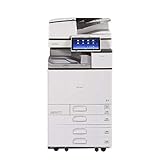
- Comes with Built-In WIFI and 10.1" wide smart operation panel.
Fix 3: Check antivirus quarantine
Security software may have quarantined a legitimate driver file, or an unsafe file may have used the same name.
Recommended Free Tools
- Open Windows Security.
- Select Virus & threat protection.
- Select Protection history.
- Look for an entry involving
riafui1.dll. - Note the file path, detection name, and action taken.
Do not restore the file automatically. A credible copy should be located inside a Ricoh or Windows printer-driver directory, have a valid digital signature where applicable, and be accompanied by the rest of its driver package.
If the path is unfamiliar, the signature is invalid, or the file appeared in an application directory unrelated to printing, leave it quarantined and run a full Microsoft Defender scan. The safer recovery is to remove the affected driver and reinstall it from Ricoh rather than restoring an isolated DLL.
To inspect a file signature:
- Right-click the file.
- Select Properties.
- Open the Digital Signatures tab, if present.
- Select the signer.
- Choose Details.
- Confirm that Windows reports the signature as valid.
A valid signature does not prove that a file belongs to the correct printer, but an invalid or unexpected signature is a reason to stop and investigate.
Fix 4: Run DISM and SFC for Windows component corruption
Use Windows repair commands when multiple Windows features are failing, Windows updates are damaged, or the problem began after broader system corruption. These commands may not restore an old Ricoh vendor DLL because third-party printer files are not necessarily protected Windows system components.
Windows Errors? Fix Them Before They Spread
Repair common Windows errors and clear accumulated junk for a smoother, more stable PC - no reinstall needed.Free scan · no reinstallOutdated Drivers Are Slowing You Down
One free scan finds every outdated or missing driver and matches the right update for your exact hardware.Free scan · exact hardware matchFirst install pending Windows updates and restart. Then:
- Right-click Start.
- Select Terminal (Admin) or Command Prompt (Admin).
- Select Yes at the User Account Control prompt.
- Run:
DISM.exe /Online /Cleanup-Image /RestoreHealth
- Wait for it to finish.
- Then run:
sfc /scannow
- Wait until verification reaches 100 percent.
- Restart Windows.
- Test the printer again.
Microsoft explains that DISM repairs the Windows component store and SFC checks protected system files. If SFC reports that it found no integrity violations, that does not rule out a missing Ricoh driver.
If DISM reports that the operation failed, restart and run the command again from an elevated terminal. If SFC reports that it could not repair some files, review the Windows repair result and proceed with the Ricoh driver removal and reinstall rather than copying riafui1.dll from another computer.
When manually repeating DISM and SFC does not make clear which Windows components need attention, Outbyte PC Repair can scan for system problems; its full-version repair performs the repair, but Microsoft’s built-in commands remain the direct no-cost method.
Fix 5: Confirm that the driver is not simply the wrong generation
An old Ricoh PCL Unidrv package may have been designed for an earlier Windows release, while the installed operating system expects a different package model. This can produce messages such as:
Rank #4

- Prints up to 30 ppm, copy, scan, optional fax
- 1200x1200 dpi max print resolution
- Paper capacity up to 4,700 pages
- Add software and applications as necessary to meet emerging needs
- The file is not designed to run on Windows.
- The procedure entry point could not be found.
- The module could not be loaded.
- The printer properties dialog closes unexpectedly.
In this situation:
- Remove the printer and old driver as described above.
- Restart Windows.
- Download a current Ricoh package for the exact printer model.
- Match the package to 32-bit or 64-bit Windows.
- Install the package through its installer or Windows printer setup.
- Avoid mixing files from an old PCL package with files from a newer PCL6 or V4 package.
Current Windows 10 and Windows 11 systems do not necessarily require this exact legacy filename. If the printer works with a newer Ricoh package that does not contain riafui1.dll, that is acceptable. The goal is a functioning, supported driver package, not preservation of one historical DLL name.
Why regsvr32 usually does not apply
regsvr32 is used for DLLs that expose a COM self-registration entry point such as DllRegisterServer. A printer UI plugin is normally installed through the printer-driver package, its INF file, and Windows print-driver setup.
Do not use this as the primary repair:
regsvr32 riafui1.dll
A message stating that DllRegisterServer was not found does not prove that the file is broken. It usually means the DLL is not designed for self-registration.
What’s actually slowing this PC down?
Pick the symptom - the matching free tool is one click away.
Registering the file also would not install its INF, dependent files, printer configuration, architecture-specific components, or spooler settings. Reinstall the complete driver instead.
Why downloading a standalone DLL is unsafe
Avoid DLL download sites and random forum attachments. An isolated file may be:
- Malware using a familiar filename
- The wrong 32-bit or 64-bit architecture
- From an incompatible Ricoh driver generation
- Missing dependent files
- Unsigned or tampered with
- Unable to repair the INF and printer configuration that caused the error
Never copy a downloaded replacement into both System32 and SysWOW64. Do not overwrite a Windows file with one selected only by filename.
Use the official Ricoh support portal, Windows printer setup, Windows Update, or an administrator-controlled print server. Microsoft’s documentation on print driver packages explains why a complete package is preferable to an isolated DLL.
If the error persists
Use this escalation order:
- Check whether the error occurs with one Ricoh printer or all printers.
- Confirm the printer model and Windows architecture.
- Remove the printer and its driver package.
- Restart the Print Spooler and Windows.
- Install the correct Ricoh package.
- Check antivirus quarantine and the file’s path and signature.
- Run DISM followed by SFC if other Windows components are also failing.
- Ask the print-server administrator to update the shared package.
- If the problem began immediately after a driver or Windows change, consider System Restore.
- If the file keeps returning outside a printer-driver directory, run a full Microsoft Defender scan and identify which executable is requesting it.
If an unrelated application requests the file, inspect that application’s installation and DLL search path before assuming the printer driver is responsible. A program that happens to display the same filename in its error message may have bundled, copied, or referenced a different component.
FAQ
Is riafui1.dll a Windows system file?
It is associated with Microsoft’s Windows printing architecture, but it is not present on every Windows installation and should not be treated as a universal system DLL. It is commonly encountered through a Ricoh PCL printer-driver package.
Best Value
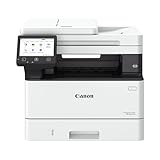
- Monochrome, Wireless, Duplex 4-in-1: Print, scan, copy, fax.
- Fast Print Speeds: Print up to 37 pages per minute and spend less time waiting with a quick first print time of approximately 5 seconds.
- Easy Wireless Setup: Setup your wireless connection and get up and running in just a few steps2
- 5-inch Color Touchscreen: Get the job done quickly with Application Library - an intuitive and easy to use customizable access to the features you use most.
- Mobile Device Printing: Print from your compatible mobile devices using the free Canon PRINT app, Apple AirPrint and Mopria Print Service.
Is it part of Visual C++?
No. Installing Visual C++ Redistributable is not the normal repair for this file.
Is it malware?
The filename alone does not answer that. A copy in a credible printer-driver directory with a valid signature is more consistent with a legitimate driver component. A copy in an unrelated application folder, with an invalid signature or unexpected behavior, should be scanned and investigated.
Do these 3 things before closing this tab:
1Scan for outdated or missing drivers - takes under a minute2Clear out junk files and repair common Windows errors3Fix the driver behind crashes, sound loss and screen glitchesShould I copy the file into System32?
No. Install the complete Ricoh driver package that matches the printer and Windows architecture.
Should I run SFC?
Run DISM followed by SFC when Windows itself appears corrupted or several protected system files are failing. SFC may not restore a missing third-party Ricoh component.
Does regsvr32 fix it?
Usually not. This file should be installed through the printer-driver package, not registered as a general COM DLL.
What if I removed the printer already?
Also remove its stale driver from Print Server Properties > Drivers, restart Windows, and install the correct Ricoh package again.
What’s actually slowing this PC down?
Pick the symptom - the matching free tool is one click away.
What if the printer is supplied by a server?
The administrator should update the driver on the print server. Then remove and reconnect the shared printer on the client so Windows receives the corrected package.
What if the error appears after every reboot?
Check whether a startup program, printer utility, or stale scheduled task is still requesting the old driver. Remove the obsolete printer package, inspect antivirus quarantine, and scan the system if the file appears outside normal driver locations.
Quick Recap
Product prices and availability are accurate as of the date/time indicated and are subject to change. Any price and availability information displayed on Amazon at the time of purchase will apply.



