Roblox does not have one universal first-party tool called an Asset ID Finder. The fastest option depends on where the asset is: copy the number from its Roblox URL, or open Roblox Studio’s Asset Manager and choose Copy Asset ID. You can then verify an unknown number with Roblox’s API, search for it in Studio, preview it, or insert it—provided the asset type and permissions are correct.
This guide covers images, decals, audio, meshes, models, animations, plugins, videos, fonts, avatar items, packages, and the less obvious difference between finding an asset’s ID and finding every object in a place that uses it.



As an Amazon Associate I earn from qualifying purchases.
What is a Roblox asset ID?
A Roblox asset ID is the unique numeric identifier Roblox assigns to cloud-hosted content. Assets can include images, decals, meshes, models, audio, videos, fonts, animations, packages, plugins, and avatar items. In Studio and Luau, an asset is commonly referenced like this:
What’s actually slowing this PC down?
Pick the symptom - the matching free tool is one click away.
rbxassetid://123456789The number is the important part, but an ID by itself does not tell you whether it belongs to an image, sound, model, place, avatar item, or another Roblox object. The property or API using the ID must support that asset type. Roblox’s asset documentation explains the main asset-reference formats and content types.
#1 Best Overall
Do not confuse these Roblox IDs
| Path or identifier | What it usually identifies |
|---|---|
/store/asset/123456789/... |
Creator Store development asset |
/catalog/123456789/... |
Marketplace avatar item asset |
/library/123456789/... |
Legacy Roblox asset URL |
/games/123456789/... |
A place or experience-related ID, not automatically an asset ID |
/bundles/123456789/... |
Avatar bundle ID |
/users/123456789/... |
User ID |
/groups/123456789/... |
Group ID |
rbxassetid://123456789 |
Engine content reference; the number normally refers to an asset |
| Asset version ID | A particular version of an asset, which is not necessarily the base asset ID |
Always interpret the URL path before copying a number. A number appearing in a Roblox URL is not automatically an asset ID. Roblox’s Marketplace overview also distinguishes avatar items from development assets available through the Creator Store.
Fastest way to find a Roblox asset ID
| What you have | Best method |
|---|---|
| An asset page | Read the numeric part of the URL |
| An asset already in Studio | Asset Manager → right-click the asset → Copy Asset ID |
| A Creator Store asset | Toolbox → search for it → inspect or insert it, then use Copy Asset ID where available |
| An uploaded asset | Creator Dashboard → Development Items → asset menu → Copy Asset ID |
| A file just imported into Studio | Right-click the imported item → Copy asset ID |
| Only an unknown number | Call MarketplaceService:GetProductInfoAsync() |
| A specific asset to insert | Studio Assistant’s /insert_asset command or the Studio command-line option |
| Every object using an ID | Inspect properties or use a Studio reference-scanning plugin/custom plugin |
Find an asset ID from a Roblox URL
Creator Store assets
A current Creator Store link generally looks like:
https://create.roblox.com/store/asset/123456789/asset-nameThe number immediately after /asset/ is the Creator Store asset ID. The text after the number is usually the asset’s name and is not part of the ID. If the link contains query parameters, ignore those unless the path itself does not contain the expected asset segment.
Marketplace avatar items
Avatar items commonly use a catalog URL such as:
https://www.roblox.com/catalog/123456789/item-nameFor an avatar item, the number after /catalog/ is the item’s asset ID. Roblox describes this method in its Browser: Customizing Your Avatar support article.
The Tool Desk
Outbyte Driver Updater FREEFix the driver behind crashes, sound loss and screen glitchesFind Drivers →Outbyte PC Repair FREERepair Windows errors before they cause bigger problemsFix Now →Legacy links
Older tutorials and shared links may use:
https://www.roblox.com/library/123456789/asset-nameThe number after /library/ is the ID in that legacy link, but current Creator Store links should be preferred for development assets.
Do not assume that /catalog/123456789 is the correct way to link to every Roblox asset. A 2025 Roblox Developer Forum report described compatibility problems when using /catalog/ for non-catalog development assets. Treat that as a compatibility report rather than a formal universal policy, but use /store/asset/ID for Creator Store content and /catalog/ID for Marketplace avatar items.
Find an ID in Roblox Studio with Asset Manager
For creators, Studio’s Asset Manager is usually the most reliable first-party finder because it lets you locate, search, inspect, open, and copy assets from one place.
- Open the experience in Roblox Studio.
- Open Asset Manager from the Window menu or Studio’s Home tab.
- Select the relevant category, such as images, meshes, models, audio, animations, videos, or fonts.
- Locate the asset.
- Right-click it and select Copy Asset ID.
- Paste the number into the relevant property, script, or creator workflow.
Asset Manager also provides View in Browser. Use that option when you want to confirm the asset’s page, name, type, or ownership rather than merely copy the number. Labels and placement can change as Studio is updated, so the exact menu location may vary slightly.
Search Asset Manager directly by ID
You do not need to scroll through a large library. In Asset Manager, search using one of these forms:
asset_id:123456789assetId:123456789A standalone numeric ID can also be treated as an asset search when it matches an asset:
123456789You can search for multiple IDs together. This is useful when checking whether several imported or uploaded assets belong to the current project.
Find an ID with Toolbox
Toolbox is useful for assets in the Creator Store, your inventory, recent assets, and group creations. Open it from Studio’s Window menu or Home toolbar, choose a category, and search by keyword.
Recommended Free Tools
- Open Toolbox.
- Choose the Creator Store tab or the relevant inventory source.
- Select a category such as models, images, meshes, audio, plugins, videos, or fonts.
- Search for the asset.
- Inspect or insert the result.
- Where the option is available, right-click the result and choose Copy Asset ID.
For audio, Roblox’s documented workflow is Toolbox → Creator Store → Audio, followed by a search for the sound and a right-click on the result to select Copy Asset ID. See Roblox’s audio asset documentation.
Rank #2

- Applicable model: XBOX 360 Fat
- Package Includes: 2 x Opening Disassembly Tool
- Please make sure that this is the model and product type you need, wish you a pleasant shopping
- This tool is perfect for those who are into DIY projects.
- This is a great tool to remove and replace parts such as a face plate or casing.
Toolbox insertion is not the same as a security inspection. A model can contain scripts, so do not treat popularity, ratings, or a successful preview as proof that it is safe for a production game.
Find an uploaded asset in Creator Dashboard
For assets uploaded by you, your group, or an associated creator account, use the Creator Dashboard:
- Open the Creator Dashboard.
- Go to Development Items.
- Select a category such as Images, Decals, Audio, Meshes, Models, Videos, or Animations.
- Hover over the asset.
- Click the ⋯ menu.
- Choose Copy Asset ID.
This workflow is documented in Roblox’s usage guide for assets. Dashboard categories and menu labels can change, so if the option is not in exactly this location, look for the asset’s overflow menu or details page.
Find the ID immediately after importing a file
If you imported a model, image, sound, or video through Studio, the imported result can provide the ID directly:
- Choose File → Import in Studio.
- Select the supported file and complete the import.
- Find the imported item in the destination shown by Studio.
- Right-click it and select Copy asset ID.
For imported models, Roblox’s Studio Importer documentation specifies that the copied value is the model’s asset ID.
Find an ID from an object already in a place
If the content is already represented by an object in Explorer, select that object and inspect its content-related property. The property may display a complete URI rather than only the digits. For example, from rbxassetid://123456789, the asset ID is 123456789.
| Object or content | Property to inspect |
|---|---|
ImageLabel or ImageButton |
Image or image content |
Decal or Texture |
Texture or image content |
MeshPart |
MeshId |
Sound |
SoundId |
AudioPlayer |
Asset |
VideoFrame |
Video |
Animation |
AnimationId |
| Avatar description | Body, clothing, accessory, or animation ID properties |
| Package | Package asset ID and its dependencies |
For example, ImageLabel.Image accepts Roblox image or decal content. Roblox documents this behavior in the ImageLabel API reference, while its textures and decals documentation explains how imported image content is assigned an asset ID.
Windows Errors? Fix Them Before They Spread
Repair common Windows errors and clear accumulated junk for a smoother, more stable PC - no reinstall needed.Free scan · no reinstallOutdated Drivers Are Slowing You Down
One free scan finds every outdated or missing driver and matches the right update for your exact hardware.Free scan · exact hardware matchImportant limitation: a placed model may not expose its model ID
A model that has already been placed into Workspace is a collection of instances. Its original Creator Store model ID may not appear as a normal property on the resulting object. To identify the original model asset, check Asset Manager, Toolbox history, the model’s browser page, package information, or a reference-scanning plugin. The IDs of the model’s parts, meshes, images, sounds, and scripts are separate references.
How to verify an unknown Roblox asset ID
For Studio or server-side Luau, use Roblox’s asynchronous MarketplaceService:GetProductInfoAsync() method. It can return metadata such as the asset’s name and description when Roblox can retrieve information for that ID and type.
local MarketplaceService = game:GetService('MarketplaceService')

local assetId = 123456789

local success, info = pcall(function()
    return MarketplaceService:GetProductInfoAsync(
        assetId,
        Enum.InfoType.Asset
    )
end)

if success then
    print('Name:', info.Name)
    print('Description:', info.Description)
else
    warn('Could not retrieve asset information:', info)
end
The pcall matters because an invalid, unavailable, deleted, restricted, or otherwise inaccessible ID can cause the request to fail. See the current MarketplaceService API reference for the method and its supported information types.
Metadata lookup answers what Roblox can tell you about the ID. It does not grant permission to use the asset. A successful response also does not prove that the asset will load in your published experience or that it is the type your property expects.
Do these 3 things before closing this tab:
1Clear out junk files and repair common Windows errors2Fix the driver behind crashes, sound loss and screen glitches3Repair Windows errors before they cause bigger problemsWhat different tools actually do
- GetProductInfoAsync: retrieves metadata for an ID.
- AssetService:LoadAssetAsync: attempts to load a model asset.
- rbxthumb://: requests an asset thumbnail for preview.
- Creator Store or Marketplace APIs: search their respective catalogs.
- Asset Manager or a Studio plugin: finds assets and references inside a project.
Search for an asset by ID outside Studio
Roblox maintains separate discovery systems for development assets and avatar Marketplace items. Do not build a single scraper around one catalog and assume it covers both.
Rank #3
For Marketplace avatar assets, Roblox documents the catalog search endpoint:
https://catalog.roblox.com/v1/search/items/details?[parameters]For Creator Store content such as models, meshes, and audio, use the documented Creator Store query APIs. For authenticated creator workflows, Roblox also documents asset metadata operations in the Assets API reference.
Use Roblox’s documented APIs rather than scraping changing HTML pages. The two systems have different asset types, query parameters, access rules, and result formats.
Quick wins for a faster PC:
Clear out junk files and repair common Windows errorsFree Scan →Fix the driver behind crashes, sound loss and screen glitchesFind Drivers →Insert an asset using its ID
Use Studio Assistant
In Studio Assistant, use:
/insert_asset 123456789Roblox says Assistant can search Creator Store assets, personal inventory, and group inventory, with filtering by asset category. Read the current Assistant for Studio guide if the command or supported filters have changed.
Use the Studio command line
Roblox Studio supports this command on Windows:
RobloxStudio.exe --task TryAsset --assetId 123456789This opens a baseplate template and inserts the specified asset for editing. The exact executable path and shell syntax depend on how Studio is installed. See Roblox’s Studio command-line interface documentation.
Load a model with Luau
For a model, the current documented approach is AssetService:LoadAssetAsync():
local AssetService = game:GetService('AssetService')

local assetId = 123456789

local success, modelOrError = pcall(function()
    return AssetService:LoadAssetAsync(assetId)
end)

if success then
    modelOrError.Parent = workspace
else
    warn('Asset failed to load:', modelOrError)
end
LoadAssetAsync() is the modern workflow to use instead of older examples based on InsertService:LoadAsset(). Loading public third-party assets may require the relevant Studio setting to be enabled. Roblox also states that returned models are sandboxed by default, which reduces the risk of scripts inside an untrusted model running automatically, but sandboxing is not a substitute for inspecting the model.
Free tools Windows power users keep installed
One-click scans. No signup required.
Do not pass arbitrary IDs supplied by players directly into model-loading code. Validate the ID, restrict which asset types and creators are allowed, apply rate limits, and use only assets you have permission to load. See the AssetService API reference for current behavior.
Decal IDs versus image IDs
This is where many old Roblox ID guides become misleading. Images and decals are related, but they are not always interchangeable as abstract asset records. A decal can represent a Roblox decal item, while image or texture content may represent the visual content used by a property. The property determines what Roblox can resolve.
In practice:
- A property documented to accept image or decal content may accept the ID directly.
- Studio’s property editor may resolve compatible content automatically.
- A script or API that expects a particular content type may reject an otherwise valid number.
- The underlying image-content ID is not reliably obtained by arithmetic on a decal ID.
Do not use the old technique of subtracting one or two from a decal ID:
decal ID - 1That was never a dependable universal conversion rule. Community discussion, including this Developer Forum discussion about image and decal conversion, documents why nearby-number guessing fails. Roblox assigns IDs independently; the difference between related records is not fixed.
When you only need a preview
If the goal is to display a thumbnail rather than use the raw image content in a game object, use the thumbnail URI format:
rbxthumb://type=Asset&id=123456789&w=420&h=420Roblox documents rbxthumb in its asset URI documentation. A generated thumbnail proves only that Roblox can produce a preview. It does not prove that the asset is permitted in your experience or that the ID is suitable for an ImageLabel, Decal, Texture, or another content property.
When you genuinely need the underlying image ID
There is no clearly documented, universal first-party decal-to-image-ID finder for every situation. First try the ID directly in a property that accepts decal or image content, or inspect the asset in Studio and Creator Dashboard. If a conversion is essential, evaluate any community tool as an independent project: check its maintenance, source, permissions, and failure cases rather than assuming that it is Roblox-endorsed.
Game-local asset references: rbxgameasset
Not every usable asset reference contains a global numeric ID. Studio also supports game-local references such as:
rbxgameasset://Images/PotionThis is a name-based reference to an asset uploaded through Asset Manager. It works only for the current game. Moving the object to another experience can make the reference fail or resolve to a different asset with the same name. If the content is intended to work across multiple games, use a global rbxassetid://ID reference instead. Roblox documents this distinction in its asset documentation.
Troubleshooting: the ID is valid but the asset does not load
A valid numeric ID is only the beginning of the diagnosis. Roblox can expose metadata for an asset while still preventing a particular experience from using its content.
Start with this checklist
- Confirm that you copied the correct number and not a place, universe, bundle, user, group, or asset-version ID.
- Open the asset page or use Asset Manager to confirm its name and category.
- Check whether the asset is public, restricted, archived, moderated, deleted, or still processing.
- Confirm that the experience creator or group has permission to use it.
- Paste the ID into a property that accepts the asset’s type.
- Use
GetProductInfoAsync()to check whether Roblox can retrieve metadata. - For a model, use
AssetService:LoadAssetAsync()and inspect the returned error. - For audio, check ownership, moderation, audio privacy, and experience permissions.
Roblox’s asset privacy documentation explains why creator access, collaborator access, and game access can differ. Images, decals, meshes, audio, videos, models, animations, packages, and other assets can have different privacy and permission behavior.
The image is blank
Common causes include:
- A model, mesh, audio, decal, bundle, or place ID was pasted into an image property.
- The content is restricted, moderated, archived, or unavailable.
- The property expects content rather than a browser URL.
- The number identifies a related decal record rather than content accepted by that specific property.
- The ID is valid but the experience does not have permission to use it.
Test the appropriate image or decal property with:
rbxassetid://123456789Use rbxthumb:// only when you need a thumbnail preview. A working thumbnail does not guarantee that the raw asset can be used in the published game.
Quick wins for a faster PC:
Clear out junk files and repair common Windows errorsFree Scan →Scan for outdated or missing drivers - takes under a minuteDriver Scan →Repair Windows errors before they cause bigger problemsFix Now →Audio does not play
Verify that the ID is an audio asset, that the sound is not moderated or restricted, and that the experience has permission to use it. A number copied from a catalog page or a different content property is not automatically a playable sound. Start from Toolbox’s Audio category or the audio section of Creator Dashboard, then use the copied ID in the appropriate audio property. Roblox’s audio documentation covers current upload, privacy, and usage requirements.
The model fails to load
Check the ID with GetProductInfoAsync(), confirm that it is a model rather than a mesh or package dependency, and use AssetService:LoadAssetAsync() with error handling. The asset may be private, restricted to another creator or group, moderated, archived, still processing, or blocked by the project’s asset-loading settings.
The asset works in Studio but not in the published game
This usually indicates a permission or privacy mismatch. A creator or collaborator may be able to view and use an asset in Studio while the published experience cannot access it. Confirm that the experience owner or group is allowed to use the asset and review Roblox’s asset privacy rules.
Independent reader supportYour contribution helps us test, update, and keep practical guides available for everyone.Finding every object that uses an asset ID
Copying a number from a URL answers one question: what is this asset’s ID? It does not answer: where is this ID used throughout my place?
Free tools Windows power users keep installed
One-click scans. No signup required.
For a small project, search the relevant content properties in Explorer. For a large place, use an asset-reference scanner or write a Studio plugin that checks the content properties of instances, scripts, packages, and nested objects. The scanner must define what it searches; a simple property scan may not find IDs embedded in script source, package dependencies, animations in avatar descriptions, or references stored in less obvious objects.
Best Value
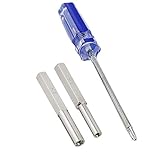
- 2.5mm Tri Wing Screw Driver is compatible for Wii, GameCube Controller, Gameboy Advance, Gameboy Advance SP and Gameboy Color Game Cartridges. Ideal tool for opening and repairing retro video games.
- Security Bit Screwdriver is made of Durable strong hardened steel,heat treated for maximum strength. The length of 4.5mm & 3.8mm head Screwdriver bit is 1.97 inches.
- 3.8mm Gamebit Screwdriver nut is for 8-bit NES, 16-bit SNES, N64, Game Boy, Sega Genesis Cartridges, Sega Master System, Sega Game Gear and Game Boy Color Games.
- 4.5mm Gamebit Screwdriver nut is for SNES, N64, Gamecube Screwdriver, and it also opens the snes-101 Mini SNES Console, NES Top Loader Console.
- Gamebit Security Screwdriver allows for opening and internal cleaning gaming system as well as battery replacement. Gamebit Screwdriver kit has non-slip handle for great comfort and precision.
Community plugins such as Asset Explorer and NAAP Plus advertise asset discovery or reference-scanning features. They are third-party tools, not Roblox endorsements. Check their source, permissions, update history, compatibility, and review them before granting access to a project.
Security: avoid dangerous asset-ID tools
You do not need a browser extension, cookie-stealing website, or unknown downloader to read the digits in a Roblox URL. Never give an ID-finder site or plugin your Roblox password, session cookie, authentication token, or private project data.
Be cautious with Creator Store models, plugins, and command-bar snippets:
Recommended Free Tools
- Inspect scripts inside third-party models before putting them in a production game.
- Do not run unknown code supplied by strangers in Studio’s command bar.
- Do not enable powerful plugin or model capabilities without understanding what they allow.
- Do not assume that Roblox moderation, ratings, or popularity guarantee that a model is safe.
- Keep untrusted assets in a test place and remove scripts you do not need.
- Prefer Roblox’s built-in Asset Manager, Toolbox, Creator Dashboard, and documented APIs for ordinary ID-finding tasks.
Roblox explains the risks of malicious or vulnerable third-party content in its third-party asset vulnerabilities documentation.
Best method by situation
| Reader or task | Recommended workflow | Why |
|---|---|---|
| Casual Roblox user | Copy the number from the asset page URL | Fast and does not require installing anything |
| Studio creator | Asset Manager → Copy Asset ID | First-party, searchable, and connected to project assets |
| Creator Store search | Toolbox or documented Creator Store queries | Designed for development assets |
| Avatar item search | Marketplace page or documented catalog API | Avatar items use a separate catalog system |
| Unknown ID verification | GetProductInfoAsync() |
Returns Roblox metadata when available |
| Insert one known asset | Studio Assistant, Studio CLI, or LoadAssetAsync() for models |
Uses current Studio automation and APIs |
| Debug a large place | Property inspection plus a trusted reference scanner/custom plugin | Finds usage locations, not just the asset number |
| Build an in-game ID tool | Metadata API plus rbxthumb previews |
Safer than loading arbitrary user-selected models |
Frequently Asked Questions
Is a Roblox asset ID the same as a game ID?
No. An asset ID identifies content such as an image, model, sound, mesh, animation, or avatar item. A place or experience ID identifies a game location, while a universe ID identifies the broader experience. Check the URL path before copying the number.
Where is the asset ID in a Roblox link?
For a current Creator Store link, read the number after /store/asset/. For a Marketplace avatar-item link, read the number after /catalog/. Older links may use /library/. Do not assume numbers in /games/, /bundles/, /users/, or /groups/ are asset IDs.
How do I find an image, decal, sound, mesh, or model ID?
In Studio, open Asset Manager, choose the relevant category, right-click the asset, and select Copy Asset ID. You can also inspect the matching object property: Image or Texture for images and decals, SoundId for sounds, MeshId for meshes, and Asset Manager or Toolbox for models.
The Tool Desk
Outbyte PC Repair FREEClear out junk files and repair common Windows errorsFree Scan →Outbyte Driver Updater FREEScan for outdated or missing drivers - takes under a minuteDriver Scan →Are decal IDs and image IDs the same?
They are related but should not be treated as universally interchangeable. Use the ID directly in a property documented to accept image or decal content. Do not subtract one or two from a decal ID; Roblox does not assign related IDs with a dependable fixed offset.
Can I find the ID of a private Roblox asset?
You may be able to see metadata or copy an ID if you have creator or collaborator access, but knowing the number does not grant permission to load or use the content. The experience and its owner must satisfy the asset’s privacy and permission rules.
Why does an asset ID work in Studio but not in my published game?
The most common reason is an access mismatch. Studio users may have creator or collaborator access that the published experience lacks. Also check whether the asset is restricted, moderated, archived, processing, or assigned to the wrong creator or group.
Can I search Roblox by asset ID?
Yes. In Studio Asset Manager, search with asset_id:123456789, assetId:123456789, or sometimes the standalone number. Outside Studio, use Roblox’s documented Creator Store or Marketplace APIs, depending on whether the asset is development content or an avatar item.
What’s actually slowing this PC down?
Pick the symptom - the matching free tool is one click away.
How do I find every object that uses an asset ID?
Inspect the relevant content properties for a small place. For a large place, use a trusted Studio asset-reference scanner or make a custom plugin that searches instances, package dependencies, scripts where appropriate, and nested objects. A URL ID finder cannot locate all references inside a place.
Is it safe to use a Roblox asset-ID-finder website or plugin?
Reading the digits from a URL does not require a third-party tool. Avoid any service that requests your password, Roblox cookie, authentication token, or unnecessary project access. Treat third-party plugins and downloaded models as untrusted until you inspect their code and permissions.
The Bottom Line
The reliable Roblox asset-ID workflow is simple: identify the URL type, copy the number from the correct path, or use Studio’s Asset Manager and choose Copy Asset ID. Then verify the asset’s category and metadata before using it. A valid ID is not automatically the right ID, a public ID, or a permitted ID—asset type, privacy, ownership, and experience permissions determine whether it will actually work.
Quick Recap
Product prices and availability are accurate as of the date/time indicated and are subject to change. Any price and availability information displayed on Amazon at the time of purchase will apply.




