sharemediacpl.dll is a genuine Microsoft Windows system DLL named Share Media Control Panel. If Windows says sharemediacpl.dll is missing, was not found, or could not be loaded, repair Windows components and media features rather than downloading a replacement file.
The DLL is associated with Windows Media Player, media sharing, shared libraries, and “Play To” functionality. It is not a Visual C++ runtime, DirectX file, .NET component, device driver, or normal game dependency.
What sharemediacpl.dll is
Windows normally stores this component in the operating-system directories:
C:WindowsSystem32contains 64-bit system components on 64-bit Windows.C:WindowsSysWOW64contains 32-bit system components on 64-bit Windows.- On 32-bit Windows, system files are generally stored in
C:WindowsSystem32.
Do not infer the correct location from the filename alone. Windows uses a file-system redirection system for 32-bit applications, so manually copying a 32-bit DLL into System32 can make the problem worse.
#1 Best Overall

- Optional Remote Control for ACEMAX 4K HDD Media Player
- Replacement Remote Control for MICCA G3, MICCA G4 Media Player
- Optional Remote Control for JLZNLZ 4K HDD Media Player
Public file catalogues show historical versions including these entries:
| Windows generation | Architecture | Version | Approximate size |
|---|---|---|---|
| Windows 7 | 32-bit | 6.1.7601.17514 | 0.30 MB |
| Windows 8 | 32-bit | 6.2.9200.16384 | 0.27 MB |
| Windows 8.1 | 32-bit | 6.3.9600.17031 | 0.33 MB |
These are catalogue records, not universal replacement targets. Current Windows builds may contain different versions, including 64-bit builds. The correct file must come from Windows component servicing, not from a random download.
Errors associated with the file
You may see one of these messages:
The program can't start because sharemediacpl.dll is missing from your computer.
There was a problem starting sharemediacpl.dll. The specified module could not be found.
Error loading sharemediacpl.dll. The specified module could not be found.
The code execution cannot proceed because sharemediacpl.dll was not found.
sharemediacpl.dll is either not designed to run on Windows or it contains an error.
“Specified module could not be found” does not always mean that sharemediacpl.dll itself is absent. A dependency required by the DLL can also be missing, damaged, or incompatible.
Fix 1: Repair Windows system files first
This is the safest and most likely fix when the file was deleted, damaged, or left inconsistent after an update.
What’s actually slowing this PC down?
Pick the symptom - the matching free tool is one click away.
- Open Start.
- Type
Terminal. - Right-click Windows Terminal and select Run as administrator.
- Approve the User Account Control prompt.
- Run this command:
DISM.exe /Online /Cleanup-image /Restorehealth
- Wait for DISM to finish. Do not close the window if progress appears to pause.
- Run System File Checker:
sfc /scannow
- Restart Windows after both commands complete.
- Repeat the action that produced the DLL error.
DISM repairs the Windows component store. SFC then checks protected system files and replaces damaged copies. Microsoft documents this order in its System File Checker guidance.
If SFC reports that it found and repaired corrupted files, restart and test again. If it says that some files could not be repaired, run DISM once more, restart, and run sfc /scannow again. Persistent failures point to deeper servicing or storage damage.
Repeatedly hunting through Windows folders and rerunning SFC or DISM without knowing what changed can make diagnosis slow. Outbyte PC Repair can scan for system problems and show what it detects; its repair functions are provided by the full version. It is optional, and Windows repair commands remain the primary fix for this Microsoft component.
Fix 2: Repair Windows Media Player
If the error appears while opening Windows Media Player or using media sharing, repair the optional Windows Media Player feature.
Free tools Windows power users keep installed
One-click scans. No signup required.
Windows 11
- Open Settings.
- Select Apps.
- Select Installed apps.
- Find Windows Media Player.
- Select the three-dot menu beside it.
- Choose Advanced options.
- Select Repair.
- Restart Windows and test media playback or sharing.
If Repair does not help, return to the same page and select Reset. Reset removes the app’s custom preferences but does not delete your personal media files.
Rank #2
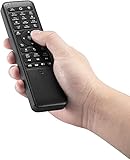
- 【World 1st Remote Control for W11/W10】As world's 1st GYRO air mouse remote controller designed for W11 OS, W10 air remote mouse's shortcut buttons and hotkeys are fully optimized for W 11/W10
- 【Backlit LEDs Everywhere】This PC remote has full QWERTY keyboard with double-sided backlit LEDs (contains a power saving timer that automatically turns off the LEDs after 5 seconds without action). Favorable for you using in the dark
- 【3-in-1 Control Design】W10 PC remote control can work as a TV remote, mouse and keyboard, making your life more convenient. A switching key easily changes it from TV remote into mouse/keyboard
- 【IR Learning】W10 GYRO remote controller can learn up to 34 keys from your TV IR remote. It's convenient to control your devices in 1 remote, Please watch our videos or read user manual to know more details on how to use IR learning function
- 【Plug and Play】W10 Bluetooth PC remote has the operating distance up to 10 meters. Plug USB port accessory into your device to turn on the Bluetooth function. No driver installation is needed. Our product have a 12-month warranty. Please feel free to contact our customer service
Windows 10
- Open Settings.
- Select Apps.
- Select Apps & features.
- Find Windows Media Player.
- Select Advanced options.
- Choose Repair.
- Restart and test again.
The exact screen can vary by Windows build. Microsoft’s Windows Media Player troubleshooting guidance documents the current repair and reinstall paths.
Fix 3: Remove and re-add Media Features
If repairing the app did not restore the DLL, reinstall the Windows media feature.
- Press Windows key + R.
- Type
optionalfeatures. - Press Enter.
- Expand Media Features if it is collapsed.
- Clear the Windows Media Player or Media Features checkbox.
- Select OK.
- Restart Windows when prompted.
- Open
optionalfeaturesagain. - Re-enable Media Features.
- Restart a second time.
Afterward, try Windows Media Player and the action that originally generated the error. This process causes Windows to rebuild the optional media feature instead of placing an unverified DLL into a system folder.
The Tool Desk
Outbyte PC Repair FREERepair Windows errors before they cause bigger problemsFix Now →Outbyte Driver Updater FREEFix the driver behind crashes, sound loss and screen glitchesFind Drivers →Fix 4: Check whether Windows is an N edition
Windows 10 and Windows 11 N editions omit several media technologies, including Windows Media Player and related media-sharing components.
To check the edition:
- Open Settings.
- Select System.
- Select About.
- Read the Windows specifications section.
- Check whether the edition name ends with
N.
If it is an N edition, install Microsoft’s Media Feature Pack:
Windows 11 N
- Open Settings.
- Select Apps.
- Select Optional features.
- Select View features.
- Search for Media Feature Pack.
- Select it and choose Next, then Add.
- Restart Windows.
Windows 10 N
- Open Settings.
- Select Apps.
- Select Apps & features.
- Select Optional features.
- Choose Add a feature.
- Select Media Feature Pack.
- Install it and restart.
Microsoft explains this process in its Media Feature Pack documentation. Reinstall affected media applications after the feature pack is installed if they still report missing components.
Fix 5: Check antivirus quarantine and file integrity
Security software can quarantine a damaged or falsely detected system file.
- Open Windows Security from the Start menu.
- Select Virus & threat protection.
- Select Protection history.
- Look for an event involving
sharemediacpl.dll. - Note the detection name, file path, and action taken.
Do not restore the file automatically. First confirm that the file is in a normal Windows directory and verify its signature:
Rank #3

- 1. Universal Compatibility & Plug & Play Simply plug this USB remote directly into any available USB port on your PC, laptop, Mac, Smart TV, or other USB-enabled devices. It is automatically recognized without any driver installation. Enjoy immediate control right out of the box!
- 2. Effortless Media Control & Entertainment Take full command of your digital entertainment. Effortlessly play, pause, skip tracks, adjust volume, and mute your favorite music, movies, and videos on popular media players like VLC, Windows Media Player, iTunes, and Spotify. Perfect for relaxing on the couch.
- 3. Ideal for Presentations & Home Theater PC (HTPC) The ultimate tool for professionals and home users. Advance your PowerPoint (or Keynote) slides seamlessly without being tethered to your computer. It also perfectly complements your HTPC setup, allowing you to comfortably control Kodi, Plex, and other media centers from your seat.
- 4. Ultra-Compact & Portable Plug-in Design Enjoy the ultimate portability with our streamlined, all-in-one design. This remote is incredibly compact and lightweight, fitting perfectly in your hand and easily stored anywhere. The direct plug-in design makes it highly durable and ideal for on-the-go use with laptops for presentations or travel.
- 5. Enhanced User Experience & Quality Assurance Designed with user-friendly, tactile buttons for precise control and a comfortable feel. Constructed with durable materials to ensure reliable, long-lasting performance. We are committed to your satisfaction with dependable customer support.
- Open File Explorer.
- Browse to the reported file path.
- Right-click
sharemediacpl.dll. - Select Properties.
- Open the Digital Signatures tab.
- Inspect the signer and signature details.
A genuine Windows copy should have a valid Microsoft signature, but online metadata does not prove that a local copy is genuine. If the file is unsigned, stored beside an unrelated application, or repeatedly reappears after deletion, run a full Microsoft Defender scan and investigate further.
Microsoft’s Protection History guidance explains the risks of restoring quarantined files.
Fix 6: Install pending Windows updates
A failed servicing operation can leave a Windows component incomplete.
Do these 3 things before closing this tab:
1Fix the driver behind crashes, sound loss and screen glitches2Clear out junk files and repair common Windows errors3Scan for outdated or missing drivers - takes under a minute- Open Settings.
- Select Windows Update.
- Select Check for updates.
- Install all available updates.
- Restart when prompted.
- Check for updates again after restarting.
On eligible Windows 11 installations, Microsoft also provides a repair reinstall:
- Open Settings.
- Select System.
- Select Recovery.
- Find Fix problems using Windows Update.
- Select Reinstall now.
- Follow the prompts.
This reinstalls the current Windows version while preserving apps, files, and settings where the feature is available. See Microsoft’s Windows Update repair reinstall instructions.
Windows 10 support ended on October 14, 2025, so available repair options can vary by build and edition.
Drivers are not the normal fix
sharemediacpl.dll is not a driver, and Device Manager will not normally restore it. Do not start by searching Device Manager for this filename.
If the error occurs only while connecting to a media receiver or network device, inspect the separate device involved:
Rank #4

- Compatible Models:This New Replacement Remote Control Compatible with HD Media Players Mini 1080p
- 【NOTE】Not compatible with other brands or types. Before ordering, please ensure your original remote control matches the buttons and appearance shown in the illustration. Otherwise, it may not function properly
- Easy to Use: Features an upgraded chip with built-in infrared technology. No programming or pairing required—just requires two standard AAA batteries
- Durable & Comfortable: Featuring high-quality ABS material and a newly upgraded smart chip, it delivers instant button response with precise control up to 8 meters/26 feet. Soft silicone buttons protect fingertips, while the ergonomic curved design ensures comfortable, fatigue-free use during extended daily operation
- Package included & After-Sales Service:1 * Remote Control ( Battery & Instruction Not Included.) If you have any questions, please contact us through AMZ tools and we will help you within 12 hours
- Right-click Start.
- Select Device Manager.
- Expand the relevant category, such as Network adapters, Sound, video and game controllers, or Universal Serial Bus controllers.
- Right-click the affected device.
- Select Update driver.
- Choose Search automatically for drivers.
- Restart if Windows installs an update.
Only update a device driver when Device Manager, Event Viewer, or the device’s own symptoms identify a separate hardware problem. Updating a driver will not replace a missing Windows media DLL.
Manually checking every device and matching driver versions can be tedious when a media device is also involved. Outbyte Driver Updater can scan for outdated drivers and show what it identifies; driver installation through its full version is optional. For sharemediacpl.dll itself, Windows component repair remains the correct path.
Use System Restore for a recent failure
If the error began immediately after an update, software removal, or system change, System Restore may return Windows to an earlier working state.
Recommended Free Tools
- Open Start.
- Search for Create a restore point.
- Open it.
- Select System Restore.
- Choose a restore point dated before the error began.
- Select Next, then Finish.
- Allow Windows to restart.
System Restore does not normally remove personal documents, but it can remove recently installed programs, drivers, or updates. Microsoft lists this and other recovery choices in its Windows recovery options.
Use an in-place reinstall if Windows remains damaged
If DISM, SFC, Media Features repair, updates, and System Restore all fail, perform an in-place Windows reinstall using official Microsoft installation media. Back up important files first, start setup.exe from within Windows, and select Keep personal files and apps when offered.
Do not boot from the media and choose a clean installation unless you intend to erase the existing Windows installation. Microsoft’s installation media reinstall guide explains the available choices.
What not to do
Do not download the DLL from a random website
A downloaded copy can contain malware, have the wrong architecture, belong to another Windows build, or fail because a dependency is the real problem. There is no verified Microsoft sharemediacpl.dll redistributable for general download.
Quick wins for a faster PC:
Repair Windows errors before they cause bigger problemsFix Now →Fix the driver behind crashes, sound loss and screen glitchesFind Drivers →Do not place the file beside a game or application, and do not overwrite a 64-bit Windows component with an old 32-bit catalogue version. The safe sources are Windows Update, Windows component servicing, Media Features, the Media Feature Pack for N editions, System Restore, or official Windows installation media.
Do not use regsvr32 as a generic repair
Although Windows registers Share Media Control Panel as an in-process COM server, public export information for this DLL does not show the DllRegisterServer entry point required by the usual regsvr32 workflow. Running:
Best Value

- USB PC Wireless Remote Control DVD TV Computer Laptop Media Center Controller
regsvr32 sharemediacpl.dll
can therefore produce an entry-point error and does not repair the Windows component. Use DISM, SFC, and Windows feature servicing instead.
FAQ
Is sharemediacpl.dll malware?
The genuine file is a Microsoft Windows component. A file with that name is not automatically trustworthy, however. Check its location and Microsoft digital signature, and review Windows Security Protection history if antivirus detected it.
Is this a Windows Media Player error?
Often, yes. The file is associated with Windows Media Player media sharing and “Play To” functions. The exact application that displayed the error cannot be determined from the filename alone.
Should I copy it from another computer?
No. Windows versions, architecture, dependencies, and servicing state must match. Use DISM and SFC or repair the relevant Windows feature.
Does Windows 7 or Windows 8 contain this file?
Historical catalogues list 32-bit versions for Windows 7 and Windows 8, and other records list additional Windows versions. Those catalogue entries should not be treated as universal replacement instructions.
What should I provide if the error continues?
Record the Windows edition and build, the exact error text, the executable that triggers it, the full path shown in the message, and relevant Event Viewer details.
Outdated Drivers Are Slowing You Down
One free scan finds every outdated or missing driver and matches the right update for your exact hardware.Free scan · exact hardware matchPC Slower Than It Used to Be?
A free scan shows the junk files, broken settings and background clutter dragging Windows down - then fixes them in one click.Free scan · Windows 10 & 11To open Event Viewer:
- Right-click Start.
- Select Event Viewer.
- Open Windows Logs.
- Check Application and System around the time of the failure.
- Record the event source, event ID, and module or dependency named.
That information helps distinguish a missing Windows component from a damaged dependency, media feature problem, antivirus action, or broader Windows servicing failure.
Quick Recap
Product prices and availability are accurate as of the date/time indicated and are subject to change. Any price and availability information displayed on Amazon at the time of purchase will apply.



