
Quick wins for a faster PC:
Clear out junk files and repair common Windows errorsFree Scan →Fix the driver behind crashes, sound loss and screen glitchesFind Drivers →Repair Windows errors before they cause bigger problemsFix Now →The best starting setup is Modern Controls, a checked inversion setting, and HD/Modern Graphics with brightness and pickup highlighting enabled when rooms are difficult to read. Switch to Tank Controls and Classic Graphics whenever you want the original movement and presentation. You can change these choices during play, so there is no need to commit to one style for an entire campaign.
Choose your movement model first
The control toggle changes how Lara moves, turns and uses the camera. Neither option is universally superior: Modern Controls favor familiar third-person camera handling, while Tank Controls preserve the deliberate directional model of the original games.
As an Amazon Associate I earn from qualifying purchases.
| Setting | How movement works | Camera behavior | Best for | Main trade-off |
|---|---|---|---|---|
| Modern Controls | Lara moves relative to the camera; the right stick provides full camera control. | Free right-stick camera, with movement direction changing as the camera rotates. | Players used to contemporary action-adventure controls, moving while looking around, and quickly reframing jumps or combat. | It can feel less deliberate in tight, grid-like traversal until you learn how camera direction affects movement. |
| Tank Controls | Directional input follows Lara’s facing and the original turn-and-step model. | The camera is less central to movement, so turning Lara is part of each maneuver. | Fans of the original releases, players who want consistent jump alignment, and anyone who prefers measured platforming. | Turning takes longer, and camera-relative movement is not available. |
When Modern Controls are the better choice
Use Modern Controls if you want the right stick to look freely and expect Lara to travel in the direction shown by the camera. This is the closest fit for players coming from later Tomb Raider games or other modern third-person adventures. The 2024 feature description says the modern layout takes inspiration from the Legend, Anniversary and Underworld era of Tomb Raider.
What’s actually slowing this PC down?
Pick the symptom - the matching free tool is one click away.
When Tank Controls are the better choice
Choose Tank Controls when the original directional logic is part of the experience you want. Their fixed relationship between Lara’s facing and her movement can make repeated running jumps easier to reproduce once mastered. The original tank-style option remains available through a menu toggle rather than being removed by the remaster.
#1 Best Overall

- Solve Ancient Mysteries: Uncover treasures of the ancient world by solving puzzles and unravelling mysteries lost to the ravages of time.
- Globe-trotting Adventure: Follow Lara Croft around the world and face off against deadly foes and dangerous myths.
- Lovingly Restored: Experience the classics boasting upgraded graphics, with the option to switch to the original polygon look at any time.
- Languages: Voice: English, French, German, Japanese, Russian; Subtitles: English, French, German, Italian, Spanish, Italian, Portuguese, Dutch, Russian, Czech, Danish, Finnish, Greek, Hungarian, Polish, Brazilian Portuguese, Swedish, Turkish, Ukrainian, Slovak, Japanese, Simplified Chinese.
Change the mode before a difficult section
- Pause the game and open the controls or gameplay options menu.
- Switch between Modern and Tank Controls.
- Return to a safe area and walk, turn, jump and climb for a few seconds.
- Keep the mode that makes your next action predictable; change it again if a puzzle or platforming sequence suits the other model better.
Menu wording and placement can vary by game, platform and patch. If a label is not in the controls page, check gameplay options before assuming the feature is missing.
Test inversion immediately
Look inversion is easy to misjudge because the correct choice depends on whether you think of the stick as moving Lara’s head, moving the camera, or pushing a viewpoint through the scene. Test it in a quiet room instead of during a boss fight.
A reliable test
- Stand still in a safe area.
- Move the look stick up and observe whether the view tilts toward the floor or ceiling.
- Move it left and right to confirm horizontal behavior.
- Repeat while holding the Look button if you are using Tank Controls.
- Keep the option that matches your muscle memory, then make one short movement-and-jump test.
Update 4 specifically corrected an inversion problem that appeared while holding the Look button with Tank Controls. The August 20, 2026 Challenge Mode Patch 3 also lists fixes for inverse-controller settings more broadly. If inversion still feels wrong after changing it, close and reload the level so the setting is reapplied, then test again without switching control modes mid-test.
Make dark rooms and pickups easier to read
Start in HD or Modern Graphics Mode if visibility is the problem. The newer presentation includes updated models, environments and enemies, baked and real-time lighting, and related texture and visual-effects work. It can look more detailed while still leaving some rooms intentionally dark.
Use the brightness slider
Challenge Mode Patch 3, dated August 20, 2026, added a brightness slider for all three games. Aspyr says the best results are with intended use in HD Graphics Mode. Raise it gradually: a small increase can reveal a ledge or doorway without washing out the contrast that makes shadows useful for navigation.
The slider is a display aid, not a replacement for level lighting. If a room is still unreadable, check that you are in HD/Modern Graphics Mode, confirm your television or monitor is not applying an aggressive contrast preset, and try the game’s own brightness control before changing the display globally.
Rank #2
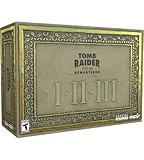
- For the first time ever, play the complete Tomb Raider I-III trilogy experience with all expansions and secret levels on modern platforms in this definitive collection.
- Physical Copy of Tomb Raider I-III Remastered for Playstation 5
- Tomb Raider I-III Remastered Collector's Edition Box
- Classic Lara Croft Pistol Replicas in Lit Shadowbox
- Polygonal Figures - In-Game Accurate Models from Each Title
Turn on pickup highlighting when searching
Patch 3 also added pickup highlighting in HD Graphics Mode. Enable it when you are hunting keys, ammunition or other small objects that disappear into a dark floor or a busy texture. Disable it after collecting a missed item if you want a cleaner, more classic presentation. The setting changes readability; it does not alter item placement or puzzle logic.
Recommended Free Tools
An official March 12, 2024 patch had already improved visibility in dim areas by updating lighting, making pickup items more visible and correcting disappearing textures. Keep the game fully updated before troubleshooting a room that appears to have missing geometry or an item that cannot be seen.
Choose HD/Modern or Classic Graphics
The graphics toggle can be used during gameplay, not only from a title screen. It also works in Photo Mode, so you can compare the two presentations without leaving the level.
| Graphics choice | What you see | Use it when | Known patch detail |
|---|---|---|---|
| HD/Modern Graphics | Updated models, environments, enemies, textures, visual effects and lighting, including baked and real-time lighting changes. | You want the remastered art direction, stronger surface detail, brightness adjustment or pickup highlighting. | Brightness and pickup highlighting from Challenge Mode Patch 3 are intended for this mode. |
| Classic Graphics | Original-style textures and lighting presentation. | You want the visual character of the original releases or need to compare a scene directly. | Patch 3 documents 60 FPS in Classic Graphics Mode on the platforms covered by that patch; it is not a universal performance guarantee for every platform or display mode. |
Switch graphics without losing your place
- Pause during a level and open the graphics or display options.
- Toggle between HD/Modern and Classic Graphics.
- Look at a high-contrast object, a distant doorway and a pickup to judge readability rather than relying on one wall texture.
- Leave the mode that makes navigation clearest for that area; switch back later if you want the other look.
Classic mode is not a downgrade you must avoid, and HD mode is not automatically easier to see. Lighting, texture contrast and your display can make one mode clearer in a particular room. Compare them in the same location instead of choosing from screenshots.
Use Photo Mode as a visual comparison tool
Photo Mode can freeze gameplay, pose Lara and toggle between classic and modern graphics. That makes it useful for checking what changed in a scene rather than merely taking a screenshot.
What to compare
- Look at a shadowed corridor to see how the lighting update affects navigation.
- Frame a character or enemy to compare the newer model with the original silhouette.
- Place a pickup near a contrasting and a low-contrast surface to decide whether highlighting is necessary.
- Toggle modes on the same paused frame when you want an apples-to-apples comparison.
Photo Mode is also a low-risk place to decide whether inversion and camera movement feel natural: because the game is paused, you can inspect the view without taking damage or losing a jump setup.
Rank #3

- THE ORIGINAL TOMB RAIDER TRILOGY REMASTERED – Experience Lara Croft's legendary adventures with Tomb Raider I–III Remastered, including all original expansions and secret levels: Unfinished Business, Golden Mask, and The Lost Artifact in one definitive PC collection.
- MODERN GRAPHICS OR ORIGINAL POLYGON MODE – Explore iconic tombs and ancient ruins with enhanced visuals while enjoying the freedom to switch to the original classic polygon graphics whenever you choose.
- DISCOVER LOST TREASURES AND ANCIENT MYSTERIES – Travel across the globe as Lara Croft, solve intricate environmental puzzles, uncover hidden secrets, and battle dangerous enemies inspired by myths and forgotten civilizations.
- PREMIUM COLLECTOR'S ITEMS INCLUDED – This Collector's Edition features the PC game, a collectible presentation box, classic Lara Croft pistol replicas displayed in a lit shadowbox, three polygonal character figures, three 12 x 16-inch posters, premium trading cards, the official soundtrack, and a collectible SteelBook case.
- CELEBRATE A GAMING ICON – Perfect for longtime Tomb Raider fans, retro gaming enthusiasts, and collectors seeking an exclusive edition packed with premium display pieces and memorabilia honoring Lara Croft's original adventures.
Decide whether to show boss health bars
Update 4 made boss health bars optional. Turn them on for a first run if you want clear feedback about whether attacks are working and how much longer a fight may last. Turn them off if you prefer a minimal HUD and want enemy reactions, animation and sound to communicate progress.
- On: clearer combat feedback, useful when learning a boss pattern or checking whether a weapon is effective.
- Off: less screen information and a presentation closer to a stripped-back classic HUD.
This is a combat-information preference, not a difficulty modifier. Changing it does not change enemy health or damage.
A practical setup for a first playthrough
If you do not have a strong preference, use this sequence:
- Select Modern Controls and move the camera while walking in a safe area.
- Set inversion, then test it both with ordinary camera movement and, if relevant, while holding Look in Tank Controls.
- Choose HD/Modern Graphics Mode.
- Set brightness only high enough to distinguish floors, walls and openings in dark rooms.
- Enable pickup highlighting until you have learned the visual language of each game; turn it off later for a cleaner screen.
- Leave boss health bars on while learning combat, then revisit the option if you want less HUD information.
- Use the graphics toggle or Photo Mode whenever you are unsure whether a visibility issue is caused by the scene or by your chosen presentation.
This setup prioritizes camera control and readability. It does not make jumps or enemies mechanically easier; it gives you more information and a movement scheme that many modern players find familiar.
Independent reader supportYour contribution helps us test, update, and keep practical guides available for everyone.A classic-focused setup
For an experience closer to the original releases, select Tank Controls and Classic Graphics, turn off pickup highlighting and decide separately whether boss health bars fit your preferred HUD. Keep the brightness slider available as a rescue tool if a display makes a room genuinely difficult to read, but avoid raising it so far that every shadow loses definition.
Tank Controls reward a short pause before a jump: face Lara, line up the run, and use the consistent directional model rather than trying to steer her with the camera. If you switch back to Modern Controls, repeat the safe-area test because the same stick movement now has a different meaning.
Rank #4

- Tomb Raider I, II & III Remastered /Switch
Troubleshoot the most common setting problems
“Modern Controls feel slippery”
Lower your camera sensitivity if that option is available, center the camera before a jump, and practice moving with the camera held behind Lara. For platforming that depends on fixed alignment, Tank Controls may be the better choice rather than a setting you need to force yourself to learn.
Free tools Windows power users keep installed
One-click scans. No signup required.
“Inverted look is backwards”
Test the stick while standing still, then test it while holding Look. Tank-Control users should be on a build containing Update 4; all users should install Patch 3 or later where available because it includes inverse-controller fixes. If the behavior changes only after a mode switch, reload the level and retest.
“The room is too dark”
Confirm HD/Modern Graphics Mode, apply the brightness slider added in Patch 3, and check your display’s picture preset. The March 12, 2024 patch improved dim-area lighting and pickup visibility, so update before treating missing textures or unreadable objects as normal behavior.
“I cannot find a pickup”
Enable pickup highlighting in HD Graphics Mode, sweep the camera slowly across the floor and ledges, and compare the same spot in Classic Graphics if the texture contrast is confusing. Highlighting improves visibility but does not reveal items that are outside the current area or behind geometry.
“Classic mode does not run at 60 FPS”
The 60 FPS statement in Challenge Mode Patch 3 applies to Classic Graphics Mode on the platforms covered by that update. It is not a promise for every platform, output resolution or future patch. Check your platform’s current version and display settings before diagnosing a frame-rate issue.
The Tool Desk
Outbyte Driver Updater FREEFix the driver behind crashes, sound loss and screen glitchesFind Drivers →Outbyte PC Repair FREEClear out junk files and repair common Windows errorsFree Scan →What the latest patches change
| Update | Relevant setting or behavior change |
|---|---|
| March 12, 2024 official patch | Improved dim-area lighting, made pickup items more visible and corrected disappearing textures. |
| Update 4 | Improved aiming, turning and sprinting with Modern Controls; fixed inverted settings while looking in Tank Controls; made boss health bars optional. |
| Challenge Mode Patch 3 — August 20, 2026 | Added a brightness slider across all three games, pickup highlighting in HD Graphics Mode and 60 FPS in Classic Graphics Mode on covered platforms; also fixed inverse-controller settings. |
Aspyr said Patch 4 was in progress in the Patch 3 note. Platform menus and option names can therefore continue to change. If an option described here is absent, compare your installed version with the latest patch notes for your platform before assuming the feature was removed.
Quick Recap
Quick decision guide
- Want camera-relative movement? Choose Modern Controls.
- Want the original deliberate directional model? Choose Tank Controls.
- Can’t see objects in dark rooms? Use HD/Modern Graphics, raise brightness modestly and enable pickup highlighting.
- Prefer original textures and lighting? Choose Classic Graphics and compare scenes with the in-game toggle.
- Need clear combat feedback? Turn boss health bars on.
- Want a cleaner classic-style HUD? Turn boss health bars and pickup highlighting off.
- Unsure about a visual difference? Freeze the scene in Photo Mode and switch graphics modes on the same frame.
Product prices and availability are accurate as of the date/time indicated and are subject to change. Any price and availability information displayed on Amazon at the time of purchase will apply.

