What’s actually slowing this PC down?
Pick the symptom - the matching free tool is one click away.
If Undertale crashes or will not open on your PC, start by restarting Windows and noting the exact error. If the message mentions “D9 D3D surfaces,” follow the game’s specific advice: close other programs, lower your display resolution, and update your graphics driver and DirectX. For other Steam launch failures, use Steam’s general checks below; they are troubleshooting steps, not guaranteed fixes.
Before you troubleshoot: identify what is failing
Write down your Windows version, the exact error text, and whether the failure happens before any Undertale window appears. The UNDERTALE Help page asks players seeking help to provide operating-system details. That information can distinguish a game-specific graphics error from a broader Steam or Windows issue.
| # | Preview | Product | Price | |
|---|---|---|---|---|
| 1 |

|
8-4 Fangamer Undertale RPG NINTENDO SWITCH JAPANESE IMPORT REGION FREE | $43.88 | Buy on Amazon |
| 2 |
|
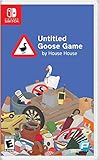
Untitled Goose Game - Nintendo Switch | $23.29 | Buy on Amazon |
- Restart the PC before trying other steps. Steam recommends beginning its general launch troubleshooting after a fresh restart.
- Try launching Undertale again and record what happens: no response, an error message, a brief window followed by a crash, or a launch that stops in Steam.
- Use the matching path below rather than assuming every failure has the same cause.
Eight steps to try
1. Restart the PC
A restart clears some temporary system states and is the first step in Steam’s general guide for games that fail to launch. It does not identify the cause by itself.
2. Check whether the error names D9 D3D surfaces
If Undertale reports that it could not initialize D9 D3D surfaces, the developer says the error may indicate insufficient graphics resources or a video-card compatibility issue. The UNDERTALE Help page gives specific steps for this Windows error; use the next three checks.
The Tool Desk
Outbyte PC Repair FREEClear out junk files and repair common Windows errorsFree Scan →Outbyte Driver Updater FREEFix the driver behind crashes, sound loss and screen glitchesFind Drivers →#1 Best Overall
- Introducing the Nintendo Switch, an indie game that has recorded the huge hit around the world
- Explore the world of RPG with fun characters in Henteko Whether you defeat or miss your opponents, it's all up to you
- Can the child of carrot fall into the underground world where monsters live with Or will you be trapped forever
3. Close other programs
Close other applications before launching the game again. This is one of the developer’s suggestions for the D9 D3D surface initialization error.
4. Lower the display resolution
Reduce the Windows display resolution and retry Undertale if the D9 D3D error appears. The developer includes lowering resolution among the steps for that error.
5. Update the graphics driver and DirectX
Check that your video driver and DirectX are current. These updates are also suggested by the developer for the D9 D3D error. If the message does not mention D9 D3D surfaces, they remain reasonable system checks, but the error-specific explanation may not apply.
6. Update Windows and device drivers
For a launch failure without that specific error, Steam recommends checking for Windows and driver updates. Install available updates, restart if required, then try the game again.
7. Verify Undertale’s local files in Steam
Steam lists damaged or missing game files among possible reasons games may fail to launch and recommends verifying files as a troubleshooting check. In the Steam Library, right-click Undertale, open Properties, choose Installed Files, and select Verify integrity of game files. Let Steam finish and retry the game.
Rank #2
- In collaboration with Panic and House House, iam8bit is proud to release Untitled Goose Game "in a box," packed with exclusive collectible goodies:
- Physical Edition of the Game
- The Spring/Summer Plaza Catalog, a 24-page mail-order style circular
- 11" x 17" Village Map Poster
- Premium “No Goose" Sticker
8. Temporarily close nonessential software and compare requirements
Steam says software conflicts can prevent a game from launching, so temporarily close nonessential applications that may interact with Steam or the game, then retry. Also compare your PC with the Undertale store listing’s requirements. Steam cautions that a computer at or near a game’s minimum requirements may have launch or performance problems.
Independent reader supportYour contribution helps us test, update, and keep practical guides available for everyone.Undertale’s listed PC requirements—and the Steam client distinction
The Steam store listing gives these Windows requirements. They are the listing’s published figures, not a guarantee that every PC meeting them will launch the game successfully.
| Requirement | Minimum | Recommended |
|---|---|---|
| Operating system | Windows XP/Vista/7/8/10 | not stated |
| Memory | 2 GB RAM | 3 GB RAM |
| Graphics | 128 MB | 512 MB |
| Storage | 200 MB | 200 MB |
| Processor | not stated | 2 GHz+ |
These game requirements should not be confused with the requirements for the Steam application. The same Undertale Steam listing notes that Steam Client support has required Windows 10 or later since January 1, 2024. The older Windows versions shown in the game’s minimum requirements do not mean the current Steam client supports them.
Crashes, No Sound, or Screen Glitches?
Random freezes, missing sound and display glitches usually trace back to one bad driver. Find and replace yours safely.Free scan · under a minutePC Slower Than It Used to Be?
A free scan shows the junk files, broken settings and background clutter dragging Windows down - then fixes them in one click.Free scan · Windows 10 & 11If Undertale still will not open
If the steps above do not resolve the issue, contact the developer through the UNDERTALE Help page with your operating system and the exact error text. If the problem appears specific to your PC configuration, Steam notes that diagnosis by a local technician may be necessary. Neither possibility confirms a particular hardware fault.
Steam’s launch troubleshooting guide describes common possibilities and general checks; it does not diagnose an individual PC or promise that any step will fix Undertale.
Quick Recap
Product prices and availability are accurate as of the date/time indicated and are subject to change. Any price and availability information displayed on Amazon at the time of purchase will apply.




