
Quick wins for a faster PC:
Repair Windows errors before they cause bigger problemsFix Now →Fix the driver behind crashes, sound loss and screen glitchesFind Drivers →Clear out junk files and repair common Windows errorsFree Scan →Xbox Series X|S has no built-in live voice changer. To alter your microphone voice, you generally need a Windows PC running third-party voice-processing software and a way to route that processed signal into Xbox chat. The console’s own privacy controls solve a different problem: they limit who can contact or hear you, but they do not disguise your voice. If you do not want to transmit live microphone audio at all, Xbox party text-to-speech can read typed messages aloud with synthetic voices.
What Xbox can and cannot do natively
A June 17, 2024 Microsoft Community answer says there is no voice-changer software available directly on Xbox Series X and that third-party software requires a PC. That is practical current guidance rather than a formal Xbox product specification, but it matches the way Xbox exposes microphone and chat controls: the console can select, mute and restrict communication devices, yet it does not provide a native pitch, formant or character-voice effect for a live microphone.
As an Amazon Associate I earn from qualifying purchases.
This distinction matters for privacy. A voice changer modifies the audio signal before other players receive it. Xbox privacy settings determine who may communicate with you by voice or text and who may hear you. Blocking unwanted contacts, limiting multiplayer communication or muting your microphone can reduce exposure, but none of those actions changes the sound of speech that you do transmit.
Text-to-speech is an official alternative
Xbox Wire’s June 15, 2021 accessibility announcement describes party text-to-speech: you type a party-chat message and Xbox reads it aloud using a selectable synthetic voice for the language. It is not a live microphone effect. Your natural voice is not sent because the message is generated from text, but the feature is slower and less expressive than speaking.
#1 Best Overall

- Real-Time AI Voice Changer for Console Game Chat: Sound like a robot, a deep villain, an alien or a girl while you play, with your new voice sent straight into PS5, PS4, Xbox Series X/S, Xbox One, Switch 2 and Meta Quest chat
- Your Squad Hears It, Not Just You: Works in Fortnite, Roblox, Call of Duty Warzone, GTA Online and any console or VR game with voice chat, while game audio and chat keep playing in your headset
- 200+ AI Voices and a Meme Soundboard: Pick voices and trigger memes, reactions and sound effects from the Voicemod app on iPhone or Android, build your own soundboard and browse 76,000+ community voice filters
- Three-Step Setup, No PC or Drivers: Plug VMKey into your controller, connect your phone and wired headset, then open the app last; includes USB-C to USB-C, USB-C to Lightning and 150 cm 3.5 mm TRRS cables
- Works with the Free Voicemod App: The complete voice and soundboard library requires a Voicemod PRO subscription, a fun pick for adult gamers who play online with friends
Choose the privacy outcome you actually need
| Goal | Most suitable method | Does it mask live speech? | Main limitation |
|---|---|---|---|
| Stop unknown players from contacting or hearing you | Xbox communication and multiplayer privacy controls | No; it restricts access instead | You must accept narrower communication permissions |
| Speak while changing how your voice sounds | Windows voice-processing software routed to Xbox | Yes, if the route is configured correctly | Requires a Windows PC, microphone permission and compatible audio routing |
| Communicate without sending a live microphone voice | Xbox party text-to-speech | No; typed text becomes synthetic speech | Requires typing each message and supports the voices and languages Xbox provides |
| Keep your microphone completely private during a session | Mute or disconnect the microphone and use text or no chat | There is no live speech to mask | You cannot participate by speaking |
A changer should therefore be treated as one layer in a privacy plan, not as anonymity. Game publishers and Xbox-connected apps may process communication data under their own service terms.
Set Xbox privacy controls before adding a voice changer
Start with the console’s communication permissions. On current Xbox menus, open Settings, go to Account, then Privacy & online safety and Xbox privacy. Choose View details & customize, then review the Communication & multiplayer options. Menu wording can vary by console update, account age and family settings.
- Decide whether voice and text communication should be allowed with everybody, friends, or nobody. Use the narrowest setting that still supports the way you play.
- Review multiplayer and cross-network communication separately. A restriction that applies to Xbox friends may not cover every connected game or external network.
- Check family-account controls if the account is managed by a parent or organizer. A child account may not be able to change a permission locally.
- Save the settings, then test in a private party with someone you trust. Confirm that the person can hear only what you intend to share.
These controls are useful even when a voice changer works. If the wrong player can still invite, message or hear you, changing your voice does not fix the underlying exposure.
Rank #2
- Real-Time AI Voice Changer for Console Game Chat: Sound like a robot, a deep villain, an alien or a girl while you play, with your new voice sent straight into PS5, PS4, Xbox Series X/S, Xbox One, Switch 2 and Meta Quest chat
- Your Squad Hears It, Not Just You: Works in Fortnite, Roblox, Call of Duty Warzone, GTA Online and any console or VR game with voice chat, while game audio and chat keep playing in your headset
- 200+ AI Voices and a Meme Soundboard: Pick voices and trigger memes, reactions and sound effects from the Voicemod app on iPhone or Android, build your own soundboard and browse 76,000+ community voice filters
- Three-Step Setup, No PC or Drivers: Plug VMKey into your controller, connect your phone and wired headset, then open the app last; includes USB-C to USB-C, USB-C to Lightning and 150 cm 3.5 mm TRRS cables
- Full PRO Access Included: Unlocks the complete Voicemod voice and soundboard library with no extra subscription, ready from day one for teen and adult gamers who play online with friends
How a PC-assisted voice-changing setup works
The signal path is usually: microphone → Windows voice app → virtual or hardware output → Xbox party or game chat. The exact connection depends on your headset, controller, mixer or capture setup. Xbox compatibility is not automatic merely because an app can change audio on Windows.
Requirements
- A Windows PC that can run the selected third-party voice app in real time.
- A microphone connected to the device that will capture your speech.
- An audio route that Xbox can receive, such as compatible hardware or a supported controller/headset connection.
- Permission for Windows and the voice app to use the microphone.
- A private test party and, if needed, a second test inside the particular game. Party chat and in-game chat can use different audio paths.
Configure microphone access in Windows
Windows lets you allow or deny microphone access per app. In Windows 11, open Settings → Privacy & security → Microphone. In Windows 10, the corresponding controls are under Settings → Privacy → Microphone.
- Turn on the device-level microphone access switch.
- Enable permission for apps to access the microphone.
- If the voice changer is a traditional desktop program, enable the setting that allows desktop apps to access the microphone.
- Start the voice app and confirm that Windows shows it as an active microphone user.
- If the app offers a per-application permission or input selector, choose the intended microphone rather than a laptop webcam or an unused headset.
Granting access is necessary for processing, but it also creates a privacy decision. Microsoft says third-party apps manage voice data under their own privacy policies. Read the selected app’s policy before sending live microphone audio through it, and remove permission when you no longer use the app.
Rank #3

- 【Professional-Grade, True Repair Sound】Universal for mobile phones and computers, free of debugging.. Gorgeous colorful lights, LED light, bright light, a variety of color changes, increase the indoor atmosphere.
- Multi-Device Support: 【No need to switch cables】Can be connected to 3 mobile phones at the same time, stable and flexible, to meet your needs for multi-platform live broadcast. Can be used for DJ, music studio recording, etc.
- 【Noise reduction】Using intelligent noise reduction chip, audio processing is faster and more stable, so that the input voice is clearer and without delay, and the sound is cleaner.
- 【Function】Independent adjustment of middle, high and low bass, 16 kinds of live sound effects/sound card mode one-key switch/Bluetooth-compatible wireless accompaniment.fine adjustment of each tone. Let music enthusiasts achieve a better listening experience.
- 【Multi-Application】 Strong compatibility, suitable for mobile phones/computers. Home K-araoke, Voice Chat, Live, Facebook, Periscope, Livestream, Wechat, Smule and more, Plug and Play.
Choose the input, effect and output
- In the voice app, select the physical microphone as the input.
- Choose an effect and speak while watching the app’s input meter. Keep the effect intelligible; an extreme setting can make words difficult to recognize and encourage you to raise the volume.
- Select the app’s virtual microphone or designated processed output as the source that your Xbox route will receive.
- Disable monitoring of the processed signal through speakers unless you need it. Monitoring can create an echo or feedback loop.
- Connect the processed output to the Xbox chat path using your compatible hardware. Xbox should receive the processed microphone, not the original microphone.
Because no physical voice-changing accessory was verified for Xbox in the available evidence, do not assume that a retail device will work. Compatibility can change with the console generation, headset wiring, controller connection, party-chat route, in-game chat implementation and whether the device presents itself as a standard microphone.
Verify that Xbox is receiving the changed signal
Run checks in this order so a failure is easy to isolate:
- Speak into the microphone while the Windows app is open. The app’s meter should respond.
- Listen to the app’s preview, if available, or record a short local sample. Confirm that the effect is present before involving Xbox.
- Join an Xbox party with a trusted person. Ask whether they hear the effect, the unprocessed voice, silence or distortion.
- Leave the party and test the game’s own voice channel. A game may bypass the party route or use a separate communication permission.
- Mute and unmute the Xbox microphone once. This confirms which device Xbox currently treats as the chat input.
If the party hears your natural voice, Xbox is receiving the physical microphone or an unprocessed mixer channel. If the party hears nothing, the processed output may not be reaching the controller or headset. If only game chat fails, the game is likely using a different route or its own communication restriction.
Rank #4
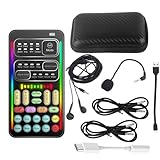
- 🎤 [Real-Time Multi-Function Voice Changer] Transform your voice instantly with 8 sound modes and 8 voice effects — including Robot, Cute, Male, Female, DJ, Cartoon, and more. Each effect supports 10 adjustable pitch levels for full tone control. Ideal for gaming, livestreaming, podcasts, or online chatting.
- 🎧 [Compact but Powerful Sound Card] Small in size (4×2 inches), yet packed with features. Offers 7 smart sound modes, 4 input/output channels, and 3 pro-grade functions — vocal removal, noise reduction, and auto-ducking. Supports up to 2 phones and 1 computer simultaneously for multi-platform streaming.
- 🔌 [Plug & Play – No App or Driver Needed] Simply plug it in and start using — no installation required. Includes 3.5mm audio cables and two adapters. Works with phones, tablets, laptops, PCs, and gaming consoles .
- 😄 [Fun for Pranks, Streaming & Roleplay] Surprise your friends or audience by switching between voices in real time. Perfect for online games, live shows, or video creation — add more fun, mystery, and creativity to your content.
- 🎁 [All-in-One Package – Everything You Need] Comes with all essential accessories: 1× Voice Changer, 1× Charging Cable (also OTG for PC), 2× Audio Cables, 2× Adapters (iOS & Android), 1× Plug-in Microphone, 1× Monitoring Earphone, 1× User Manual, and 1× PU Storage Case.
Privacy and data handling when a PC is involved
Microphone permission is not a privacy policy
A Windows permission answers whether an app may access the microphone; it does not explain what the app does with the audio afterward. Before installation, check whether the provider describes local-only processing, cloud processing, retention, diagnostics, account linkage or sharing. Microsoft’s guidance is explicit: “Microsoft does not collect voice recordings on behalf of third-party apps. Each app manages voice data according to its own privacy policy.”
That statement does not make a third-party app anonymous or risk-free. It means the app’s own policy controls its handling of audio. Use the minimum permissions, avoid unrelated microphone-enabled programs while chatting, and revoke access in Windows when finished.
Free tools Windows power users keep installed
One-click scans. No signup required.
Xbox and connected services may process communication data
Microsoft’s privacy statement says Xbox real-time party chat can include voice-to-text. It also says connected games and apps can access in-game communication data and other service data needed to operate and improve the product. A voice effect changes the sound your listeners receive; it does not prevent Xbox, a game publisher or a connected app from applying its normal communication processing and service rules.
Best Value

- [Multi-Function Real-Time Voice Changer] Transform your voice in real time with 8 unique sound modes—male to female, female to male, cute, funny, robotic, and more. Each mode includes 10 adjustable tone levels to help you fine-tune your ideal sound. Perfect for phone calls, gaming, livestreaming, or content creation.
- [Portable Yet Powerful Sound Card] Despite its compact size, this sound card packs serious performance. Choose from 7 smart modes including Singing and Live Streaming. Customize pitch and four input/output settings. Features three pro-level tools: vocal remover (keeps background music only), noise reduction, and auto ducking. Supports two phones and one PC at the same time—ideal for cross-platform streaming.
- [Plug and Play with Broad Compatibility] Plug and play with no drivers required. Includes TRS and TRRS audio cables, plus a Type-C adapter for flexible connectivity. Compatible with phones, computers, speakers, PS4/PS5, Xbox, Switch, tablets, and more—complete accessories are included for gaming, streaming, voice chat, and karaoke.
- [Fun Voice Effects for Pranks & Roleplay] Disguise your voice while chatting or gaming and surprise your friends with unexpected sounds. Especially great for anonymous online games where you can switch characters on the fly and add more fun to your interactions.
- [Complete Accessories Included] Everything you need to get started is included. The package comes with TRS/TRRS audio cables, a Type-C adapter, mini microphone, monitoring earphones, USB-C data cable, and a portable PU storage case—no need to purchase additional accessories.
For that reason, never promise that a changed voice provides legal, account or identity anonymity. Do not disclose personal information in chat, and use Xbox reporting and blocking tools when another player harasses or attempts to identify you.
Common failures and fixes
“The effect works on the PC but not in Xbox party chat.”
- Recheck which microphone the Xbox route uses. Select the processed or virtual output, not the physical microphone.
- Close other programs that may have exclusive control of the headset.
- Reconnect the controller or headset after the voice app is running, then retest in a private party.
- Test a simple unprocessed signal first. If that also fails, the problem is the hardware route rather than the effect.
“Friends hear my normal voice.”
- Bypass any mixer channel carrying the original microphone.
- Check whether the game or party is using a second microphone selected in Xbox audio settings.
- Mute the physical microphone briefly. If speech continues, another input is active.
“There is a delay, robotic sound or echo.”
- Lower the effect complexity and close unnecessary audio programs.
- Use headphones instead of speakers so the processed signal cannot re-enter the microphone.
- Disable duplicate monitoring in both the voice app and Windows sound settings.
- If delay remains, the PC, networked audio route or hardware may not be suitable for real-time chat.
“Windows will not let the app use the microphone.”
- Return to the Windows microphone privacy page and verify device access, app access and desktop-app access.
- Check that the microphone is not disabled at the device level and that the intended input is selected.
- Restart the app after changing permission. A program that was already open may not notice a newly granted permission.
“I want privacy but do not want to install voice software.”
Use Xbox communication restrictions, mute the microphone, or use party text-to-speech. Text-to-speech keeps your live voice out of the conversation, while privacy settings limit who can reach you. Neither requires a voice-changing application.
When text-to-speech is the better choice
Party text-to-speech is preferable when your priority is not transmitting a live voice at all, when a Windows PC is unavailable, or when third-party audio software’s data practices are unacceptable. Type the message in party chat, invoke the text-to-speech option, and choose from the synthetic voices available for that language. Participants hear generated speech rather than your microphone.
Recommended Free Tools
It is not a substitute for rapid callouts: typing takes time, punctuation and tone are limited, and availability can depend on the party’s accessibility settings and language support. For sensitive conversations, combine it with the narrowest Xbox communication permissions that still let the intended party participate.
Quick Recap
A practical privacy checklist
- Set Xbox voice and text permissions before joining public parties.
- Decide whether you need access control, altered live speech or no live speech; choose the corresponding method.
- If using Windows software, grant microphone access only to the selected app and review its privacy policy.
- Confirm that Xbox receives the processed output, not the raw microphone.
- Test party chat and each game’s in-game chat separately.
- Do not describe a voice changer as anonymous; Xbox, games and connected apps may still process communication data.
- Revoke Windows microphone permission and disconnect the audio route when the session ends.
Product prices and availability are accurate as of the date/time indicated and are subject to change. Any price and availability information displayed on Amazon at the time of purchase will apply.

