What’s actually slowing this PC down?
Pick the symptom - the matching free tool is one click away.
The Logitech G Cloud can play Android games locally and stream games from Xbox, a PlayStation, a gaming PC, or cloud services. It is not a portable Xbox, PlayStation, or gaming PC: PC and console games normally run elsewhere and are streamed to its 7-inch, 1080p display.
At a glance
| Game source | How it runs | Important limitation |
|---|---|---|
| Android games | Locally on the G Cloud | Compatibility and performance vary; not every game supports the built-in controls |
| Xbox Cloud Gaming | Streamed from Microsoft’s servers | Requires a supported game, plan or free-to-play eligibility, and a reliable connection |
| Xbox Remote Play | Streamed from your Xbox console | Your console must be configured for remote play and set to Standby |
| GeForce NOW | Streamed from NVIDIA’s cloud PCs | The game must be supported and you generally need ownership or access through a connected store |
| Steam Link | Streamed from your own PC | The game runs on a computer with Steam, not on the G Cloud |
| Moonlight | Streamed from your own gaming PC | Requires a compatible host setup, normally Sunshine |
| Shadow PC | Streamed from a rented Windows PC | Requires a Shadow plan and games that work with the available controls |
| Amazon Luna or Blacknut | Cloud streaming | Catalogs, subscriptions, regions, and availability change |
| PlayStation Remote Play | Streamed from a PS4 or PS5 | The official Android app does not currently support the G Cloud’s integrated controls |
| Emulators | Locally through Android emulator apps | Results vary by system, emulator, game, and settings |
Xbox games
Xbox Cloud Gaming
The G Cloud can run supported games from the current Xbox Cloud Gaming catalog, including Fortnite and other eligible free-to-play titles with a free Microsoft account. It can also stream many cloud-enabled games included with Xbox Game Pass, as well as selected games you own or buy separately.

Xbox currently says cloud gaming may require Game Pass Essential, Premium, or Ultimate, depending on the game and plan. The catalog and eligibility vary by region, subscription tier, platform, and time, so Game Pass Ultimate is not universally required.
On updated G Cloud firmware, Xbox Cloud Games can be browsed and launched through the G Cloud interface. Logitech added this launcher integration in firmware SQ02K.00.0230 and SQ02K.50.0230 on June 26, 2025. Xbox’s current guidance lists 10 Mbps for mobile devices and recommends 5GHz Wi-Fi. The G Cloud has no cellular modem, so you need Wi-Fi or another network connection.
The Tool Desk
Outbyte PC Repair FREERepair Windows errors before they cause bigger problemsFix Now →Outbyte Driver Updater FREEScan for outdated or missing drivers - takes under a minuteDriver Scan →#1 Best Overall
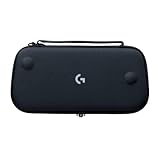
- Stow and Go: Take your Logitech G Cloud Handheld anywhere you want without having to worry about getting it there safely.
- Hand Strap: Attached strap for comfortable carrying. Pick up and go wherever you want to play.
- Detachable Strap: A detachable and size-adjustable strap gives you more options on how you want to carry and secure your Cloud Handheld device.
Logitech also added a Labs option for 1080p Xbox Cloud Gaming in firmware SQ02K.00.0206 on October 31, 2024. The handheld’s screen remains 1920×1080 at 60Hz.
See the current Xbox Cloud Gaming requirements and catalog information before subscribing, because Microsoft’s supported games and plan rules can change.
Xbox Remote Play
Xbox Remote Play streams games installed on your own Xbox console. That means the G Cloud can play your compatible Xbox library without relying on the cloud catalog, but the console must be switched on or remotely wakeable and connected to the internet.
On the Xbox, enable the feature at:
Xbox button
> Profile & system
> Settings
> Devices & connections
> Remote features
> Enable remote features
Under Sleep mode, select Standby. Logitech says Remote Play will not work if the console is not set to Standby. The Xbox Remote Play app was added to the G Cloud launcher in firmware SQ02K.00.230/001 and SQ02K.50.230/001 on August 18, 2025.
Quick wins for a faster PC:
Clear out junk files and repair common Windows errorsFree Scan →Scan for outdated or missing drivers - takes under a minuteDriver Scan →Repair Windows errors before they cause bigger problemsFix Now →While using Xbox Cloud Gaming or Remote Play, quickly press the G button to open the Xbox Guide. Pressing the physical Home button switches to the G Cloud interface and may interrupt the stream.
PC games
GeForce NOW
The G Cloud includes the GeForce NOW app and is listed by NVIDIA as a supported gaming handheld. GeForce NOW can stream supported PC games from NVIDIA’s servers. After signing in, connect your Ubisoft, Epic Games, or Steam account from the GeForce NOW home page, then launch an eligible game.
A GeForce NOW membership does not automatically include every PC game. The title must be supported by the service, and you may still need to own it or have access through a separate store subscription.
NVIDIA lists approximately 15 Mbps for 720p/60, 25 Mbps for 1080p/60, and 35 Mbps for QHD/90–120 streaming. The G Cloud’s own panel is limited to 1080p and 60Hz, so selecting a higher GeForce NOW stream mode cannot make its display sharper or faster than that.
Do these 3 things before closing this tab:
1Fix the driver behind crashes, sound loss and screen glitches2Clear out junk files and repair common Windows errors3Scan for outdated or missing drivers - takes under a minuteGeForce NOW launcher integration was added in firmware SQ02K.00.230/001 and SQ02K.50.230/001 on August 18, 2025. To leave a GeForce NOW game, tap the < button in the upper-right corner and quit through the GeForce NOW interface; the G button does not currently quit the game.
Check NVIDIA’s GeForce NOW requirements for current device, network, and membership rules.
Steam Link
Steam Link lets the G Cloud play essentially any Steam game that your host computer can run, provided the game works with the available controller, keyboard, mouse, anti-cheat, and streaming setup. The PC game is not installed on the G Cloud; it runs on the computer and sends video and audio to the handheld.
Rank #2

- Designed for G512 X 98: The essential palm rest accessory built to complete the legendary aesthetic and feel of your G512 X 98 keyboard and battlestation
- Boosts RGB brilliance: Light-capturing gaming palm rest enhances LIGHTSYNC, creating vivid and unique RGB keyboard wrist rest effects from your G512 X 98’s lightbar
- Provides stable comfort: Weighted and durable solid translucent acrylic palm rest offers ergonomic wrist rest support during intense gaming sessions
- Elevate your gaming setup: Laser-etched pattern on the top surface diffuses RGB lighting for a level-up look; subtle G logo highlights legendary gaming wrist rest design.
- Perfect fit: Sized for the exact length of the G512 X 98 keyboard; ensures a seamless, gap-free look when the keyboard and palm rest are aligned for both 4° and 8° keyboard angles
- Install Steam Link from Google Play.
- Open Steam Link and connect it to a computer running Steam.
- Choose a game from the computer’s Steam library.
The G Cloud runs Android 11, which meets Steam’s stated Android 5.0-or-later requirement for Steam Link. The devices can be in different locations if remote access is configured, but performance depends on both the PC’s upload connection and the G Cloud’s network.
For local discovery, Logitech recommends putting both devices on the same network. If the PC is not found, their IP addresses should share the same first three number groups.
Moonlight
Moonlight streams games and desktop applications from your own gaming PC. It is available on the G Cloud and was added as a preinstalled partner app in firmware SQ02K.00.0168 on January 26, 2024.
The current recommended host is Sunshine, not the discontinued NVIDIA GameStream path. Sunshine supports modern NVIDIA, AMD, and Intel GPUs on Windows 10 and Windows 11.
- Install Sunshine on the gaming PC.
- Open Moonlight on the G Cloud.
- Select the discovered PC.
- Enter the pairing code shown by Moonlight into Sunshine.
- Launch a game or desktop entry configured in Sunshine.
Some older Logitech instructions still refer to GeForce Experience and GameStream. Those instructions reflect the original setup and are not the current recommended Moonlight configuration. See the Moonlight setup guide and Moonlight FAQ for current host requirements.
Free tools Windows power users keep installed
One-click scans. No signup required.
Shadow PC
Shadow provides a streamed Windows PC. With a Shadow plan, the G Cloud can access Windows games installed on that virtual machine, as long as the Shadow client and individual games support the controls you need. Shadow was added as a preinstalled G Cloud app in firmware SQ02K.00.0154 on September 27, 2023.
Other cloud gaming services
Amazon Luna
Logitech’s supported Luna procedure uses Chrome:
- Open Chrome.
- Visit www.amazon.com/luna.
- Sign in to your Amazon account.
- Start an available game.
The playable catalog depends on Luna’s current offerings, your account or subscription, region, and controller support. It is not a fixed list of games permanently guaranteed to work on the G Cloud.
Blacknut
Blacknut was added to the G Cloud platform in firmware SQ02K.00.0230 on June 26, 2025. Logitech describes the service as adding hundreds of games, but you need a Blacknut account or subscription, and the catalog can vary by country and service changes.
PlayStation games
The G Cloud can install Sony’s PS Remote Play app and stream from a PS4 or PS5, but there is a major controller limitation: Logitech says the official Android app does not currently support third-party controllers. The G Cloud’s built-in controls therefore do not work as a controller in the official PS Remote Play app.
You can use the app’s touchscreen controls, or connect a supported PlayStation controller. Sony specifies Android 9 or later for touchscreen controls, Android 10 or later for a DualShock 4 over Bluetooth, and Android 12 or later for a DualSense over Bluetooth. Because the G Cloud runs Android 11, it meets the touchscreen and DualShock 4 requirements but not Sony’s stated Android 12 requirement for a DualSense.
Sony requires at least 5 Mbps broadband and recommends 15 Mbps. See Sony’s current PS Remote Play requirements for supported consoles and controllers.
Independent reader supportYour contribution helps us test, update, and keep practical guides available for everyone.Native Android games
Android games are the main category that runs directly on the G Cloud. You can install compatible titles from Google Play, and examples reported as working well with native or usable controls include Minecraft, Dead Cells, and Vampire Survivors.
Google Play availability does not guarantee compatibility with the integrated controls. A game may:
Recommended Free Tools
- Support the G Cloud’s physical controls natively.
- Support only touchscreen controls.
- Recognize Bluetooth controllers but not the G Cloud’s integrated controls.
- Work during gameplay but require touch input for menus, logins, inventory, or aiming.
- Be hidden from Google Play because its developer excludes the G Cloud’s device profile.
- Run poorly because of the G Cloud’s Snapdragon 720G-class platform, Adreno 618 graphics, and 4GB of RAM.
Genshin Impact, Pokémon Unite, and Call of Duty: Mobile have had controller limitations reported on Android. The precise behavior can change when a game or Android compatibility layer is updated, so check the current game version rather than assuming every review remains accurate.
Using virtual button mapping
For touchscreen games without native controller support, the G Cloud offers Logitech’s Virtual Button Mapping feature. It maps physical buttons and sticks to locations on the touchscreen. Enable it at:
Settings
> Labs
> Enable “Key Mapping”
Then open the game and use:
Long-press the Home button
> Quick Settings
> Button Mapping
Place virtual controls over the game’s on-screen buttons and assign the G Cloud controls. This is a workaround, not native support. It can fail with gestures, multi-touch, touch-and-drag aiming, continuously moving touch inputs, or interfaces whose controls change position. Firmware SQ02K.00.0168 improved the feature by adding simultaneous physical-controller and touchscreen operation.
Emulation
The G Cloud can install Android emulators from Google Play or other legitimate distribution sources. Its hardware is generally suited to older systems and many sixth-generation-era games, but emulation performance depends on the emulator, title, graphics settings, frame-rate target, and emulator version.
It should not be treated as having universal GameCube, Wii, PlayStation 2, or Nintendo 3DS compatibility. Some games may run acceptably while others may suffer from slowdowns, graphical problems, missing features, or control issues. Game and ROM ownership and distribution rules also vary by country and source.
What the G Cloud cannot do by itself
- It does not run Xbox, PlayStation, or PC versions locally. Those games are streamed through a cloud service, remote-play app, or PC-streaming app.
- It is not an offline Steam handheld. PC Steam games require Steam Link, Moonlight, Shadow, or another streaming method. Only Android versions of games run locally.
- It has no cellular connection. Cloud gaming requires Wi-Fi or another network connection.
- It does not guarantee controller compatibility for Android games. The developer decides how controls are implemented.
- It does not make a higher streaming mode visible than its panel supports. The screen remains 1920×1080 at 60Hz.
Update the G Cloud before testing
Several useful launcher and compatibility features arrived through firmware updates. Logitech’s latest listed firmware baseline is SQ02K.00.230/002 worldwide and SQ02K.50.230/002 in Europe, released December 15, 2025. It adds customizable ordering for the “Exploration Area” and “All Games” tabs.
Check your device at:
Settings
> System updates
> Check for updates
Rollouts can be gradual, so two G Cloud devices may not receive the same update simultaneously. The Logitech firmware release notes list the latest version and feature changes.
Bottom line
The Logitech G Cloud is best understood as a comfortable Wi-Fi gaming screen with Android capability, not as a self-contained console. It is a strong fit if you want Xbox Cloud Gaming, Xbox Remote Play, GeForce NOW, Steam Link, Moonlight, or Android games in one handheld. Its biggest constraints are dependence on a good network, the changing catalogs of cloud services, modest local hardware, and inconsistent controller support in Android and PlayStation apps.
Quick Recap
Product prices and availability are accurate as of the date/time indicated and are subject to change. Any price and availability information displayed on Amazon at the time of purchase will apply.




