
The Tool Desk
Outbyte Driver Updater FREEFix the driver behind crashes, sound loss and screen glitchesFind Drivers →Outbyte PC Repair FREEClear out junk files and repair common Windows errorsFree Scan →Pokémon game saves are stored in the Nintendo Switch console’s System Memory, not on the game cartridge. Nintendo says the same location is used whether you play from a physical game card or a download. Removing the cartridge does not erase the save, and a microSD card cannot hold it. Your progress is associated with the user profile that created it, so using that same profile is essential when you change software copies or consoles.
The short answer: the Switch stores your Pokémon save
Nintendo’s Data Management FAQ states: “On Nintendo Switch, game save data is stored on the console’s System Memory.” The game card contains the game software and, depending on the title, update or downloadable-content data; it is not the location used for your campaign, team, Pokédex, settings, or other save information. A downloaded copy uses the same System Memory arrangement.
| # | Preview | Product | Price | |
|---|---|---|---|---|
| 1 |

|
Pokémon Pokopia - Nintendo Switch 2 | $69.00 | Buy on Amazon |
| 2 |

|
Pokémon Legends: Arceus - US Version | $54.00 | Buy on Amazon |
| 3 |
|
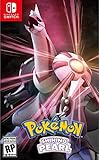
Pokemon Shining Pearl - Nintendo Switch Shining Pearl Edition | $52.49 | Buy on Amazon |
| 4 |

|
Pokémon: Let's Go, Eevee! - Nintendo Switch | $53.99 | Buy on Amazon |
As an Amazon Associate I earn from qualifying purchases.
That design means the save belongs to the console-and-user combination rather than to a particular cartridge. If you lend out the card, buy a replacement card, or later install the digital edition, the progress remains available on the original Switch when you launch the same game with the same user. Nintendo’s explanation of physical and downloaded software and its microSD rule are in the Data Management FAQ.
What happens when you remove the cartridge?
Your local save remains on the console
Taking out a Pokémon game card only removes the software source. The save stays in System Memory until you deliberately delete it, transfer it, or initialize the console. Reinsert the card, select the user who originally played, and the game should load the existing progress. A different user on the same Switch can have a separate save, because Switch save data is generally managed per user.
#1 Best Overall
- Shape the world and build a cozy new life with Pokémon as a Ditto transformed to look like a human.
- Use other Pokémon’s moves, like Bulbasaur’s Leafage, to revitalize and navigate the world around you.
- Meet and befriend more Pokémon as you help nature flourish.
- Gather materials to create items and furniture, till the fields to grow delicious crops, build homes for the Pokémon you meet, and more—there’s so much to do!
- Experience a world with varied weather, real-time days and nights, and other surprises.
Switching from physical to digital
A digital purchase does not create a second save location. Install the download on the same console, start it with the same user profile, and the software should read that profile’s existing local save. The Nintendo Account that owns the digital license must be able to launch the game, but changing from a card to a download does not itself move or convert the save.
Using the same card in another console
The cartridge can be inserted into another Switch, but the save will not travel with it. The second console has its own System Memory and therefore needs its own save, unless you transfer or download one through Nintendo’s supported methods. Do not assume that carrying the card is a backup.
Why a microSD card cannot back up Pokémon progress
Switch game data can be managed on a microSD card, but save data is treated differently. Nintendo explicitly says, “Game save data cannot be saved or copied to a microSD card.” Moving installed software between internal storage and microSD therefore does not move the Pokémon save. Removing, replacing, or reformatting a microSD card should not remove a save that remains in System Memory; deleting the save through the console’s data-management menus is a separate action.
Do these 3 things before closing this tab:
1Clear out junk files and repair common Windows errors2Scan for outdated or missing drivers - takes under a minute3Repair Windows errors before they cause bigger problemsWays to protect or move a save
| Method | What it does | Requirements and cautions |
|---|---|---|
| Leave it on the original Switch | Keeps the only local copy in System Memory. | No subscription, but the console must remain usable. A factory reset or manual save deletion removes it. |
| Nearby-console save transfer | Moves an individual game save directly from one Switch to another. | Requires both consoles, internet access, proximity, and the same Nintendo Account linked to a user on each. Nintendo Switch Online is not required. The source save is removed after a successful transfer. |
| Save Data Cloud | Uploads and later downloads a backup for titles that support the feature. | Requires Nintendo Switch Online. Support is decided per game. Downloading replaces the console’s current save for that title, and overwritten data cannot be recovered. |
| Pokémon HOME | Stores Pokémon deposited into the HOME service. | It is not a backup of the game’s save file or story progress. Deposited Pokémon are not covered by Save Data Cloud. |
Move a Pokémon save to a nearby Switch
Nintendo provides a console-to-console transfer for an individual game. It is the practical route when the title does not support cloud backup, or when you want to move the complete local save to replacement hardware.
Rank #2
- Action meets RPG in this new take on the Pokémon series
- Study Pokémon behaviors, sneak up on them, and toss a well-aimed Poké Ball to catch them
- Unleash moves in the speedy agile style or the powerful strong style in battles
- Travel to the Hisui region—the Sinnoh of old—and build the region’s first Pokédex
- Learn about the Mythical Pokémon Arceus, the key to this mysterious tale
Check these conditions first
- Both Switch consoles must be available and connected to the internet.
- The consoles must be near each other during the transfer.
- The same Nintendo Account must be linked to a user on both systems.
- You need access to the source console and the target console; this is not a remote restore.
- Nintendo Switch Online membership is not required for this transfer.
Transfer procedure
- On each console, open System Settings, then Data Management, and choose the option for transferring save data to another console.
- On the source system, identify the user and Pokémon title whose save you want to move. On the target system, select the receiving option and follow the on-screen pairing instructions.
- Keep both systems powered on and close to one another while the transfer runs. Do not remove the game card or interrupt the network connection.
- Launch the title on the target console with the transferred user and verify the trainer, team, and recent progress.
This is a move, not a copy. Nintendo’s transfer instructions explain that the save is removed from the source console after transfer; the official requirements are listed in How to Transfer Your Save Data To a Nearby Console. Keep the old Switch until you have opened the game and confirmed the expected save on the new one. Only then should you sell, give away, reset, or send the original for repair.
Cloud backups: useful, but not universal for Pokémon
How Save Data Cloud works
Save Data Cloud is a separate backup route tied to a Nintendo Switch Online membership. For a supported title, the console can upload save data and a later console can download it after you sign in with the relevant Nintendo Account. Nintendo’s instructions for enabling and checking the feature are in How to Back Up Save Data on Nintendo Switch 2 and Nintendo Switch.
Support is controlled by the individual game, not by the fact that it is a Pokémon title. On the game’s software menu, highlight the title, press the plus or minus button, and inspect its save-data-cloud information; the eShop listing can also identify support. If the menu does not offer a cloud-backup option, use nearby-console transfer while you still have the original system.
Downloading can overwrite newer local progress
A cloud download replaces the save currently stored on the console for that game. If the local save is newer, downloading an older cloud copy can roll back progress, and Nintendo warns that overwritten data cannot be recovered. Check the dates and choose deliberately before confirming. The download process is described in How to Download Save Data Cloud Backups on Nintendo Switch.
Rank #3
- Revisit the Sinnoh region from the original Pokémon Pearl Version game and set off to try and become the Champion of the Pokémon League
- The Pokémon Shining Pearl game brings new life to this remade classic with added features
- Explore the Grand Underground to dig up items and Pokémon Fossils, build a Secret Base, and more.
- Test your style and rhythm in a Super Contest Show
- A reimagined adventure, now for the Nintendo Switch system
What happens when Nintendo Switch Online expires?
Nintendo says that resubscribing within 180 days of membership expiration restores access to eligible cloud backups. That 180-day window does not turn unsupported games into supported ones, and it does not replace the need to keep a local console or complete a transfer for titles without cloud support.
Pokémon titles listed as unsupported for cloud backup
Nintendo Japan’s compatibility page, dated July 30, 2026, names the following Pokémon software among titles that do not support Save Data Cloud:
- Pokémon: Let’s Go, Pikachu!
- Pokémon: Let’s Go, Eevee!
- Pokémon Sword
- Pokémon Shield
- Pokémon Brilliant Diamond
- Pokémon Shining Pearl
- Pokémon Legends: Arceus
- Pokémon Scarlet
- Pokémon Violet
- Pokémon Café Mix
- Pokémon UNITE
- Pokémon Legends: Z-A, including its Nintendo Switch 2 Edition
The list is region-specific and tied to that date. It should not be read as a permanent statement about every Pokémon release or a future update. Check the particular game’s software menu or regional eShop details before relying on cloud backup. The current Japanese list is available at Nintendo’s Save Data Cloud compatibility page.
Pokémon HOME is not a save-file backup
Pokémon HOME can hold Pokémon that you deposit from compatible games, allowing those creatures to be managed separately from the game’s local save. It does not preserve your adventure state, map progress, badges, items, settings, or other save data. Nintendo’s Pokémon HOME for Nintendo Switch product information specifically says that Pokémon deposited into HOME will not be saved via Save Data Cloud.
Rank #4
- Don the role of a Pokémon Trainer as you travel through Kanto
- Discover a new species of Pokémon with the Pokémon Lets Go series
- Catch Pokémon in the wild using a gentle throwing motion with either a Joy-Con controller or a Poké Ball Plus accessory, which will light up, vibrate, and make sounds to bring your adventure to life
- See the world in style by customizing Pikachu and your Trainer with a selection of outfits
- Connect to Pokémon GO* to transfer caught Kanto-region Pokémon, including Alolan and Shiny forms, as well as the newly discovered Pokémon, Meltan, from that game to this one
Use HOME only for the Pokémon you intentionally deposit. If a console is lost or a game save is deleted, HOME cannot reconstruct the missing campaign or restore the original save slot.
Common situations and the correct response
The game says there is no save after removing the card
- Confirm that you selected the original Switch user. Another user can open the same software with a different save.
- Open System Settings > Data Management > Delete Save Data only to inspect which users have data; do not confirm deletion.
- Make sure you are launching the same regional title and edition. A different game release may not read another release’s save.
- If the old console was reset or the save was manually deleted, the cartridge and microSD card cannot restore it. Use a cloud backup, if that title supported one, or a completed transfer.
You bought the digital edition and want the old progress
Install the digital software on the same console and start it with the user that created the physical-copy save. The license account controls access to the download; the save remains tied to the console’s user data.
You are replacing a broken or unavailable console
Nearby transfer requires both systems, so it cannot help if the source console is permanently inaccessible. A supported cloud backup may be downloadable on the replacement system with Nintendo Switch Online. For an unsupported title, there is no microSD or cartridge-based substitute; preserve the original console long enough to transfer the save before disposing of it.
Quick Recap
You are preparing to sell or reset the old Switch
- Identify every user profile that contains a Pokémon save.
- Transfer each required save individually to the target console, or confirm a current cloud backup where supported.
- Open each game on the target and verify its progress.
- Only after verification, remove personal accounts and initialize the old console.
A practical decision checklist
- Still using the same Switch? Leave the save in System Memory; the card can be removed without erasing it.
- Changing from cartridge to download? Use the same user profile on the same console.
- Moving to another Switch? Use nearby-console transfer and remember that it removes the source copy.
- Want an online backup? Confirm that the exact title supports Save Data Cloud and maintain Nintendo Switch Online.
- Relying on Pokémon HOME? Treat it as Pokémon storage, not as a backup of game progress.
Product prices and availability are accurate as of the date/time indicated and are subject to change. Any price and availability information displayed on Amazon at the time of purchase will apply.

