
Start with the DPI and in-game sensitivity you already control, then change one Basilisk V4 setting at a time in Razer Synapse. Build a game-specific profile, use only reachable button bindings, and test optional features such as Perfect 180, Dynamic Sensitivity, Mouse Rotation, polling rate and lift-off controls rather than assuming any of them is automatically better. Razer documents what these controls do, but its October 8, 2026 announcement, product page and guide do not establish one universally best FPS configuration.
Set a known baseline before changing anything
The fastest way to lose your aim is to change DPI, in-game sensitivity, polling rate and button behavior simultaneously. Record the settings that currently feel familiar, including your game’s sensitivity, aim multiplier, scoped multiplier and any acceleration options. Take a screenshot of the Synapse profile so you can restore it.
As an Amazon Associate I earn from qualifying purchases.
Use the same mouse surface and grip while testing. Play a repeatable drill—tracking a moving target, stopping on small targets and making a full turn—before judging a change. Keep each trial long enough to expose inconsistency, then change one variable. A setting that feels faster in a few minutes may still be harder to control after your muscle memory settles.
Do these 3 things before closing this tab:
1Scan for outdated or missing drivers - takes under a minute2Repair Windows errors before they cause bigger problems3Fix the driver behind crashes, sound loss and screen glitchesWhat the V4 Pro actually offers
Razer’s October 8, 2026 announcement describes the Basilisk V4 line’s V4 Pro model with a Focus Pro 50K Optical Sensor Gen-3, advertised at up to 50,000 DPI, 930 IPS and 90 G acceleration. Those are manufacturer specifications, not independent measurements. The same announcement advertises true 8,000 Hz polling in both wired and wireless modes and identifies Synapse features including Perfect 180, Dynamic Sensitivity and Mouse Rotation.
#1 Best Overall
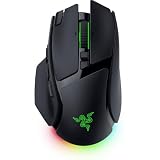
- IMMERSIVE CONTROL & SMART SCROLLING – Adapt every action to your workflow or gameplay with Razer HyperScroll Tilt Wheel Gen-2 featuring 24-step and 48-step tactile modes, free-spin scrolling, and Smart-Reel auto switching for gaming, productivity, and content creation
- PIXEL-PERFECT PRECISION FOR COMPETITIVE PLAY – Dominate FPS, battle royale, MOBA, and action games with the Focus Pro 50K Optical Sensor Gen-3 featuring 50,000 DPI, 930 IPS, 90G acceleration, and Frame Sync for ultra-low latency tracking
- LONG-LASTING WIRELESS PERFORMANCE – Play longer without interruptions with up to 200 hours of battery life at 1000Hz and ultra-responsive 8000Hz polling in both wired and HyperSpeed Wireless Gen-2 modes for esports-level responsiveness
- COMPLETE COMMAND AT YOUR FINGERTIPS – Execute advanced macros, push-to-talk commands, weapon swaps, profile cycling, and productivity shortcuts with 14 customizable controls including a multi-function trigger, M1 edge button, and 3 side buttons
- CUSTOMIZE YOUR DESKTOP EXPERIENCE – Personalize every session with 7-zone Razer Chroma RGB underglow, 16.8 million colors, dynamic lighting effects, and immersive game integrations across 300+ Chroma-enabled titles
The V4 Pro product page lists 14 customizable controls, DPI adjustment, button mapping, macros and profiles. Razer’s guide says Smart Profiles can load a linked configuration when a game starts and that up to five profiles can be stored in onboard memory.
Choose DPI and in-game sensitivity together
DPI is the sensor’s counts-per-inch setting; in-game sensitivity scales those counts into camera movement. Your effective sensitivity is therefore a combination of both. There is no documented “best DPI for Basilisk V4 FPS” value in the reviewed Razer material.
Keep the familiar value first
- Write down your current mouse DPI and the game’s sensitivity values.
- In Synapse, open the Basilisk V4 device and adjust the DPI control only if you have a specific reason, such as matching another mouse or creating a second, deliberately slower stage.
- If you change DPI, alter the game’s sensitivity by the inverse proportion when you want the same overall turn distance. For example, doubling DPI while halving in-game sensitivity is intended to preserve the same relationship, but verify the result in the game.
- Run your normal practice drill and keep the change only if it remains controllable after several sessions.
Do not chase the sensor’s 50,000-DPI ceiling for FPS play. A very high number can make small hand movements produce large camera changes, and the specification does not imply a competitive advantage. Consistency with the value your hand already knows matters more than a headline maximum.
Change only one side of the pair
If you are tuning aim, change either mouse DPI or game sensitivity, not both at once. This leaves a clear cause-and-effect trail. Keep a written note of each trial, including the game, profile and date, because switching profiles can silently restore a different value.
Decide whether 8,000 Hz polling fits your system
Polling rate controls how often the mouse reports its position. Razer advertises up to 8,000 Hz for the Basilisk V4 Pro in wired and wireless modes. The available sources do not show that every game, computer or player benefits from selecting the maximum, so treat it as an option to test, not a requirement.
Rank #2
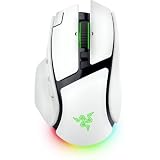
- IMMERSIVE CONTROL & SMART SCROLLING – Adapt every action to your workflow or gameplay with Razer HyperScroll Tilt Wheel Gen-2 featuring 24-step and 48-step tactile modes, free-spin scrolling, and Smart-Reel auto switching for gaming, productivity, and content creation
- PIXEL-PERFECT PRECISION FOR COMPETITIVE PLAY – Dominate FPS, battle royale, MOBA, and action games with the Focus Pro 50K Optical Sensor Gen-3 featuring 50,000 DPI, 930 IPS, 90G acceleration, and Frame Sync for ultra-low latency tracking
- LONG-LASTING WIRELESS PERFORMANCE – Play longer without interruptions with up to 200 hours of battery life at 1000Hz and ultra-responsive 8000Hz polling in both wired and HyperSpeed Wireless Gen-2 modes for esports-level responsiveness
- COMPLETE COMMAND AT YOUR FINGERTIPS – Execute advanced macros, push-to-talk commands, weapon swaps, profile cycling, and productivity shortcuts with 14 customizable controls including a multi-function trigger, M1 edge button, and 3 side buttons
- CUSTOMIZE YOUR DESKTOP EXPERIENCE – Personalize every session with 7-zone Razer Chroma RGB underglow, 16.8 million colors, dynamic lighting effects, and immersive game integrations across 300+ Chroma-enabled titles
Make a controlled comparison
- Choose a polling-rate option exposed in Synapse and record it in your profile.
- Play the same drill at your existing rate, then at the higher rate, without changing DPI or game sensitivity.
- Watch for practical problems: unstable frame pacing, increased system load, battery impact in wireless use or a game that behaves differently.
- Keep the higher setting only when your complete setup remains stable and the feel is preferable. Otherwise, return to the lower rate.
Polling rate is a response preference and a system compatibility decision. It does not compensate for poor sensitivity, an inconsistent grip or a game that cannot make useful use of the extra reports.
Create a separate FPS profile and sensible bindings
A dedicated profile prevents a desktop, strategy-game or editing layout from changing your FPS controls. In Synapse, create or select a profile for each game and link it to the game’s executable through Smart Profiles. Razer says the linked profile can load when the game starts; confirm that the expected profile is active before testing.
The Tool Desk
Outbyte Driver Updater FREEScan for outdated or missing drivers - takes under a minuteDriver Scan →Outbyte PC Repair FREERepair Windows errors before they cause bigger problemsFix Now →Bind for reachability, not for a full feature checklist
The V4 Pro has 14 customizable controls, but more bindings are not automatically better. Assign an action only when you can reach it without shifting your grip or lifting your aiming fingers. Useful candidates can include a push-to-talk key, melee, ability, grenade or a temporary sensitivity stage, depending on the game’s controls and your habits.
- Keep primary fire, aim and movement on controls you already operate reliably.
- Avoid placing a high-consequence action where an accidental thumb press is likely.
- Use a macro only when the game’s rules and anti-cheat policy permit it; a mouse feature does not override a game’s restrictions.
- Test every binding in a private or training environment before entering a match.
Store the profile on the computer for automatic game linking. Razer’s guide also describes up to five onboard memory profiles for carrying configurations between setups; check which settings your current Synapse version writes to onboard memory before relying on it away from your main PC.
Use Perfect 180 only if a fixed turn matches your game
Perfect 180 is an assignable instant-turn function. Razer describes it as a quick 180-degree turn intended to help low-sensitivity FPS players, and its promotional announcement calls it a potential “competitive edge.” That wording is a manufacturer claim, not independent evidence that it improves performance.
Rank #3
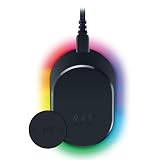
- MAGNETIC WIRELESS CHARGING – Recharge effortlessly between gaming sessions with a secure magnetic dock and wireless charging puck that keeps compatible Razer gaming mice powered and ready for continuous play
- TRUE 8000 HZ WIRELESS PERFORMANCE – Unlock ultra-low-latency Razer HyperSpeed Wireless Gen-2 connectivity with the integrated 8K Hz transceiver for maximum responsiveness in competitive FPS, MOBA, and esports gaming
- 8-ZONE CHROMA RGB UNDERGLOW – Customize eight lighting zones with 16.8 million colors and dynamic effects that sync with over 300 Chroma-integrated games for a more immersive gaming experience
- MULTI-DEVICE CONNECTIVITY – Keep your setup clean by pairing compatible Razer mice and keyboards through a single integrated transceiver, reducing cable clutter while maintaining reliable wireless performance
- CHARGE STATUS AT A GLANCE – Easily monitor battery levels through color-coded lighting indicators that show low, medium, and full charge status without opening software or interrupting gameplay
Configure and validate the turn
- Assign Perfect 180 to a reachable Basilisk control in the FPS profile.
- Open the intended game and use a safe practice area.
- Check that the game’s sensitivity and the Synapse total-count setting match the values required by the feature. Razer states that the resulting turn depends on those settings.
- Press the button from several starting orientations and distances. Confirm that the view ends where you expect and that the press does not disturb your grip.
Low-sensitivity players who routinely need a rapid rearward turn may find a dedicated button useful. If you already make reliable manual turns, the extra control can add another action to remember. Disable it when its result varies with profile, sensitivity or total-count changes.
Crashes, No Sound, or Screen Glitches?
Random freezes, missing sound and display glitches usually trace back to one bad driver. Find and replace yours safely.Free scan · under a minutePC Slower Than It Used to Be?
A free scan shows the junk files, broken settings and background clutter dragging Windows down - then fixes them in one click.Free scan · Windows 10 & 11Compare fixed DPI with Dynamic Sensitivity
Dynamic Sensitivity changes output according to movement speed, according to Razer’s documentation. In principle, a slow hand movement can remain precise while a fast sweep covers more screen distance. That is an adaptive behavior, not proof of better aim.
| Approach | Control behavior | Best reason to test it | Main risk |
|---|---|---|---|
| Fixed DPI and fixed in-game sensitivity | The same hand movement produces the same response. | Predictable muscle memory and repeatable drills. | Large turns require more physical mouse travel. |
| Dynamic Sensitivity | Output changes with movement speed. | You want fast sweeps and slower micro-adjustments from one setting. | The changing response may make practiced movements less predictable. |
Compare both with the same drill. If a fast flick overshoots or a slow correction feels different each time, return to fixed sensitivity. If you prefer the adaptive behavior, keep it in the game profile so it does not unexpectedly affect other applications.
Use Mouse Rotation only for a consistent angled grip
Mouse Rotation adjusts tracking to the angle at which you naturally hold the mouse. It is relevant when your forearm, wrist and mouse are consistently rotated relative to the desk and your crosshair movement feels skewed. It is not an FPS performance preset.
Test it without changing aim variables
- Keep DPI, game sensitivity and polling rate unchanged.
- Hold the mouse as you normally do and enable a small Mouse Rotation adjustment in the FPS profile.
- Track horizontal and vertical targets, then make diagonal corrections.
- Return to neutral if the adjustment makes your crosshair path less natural or if your grip angle changes during play.
The goal is alignment with your habitual grip, not a particular number. A player who holds the mouse straight may gain nothing from rotation.
Rank #4
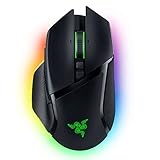
- ICONIC ERGONOMIC FORM WITH 10 1 PROGRAMMABLE BUTTONS: Favored by millions worldwide, the mouse’s signature shape perfectly supports cutting-edge ergonomics and endless customizability options
- 13-ZONE CHROMA LIGHTING WITH FULL UNDERGLOW: Customize each zone from over 16.8 million colors and countless lighting effects, and experience greater immersion as they react dynamically with over 150 Chroma-integrated games
- RAZER FOCUS PRO 30K OPTICAL SENSOR: Razer’s brand-new sensor provides flawless tracking performance on a wider variety of surfaces, including glass—supported by intelligent functions for enhanced aim and control
- RAZER OPTICAL MOUSE SWITCHES GEN-3: From an improved 90-million click lifecycle with zero double-clicking issues, to a blistering 0.2ms actuation with no debounce delay, enjoy reliability and speed that outshines all others
- RAZER HYPERSCROLL TILT WHEEL: Speed through content with a scroll wheel that spins freely or switch to the tactile mode for more precision and feedback
Tune lift-off and landing distance around your repositioning habit
Players with low sensitivity often lift the mouse to recenter. Razer’s Asymmetric Cut-Off lets you set lift-off and landing distance independently, while Smart Tracking can automatically calibrate lift-off distance. These controls matter when the sensor continues reading movement as you lift or takes too long to resume tracking when you put the mouse down.
A practical lift test
- Place the mouse on your normal surface and make a slow, straight movement.
- Lift it only as high as you normally do to recenter, noting whether the crosshair moves.
- Lower it again and check whether tracking resumes at a comfortable height.
- Adjust lift-off and landing values, or run Smart Tracking, then repeat the same lift several times.
Choose the lowest reliable lift behavior that prevents unwanted cursor movement while allowing immediate tracking after landing. Surface, feet, pressure and lifting style all affect the result, and the reviewed Razer sources do not provide an independently tested best level.
Choose scroll behavior and lighting without confusing them with aim settings
Razer documents multiple scroll modes and customizable scroll inputs. A tactile mode can help when you use the wheel for discrete weapon or ability changes; a freer mode may suit continuous browsing but can make one-step game inputs less deliberate. Bind scroll actions only when the game’s control scheme and your habits support them, then test for accidental wheel movement during aiming.
RGB lighting is cosmetic. Select a brightness or effect that does not distract you, but do not expect it to alter tracking, latency or accuracy. Keep lighting choices in the same profile only for convenience.
Use this decision matrix when tuning
| Setting | Prefer the conservative choice when… | Test the adaptive or advanced choice when… | What to measure |
|---|---|---|---|
| DPI and sensitivity | Your current turn distance is familiar. | You have a specific consistency or space constraint. | Stopping precision and repeatable full turns. |
| Polling rate | Your system or game shows instability, or battery life matters. | Your complete wired or wireless setup remains stable at a higher rate. | Frame pacing, reliability and subjective response. |
| Perfect 180 | You already make dependable manual turns. | You play low sensitivity and need a dedicated quick-turn action. | Final turn angle and accidental presses. |
| Dynamic Sensitivity | You depend on strict muscle memory. | You want speed on fast sweeps and precision on slow movement. | Overshoot, tracking smoothness and repeatability. |
| Mouse Rotation | Your grip is straight or changes often. | You hold the mouse at a stable angle. | Horizontal, vertical and diagonal tracking paths. |
| Lift-off and landing | You rarely lift or never see cursor movement while lifting. | You frequently recenter and need clean cut-off and resume behavior. | Unwanted movement during lifts and delay after landing. |
Troubleshoot changes that feel wrong
Your aim changed after launching a game
Check that Smart Profiles loaded the intended game profile and that the game did not switch its own sensitivity or scoped multiplier. Compare the active Synapse DPI stage with your written baseline.
Best Value

- ICONIC ERGONOMIC DESIGN WITH THUMB REST — PC gaming mouse favored by millions worldwide with a form factor that perfectly supports the hand while its buttons are optimally positioned for quick and easy access
- 11 PROGRAMMABLE BUTTONS — Assign macros and secondary functions across 11 programmable buttons to execute essential actions like push-to-talk, ping, and more
- HYPERSCROLL TILT WHEEL — Speed through content with a scroll wheel that free-spins until its stopped or switch to tactile mode for more precision and satisfying feedback that’s ideal for cycling through weapons or skills
- 11 RAZER CHROMA RGB LIGHTING ZONES — Customize each zone from over 16.8 million colors and countless lighting effects, all while it reacts dynamically with over 150 Chroma integrated games
- OPTICAL MOUSE SWITCHES GEN 2 — With zero unintended misclicks these switches provide crisp, responsive execution at a blistering 0.2ms actuation speed for up to 70 million clicks
Perfect 180 stops short or turns too far
Verify the game’s sensitivity and Synapse total-count configuration. Re-test from a known starting orientation after confirming the correct profile is active.
The cursor moves when you lift
Revisit lift-off distance, run Smart Tracking on the current surface and repeat the test with your normal lifting height. If landing causes a jump, adjust landing distance separately when that control is available.
High polling feels unstable
Return to the last stable rate, then test again with unchanged DPI and sensitivity. A lower rate that behaves consistently is preferable to a maximum setting that introduces system or game problems.
What’s actually slowing this PC down?
Pick the symptom - the matching free tool is one click away.
Dynamic Sensitivity feels unpredictable
Disable it in the FPS profile and compare the same drill with fixed sensitivity. Keep the feature only if its speed-dependent response is something you can reproduce deliberately.
A sensible starting configuration
For a first pass, retain your familiar DPI and in-game sensitivity, use a stable polling rate, create a Smart Profile for each FPS title and bind only reachable controls. Leave Dynamic Sensitivity and Mouse Rotation off unless you can describe the specific behavior you want. Test Perfect 180 only when you play low sensitivity and can verify its turn in the intended game. Tune lift-off and landing distance if you regularly recenter, and treat scroll mode and RGB as personal preferences.
This approach separates documented feature behavior from unproven performance claims. Razer’s materials establish what the Basilisk V4 Pro can configure; they do not establish a universal DPI, polling rate or competitive setup. Your repeatable practice drill, stable hardware and ability to reproduce a setting are the final tests.
Quick Recap
Product prices and availability are accurate as of the date/time indicated and are subject to change. Any price and availability information displayed on Amazon at the time of purchase will apply.

