Recommended Free Tools
If your Xbox apps are stuck loading, closing immediately, or returning you to Home, first check the official Xbox service status and determine whether one app or several are affected. Multiple failures usually point to an Xbox outage, sign-in session, network problem, incomplete update, licensing issue, or console state—not a reason to factory-reset immediately.
First, check whether Xbox services are down
Open the Xbox status page and look for incidents involving account sign-in, gaming, Store, multiplayer, or purchases. If the Store, Game Pass, My games & apps, and several installed apps fail together, a service-side problem is more likely than several damaged installations.
When Microsoft reports an incident, waiting is often the correct fix. Reinstalling apps or resetting your console cannot repair a server outage. Status pages can lag behind developing incidents, so timing and symptoms may provide additional clues, but community reports alone do not prove that Xbox is down. A reported August 2026 incident affecting game launching and library features is a useful reminder to check service status before making destructive changes; it does not explain every current failure.
Is one app failing or are all Xbox apps failing?
| Symptom | Likely category | Best first action |
|---|---|---|
| Every app spins or fails | Xbox service, account, network, or console state | Check status, restart, and test the network |
| Only one app fails | Corrupt installation, update, or app-specific outage | Update, then reinstall that app |
| Store, Game Pass, or library fail together | Service, sign-in, licensing, or network problem | Check status and sign in again |
| App opens, then returns to Home | App update, storage, corruption, or hardware | Restart, update, and test internal storage |
| Games fail but Netflix or YouTube works | Ownership, subscription, game service, or account issue | Check licenses and the affected service |
| Xbox app on PC stays on “Launching” | Windows update, Microsoft Store, Gaming Services, or account | Update Windows and Store, then repair the app |
Also note whether the app is missing entirely, shows an endless spinner, displays an error code, or loads its interface but not your account, library, purchases, or videos. Each symptom points to a different layer of the system.
Free tools Windows power users keep installed
One-click scans. No signup required.
#1 Best Overall

- MODERNIZED DESIGN — Experience the modernized design of the XBOX Wireless Controller with sculpted surfaces and updated geometry that enhances comfort and control during long gaming sessions.
- PRECISION PERFORMANCE — Stay on target with a hybrid D-pad and textured grips on triggers, bumpers, and back case for improved accuracy and handling.
- SHARE BUTTON: Seamlessly capture and share content such as screenshots, recordings, and more with the new Share button.
- VERSATILE CONNECTIVITY — Connect via USB-C for plug-and-play on console and PC, or quickly pair and switch between supported devices with XBOX Wireless and Bluetooth support.
- BUILT-IN AUDIO SUPPORT — Plug in compatible headsets using the 3.5mm audio jack for direct voice chat and immersive in-game sound.
Restart your Xbox
A normal restart is the safest first local fix:
- Press the Xbox button.
- Open Profile & system → Power.
- Select Restart console.
If the interface is frozen, hold the physical Xbox power button for about 10 seconds until the console shuts down. Wait briefly, then turn it on again. This restarts the current session and can clear transient system or network state. It does not normally remove installed games, apps, or cloud saves.
Power-cycle the console
Use a full power cycle when a normal restart does not help:
- Shut down the console.
- Hold the power button for approximately 10 seconds if it is still running.
- Unplug the power cable after shutdown.
- Wait briefly, reconnect it, and turn the console on.
A power cycle is different from a factory reset. It does not erase your accounts, games, apps, or settings. Do not unplug the console while a system update is installing.
Do not treat Clear Alternate MAC address as a universal cache fix. Xbox has explained that clearing an unused Alternate MAC address mainly forces a restart and is generally unnecessary unless you previously configured a custom MAC address for that network. A normal restart is usually the better choice.
What’s actually slowing this PC down?
Pick the symptom - the matching free tool is one click away.
Rank #2

- MODERNIZED DESIGN — Experience the modernized design of the XBOX Wireless Controller with sculpted surfaces and updated geometry that enhances comfort and control during long gaming sessions.
- PRECISION PERFORMANCE — Stay on target with a hybrid D-pad and textured grips on triggers, bumpers, and back case for improved accuracy and handling.
- SHARE BUTTON: Seamlessly capture and share content such as screenshots, recordings, and more with the new Share button.
- VERSATILE CONNECTIVITY — Connect via USB-C for plug-and-play on console and PC, or quickly pair and switch between supported devices with XBOX Wireless and Bluetooth support.
- BUILT-IN AUDIO SUPPORT — Plug in compatible headsets using the 3.5mm audio jack for direct voice chat and immersive in-game sound.
Test the Xbox network connection
On the console, open Settings → General → Network settings, then run Test network connection. If online games or multiplayer services are affected, also run Test multiplayer connection. Review any NAT, packet-loss, latency, or service error reported.
- Restart the modem and router.
- Try Ethernet instead of Wi-Fi if possible.
- Temporarily test a phone hotspot, where practical and allowed by your data plan.
- Forget and reconnect to the Wi-Fi network.
- Disable VPNs, proxies, and captive-portal connections while testing.
If the Xbox works through a hotspot but not home Wi-Fi, investigate the router, ISP, DNS, filtering, or NAT. If both wired and wireless connections fail, Xbox services, account state, console software, or hardware are more likely. Avoid changing DNS unless testing indicates a DNS-resolution problem.
Update the console and app
Install pending console updates through Settings → System → Updates. Menu labels can vary slightly between Xbox One and Xbox Series X|S software versions. The console may need free storage before an update can complete.
For one failing app, check for an available app update. If the update is stuck and other apps work, reinstall only the affected app rather than every app on the console.
Rank #3

- MODERNIZED DESIGN — Experience the modernized design of the XBOX Wireless Controller with sculpted surfaces and updated geometry that enhances comfort and control during long gaming sessions.
- PRECISION PERFORMANCE — Stay on target with a hybrid D-pad and textured grips on triggers, bumpers, and back case for improved accuracy and handling.
- SHARE BUTTON: Seamlessly capture and share content such as screenshots, recordings, and more with the new Share button.
- VERSATILE CONNECTIVITY — Connect via USB-C for plug-and-play on console and PC, or quickly pair and switch between supported devices with XBOX Wireless and Bluetooth support.
- BUILT-IN AUDIO SUPPORT — Plug in compatible headsets using the 3.5mm audio jack for direct voice chat and immersive in-game sound.
Sign out and sign in again
A stale Microsoft-account session can prevent Store, Game Pass, cloud content, and owned games from loading:
- Open Profile & system.
- Select the signed-in account and choose Sign out.
- Restart the console.
- Sign in again.
Before removing an account from the console, confirm that you know its Microsoft-account email address and password and can access required two-factor authentication. Signing in again cannot fix a Microsoft-side outage, suspended account, or invalid license.
Check ownership, Game Pass, and Home Xbox
If ordinary apps work but a game or subscription title will not launch, investigate licensing instead of reinstalling immediately:
- Are you signed into the account that bought the game?
- Is the Game Pass subscription active, and is the title still included for your region and plan?
- Is the purchaser’s console designated as the appropriate Home Xbox?
- Does a disc-based game require its disc to be inserted?
- Is the console offline and unable to complete an online license check?
- Could family, age, region, or purchase restrictions be blocking access?
Microsoft notes that device limits, compatibility, authorization, ownership, and availability can affect whether apps and games install or launch. See its guidance on installing apps or games on a device. Game Pass can restore access to eligible content, but buying a subscription will not repair an outage, network failure, corrupted installation, or broken Windows component.
Quick wins for a faster PC:
Scan for outdated or missing drivers - takes under a minuteDriver Scan →Repair Windows errors before they cause bigger problemsFix Now →Rank #4
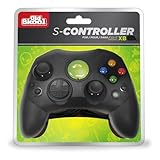
- Compatible with the original Xbox only (not Xbox 360 or Xbox one)
- Dual Analog joysticks
- Full analog pressure-sensitive action buttons & D-Pad
- Vibration feedback
- Cable Length: 6 foot
Reinstall one failing Xbox app
When one app repeatedly fails while others work:
- Highlight the app.
- Press the controller’s Menu button.
- Choose Manage app and game.
- Select Uninstall all.
- Restart the console.
- Reinstall the app from Microsoft Store.
Uninstalling an app is not the same as deleting saved data. Do not delete local saves as an early troubleshooting step. Cloud synchronization generally allows compatible saves to return after you reconnect, but synchronization and save behavior can vary by game.
If the app is installed on an external drive, move or reinstall it to internal storage. A failing external drive can stop several games or apps installed there from launching while internally installed content continues to work. Check storage through My games & apps → Manage → Free up space; low space can prevent updates and temporary installation files.
Independent reader supportYour contribution helps us test, update, and keep practical guides available for everyone.Xbox app for Windows 10 or 11 will not load
The PC Xbox app has separate Windows dependencies, so it can fail even when your console is working. Microsoft’s Store troubleshooting sequence recommends updating, repairing, resetting, and reinstalling apps.
- Restart Windows.
- Install pending Windows updates.
- Open Microsoft Store and select Library → Get updates.
- Confirm that the same intended Microsoft account is signed into Microsoft Store and the Xbox app.
- Open Settings → Apps → Installed apps → Xbox → Advanced options, then select Repair.
- If Repair fails, select Reset.
- Reinstall the Xbox app from Microsoft Store.
- If Gaming Services is missing or broken, use Microsoft’s official Gaming Services Repair Tool for PC.
Microsoft’s instructions are available in Fix problems with apps from Microsoft Store. Gaming Services and related Store components are reported dependencies in some “Launching Xbox” failures, but not every launch problem has the same cause.
Best Value

- Featuring a bright, bold, unmistakable blue design
- Dual Rumble Motors - Take your gaming experience to the next level, providing tactile feedback and sensations that bring your virtual worlds to life.
- Immersive Impulse Triggers – provides haptic feedback sensations using built-in motors so you can feel the action of the game.*
- Extra Long USB-C Cable - Provides you with 10 ft. of distance for more comfort and flexibility than shorter cables.
- Ergonomic Design – Lightweight and comfortable for long gaming sessions.
Avoid random PowerShell scripts that remove AppX packages or Gaming Services. Use Microsoft’s official repair tool first; only use administrator commands when current Microsoft instructions explicitly require them. Do not use registry cleaners, third-party driver updaters, pirated installers, or unofficial Xbox app packages.
What not to do
- Do not reinstall every app during a confirmed Xbox outage.
- Do not delete saved data when you only need to reinstall an app.
- Do not assume a Wi-Fi icon proves that Xbox services are reachable.
- Do not change DNS without evidence of a DNS problem.
- Do not remove your account before confirming its credentials and two-factor access.
- Do not factory-reset before saves have synchronized.
- Do not assume Game Pass access means every game should launch.
Factory reset only as a last resort
If status, network, updates, sign-in, storage, and targeted reinstallation have all been ruled out, consult Xbox’s official recovery guidance. Current console software generally offers a reset option that can preserve installed games and apps while removing accounts and settings, as well as a more complete erase option. Labels and behavior can vary, so read every warning on screen.
Before resetting, confirm account credentials, let saves synchronize online, record error codes and important settings, verify that games and apps can be redownloaded, and disconnect unnecessary external storage. Choose a complete erase only if you understand that it removes local accounts, settings, and installed content.
When to contact Xbox Support
Use the official Xbox contact page when an error code persists, multiple apps still fail after a reported outage ends, the console cannot complete updates, or apps fail from internal storage after reinstalling. Seek hardware service if the console shuts down unexpectedly, overheats, or makes unusual noises. Preserve the exact error code, console model, system version, affected apps, and results of network and storage tests.
The Tool Desk
Outbyte PC Repair FREEClear out junk files and repair common Windows errorsFree Scan →Outbyte Driver Updater FREEFix the driver behind crashes, sound loss and screen glitchesFind Drivers →Quick Recap
Quick checklist
- Check Xbox service status.
- Identify whether one app or many fail.
- Restart the app and console.
- Install console and app updates.
- Test Xbox network and multiplayer connections.
- Sign out, restart, and sign in again.
- Check ownership, subscription, Home Xbox, and disc requirements.
- Reinstall only the affected app.
- Test internal storage and inspect external drives.
- On PC, update Windows and Store, repair or reset Xbox, then use the official Gaming Services Repair Tool.
- Reset or request hardware support only after these steps.
Product prices and availability are accurate as of the date/time indicated and are subject to change. Any price and availability information displayed on Amazon at the time of purchase will apply.