The Tool Desk
Outbyte Driver Updater FREEScan for outdated or missing drivers - takes under a minuteDriver Scan →Outbyte PC Repair FREEClear out junk files and repair common Windows errorsFree Scan →First check where the sound is supposed to come from: the Switch’s built-in speakers, wired headphones, Bluetooth audio, or a TV while docked. The right fix depends on the output and symptom. Silent built-in speakers while docked are normal; crackling, static, low volume, or sound missing from headphones calls for a different check.
Start by identifying the audio output
Try the troubleshooting path that matches how you are listening. If more than one output is affected, test each separately; that helps distinguish an accessory or connection problem from one affecting the console.
- Built-in speakers: Undock the console, disconnect wired headphones, and disconnect Bluetooth audio before testing a game. The console speakers turn off automatically while docked. Nintendo explains speaker behavior and troubleshooting here.
- Wired headphones: Check console volume, fully reseat the headphone plug, then try a second pair. Test the original headphones on another device as well. Nintendo’s headphone troubleshooting steps cover no sound or sound from only one side.
- Bluetooth headphones or speakers: Confirm the device is connected and raise volume on both the Switch and the accessory. Check the console’s headphone volume limit and the game’s audio settings. Bluetooth device volume can change when that device is used with other equipment. See Nintendo’s Bluetooth audio guidance.
- TV while docked: Check the TV Sound mode and simplify the HDMI connection while testing. TV-mode instructions apply to models that support TV mode; Switch Lite does not. Nintendo’s relevant pages are TV sound settings and docked TV troubleshooting.
If there is no sound or the volume is too low
Built-in speakers
Test in handheld mode with headphones disconnected. If the speakers remain silent after you unplug headphones, the Switch may still be applying its headphone mute setting. Press a console volume button to unmute, or turn off Mute when Headphones are Disconnected in System Settings. If the speakers work undocked but not while docked, that is expected behavior rather than a speaker fault.
Wired headphones
Raise the console volume, check that the plug is fully seated, and try another pair. If the second pair works, the original headset or its plug is the likely issue. If neither pair works, the comparison points more toward the console or its headphone connection than toward one headset.
Do these 3 things before closing this tab:
1Scan for outdated or missing drivers - takes under a minute2Clear out junk files and repair common Windows errors3Fix the driver behind crashes, sound loss and screen glitches#1 Best Overall

- Immersive 7.1 Surround Sound: This gaming headset delivering stereo surround sound for realistic audio. Whether you're in a high-speed FPS battle or losing yourself RPG adventures, this Ps5 headset provides crisp treble, punchy bass, and precise directional cues, giving you a competitive edge
- Great Humanized Design: Comfortable and breathable permeability protein over-ear pads perfectly on your head, adjustable headband distributes pressure evenly, you’ll enjoy lasting comfort during hours of gaming and suitable for all gaming players of all ages
- Sensitivity Noise-Cancelling Microphone: 360° omnidirectionally rotatable sensitive microphone, premium noise cancellation, sound localisation, your voice comes through loud and natural, ensuring your teammates catch every callout, even in chaotic battle scenes.
- Universal Compatibility: This gaming headphone support for PC, Ps5, Ps4, Xbox one, Xbox Series X/S, Switch, Laptop, Mobile Phone and other devices with 3.5mm jack.Note 1: When you use headset on your PC, be sure to connect the "1-to-2 3.5mm audio jack splitter cable" (Red-Mic, Green-audio). (Please note you need an extra Microsoft Adapter when connect with an old version Xbox One controller)
- Cool style gaming experience: Colorful RGB lights create a gorgeous gaming atmosphere, adding excitement to every match. Heightening immersion for FPS, MOBA, and action titles. These eye-catching lights give your setup a gamer-ready look while maintaining focus on performance. (*Note: The USB connector is for LED lighting only)
Bluetooth audio
Check volume on the console and the connected headphones or speaker; they have separate controls. Also check the headphone volume limit and the game’s own audio settings. If the device appears connected but produces no sound, disconnect it and reconnect. If that fails, remove its saved pairing on the Switch and pair it again. Testing another Bluetooth device—or wired headphones—can show whether the issue follows one accessory.
TV sound
On supported docked models, open System Settings > TV Settings > TV Sound. The available modes are Automatic, Surround Sound, Stereo, and Mono. Use Stereo as a diagnostic if the current mode produces no sound, and use Surround only with equipment that supports it. To isolate the HDMI path, temporarily connect the dock directly to the TV, bypassing a sound bar, receiver, or adapter. The cited Nintendo docked-TV guidance is for original Switch-family troubleshooting; do not transfer Switch 2-specific dock or power steps to an original Switch without confirming model compatibility.
Rank #2
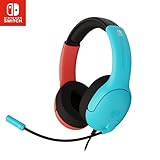
- STEREO SOUND GAMING HEADSET - Powerful 40mm speaker drivers deliver immersive gaming experiences with strong bass and crisp highs.Control Type:Volume
- PREMIUM LIGHTWEIGHT BUILD - Designed for long gaming sessions with deluxe comfort padding, adjustable durable headband, noise-isolating ear cups, and breathable, surround soft foam cushions.
- FLEXIBLE NOISE-CANCELING MIC - Enables crystal clear voice to your teammates with less background and ambient noise. Flip to mute microphone when not in use.
- ON-EAR VOLUME CONTROL - Make quick audio adjustments on the ear-cup while keeping your eyes on the game.
- WIRED COMPATIBILITY - Officially licensed by Nintendo for Switch, Switch OLED & Lite. Works great with Smartphones, Wii, 3DS, Windows PC, Mobile, Tablet, iPad, Mac, VR Devices. Great for travel.
If the sound crackles, buzzes, or becomes distorted
Distortion from the built-in speakers
Undock the console and test with wired and Bluetooth audio disconnected. Check that the console has the latest system update, then restart it. If static or distortion continues, move the console away from wireless devices such as cordless phones or microwaves; Nintendo notes that wireless interference can rarely cause sound problems. If the built-in speakers remain distorted after these checks, contact Nintendo support about service. Follow Nintendo’s distorted-audio and static troubleshooting.
Distortion from headphones, Bluetooth audio, or TV equipment
Compare with a different output before assuming the console speakers are at fault. For wired headphones, reseat the plug and test another pair. For Bluetooth, reconnect the device or test another one. For an external audio device that distorts, power-cycle it and reconnect it; for TV audio, simplify the HDMI path and check the sound mode. Nintendo separates external-device checks from speaker distortion in its external-audio troubleshooting guidance.
Rank #3
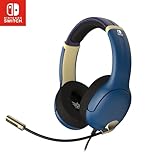
- STEREO SOUND GAMING HEADSET - Powerful 40mm speaker drivers deliver immersive gaming experiences with strong bass and crisp highs.
- PREMIUM LIGHTWEIGHT BUILD - Designed for long gaming sessions with deluxe comfort padding, adjustable durable headband, noise-isolating ear cups, and breathable, surround soft foam cushions.
- FLEXIBLE NOISE-CANCELING MIC - Enables crystal clear voice to your teammates with less background and ambient noise. Flip to mute microphone when not in use.
- ON-EAR VOLUME CONTROL - Make quick audio adjustments on the ear-cup while keeping your eyes on the game.
- WIRED COMPATIBILITY - Officially licensed by Nintendo for Switch, Switch OLED & Lite. Works great with Smartphones, Wii, 3DS, Windows PC, Mobile, Tablet, iPad, Mac, VR Devices. Great for travel.
Use the comparison to decide what to do next
Change one part of the setup at a time: output, accessory, or connection. That makes the result useful rather than leaving several possible causes mixed together.
- Only one headset or speaker fails: The accessory or its connection is more suspect than the console. Check it on another device or try a different accessory.
- Several headphones or audio devices fail in the same way: The console becomes a more plausible cause. If the supported checks do not help, contact Nintendo support.
- Only the built-in speakers distort: Use Nintendo’s speaker-distortion checks; persistent distortion is a reason to ask about service.
- Only docked TV audio fails: Check TV Sound mode and simplify the HDMI signal path. A replacement HDMI cable is relevant only if the cable is visibly damaged or testing points to it; it is not a general fix for handheld or headphone problems.
When to contact Nintendo
Contact Nintendo support for service if different headphones or audio devices fail in the same way, or if the built-in speakers remain distorted after the applicable checks. The official audio pages also provide symptom-specific troubleshooting for speaker sound, headphone sound, distorted system audio, and distorted external audio.
Quick Recap
Product prices and availability are accurate as of the date/time indicated and are subject to change. Any price and availability information displayed on Amazon at the time of purchase will apply.



