Roblox can lag while everything else seems fine because Roblox has several independent performance paths. Network lag, graphics lag, system-resource pressure, overheating, and experience-specific server problems can produce different symptoms—and require different fixes.
Roblox can lag even when every other app seems fine because “lag” is not one problem. Roblox may be suffering from network lag, graphics or frame-time stutter, system-resource pressure, overheating, or a problem limited to one experience or server. A fast connection and normal performance in a browser do not rule out any of those possibilities.
As an Amazon Associate I earn from qualifying purchases.
The quickest way to narrow it down is to compare the symptom: teleporting players and delayed actions usually point toward a network or server problem, while choppy camera movement and low or unstable FPS usually point toward the device, graphics settings, or an especially demanding experience.
First, determine what kind of lag you have
| What you see | Most likely area | First test |
|---|---|---|
| Players teleport, actions register late, the world stops responding, or you disconnect | Network connection, routing, firewall, or server | Check another Roblox experience and try another connection |
| The picture is visibly choppy or the camera moves unevenly | Graphics settings, CPU/GPU load, frame-time spikes, or the experience itself | Disable automatic graphics quality and lower the manual level |
| Roblox improves after closing other programs | System-resource competition | Close browsers, recorders, overlays, launchers, and other demanding apps |
| Performance gets worse after playing for a long time | Heat, thermal throttling, memory pressure, or a resource-heavy experience | Restart Roblox and the device; check whether the device is overheating |
These categories can overlap. For example, a demanding experience can use substantial CPU and GPU resources while also communicating heavily with its server. Treat the measurements as clues rather than proof that one number identifies the entire cause.
#1 Best Overall

- Surge Stereo Sound - 4 large amplifier IC horns! Computer speakers achieved Distortion Free and Noiseless in stunning sound. Immersive cinema effect for movies, videos, games and music.
- Touch Angular Game Lights - Unique Dynamic Angular Game Atmosphere design! Desktop speaker with latest One Touch to turn on/off lights, avoid the traditional cumbersome button design.
- All In One Compact - Fits any desktop computer! Perfectly under the monitor without taking up any extra desktop space. Cables are glued together to avoid desktop clutter.
- Plug And Play - No need for any driver! Must Plug in the USB powered cable and 3.5mm audio cable to enjoy now! Top volume knob for easier volume adjustment.
- Type C Adapter Included & Compatibility - USB speakers match computers, desktops, PCs, laptops. Suitable for windows(Vista/7/8/10), Mac OS, Chrome OS, etc.
1. Check Roblox’s status and compare another experience
Before changing Windows settings or buying hardware, check the official Roblox status page while the problem is happening. A status page only describes the service at that moment; an operational result does not rule out a regional problem, a particular server, or one broken experience.
Next, join at least one other Roblox experience:
- If several experiences lag in the same way, investigate your connection, device, or Roblox client.
- If only one experience is consistently affected, the experience may be using heavier assets, scripts, physics, or server computation than the others.
- If the problem appears only in one server instance, leaving and rejoining may help you test whether that server is under strain.
Players cannot repair an experience’s scripts, asset design, or server workload. If one experience remains problematic after you compare devices or servers, report reproducible details to its developer or contact Roblox support when the issue appears to involve the platform or client.
2. Use Roblox’s performance information instead of guessing
Turn on Roblox’s available performance statistics while the lag is visible. Depending on your platform and current Roblox interface, the performance display can expose information such as FPS, memory, CPU, GPU, network traffic, and ping. Roblox’s creator-facing diagnostics also distinguish client frame rate, server heartbeat, memory, asset loading, and network behavior.
Windows Errors? Fix Them Before They Spread
Repair common Windows errors and clear accumulated junk for a smoother, more stable PC - no reinstall needed.Free scan · no reinstallCrashes, No Sound, or Screen Glitches?
Random freezes, missing sound and display glitches usually trace back to one bad driver. Find and replace yours safely.Free scan · under a minuteUse the readings like this:
- High ping with rubber-banding or delayed actions: investigate Wi-Fi, routing, firewall or router behavior, your internet provider, or the particular Roblox server.
- Low or unstable FPS with choppy visuals: lower graphics quality, close demanding applications, and check CPU/GPU load and temperature.
- High memory use or performance that deteriorates over time: close other programs, restart Roblox and the device, and consider whether the experience is unusually asset-heavy.
- Normal average FPS but obvious hitching: suspect frame-time spikes. Average FPS can look acceptable while occasional very long frames create visible stutters.
For advanced troubleshooting, Roblox’s MicroProfiler focuses on frame time and shows which tasks consume time in individual frames. It is mainly useful to developers and technically minded users, but it explains why an average-FPS counter can miss the cause of a short, severe hitch.
3. Fix choppy visuals and low FPS
Lower Roblox’s graphics quality manually
Open the in-game Roblox menu, choose Settings, find Graphics Mode, turn off Automatic, and move Graphics Quality down several notches. The exact appearance of the menu can vary by platform and client version.
This reduces visual quality but reduces the rendering work required from the device. If the game becomes smooth immediately, the evidence points more toward client rendering or compute limits than internet speed. Raise the setting gradually afterward until you find a stable level.
Close competing applications
Close unnecessary high-power programs before launching Roblox, especially:
Rank #2

- PLEASE NOTE:This product only contains two removable stereos, the picture is only to show the product disassembly effect, please pay attention to distinguish!
- 【2 in 1 PC Speakers】OFFSIR computer speakers can be a soundbar after easily splicing, innovative 2-in-1 design, which is convenient for you to layout the computer desktop. With compact size, OFFSIR RGB gaming Speakers are ideal for the desktop PC laptop computer.
- 【Hi-Fi Stereo Sound Quality】OFFSIR PC speakers are equipped with advanced dual 5W sound drivers with a full-range 2.0-channel enhanced stereo core, providing you with a superior listening experience.
- 【Plug & Play for Broad Compatibility】Equipped with a USB cable and 3.5mm audio cable, the gaming speaker is plug-and-play for a wide range of PC, laptop, tablet compatibility (No drivers needed). Suitable for windows (Vista / 7 / 8 / 10), Mac OS, Chrome OS, Linux, UNIX, etc.
- 【Touch Breathing Light】Gently touch the top of the speaker to change the light color and light on/off, four modes of light give you the perfect gaming atmosphere.
- Browsers with many tabs or video playback
- Screen recorders and streaming software
- Overlay tools and hardware-monitoring utilities
- Game launchers and other games
- Virtual machines and demanding creative applications
On Windows, Task Manager can show which processes are consuming CPU, memory, GPU, or network resources. Do not end an unfamiliar system process just because it appears in the list; close applications you recognize and no longer need.
Check heat and sustained performance
If Roblox starts smoothly but becomes worse after an extended session, heat may be the explanation. Mobile devices and thin laptops can reduce their processor or graphics performance when they become too hot. This is called thermal throttling.
- Play on a hard surface rather than soft bedding.
- Keep vents clear and remove dust if you can do so safely.
- Disconnect unnecessary peripherals and close background programs.
- Let the device cool, then test the same experience again.
A steady frame-rate decline during extended mobile play is a useful thermal clue, but it is not conclusive by itself. Memory pressure or an experience that continually loads assets can produce a similar pattern.
4. Fix network lag when players teleport or actions are delayed
Roblox is a real-time game, so a connection can be good enough for browsing or video streaming yet still perform poorly for Roblox. Streaming services buffer data, while Roblox continuously exchanges interactive game data. The route to a particular Roblox server can also be poor even when other websites load normally.
Recommended Free Tools
Try another connection
Test Roblox using a different internet source, such as a phone hotspot where practical. If the lag disappears, your normal Wi-Fi network, router, wireless interference, or internet route deserves investigation. If it persists across different connections, the issue is less likely to be limited to your home Wi-Fi; consider the device, Roblox client, experience, or a wider service problem.
A hotspot is a diagnostic test, not necessarily a good permanent gaming connection. Mobile data can have its own latency limits, usage charges, or inconsistent coverage.
Compare Wi-Fi bands and Ethernet
If your router provides both 2.4 GHz and 5 GHz networks, try the other band. The best choice depends on distance and interference: 5 GHz can provide higher local throughput at shorter range, while 2.4 GHz often travels farther but may be more congested. A band change is evidence-gathering, not a guaranteed fix.
Rank #3

- 【SMALL HIFI BOOKSHELF SPEAKERS】With its modern aesthetic and compact design, this stylish black speaker complements contemporary home or office décor. The space-saving design fits seamlessly into any environment, maximizing desktop space. Ideal for desktop setups or small room audio systems like home offices or gaming stations.
- 【Experience powerful sound】Unleash powerful 30Wx2 distortion-free sound. Featuring a 0.75-inch carbon fiber silk dome tweeter and a 3-inch carbon fiber full-range driver, this speaker delivers crystal-clear highs and rich mid-bass. The rear bass port amplifies low-end depth, while the integrated independent sound card ensures smooth, detailed audio playback for the ultimate listening experience.
- 【Durable Performance】Built with a premium MDF wooden enclosure, this computer speakers with subwoofer effectively reduces box resonance for clearer, stream studio-quality,more precise sound. The easy-to-reach volume control knob on the front panel allows for quick adjustments during gaming or music sessions. Crafted from high-quality materials, it’s designed for long-lasting durability, providing consistent, stable performance even during intense gaming use.
- 【Multiple Input Options】These speakers are designed to offer versatile connectivity, featuring Bluetooth 5.3 along with RCA, AUX, and USB inputs. This variety ensures compatibility with a wide range of devices, giving you the flexibility to connect seamlessly to your preferred audio source.
- 【Versatile Use】The computer speakers for desktop pc Ideal for gaming, music streaming, and enhancing your computer audio experience, these speakers are compatible with smartphones, turntables, desktop or laptop computers, TVs, audio mixers, streaming devices , gaming pc, media players , subwoofers, audio receivers, and more. No matter your setup, these speakers meet all your audio needs with ease.
On Windows, Microsoft recommends testing another device on the same network, checking the wireless adapter, and using the built-in network troubleshooting tools. These comparisons help separate a device-specific wireless problem from a network-wide problem.
Free tools Windows power users keep installed
One-click scans. No signup required.
A wired test is even more useful because it removes the local wireless link from the equation. If Roblox becomes stable over Ethernet, Wi-Fi signal quality, interference, congestion, or the wireless adapter becomes more likely. That does not prove your internet provider or the Roblox server is perfect, and it cannot fix low FPS, overheating, or a poorly optimized experience.
If your computer has an Ethernet port, a Cat 6 Ethernet cable is a practical way to perform that comparison and may remain useful if unstable Wi-Fi is confirmed as the bottleneck. Buy or use one for the network branch only—not as a general “Roblox lag fix.” A cable will not solve graphics lag, a CPU/GPU limit, thermal throttling, background-app contention, an overloaded experience, or a Roblox-wide incident.
Laptops and tablets without an Ethernet port may need a compatible USB-to-Ethernet adapter. Check the device’s USB connector, operating-system support, and available ports before choosing one. It is an optional testing accessory, not a universal requirement.
Check firewall and router behavior
Roblox identifies firewall problems as a frequent source of connection trouble. Make sure Roblox is allowed to access the internet through your security software and router according to the relevant product’s instructions.
Quick wins for a faster PC:
Clear out junk files and repair common Windows errorsFree Scan →Fix the driver behind crashes, sound loss and screen glitchesFind Drivers →Repair Windows errors before they cause bigger problemsFix Now →Do not permanently disable your firewall or antivirus as a first-line fix. If a temporary, controlled test indicates that security software is interfering, create an appropriate allow-list or rule and restore normal protection immediately afterward.
5. Understand ping, data ping, and server performance
A ping number is not the same as a complete explanation of what you feel in-game. Roblox’s technical documentation distinguishes network ping from data ping. Data ping can include delays caused by queues involved in sending and processing replicated game data, not merely the time for a packet to travel across the network.
Server heartbeat matters too. If a server is struggling to process its workload, latency can rise and the client experience can deteriorate even when your local internet connection is functioning normally. That is one reason an experience may be laggy for you without other applications showing any problem.
Likewise, a high frame rate does not guarantee smooth motion. Frame time—the time each individual frame takes to complete—is important. A single unusually long frame can create a hitch that an average-FPS counter barely reflects.
What’s actually slowing this PC down?
Pick the symptom - the matching free tool is one click away.
Rank #4
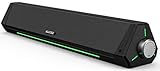
- 【Hi-Fi Sound Quality】Featuring dual drivers and dual diaphragms, these computer speakers deliver a harmonious blend of high-pitched notes and deep bass. With anti-magnetic technology eliminating static interference, you'll enjoy a crisper, more immersive audio journey.
- 【2 Ways to Connect】No need to worry about this computer soundbar not being compatible with your existing devices. Featuring both a 3.5mm headphone plug and Bluetooth 5.0 function, connects effortlessly with your preferred device.
- 【Relaxing Ambiance Lights】Gentle light strips complement the avant-garde design of the computer speaker, elevating your auditory experience, and adding a touch of elegance to your desk.
- 【Simple USB-powered】Simply plug into a USB port - be it from a laptop, PC, power bank, or adapter, and the computer soundbar powers on instantly. No additional drivers or software required, just plug and play.
- 【Compact Profile Design】Slim and futuristic design, which allows the Bluedee computer soundbar to fit neatly below your computer monitor without taking up much desk space; The speaker measures 16.4" W x 2.6" D x 2.6" H.
6. Check whether your device meets Roblox’s baseline
For Windows, Roblox’s published baseline includes:
- 64-bit Windows 10 or Windows 11
- DirectX 10 or higher feature-level support
- At least 1 GB of recommended memory
- At least 300 MB of available storage
Meeting a baseline does not mean every experience will run smoothly. Roblox experiences vary substantially in assets, scripts, physics, lighting, and server workload. Roblox also recommends a relatively recent computer or a dedicated graphics card for best performance, particularly with more complex experiences.
On mobile, the model, operating-system version, available memory, temperature, and the specific experience can matter more than a simple internet-speed test. Restarting the device can temporarily clear memory pressure, but repeated problems on the same demanding experience may indicate that the device is near its practical performance limit.
Independent reader supportYour contribution helps us test, update, and keep practical guides available for everyone.Why other games and apps can be fine
“Everything else is fine” is valuable evidence, but it is not a contradiction. Different applications use different servers, protocols, routes, traffic patterns, rendering engines, and hardware workloads.
The Tool Desk
Outbyte PC Repair FREEClear out junk files and repair common Windows errorsFree Scan →Outbyte Driver Updater FREEFix the driver behind crashes, sound loss and screen glitchesFind Drivers →- A video service can buffer content successfully while Roblox suffers real-time packet delay.
- A different game may connect to a nearer or healthier server.
- A browser may use little 3D rendering compared with a complex Roblox experience.
- Roblox may expose an unstable wireless link that ordinary browsing does not reveal.
- One Roblox experience may place much heavier demands on the client or server than another.
Therefore, normal performance elsewhere makes a total internet outage or total device failure less likely, but it does not rule out Roblox-specific network routing, client rendering, server heartbeat, memory, or experience-design problems.
A practical decision tree
- Check the Roblox status page. Repeat the check during the incident because status is time-sensitive.
- Join another experience. If only one is affected, investigate that experience or server before changing the whole computer.
- Classify the symptom. Teleporting and delayed actions suggest network/server lag; choppy pictures suggest FPS or frame-time problems.
- Enable performance information. Compare ping, FPS, memory, CPU, and GPU while the issue is visible.
- For low FPS: lower manual graphics quality, close demanding software, and check heat.
- For delayed gameplay: try another connection, compare Wi-Fi bands, test Ethernet, and check firewall/router behavior.
- For worsening performance: restart Roblox and the device, inspect memory and temperature, and compare a simpler experience.
- Escalate based on the result. Contact your internet provider for persistent connection problems across tests, Roblox support for platform or client issues, and the experience developer when one experience is uniquely affected.
When to stop troubleshooting locally
Contact your internet provider if Roblox remains unstable across multiple experiences and devices on the same home connection, especially if an alternate connection works. Include the times of the problem and whether Ethernet or another Wi-Fi band changed the result.
Contact Roblox support if the issue affects multiple experiences and connections, survives client and device troubleshooting, or coincides with a confirmed platform incident. When reporting it, provide your platform, device model, Roblox experience, approximate location, time, symptom, and any FPS or ping readings.
Best Value

- ✅ Crystal-Clear Stereo Sound:Crisp audio with balanced bass for gaming, movies, or music. Ideal PC speakers for desktop or laptop speakers.
- ✅ Dynamic Colorful Touch Lighting: Soft Breathing light effects,touch-sensitive to control on/off—ideal for adding flair to your monitor speaker or desktop.
- ✅ Space-Saving Soundbar Design:Fits under monitors/laptops—perfect slim speakers for computer desktop with space-saving efficiency.
- ✅ Universal USB-Powered Compatibility:Works seamlessly with PCs, laptops, and monitors via a single USB port (includes USB-C adapter).
- ✅ Plug-and-Play Simplicity:No drivers or software required—just connect to your PC or desktop via USB/USB-C for stereo speakers performance.
Contact the experience developer when one experience is consistently affected while others remain smooth. Mention the server or session details if available, graphics setting, device, and whether rejoining changed anything.
Frequently Asked Questions
Why is Roblox lagging even though my internet is fine?
Roblox may be laggy because of network latency, unstable Wi-Fi, a demanding experience, low or uneven FPS, background applications, overheating, memory pressure, or a struggling server. Check whether the symptom is rubber-banding or choppy visuals, then compare another Roblox experience and inspect FPS, ping, memory, CPU, and GPU readings.
Can a fast internet speed still cause Roblox lag?
Usually no. A fast speed test measures bandwidth, while Roblox also depends on latency, connection stability, routing, and server response. Try another connection or a wired Ethernet comparison to determine whether your local Wi-Fi is involved.
Why does only one Roblox game lag?
If only one experience lags while others run normally, the experience may have heavier assets, scripts, physics, or server computation, or you may have joined a problematic server instance. Lower graphics quality, rejoin if possible, and report reproducible problems to the experience developer.
How do I fix Roblox stuttering but not disconnecting?
Lower Roblox’s graphics quality, close demanding background applications, check for overheating, and inspect FPS and frame-time behavior. If the visuals are choppy but ping is normal, changing your internet connection is unlikely to solve the main problem.
Will an Ethernet cable fix Roblox lag?
Ethernet is useful when the problem is unstable Wi-Fi or local wireless interference. It will not fix low FPS, an overheated device, a demanding Roblox experience, a server-side problem, or a Roblox platform outage.
The Bottom Line
Roblox being laggy while everything else works usually means the problem is specific to one of Roblox’s performance paths—not that your internet or device is universally broken. Use the symptom to choose the test: ping and rubber-banding lead to network and server checks; choppy visuals lead to graphics, frame-time, resource, and thermal checks. Compare another experience before buying hardware, and use Ethernet only as a conditional test for suspected Wi-Fi instability.
Quick Recap
Product prices and availability are accurate as of the date/time indicated and are subject to change. Any price and availability information displayed on Amazon at the time of purchase will apply.




