What’s actually slowing this PC down?
Pick the symptom - the matching free tool is one click away.
When a controller won’t work with a Cronus Zen, the first job is to work out which link has failed. The Zen has two separate connections: the computer-to-Zen link, which Zen Studio uses to find the device, and the Zen-to-console link, which carries the controller’s input. A Zen can be detected in Zen Studio and still fail to pass controller input, and the fix for each is different.
The most common causes in the sources reviewed are a charge-only or faulty USB cable, the wrong port for the task, a controller plugged into the wrong port on the Zen, and a console setting that has not been enabled. Which one applies to you depends on your console, controller model, port arrangement, firmware status, and any message on the Zen’s OLED screen, none of which can be determined from the symptom alone.
Identify which connection is failing
Match your symptom to the branch below before changing any settings. Working through the wrong branch wastes time and can lead to unnecessary firmware work.
| Symptom | What it most likely points to | Start here |
|---|---|---|
| Zen Studio shows “No Devices Found” | The computer cannot see the Zen | Fix Zen detection |
| The Zen lights up but is never detected | A cable that supplies power without data | Check the cable |
| Zen Studio sees the Zen, but the controller does nothing | Port arrangement, pairing, or console configuration | Default USB setup or crossover USB |
| Blank screen, or E3001/E3002 on the OLED | A firmware problem that may need bootloader recovery | Bootloader recovery |
| Connected, then drops during play | Cabling or port layout during play | Disconnects during play |
Rule out the cable first
A cable can carry power without carrying data. A Zen that lights up but never appears in Zen Studio is often using a power-only cable, so replace it with a known-good data cable before changing settings or reinstalling firmware. Charging a phone with a cable proves nothing about whether it carries data.
Quick wins for a faster PC:
Fix the driver behind crashes, sound loss and screen glitchesFind Drivers →Clear out junk files and repair common Windows errorsFree Scan →#1 Best Overall

- Sires X|S wireless connection for the Cronus Zen
- Use the Cronus Zen to play with your Wireless Controller on Series X|S and other consoles
Also avoid USB hubs. The Cronus Zen Central troubleshooting FAQ recommends connecting the Zen directly to the computer. An underpowered USB port can also cause detection failures, so try a different port on the computer itself, using the port intended for the task.
Fix Zen detection in Zen Studio
If Zen Studio reports “No Devices Found,” the problem lies in the computer-to-Zen link. Work through these steps in order:
- Open Zen Studio Live in Chrome or Edge, as the Cronus Zen Central FAQ recommends.
- Plug the Zen directly into a USB port on the computer, not through a hub.
- Try a normal PROG connection first. If the Zen still is not detected, put it into bootloader mode through the rear CONSOLE/PC port, as described in the bootloader section below.
- If the Zen remains undetected on Windows after the cable and port checks, a driver problem is possible, since the independent troubleshooting guide lists Windows Legacy driver issues among causes. The sources reviewed do not give a single driver procedure, so treat this as a lower-probability branch once the cable, port, and hub checks have passed.
Default USB setup (non-PS5)
The official Cronus Zen setup guide, “USB (Non-PS5) Controller Setup,” describes this arrangement for standard USB controller use:
Rank #2

- 【The popular P5Mate has been significantly upgraded】 【Converter that can be directly inserted into PS5, graduated from remote play, and can be used with all PS5, PC game software】Just plug and play. No complicated settings required.
- 【120FPS, Wired/Wireless connection without delays, disconnections, and stability,1000Hz】You can now enjoy popular Wired/Wireless devices including popular converters Cronus Zen, Titan,XIM Matrix APEX, REASNOW and PS5, PS4, Xbox Elite2, G7 SE, Xbox One S, Xbox Series X/S, Switch Pro controllers with all PS5 game software.
- 【Equipped with high-precision macros】motion aiming & gyro functions, Button Mapping, Combo/Rapid Fire, Recoil Reduction, Automatic Looping, two-player play on PS5, Controller vibration function, Reproduces all functions of the PS5 touchpad
- Connect the short cable from the Zen’s CONSOLE/PC port to the game system.
- Connect your controller to port A1 on the Zen.
- Power on the controller.
- Tap the small reset button on the Zen.
According to the guide, pairing should occur within a few seconds. If it does not, the port arrangement and the cable are the first things to recheck, before moving to the console-specific steps below.
Crossover USB setups
Crossover USB uses a different port arrangement, so the default steps above do not apply. The official guide places an authentication controller in A1 and the crossover controller in A3. Confirm the output protocol in Zen Studio for your game system: the guide says AUTO should work for most setups when Zen LINK is not used.
| Setup | Zen port placement | Output setting |
|---|---|---|
| Default USB (non-PS5) | CONSOLE/PC to game system; controller in A1; press the reset button to pair | Not applicable as stated in the guide |
| Crossover USB | Authentication controller in A1; crossover controller in A3 | AUTO in Zen Studio for most setups without Zen LINK |
Console-specific configuration
A working port layout is not enough on every platform. Console settings and power requirements can block the controller even when the Zen is detected.
Rank #3

- 【The popular Besavior P5Mate has been significantly upgraded】 【Converter that can be directly inserted into PS5, graduated from remote play, and can be used with all PS5, PC game software】Just plug and play. No complicated settings required.
- 【120FPS, Wired/Wireless connection without delays, disconnections, and stability,1000Hz】You can now enjoy popular Wired/Wireless devices including popular converters Cronus Zen, Titan,XIM Matrix APEX, REASNOW and PS5, PS4, Xbox Elite2, G7 SE, Xbox One S, Xbox Series X/S, Switch Pro controllers with all PS5 game software.
- 【Equipped with high-precision macros】motion aiming & gyro functions, Button Mapping, Combo/Rapid Fire, Recoil Reduction, Automatic Looping, two-player play on PS5, Controller vibration function, Reproduces all functions of the PS5 touchpad
Nintendo Switch
- Pro Controller Wired Communication must be enabled on the Switch.
- When docked, the official guide says a Switch TV dock needs its 15V power supply.
- When used in handheld mode, the guide says an OTG USB-C adapter is required.
PS5 and other special setups
The default USB steps are not a reliable guide for PS5 or other special configurations. For those, follow the current dedicated Cronus Zen guide for that platform rather than adapting the default instructions.
Independent reader supportYour contribution helps us test, update, and keep practical guides available for everyone.Blank screen and E3001/E3002 errors
Blank-screen or E3001/E3002-style errors may need a firmware reinstall through bootloader mode. The Cronus Zen Central FAQ describes this sequence:
Windows Errors? Fix Them Before They Spread
Repair common Windows errors and clear accumulated junk for a smoother, more stable PC - no reinstall needed.Free scan · no reinstallCrashes, No Sound, or Screen Glitches?
Random freezes, missing sound and display glitches usually trace back to one bad driver. Find and replace yours safely.Free scan · under a minute- Hold the small reset button on the bottom of the Zen.
- While holding it, connect the rear CONSOLE/PC port to the computer.
- Use the official firmware updater to reinstall firmware.
Firmware versions change. Check the version shown in Zen Studio rather than relying on a version number from a guide, because third-party guides can lag behind the current release.
Rank #4
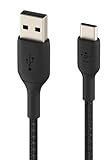
- For new Cronus Zen USB-C Models
Disconnects during play
For random disconnections, the Cronus Zen Central FAQ asks you to check three things:
- The PROG cable is not connected while you are playing.
- The controller is plugged into port A1.
- The CONSOLE/PC port is connected to the console or PC.
PS5 users should follow the PS5-specific guide, since the port arrangement differs.
Why a factory reset comes last
A full factory reset deletes saved scripts and settings, so it should not be the first step. Work through cable, port, console, and bootloader checks before resetting, and only reset if the earlier branches fail.
Free tools Windows power users keep installed
One-click scans. No signup required.
How reliable these sources are
The setup steps above come from the official Cronus Zen guide, which is the authoritative source for port layouts. Troubleshooting steps come from the Cronus Zen Central FAQ, which is not the official manufacturer documentation. A third-party guide updated September 2, 2026 lists common problems and references firmware 2.3.2 (August 2026) and Zen Studio Live 1.0.8. Those version references are time-sensitive and are not current recommendations. No reliable published statistic shows how often each fault occurs, so the order of checks here reflects which steps are cheapest to rule out, not how frequently each cause happens.
Quick Recap
Product prices and availability are accurate as of the date/time indicated and are subject to change. Any price and availability information displayed on Amazon at the time of purchase will apply.



