If your Xbox Series X ejects a game, Blu-ray, or DVD without recognizing it, first check whether the problem follows that disc or stays with the console. Clean and cross-test the disc, then try the documented full-shutdown step. One failed disc alone does not establish that the console’s optical drive is faulty.
Check and gently clean the disc
Look for dirt or visible damage. Wipe the disc gently with a soft, clean, slightly damp cloth, as described in iFixit’s Xbox Series X disc-drive troubleshooting guide, then try it again. Cleaning may remove dust or smudges; it cannot be expected to repair scratches or other physical damage.
Work out whether the disc or console is the problem
If you can, try the suspect disc in another Xbox, and try a different known-working disc in your Series X. The pattern helps narrow down the cause:
- The suspect disc fails on another Xbox too: The disc is more likely to be the issue.
- The suspect disc works on another Xbox, but not this Series X: The console is more likely to be involved.
- Several known-working discs fail only in this Series X: A console-side fault becomes more likely, though the symptom alone does not identify a specific failed part.
The cross-test approach follows iFixit’s guidance to try a suspect disc on another Xbox; testing a second known-working disc in your console adds another useful comparison.
The Tool Desk
Outbyte PC Repair FREERepair Windows errors before they cause bigger problemsFix Now →Outbyte Driver Updater FREEFix the driver behind crashes, sound loss and screen glitchesFind Drivers →#1 Best Overall

- Blu-Ray DVD Disc Drive Deck with Laser Lens Module Replacement Compatible with Microsoft Xbox One /One S/One X/Series X /Series S
- Tips: This is Blu-Ray DVD Disc Drive Deck with Laser Lens Module replacement to replace your old one, don't include instructions, please install it by a professional technician.
- Broken your Blu-Ray DVD Disc Drive Deck with Laser Lens Module, don't need to change new machine, just buy this item and replace your damage one, let your Device work again.
- Compatible with: Microsoft Xbox One /One S/One X/Series X /Series S (Please check your machine model before your purchase)
- Product is fragile, easy to be damage during shipping. So if there are any questions, please contact us first, we will try our best to help you.
Try a full shutdown and restart
iFixit documents changing the console’s Power Mode to Energy-Saving, fully shutting it down, and testing the disc again. This is a troubleshooting attempt, not a guaranteed fix. Menu wording can change with Xbox software updates; the cited guide gives this path:
- Open Settings > Profile & System > Settings > General > Power Mode & Start-Up.
- Choose Energy-Saving.
- Hold the Xbox button on the console for 10 seconds, until the console shuts down.
- Turn the console back on and try the disc again.
If the disc is stuck, use the separate eject steps
A disc that will not eject is a different problem from one that ejects but cannot be read. For an eject problem, iFixit’s guide recommends restarting first, then trying either of these normal eject options:
Rank #2

- Blu-Ray DVD-Rom Disc Drive DG-6M5S With Mainboard
- For Microsoft Xbox One S
- When you are experiencing errors, skipping and cannot play a game then this can solve your problem
- This needs professional installation
- All of our parts are factory tested to ensure better quality
- Press the eject button on the console.
- Open the controller guide, go to the Home screen, highlight the inserted disc, and press X.
If neither works, the guide describes a manual eject method. Unplug all power cords and cables before using a large, straightened paper clip in the eject hole along the bottom edge of the console, near the round stand. Do not use this procedure for a disc that ejects normally but is not recognized.
Independent reader supportYour contribution helps us test, update, and keep practical guides available for everyone.When to seek repair
If multiple known-good discs fail in the console after these checks, a console-side fault is more likely. That still does not prove that the laser or optical drive is the failed component. Avoid opening the console as a first troubleshooting step.
Rank #3

- FAST : Portable built in drive optimizes the gaming experience. Fast transfer and low latency.
- REPLACEMENT: Game drive is suitable for replacing the DVD drive repair unit in for One or for One S consoles.
- APPLICABLE : Replacement built in drive can fit for one x DG to 6M5S drives (all) to meet your usage needs.
- SIMPLE AND LIGHTWEIGHT: Portable built in drive has a simple, compact and lightweight design, and is very easy to install and connect.
- ALUMINUM ALLOY: Built in drive is made of aluminum alloy for wear , and durability.
Check whether self-repair is appropriate
Microsoft’s Xbox Series X repair and safety guidance makes self-repair conditional on the device being supported, the part being likely to address the issue, and the owner having the necessary skills and correct tools. That guide identifies supported Series X Model 1882 units with 14-digit serial numbers; it says units with 12-digit serial numbers are not supported by that guide. Check Microsoft’s current regional eligibility before obtaining parts. If the device or repair is not a fit, or you lack the skills or tools, Microsoft points to an authorized provider or out-of-warranty service.
Understand what optical-drive replacement involves
iFixit’s Xbox Series X optical-drive replacement guide documents a replacement procedure, but it is a repair path rather than a routine first fix. It requires fully powering down and unplugging the console; the guide also warns that drive alignment matters during reassembly. Do not assume that every replacement drive is compatible with every Series X.
Quick Recap
Best Value

- Brand New
- Easy to install and connect.
- This drive is not plug-and-play
- Model: DG-6M5S-02B
Rank #4
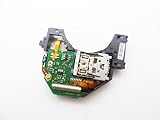
- Blu Ray DVD Drive Laser Lens Module Replacement Compatible with Xbox Series X / Series S Controller
- Tips: This is Blu Ray DVD Drive Laser Lens Module replacement to replace your old damage Blu Ray DVD Drive Laser Lens Module, don't include instructions, please install it by a professional technician.
- Broken your Blu Ray DVD Drive Laser Lens Module, don't need to change new machine, just buy this item and replce your damage Blu Ray DVD Drive Laser Lens Module, let your Device work again again.
- Compatible with: Xbox Series X / Series S Controller (Please check your machine model before your purchase)
- Product is fragile, easy to be damage during shipping. So if there are any questions, please contact the seller first, we will try our best to help you.
Product prices and availability are accurate as of the date/time indicated and are subject to change. Any price and availability information displayed on Amazon at the time of purchase will apply.



