
Quick wins for a faster PC:
Clear out junk files and repair common Windows errorsFree Scan →Fix the driver behind crashes, sound loss and screen glitchesFind Drivers →Repair Windows errors before they cause bigger problemsFix Now →Error 80151912 means your Xbox 360 (or an Xbox 360 game running on a newer Xbox) could not complete its connection to Xbox Live. It does not by itself prove that the console is damaged. Check Xbox service status first, then run the console’s connection test, restart your network in the correct order, and use Ethernet or another network to isolate the fault. Clear the system cache and install pending updates only after those checks.
What Xbox Live error 80151912 means
Code 80151912 is a connectivity diagnostic. It appears when an Xbox 360 console, or an Xbox 360 game session on a newer Xbox, cannot complete the connection to Xbox Live. The accompanying message is: “Your console can’t connect to Xbox Live. Do you want to exit this session and test your network connection? If you are playing a game, you will lose any unsaved progress.” If the warning appears during a game, leave the session only after considering that any unsaved progress may be lost.
| # | Preview | Product | Price | |
|---|---|---|---|---|
| 1 |

|
Xbox 360 250GB Slim Console - (Renewed) | $187.60 | Buy on Amazon |
| 2 |
|
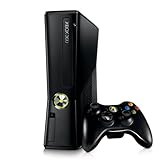
Xbox 360 4GB Console | $620.00 | Buy on Amazon |
| 3 |

|
Microsoft Xbox 360 S 250GB System (Renewed) | $184.99 | Buy on Amazon |
| 4 |

|
Microsoft Xbox 360 Elite System Console Only - Black (Renewed) | $135.99 | Buy on Amazon |
| 5 |

|
Xbox 360 500GB Console Bundle (Tomb Raider & Halo 4) | $249.99 | Buy on Amazon |
As an Amazon Associate I earn from qualifying purchases.
The code does not identify one specific failed component. The interruption can occur while the console is reaching Microsoft’s service, communicating through your router, obtaining a usable wireless connection, signing in, or completing a console-side check. Treat it as a decision point rather than a diagnosis of a broken Xbox.
Likely causes
- A temporary Xbox service incident or maintenance window.
- A local Wi-Fi problem, including weak signal, interference, or an unstable wireless link.
- Router settings that restrict the Xbox 360’s traffic or prevent a complete connection.
- Incorrect or stale network settings entered on the console.
- A system-cache problem or a pending Xbox 360 software update.
- An account or console-side issue that remains after the network has been ruled out.
Because these causes look similar at the error-code level, the order of the checks matters. Start with the test that changes nothing, then move toward reversible isolation steps and finally console maintenance.
#1 Best Overall
1. Check Xbox service status before changing anything
Open Microsoft’s Xbox service-status page from a phone or computer and look for an incident affecting Xbox Live, sign-in, gaming, or Xbox 360 services. A service incident can produce the same 80151912 message even when your modem, router, and console are working normally.
If the status page shows an incident, do not reset your router, erase saved data, or repeatedly change console settings. Wait until Microsoft reports that the affected service is operating again, then run the Xbox 360 connection test once more. Waiting is the appropriate action during a confirmed service outage; local changes cannot repair a Microsoft-side failure.
If no incident is listed, continue with the local tests below. Status pages can change while you troubleshoot, so check again if several devices suddenly lose access to Xbox services at the same time.
Recommended Free Tools
2. Run the Xbox 360 connection test
The built-in test separates a general network problem from a failure at the Xbox Live connection stage. Use the exact dashboard path:
- Press the Xbox button and open Settings.
- Choose System Settings.
- Select Network Settings.
- Choose the connection you are using: your wireless network or the wired connection.
- Select Test Xbox Live Connection and allow the test to finish.
Read each result instead of stopping at the first error. A failure before the Xbox Live step points toward the console-to-router or router-to-internet path. A successful network test followed by a failure at Xbox Live makes a service, sign-in, or account-side problem more plausible. Record the result and any additional code; it gives Xbox Support a more useful starting point than 80151912 alone.
Rank #2
- Sleek New Design
- 4GB internal memory.Built-in Wi-Fi
- Whisper Quiet
- Part Number: XBX4GBCNTRBUN
- This item is non returnable.
Do not run the test while another device is changing router settings or while the modem is still booting. A partial startup can create a temporary failure that disappears after the equipment is fully online.
3. Restart the network in the correct sequence
Microsoft’s Xbox 360 troubleshooting guidance recommends restarting the console and network equipment, waiting one minute, and powering the devices back on in order. This clears a temporary router state and forces the console to obtain a fresh connection.
Do these 3 things before closing this tab:
1Clear out junk files and repair common Windows errors2Scan for outdated or missing drivers - takes under a minute3Repair Windows errors before they cause bigger problems- Turn off the Xbox 360. If you are using an Xbox 360 game on a newer Xbox, turn that console off instead.
- Turn off the modem and router. If they are combined in one gateway, turn off that single unit.
- Wait at least one minute with the equipment powered down.
- Turn the modem back on first. Wait until its normal internet or online indicators show that it has finished starting.
- Turn the router back on, if it is separate from the modem. Wait for the wireless or network indicators and allow it to complete startup.
- Turn on the Xbox console and repeat Settings > System Settings > Network Settings > [connection] > Test Xbox Live Connection.
The startup order is modem, router, then Xbox 360. Turning the console on before the router is ready can leave it with an incomplete address or route, so give each device time to come online before starting the next one.
Check physical and wireless conditions
- Confirm that the modem and router power cables are firmly seated.
- Move the console closer to the wireless access point for a test, or remove obvious sources of interference such as large metal objects and other radio equipment.
- If you manually entered a wireless name, password, IP address, DNS address, or other network value, verify every character. A single incorrect value can prevent Xbox Live from being reached.
- Pause large downloads or video streams on other devices while testing so that a congested connection does not obscure the result.
4. Use Ethernet to isolate Wi-Fi
A wired connection is one of the fastest ways to determine whether the error is caused by wireless conditions. Connect the Xbox 360 directly to the router with a standard RJ45 Ethernet cable, select the wired connection in Network Settings, and run Test Xbox Live Connection again.
If Ethernet works while Wi-Fi fails, the console and Xbox Live path are probably usable; focus on wireless range, interference, router wireless settings, or the console’s saved wireless configuration. You can keep using the cable as a practical workaround or restore Wi-Fi after correcting those conditions.
If Ethernet produces the same 80151912 result, Wi-Fi interference is less likely. Continue with the alternate-network test and the console-side maintenance steps. An Ethernet cable can bypass a wireless problem, but it cannot fix an Xbox service outage, an account restriction, or a defective console.
What’s actually slowing this PC down?
Pick the symptom - the matching free tool is one click away.
5. Compare with a different network
A temporary phone hotspot or another permitted internet connection is a diagnostic comparison, not a recommended permanent gaming setup. Disconnect the Xbox from the home network, connect it to the alternate network, and run the same Xbox Live test.
| Alternate-network result | What it suggests | Next action |
|---|---|---|
| Xbox Live works on the alternate network | The console can reach Xbox Live; the home router, home Wi-Fi, or internet service path is the leading suspect. | Recheck router settings, wireless range, interference, and manually entered network values. Contact the internet provider or router manufacturer if other devices also have problems. |
| 80151912 occurs on both networks | The fault may involve an Xbox service incident, sign-in or account state, console software, or the console hardware. | Recheck service status, clear the Xbox 360 system cache, install pending updates, and escalate if the error persists. |
| The hotspot cannot connect at all | The hotspot may restrict gaming traffic, have weak cellular coverage, or have reached a data limit; this result is not conclusive by itself. | Use Ethernet or another reliable network for a cleaner comparison. |
Keep the comparison brief. Hotspots can consume mobile data and may add latency, so use the result to identify the failing side of the connection rather than judging normal game performance.
6. Clear the Xbox 360 system cache
If the service is operating and the same error survives a restart and network comparison, clear the Xbox 360 system cache. Cache clearing removes temporary system files; it is a maintenance step, not a guaranteed repair and not a replacement for checking the network.
- Open the Xbox 360 Settings area and enter System Settings.
- Open the storage-device management screen.
- Highlight the storage device, open its device options, and choose Clear System Cache.
- Confirm the operation when the dashboard asks, then restart the console.
- Return to Network Settings and run Test Xbox Live Connection.
Dashboard wording can vary by system software version. Choose the option that specifically says Clear System Cache; do not select an option that formats the storage device or deletes saved games. Cache clearing is intended to remove temporary data, not personal game saves.
7. Install any pending console update
An outdated Xbox 360 system can fail during a connection or sign-in check. If the console presents an update prompt, install the update over a stable connection, keep the console powered on, and let it restart fully. Afterward, repeat the Xbox Live connection test.
If an update will not download over Wi-Fi, use Ethernet or the most reliable network available and verify that the modem and router remain online for the entire installation. Do not interrupt power during an update. If the console cannot update on multiple working networks, note the displayed update message and provide it to Xbox Support along with the 80151912 result.
Choose the next step by diagnostic value
These options do not carry the same risk or provide the same information. Use the least disruptive test that answers the question in front of you.
| Path | Tests | Changes console data or settings? | Reversible? | Diagnostic value |
|---|---|---|---|---|
| Service-status check and waiting | Microsoft’s Xbox service availability | No | Yes | Highest when an incident is listed; waiting is the only useful response to that incident. |
| Built-in connection test | Console, home network, internet route, and Xbox Live stages | No | Yes | Shows where the connection sequence stops. |
| Modem/router restart | Temporary network state and device startup order | May reset active network sessions, but does not erase console data | Yes | Useful for transient router or address problems. |
| Ethernet cable | Wi-Fi range, interference, and wireless router behavior | No | Yes | Strong isolation test for wireless causes. |
| Alternate network | Home router and internet-service path versus the console | No | Yes | High, provided the alternate network permits Xbox traffic. |
| Clear system cache | Temporary console-side files | Removes cached files; it should not be used as a storage-format command | Generally yes, but it is a maintenance change | Useful only after service and network causes have been checked. |
| Console update | System-software compatibility and pending maintenance | Installs new console software | Not normally rolled back during ordinary troubleshooting | Important when an update is pending or the dashboard reports one. |
Common mistakes that waste time
Resetting settings during an outage
If Xbox service status shows an incident, repeated router resets and cache clearing add changes without addressing the failed service. Wait, then retest.
Assuming the code proves hardware failure
80151912 describes an unsuccessful connection attempt. A console that connects on Ethernet or a second network has demonstrated that its Xbox Live path can work, so replacing hardware would be premature.
Best Value
- Xbox 360 E console
- Xbox 360 250GB Hard Drive
- Two amazing games included for Free
Changing DNS or other advanced values first
Advanced network changes can create new errors and make the original state harder to diagnose. Run the built-in test, restart equipment, and compare networks before altering values that were previously working. If you entered settings manually, correct obvious transcription errors rather than replacing every value at once.
Using a hotspot as proof of normal service
A hotspot may block or limit gaming traffic and may be affected by cellular coverage. A successful hotspot test strongly implicates the home path; a failed hotspot test is not conclusive without a second reliable network.
Interrupting an update
Keep the console connected to stable power and network access until an update completes. If an update fails, capture the exact on-screen message before trying another recovery step.
When to contact Xbox Support
Escalate when the console still reports 80151912 after the service-status check, a complete modem-router-console restart, and tests on more than one working network. Include the following information:
- The console model and whether the error occurs in the Xbox 360 dashboard or inside an Xbox 360 game on a newer Xbox.
- The exact wording of the message and any additional code shown by the network test.
- Whether Ethernet, home Wi-Fi, and an alternate network each succeeded or failed.
- Whether other devices can use the home internet connection and whether Xbox service status showed an incident.
- Whether cache clearing and a pending console update were completed.
This evidence lets support distinguish a service or account issue from a router path or console-side problem. Do not assume a factory reset is required; ask support for the least destructive next step based on the test results.
Quick Recap
A concise decision path
- Check Xbox service status. If Microsoft reports an incident, wait and retest later.
- Run Settings > System Settings > Network Settings > [connection] > Test Xbox Live Connection.
- Power off the console, modem, and router; wait one minute; power them on as modem, router, then console.
- Test with Ethernet to remove Wi-Fi conditions from the equation.
- Compare with a temporary alternate network, such as a phone hotspot, understanding its limitations.
- Clear the system cache and install any pending console update.
- Contact Xbox Support if the error persists across multiple networks after these checks.
Product prices and availability are accurate as of the date/time indicated and are subject to change. Any price and availability information displayed on Amazon at the time of purchase will apply.

