
Crashes, No Sound, or Screen Glitches?
Random freezes, missing sound and display glitches usually trace back to one bad driver. Find and replace yours safely.Free scan · under a minuteWindows Errors? Fix Them Before They Spread
Repair common Windows errors and clear accumulated junk for a smoother, more stable PC - no reinstall needed.Free scan · no reinstallIf your Xbox One headset plays sound on a PC but nobody can hear you, the headset is usually not being routed as Windows’ input device. The common causes are a muted microphone, blocked Windows permissions, a wrong input selection, a connector mismatch, or an audio driver problem. Xbox One Stereo Headset hardware is documented as compatible with PC and Mac, so do not assume the headset is console-only. Work through the checks below in order; each step removes a different failure point.
Start with the fastest checks
Before changing drivers or buying an adapter, confirm the physical basics. Turn the headset mute control off, reseat the plug completely, and reconnect any controller, wireless receiver, or USB adapter. A partially inserted plug can leave the headphone channel working while the microphone contact remains disconnected. If the headset has a detachable boom, remove and reinsert it firmly.
As an Amazon Associate I earn from qualifying purchases.
- Check that the headset’s mute switch or flip-to-mute arm is not active.
- Unplug and reconnect the headset at both ends, then restart the application that should use the microphone.
- If the headset is connected through an Xbox controller, reconnect the controller and verify that Windows still sees it.
- If it is wireless, charge it, confirm pairing, and reconnect its receiver or Bluetooth link.
Test after each physical change. If the microphone begins working, the original fault was a connection or mute state rather than Windows configuration.
Give Windows permission to use the microphone
Windows can block microphone capture even when it detects the headset correctly. Microsoft specifically notes that desktop applications need microphone permission, particularly after a Windows update.
#1 Best Overall
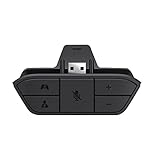
- COMPATIBILITY --> This Xbox headset adapter enables most wired stereo gaming headsets to work with Xbox controllers such as Xbox One/One S/X/Elite 1/Elite2/Series X|S Controllers.
- FOR 3.5mm AUDIO HEADSET --> Most stereo gaming headsets with a 3.5mm audio jack (that use the CTIA plug standard) can get chat and stereo game audio directly through the Xbox One.
- EASY TO CONNECT --> Connect to the bottom of your controller with your headphones hooking up to the 3.5mm port on the xbox one headset adapter
- HOW TO USE --> Controller & figure logo on adapter balance gaming & chatting sound separately (Beep sound happens when the maximum or minimum). Plus & minus logo adjust the volume up and down simultaneously. Microphone logo mute or unmute your sound during chatting
- 1 YEAR WARRANTY --> If there are any problems with our products, please contact us, we will get back to you within 24 hours.
Windows 11
- Open Start > Settings > Privacy & security > Microphone.
- Turn on Microphone access.
- Turn on Let apps access your microphone.
- Turn on Let desktop apps access your microphone.
Windows 10
- Open Start > Settings > Privacy > Microphone.
- Enable microphone access for the device.
- Enable access for apps and for desktop applications.
Close and reopen the game, Discord, Teams, or other voice application after changing these settings. Desktop programs may not refresh their permission state until they are restarted.
Select the Xbox headset as the Windows input
Hearing game audio proves only that the output channel works. Windows can send sound to the headset while using a laptop microphone, webcam microphone, or no input at all.
- Open Start > Settings > System > Sound.
- Scroll to Input and choose the Xbox headset microphone or the audio device that represents its connection.
- Speak normally, select Microphone test, stop the test, and play the recording.
- If the recording is very quiet, raise Input volume and repeat the test.
Interpret the result rather than relying only on the device name:
Rank #2

- 【Enhanced Compatibility with X-b0x One Controllers】Unlock the potential of your gaming experience with our headset adapter. Seamlessly connect most wired stereo gaming headsets to a wide range of X-b0x One controllers, including X-b0x One, One S, X, Elite 1, Elite 2, Series S, and Series X Controllers.
- 【Universal Compatibility with Gaming Headsets】Designed to accommodate the majority of stereo gaming headsets equipped with a 3.5mm audio jack following the CTIA plug standard. Immerse yourself in rich chat and stereo game audio, directly through your X-b0x One console
- 【Effortless Setup and User-Friendly Design】Experience gaming convenience like never before. Simply plug your x-one headset adapter into your controller, connect your headset, and you're ready to dive into the action. No complicated console connections required. A microphone is required for chat.
- 【Precision Craftsmanship, Trusted Performance】Crafted by OLCLSS, our stereo mic adapter delivers seamless functionality comparable to the original Microsoft design. Enjoy easy usability without compromising quality
- 【Your Satisfaction is Our Priority】We are committed to providing a top-notch gaming accessory. Enjoy peace of mind with our 60-day money-back guarantee and a 24-month warranty. If you have any concerns or inquiries, contact us through Amazon, and our dedicated team will promptly respond within 12 hours. Your package includes: 1* OLCLSS stereo adapter. Elevate your gaming experience today
- A clear recording: Windows is receiving the microphone. The remaining problem is inside the game or communication app.
- A device is listed but the recording is silent: check mute, connector type, controller routing, and adapter compatibility.
- No headset microphone is listed: move to the connector, wireless, USB, and driver checks below.
Fix the game or chat app’s own input setting
Many programs maintain an input selection separate from Windows. If the Windows microphone test records your voice but another person still cannot hear you, open that program’s audio or voice settings and select the same Xbox headset microphone shown under Windows Input.
- Confirm the application is not set to a different microphone, such as a webcam or built-in laptop mic.
- Check the application’s microphone permission if it provides one.
- Disable push-to-talk temporarily while testing, or hold the assigned key while speaking.
- Check the program’s input meter. Movement confirms that the app is receiving a signal even if a chat channel is configured incorrectly.
Microsoft’s desktop-app permission setting applies here: an app can appear in Windows while still being denied microphone access.
Match the headset plug to the PC jack
The connector is a frequent cause of “sound works, mic does not.” A single 3.5 mm TRRS headset plug carries both stereo audio and microphone contacts. A desktop computer with separate headphone and microphone sockets cannot accept both signals through one socket.
Rank #3

- 🎮FEATURE🎮Control audio balance (game sound and voice chat), volume & mic directly without adjusting chat mixer setting on Xbox system every time or taking your hands off the controller
- 🎮EASY TO USE🎮Connect to the bottom of your controller with your headphones hooking up to the 3.5mm port on the xbox one headset adapter
- 🎮3.5MM AUDIO JACK🎮Any headsets with CTIA standard can be used properly
- 🎮INSTRUCTION🎮Controller & figure logo on adapter balance gaming & chatting sound separately (Beep sound happens when the maximum or minimum). Plus & minus logo adjust the volume up and down simultaneously. Microphone logo mute or unmute your sound during chatting
- 🎮WHAT ELSE🎮Offer the replacement without asking within 1 year & helpful customer service anytime
| PC connection | What it carries | Correct setup | Typical symptom when mismatched |
|---|---|---|---|
| Single 3.5 mm combo headset jack | Headphone and microphone channels through one TRRS connection | Plug the headset directly into the combo jack | Both audio and microphone should be available; a loose plug can affect either channel |
| Separate headphone and microphone sockets | One socket for output and one for input | Use a 3.5 mm headset Y-splitter or TRRS-to-TRS adapter with microphone support | Headphones work, but the microphone is absent or silent without the splitter |
| USB audio adapter | Digital USB audio converted for the headset | Connect the adapter to a compatible USB port and select its microphone input | Analog jack faults are bypassed, but the wrong adapter or port may expose no input |
| Bluetooth | Wireless audio and, when supported, a microphone profile | Pair the headset, then select its microphone in Windows Sound | Output works while no usable microphone input is exposed |
| Xbox wireless adapter for Windows | Xbox wireless headset connection | Connect the dedicated adapter, install or allow its driver, pair the headset, and select its input | Headset cannot provide microphone capture when the required adapter is missing or not recognized |
Do not use a simple headphone splitter that duplicates output. The adapter must separate the headset’s microphone contact and provide a microphone plug for the PC. Check the plug layout and microphone-channel support before buying.
Free tools Windows power users keep installed
One-click scans. No signup required.
Wireless Xbox headsets: choose the correct path
Wireless models do not all use the same radio connection. Start by identifying whether your headset uses Bluetooth, Xbox Wireless, or a dedicated USB receiver.
Bluetooth connection
- Remove the headset from Windows Bluetooth devices if an old or duplicate entry exists.
- Put the headset into pairing mode and pair it again.
- Open Settings > System > Sound and select the headset’s microphone under Input.
- Run the Windows microphone test. If Windows lists only an output device, Bluetooth has not exposed a microphone profile for that connection.
Some Bluetooth combinations provide playback but not a usable microphone. In that case, use the connection method specified for the exact headset model rather than repeatedly changing application settings.
Rank #4

- -|Compatibility to Headsets|- Work with most stereo headsets with a 3.5mm audio jack (use the CTIA plug standard)
- -|For Xbox Controllers|- Enables most wired stereo gaming headsets to work with Xbox One controllers, such as Xbox One S/ Elite 1 /Elite 2/ Series S|X Controllers.
- -|Plug & Play|- Connect to the bottom of your controller with your headphones hooking up to the 3.5mm port on the xbox one headset adapter
- -|INSTRUCTION|- Controller & figure logo on adapter balance gaming & chatting sound separately (Beep sound happens when the maximum or minimum). Plus & minus logo adjust the volume up and down simultaneously. Microphone logo mute or unmute your sound during chattin
- -|1 YEAR WARRANTY|- This product is eligible for 1 year warranty policy.
Xbox Wireless connection
If the headset requires an Xbox Wireless Adapter for Windows, connect that adapter directly, let Windows install its driver, and pair the headset again. Then choose the adapter-associated microphone under Windows Input. A receiver that is powered but not recognized can create the same symptom as a muted microphone, so verify that it appears in Windows before testing voice chat.
Independent reader supportYour contribution helps us test, update, and keep practical guides available for everyone.Use a USB audio adapter when the analog jack is the problem
A USB audio adapter can bypass a damaged, noisy, or incompatible 3.5 mm jack. Microsoft distinguishes analog and digital USB-C audio adapters: most PCs support digital USB-C adapters that contain conversion hardware, but the adapter and port must match.
- For a wired headset, use an adapter that explicitly supports a headset microphone, not output-only headphones.
- For USB-C, determine whether the PC port supports digital audio and whether the adapter is an active digital model.
- Connect the adapter, wait for Windows to enumerate it, and select its microphone input in Settings > System > Sound.
- Run Microphone test again before opening a game or chat program.
If the microphone works through USB but not through the original jack, the headset itself is probably serviceable and the analog port or its wiring is the likely fault.
Best Value

- 【Seamless Compatibility】Enjoy perfect compatibility with Xbox One controllers, including X-b0x One/ One S/X/Elite 1/Elite 2/Series S/X Controllers by using this headset adapter that lets you use most wired stereo gaming headsets.
- 【Enjoy Gaming Headsets】Experience crystal clear chat and stereo gaming audio with most stereo gaming headsets that use the CTIA plug standard and have a 3.5mm audio jack.
- 【Simple Plug-and-Play】No complicated installation, simply plug the headset adapter into your controller and attach the headset. No need to connect anything to the console. Chat requires a microphone.
- 【AOJAKI Quality】Made by AOJAKI, this stereo headset adapter is just as easy to use as the original. You can expect a premium quality product that's built to last.
- 【Customer Satisfaction Guaranteed】Our product comes with a 60-day money-back and 24-month guarantee. If you have any concerns regarding our product, contact us through Amazon and we will respond within 12 hours. You will receive 1 controller adapter.
Repair the audio driver when Windows does not detect the mic
When no microphone input appears after checking permissions and connections, reinstalling the audio device can restore detection. Save open work first; the procedure restarts Windows.
- Right-click Start and open Device Manager.
- Expand Sound, video and game controllers.
- Right-click the relevant audio device and choose Uninstall device. Confirm the removal when prompted.
- Restart Windows. Windows may reinstall a standard driver automatically.
- If the device is still missing, reopen Device Manager and use Action > Scan for hardware changes.
- Install the current audio driver supplied by the PC or motherboard manufacturer, then restart and repeat the microphone test.
Microsoft recommends reinstalling audio drivers when Windows is not detecting the microphone after other troubleshooting steps. Avoid installing a generic driver utility before trying the manufacturer’s driver for your exact PC model.
Separate a headset fault from a PC fault
Test the headset on another compatible device, such as a second computer, phone, or console controller with the correct jack. Keep the same microphone position and speak at a normal distance.
Do these 3 things before closing this tab:
1Repair Windows errors before they cause bigger problems2Fix the driver behind crashes, sound loss and screen glitches3Clear out junk files and repair common Windows errors- It works elsewhere: focus on the original PC’s jack, adapter, permissions, input selection, wireless receiver, or driver.
- It fails everywhere: inspect the boom, cable, plug, inline mute, and detachable connector for damage.
- Only one application fails: Windows and the headset are likely functioning; correct that application’s input and permission settings.
- Audio works but every microphone test is silent: output and input are separate circuits, so continue with the connector and hardware checks rather than treating playback as proof that the mic is healthy.
If an Xbox One Stereo Headset still produces no microphone signal after permissions, mute, connector, adapter, input selection, and driver checks, microphone replacement or headset replacement may be necessary. Replacement is a last step after testing on another device, not the first response to a Windows setting problem.
Choose the fix by what you observe
| What you observe | Most likely action |
|---|---|
| Windows lists the mic and its test recording is clear, but chat is silent | Select that same microphone in the game or chat app and verify its permission or push-to-talk mode |
| Headphone audio works on a desktop with two 3.5 mm sockets | Install a TRRS headset splitter or TRRS-to-TRS adapter that supports microphone input |
| No microphone appears in Windows after reconnecting | Check the required wireless receiver or USB adapter, then reinstall or update the audio driver |
| Bluetooth playback works but no microphone input is available | Confirm the headset’s supported Bluetooth profile or use its required Xbox wireless adapter |
| The analog jack fails but a USB adapter records your voice | Continue using the compatible USB adapter or repair the PC’s analog audio jack |
| The microphone fails on multiple compatible devices | Inspect for physical damage and consider microphone or headset replacement |
Prevent the problem from returning
- Leave the headset selected as the default input after testing it.
- Recheck Windows microphone privacy settings after major Windows updates.
- Label a splitter or USB adapter so the microphone and headphone ends are not swapped.
- Keep wireless receivers connected directly rather than through an unreliable hub while diagnosing dropouts.
- When changing games or chat programs, confirm their input device instead of assuming they follow Windows automatically.
The reliable diagnosis is the combination of Windows’ own microphone recording, the physical connector type, and a second-device test. Together they show whether the failure is permissions, routing, wiring, wireless compatibility, drivers, or the headset hardware itself.
Quick Recap
Product prices and availability are accurate as of the date/time indicated and are subject to change. Any price and availability information displayed on Amazon at the time of purchase will apply.

