Recommended Free Tools
For a broad range of children’s activities, start with GCompris; for early math, language, logic, and memory, try eduActiv8. TuxMath makes arithmetic arcade-like, while Tux Typing focuses on keyboard practice. The evidence is strongest for these four. Several other familiar Linux titles may fit, but their current maintenance and availability are not established here, so they are presented as candidates rather than verified recommendations.
“Free” can mean no purchase price; “free software” also refers to users’ freedoms to use, study, modify, and share software. The Free Software Foundation explains that distinction in its educational software resource. This is a practical selection, not a measured ranking of learning outcomes.
As an Amazon Associate I earn from qualifying purchases.
How to choose a Linux educational game
Match the game to the skill a child wants to practise, the child’s reading readiness, and the installation route available on your Linux distribution. A project’s stated age guidance is useful, but it does not replace checking whether its activities suit a particular child.
- For variety: choose a suite with multiple subjects and activity types.
- For focused practice: choose a game centered on a skill such as arithmetic or typing.
- For installation confidence: prefer a current project page or a package offered by your distribution. Check package names and availability before following instructions written for another Linux release.
The Free Software Foundation notes that its educational-software page is not exhaustive, so no list should be treated as a definitive ranking of every available title: GNU Educational Free Software.
#1 Best Overall

- KEYBOARD: The keyboard works for Windows with hot keys that enable easy access to Media, My Computer, Mute, Volume up/down, and Calculator
- EASY SETUP: Experience simple installation with the USB wired connection
- VERSATILE COMPATIBILITY: This keyboard is designed to work with multiple Windows versions, including Vista, 7, 8, 10 offering broad compatibility across devices.
- SLEEK DESIGN: The elegant black color of the wired keyboard complements your tech and decor, adding a stylish and cohesive look to any setup without sacrificing function.
- FULL-SIZED CONVENIENCE: The standard QWERTY layout of this keyboard set offers a familiar typing experience, ideal for both professional tasks and personal use.
Four well-supported Linux picks
1. GCompris: a wide activity suite for younger children
GCompris is the strongest starting point if you want one program that covers several early-learning activities. The Free Software Foundation describes it as a cross-platform suite for children aged 2 to 10, with more than 140 activities, including early mouse and keyboard use, arithmetic, telling time, drawing, and language learning (FSF; page crawled in 2026, publication year not stated).
The KDE project repository describes more than 100 activities and notes that some are game-oriented. It lists chess, memory, hangman, and tic-tac-toe among them (KDE project repository; page crawled in 2026, publication year not stated). The figures differ because they come from separate project descriptions; neither should be treated as a permanent count.
Rank #2
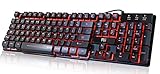
- Professional Mechanical feeling backlit gaming keyboard,Ideal for desktop and PC; Can be used for gaming and office,not the real mechanical keyboard,,but it worth more.
- Support Win10, Win8, Win7, Linux, Vista, IBM PC Laptop Pad Google Android TV Box HTPC IPTV Smart TV Mac OS Raspberry Pi ,Chrome OS and Linux OS
- Features 3 color LEDs with breathing light function; Press fn + light key to enter into breathing light mode; Press light button thrice to turn off backlight
- Standard 105 Keys full size keyboard; Comes with 11 special designed multi media keys combinations,Measures 17.1 x 5.3 x 0.9 inches
- Automatically enters sleeping mode if not used for 10 minutes; Any key press will awaken and backlights turn back on
2. eduActiv8: short activities for early learning
eduActiv8 is a collection of activities for children aged 3 and up, rather than one conventional video game. Its project describes activities for early mathematics, language, logic, and memory, and licenses the software under GPLv3. It supports Linux, with packages available through the OpenSUSE Build Service and some distribution repositories (eduActiv8 project).
The Tool Desk
Outbyte PC Repair FREERepair Windows errors before they cause bigger problemsFix Now →Outbyte Driver Updater FREEScan for outdated or missing drivers - takes under a minuteDriver Scan →The project FAQ identified version 4.25.10 as the latest release in October 2025. Check the project page and your distribution’s package manager for the version and installation route currently available.
Rank #3

- Media-Friendly: The K400 Plus wireless touch TV keyboard gives you integrated, comfortable control of your PC-to-TV entertainment, eliminating the clutter of a separate keyboard and mouse
- Plug-and-Play: Simply plug the Unifying receiver into a USB port and the wireless touchpad keyboard is ready to go; adjust controls using the Logitech Options Software to save preferred settings
- Power-Packed: Built with laid-back control in mind, this wireless TV keyboard has a reliable and long battery life of up to 18 months (2), including an on/off button to help it go even longer
- Wireless Freedom: Designed for seamless comfort and control, this HTPC keyboard boasts a range of up to 33 ft (1) wireless connectivity, with quiet keys and a large touchpad for easy navigation
- Broad Compatibility: Designed for use with Windows 7, Windows 8, Windows 10 and later, Android 7 or later, and Chrome OS
3. TuxMath: arcade-style arithmetic
TuxMath turns solving equations into arcade play: players answer math problems to defend penguins from comets. The project also describes Factoroids, which practises factoring and simplifying fractions, and lists Linux downloads (TuxMath project).
The project page is old, so treat its download information as a starting point rather than a guarantee of an easy install on a current distribution. Check your distribution’s package manager and the project’s current download information before choosing an installation method.
Rank #4

- ⌨【Large Print Keyboard】With letter characters larger than usual and command keys in a larger bolder font, these high-contrast keys can really help those who have trouble seeing keyboards. Perfect for elderly, the visually impaired, schools, special needs departments and libraries, as well as companies.
- ⌨【Spill resistant keyboard】It is designed to keep electronic components of keyboard safe. Water-Resistant function protection against accidental spills provides extra peace of mind. Be sure to air dry completely after spill before further use.
- ⌨【High Contrast】Large print keyboard offers increased visibility with easy to see yellow key caps and crisp large print black letters, Easily seen print, even in low light. With a life cycle of 5 million keystrokes, membrane key switches provide a faster response along with a quieter typing experience.
- ⌨【Ergonomics Design】Unfold the feet at back of the keyboard to reduce hand fatigue and enjoy long hours of playing. Full QWERTY English (US) 104 key keyboard layout with numeric keypad, Large Print keys provides superior comfort without forcing you to relearn how to type.
- ⌨【Wide Compatibility & Lifetime After-Sales Service】Compatible with Windows 10 / 8 / 7 / Vista / XP / 2000 / 98 | Also works with Mac OSX and macOS. Easy to install with plug and play technology | No additional software required.Except for Windows systems, other system hotkeys may not work and are only used for typing
4. Tux Typing: game-based typing practice
Tux Typing is a typing tutor for children that uses games to practise keyboarding (Tux Typing project). It is the focused choice in this group for keyboard familiarity and typing practice, rather than a general-purpose learning suite.
Its project page is old. Confirm whether a current package is available for your distribution and whether the project’s download route remains suitable before installing.
Best Value

- The things you do most are right at your fingertips with one-touch controls for instant access to play/pause, volume, mute and the Internet.
- Comfortable low-profile keys: Enjoy fast, fluid quiet typing on a familiar standard layout, including number pad.
- High-definition optical mouse: Smooth, responsive cursor control from a comfortable sculpted mouse.
- Sleek and durable design: Thin profile, spill-resistant design, durable keys and sturdy adjustable tilt legs. Tested under limited conditions (maximum of 60 ml liquid spillage). Do not immerse keyboard in liquid.
- Plug-and-play PC compatibility: Simple USB connection. Works with Windows XP, Windows Vista, Windows 7, Windows 8 or later or Linux kernel 2.6 or later.
Other titles to investigate
Childsplay, KTuberling, Kanagram, KHangMan, and gbrainy appear in older or secondary educational-game lists (GNU Educational Free Software). They may be worth checking if their activity types match what you need, but current maintenance and availability on modern Linux distributions are not established here. Verify each project’s status and package availability before relying on it.
Tux Paint is another educational free-software option, but it is a creative drawing program, not a game. It belongs in a broader list of playful learning software, not a strict list of educational games (GNU Educational Free Software).
What the activity counts do—and do not—tell you
The National Council of Educational Research and Training (NCERT) reported 103 GCompris activities, 192 eduActiv8 activities, and 58 TuxMath activities in a 2021 curriculum-mapping analysis (NCERT, 2021). These are counts from that analysis and may reflect the versions or method it used; they are not guaranteed current totals.
Curriculum mapping describes how activities relate to learning areas. It is not a controlled trial showing that one title teaches more effectively than another. The cited evidence does not establish comparative learning outcomes, so choose by the child’s target skill, age guidance, play style, and installation needs rather than by an effectiveness ranking.
Installing safely on your Linux distribution
- Check the project’s current page. Look for supported platforms, a current release or download, and any Linux-specific notes.
- Search your distribution’s package manager. A distribution package may be more convenient than a manual download, but availability and version vary by distribution and release.
- Use the project’s documented route if no suitable package appears. Follow its current instructions rather than relying on old third-party installation commands.
- Check the installed version and launch the activity. Confirm it opens and that the activities you want are present before setting it up for a classroom or child.
These checks matter most for TuxMath and Tux Typing, whose project pages are old, and for the additional candidates, whose current status is not verified here.




