Short answer: The original Lenovo Legion Go becomes much easier to use when you master its controller shortcuts, match its power mode to each game, stop rendering demanding games at 2560×1600 by default, try FPS mode for mouse-like aiming, and configure Steam Input for Windows navigation.
This guide is specifically for the original Legion Go 8APU1. It has a 2560×1600 16:10 IPS touchscreen with selectable 60 Hz and 144 Hz modes, 16 GB of shared LPDDR5X memory, and a 49.2 Wh battery. The Legion Go 2 and Legion Go S have different displays, controllers, power hardware, and software behavior, so their menus and recommendations are not automatically interchangeable. You can verify the original model’s specifications in Lenovo’s 8APU1 specification sheet.
Quick-start settings
| Goal | Start here |
|---|---|
| More performance | 20 W Performance mode, Best performance in Windows, and 1280×800 or 1920×1200 in demanding games |
| More battery life | 8 W Quiet or 15 W Balance mode, Best power efficiency in Windows, 60 Hz, and a stable frame-rate cap |
| Better shooter controls | Detach the right controller, switch it to FPS mode, and use it on a hard, flat surface |
| Easier Windows navigation | Use Steam Desktop Layout and press Legion L + B for the virtual keyboard |
| Joystick drift | Update, calibrate the affected controller, then increase its dead zone gradually |
These are starting points, not universal best settings. The right setup depends on the game, frame-rate target, resolution, thermals, driver version, and whether the game is limited by the CPU or integrated GPU.
As an Amazon Associate I earn from qualifying purchases.
Free tools Windows power users keep installed
One-click scans. No signup required.
Before tuning: update the Legion Go safely
Do this before comparing frame rates or diagnosing a controller problem. Firmware and driver changes can affect performance, thermal modes, display behavior, and input recognition.
If Windows is still missing or using an outdated hardware driver after Lenovo’s official updates, Outbyte Driver Updater is an optional way to check for Windows driver issues; continue using Lenovo’s official packages for BIOS, firmware, and Legion Space.
- Open Settings → Windows Update and install available Windows updates.
- Open the Microsoft Store, select Library, and check for application updates.
- Open Legion Space.
- Select Settings → Disks and Drives → Check for Updates.
- Install applicable Lenovo drivers, BIOS updates, controller firmware, or Legion Space updates.
- Restart the Legion Go before deciding whether a setting helped.
Lenovo notes that Legion Space’s operations and menu labels can change after updates. During research, Lenovo’s support page listed BIOS version N3CN40WW, dated January 6, 2026, for the original Legion Go 8APU1. That is a time-sensitive listing, not a recommendation to install a particular version forever, so check the current Lenovo BIOS page immediately before updating. Use Lenovo’s official downloads rather than unofficial BIOS packages or modified firmware.
#1 Best Overall

- Exclusive Compatibility with ASUS ROG Ally X 2024: Tailored design specifically for ASUS ROG Ally X gaming console, NOT for ROG Ally 2023 or other handheld consoles. This ASUS ROG Ally X Case provides full-body protection against scratches, drops and dust, keeping your device safe during daily use. 360 full surround protection with anti slip and anti sweat coating on the surface, consisting of 4 protective shells, easy to disassemble without damaging the machine
- Premium Soft-Touch Rubber Coating: Smooth, anti-slip feel with soft rubber material, NOT a hard plastic shell. Slim yet protective design with reinforced corners that absorb daily drops without adding bulk to your gaming console
- Precision Cutouts and Full Compatibility: 1:1 precision cutouts with alignment for buttons, vents, and ports. This protective case is fully compatible with ASUS ROG Ally X models and works with original accessories including chargers and cables. No need to remove the case when charging your ASUS ROG Ally X gaming console
- Portable Carrying Design: The lightweight and slim profile of this ASUS ROG Ally X Case makes it easy to carry in your backpack or gaming bag. Whether you're traveling, going to a friend's house or playing outdoors, this ROG Ally X Case provides convenient protection for your ASUS ROG Ally X
- Stylish Appearance with Precise Cutouts: Minimalist protection design suitable for daily use, NOT for heavy-duty rugged protection. Available in popular colors like Color-matching and Gradation, this ASUS ROG Ally X Case adds a personalized touch to your gaming console. Precise cutouts for buttons, ports and vents ensure full access to all functions of your ASUS ROG Ally X without removing the case
1. Learn the Legion Go shortcuts before digging through Windows
The fastest way to make the Legion Go feel less awkward is to learn its shortcut layer. You can open Legion Space, summon the keyboard, change the thermal profile, and recover controller input without reaching for the touchscreen.
What’s actually slowing this PC down?
Pick the symptom - the matching free tool is one click away.
| Shortcut | Action |
|---|---|
| Legion R | Open or close the Legion Space sidebar |
| Legion L | Start Legion Space |
| Legion L + Y | Switch thermal modes |
| Legion L + B | Open the Windows virtual keyboard |
| Legion L + X | Open the Windows snipping tool |
| Legion L + A | Open Windows Security, equivalent to Ctrl+Alt+Delete |
| Legion L + LB | Open the shortcut list, where supported by the installed Legion Space version |
| Legion L + LB + LS for 3 seconds | Reset the left controller |
| Legion R + RB + RS for 3 seconds | Reset the right controller |
| LT + LS for 7 seconds | Calibrate the left controller |
| RT + RS for 7 seconds | Calibrate the right controller |
| Hold the mouse wheel for 5 seconds | Enable or disable the mouse wheel |
Keep Lenovo’s original Legion Go user guide bookmarked. The guide is the authority for the button combinations, and some shortcuts may only appear after a Legion Space update.
Controller recovery when input stops working
If one controller disconnects or stops responding, work through these steps:
- Attach the affected controller to the tablet and wait for it to reconnect.
- Try the appropriate calibration shortcut.
- If it remains unresponsive, use the relevant controller-reset shortcut.
- If that fails, press the physical reset hole above the controller’s slide rail with a SIM-eject tool.
A controller factory reset deletes data stored on that controller. Treat the physical reset hole as a recovery step, not a routine way to switch profiles.
2. Match power mode to the game instead of leaving performance maxed
The Legion Go has two related power controls: the thermal mode in Legion Space and the Windows power mode. They affect the balance between frame rate, battery drain, heat, and fan noise. Maximum performance is useful for some games, but it is wasteful when a title already meets your target at a lower power level.
Crashes, No Sound, or Screen Glitches?
Random freezes, missing sound and display glitches usually trace back to one bad driver. Find and replace yours safely.Free scan · under a minutePC Slower Than It Used to Be?
A free scan shows the junk files, broken settings and background clutter dragging Windows down - then fixes them in one click.Free scan · Windows 10 & 11What the Legion Space thermal modes do
| Mode | Nominal setting | Good starting point |
|---|---|---|
| Quiet | 8 W | Battery play, 2D games, older games, visual novels, and light emulation |
| Balance | 15 W | Indie 3D games, mixed workloads, and games targeting roughly 30–40 fps |
| Performance | 20 W | Demanding modern 3D games, especially while plugged in |
| Custom | 5–30 W | Manual testing for a particular game and frame-rate target |
You can change the mode in Legion Space or press Legion L + Y. Lenovo documents the modes and their nominal power levels in the Legion Go user guide.
Use the table as a sensible starting framework, not as a promise that every game will perform the same way. A 20 W profile is not guaranteed to produce a particular frame rate, and 30 W is not automatically better. If a game is CPU-limited, poorly optimized, internally capped, or already meeting your target at 15–20 W, extra power may add heat and noise without delivering a worthwhile improvement.
Windows power mode is a second control
Open Settings → System → Power & battery → Power mode. Depending on the Windows installation and power state, the choices generally include:
Rank #2

- Next-Level Protection: Designed for the Legion Go S, this case offers ultimate protection from drops, bumps, and spills, ensuring your gaming device stays safe in any environment
- Spill-Resistant Material: Wrapped in spill-resistant PU fabric, this case keeps your Legion Go S protected from rain, coffee spills, and other accidental disasters while on the move
- Streamlined Storage: Spacious compartments for FPS controller, dock, and other accessories. Stay organized and ready for your next gaming session, whether at home or on the go
- Custom Fit: Perfectly designed for the Legion Go S, this case offers a snug fit that cradles your device securely, ensuring it won’t shift or get damaged during travel
- Sleek, Professional Look: Premium black finish with embossed Legion branding offers a modern, stylish appearance that matches the high-quality design of your gaming hardware
- Best performance for plugged-in gaming and maximum frame-rate priority.
- Balanced for a middle ground.
- Best power efficiency for battery-focused use.
Lenovo recommends Best performance when plugged in and Best power efficiency on battery. In practice, select the Windows mode to match your goal, then use Legion Space to choose the lowest thermal profile that can hold that goal.
A repeatable per-game method
- Choose the result you want: stable 30 fps, stable 40 fps, stable 60 fps, lower noise, or longer battery life.
- Set an in-game frame-rate limit if the game provides one. A stable cap is often preferable to repeatedly bouncing between high and low frame rates.
- Start with Quiet, Balance, or Performance according to the game’s workload.
- Raise the thermal mode only if the frame rate or frame pacing is still poor.
- Use Full Speed Fan for sustained demanding play, particularly while plugged in.
- Change one variable at a time so you know what actually helped.
Full Speed Fan can remove heat more quickly, but Lenovo warns that it increases power consumption and may shorten fan life over time. It is a useful cooling option, not a setting that should be enabled permanently for every game.
3. Stop treating 1600p as the default gaming resolution
The original Legion Go’s 2560×1600 screen is sharp and spacious for Windows, desktop work, 2D games, older titles, and lightweight 3D games. But rendering a demanding modern game at the full native resolution asks the integrated GPU to process far more pixels than it needs to for a good handheld experience.
Choose the render resolution for the game
- 2560×1600: Use it for desktop work, menus, pixel-art games, older games, and any title that already maintains your desired frame rate.
- 1920×1200: A useful middle ground when 1600p is too demanding but 800p looks unnecessarily soft.
- 1280×800: A strong performance-first starting point for demanding 3D games.
Whenever possible, change the resolution inside the game rather than lowering Windows’ desktop resolution. In-game resolution lets you keep text and the desktop sharp while reducing the game’s rendering workload. If the title offers FSR or another internal upscaler, test it at 1280×800 or 1920×1200 and begin with a Quality or Ultra Quality preset before moving lower.
The original screen is 16:10, so 16:10 resolutions such as 1280×800 and 1920×1200 usually fit more naturally than 16:9 alternatives. The official specifications confirm the 2560×1600 panel, while Lenovo’s launch material describes the selectable 1600p and 800p modes.
Change Windows display settings when necessary
For Windows itself, open Settings → System → Display. To change refresh rate, open Settings → System → Display → Advanced display. Legion Space also exposes display and refresh-rate controls, although the exact layout can change with software updates.
Choose 60 Hz or 144 Hz deliberately
Use 60 Hz when you are playing slower games, targeting around 30 fps, running on battery, or prioritizing lower display power use. Use 144 Hz when a game can sustain substantially higher frame rates or when you value smoother animation and cursor movement enough to accept the extra power use.
Do not assume that the original Legion Go has the same variable-refresh behavior as newer Lenovo handhelds. The original user guide documents selectable 60 Hz and 144 Hz modes, not an internal VRR mode. Lenovo’s later Legion Go 2 announcement explicitly advertises a 30–144 Hz variable-refresh OLED display, which is a different product. The Legion Go 2 announcement should not be used as evidence that VRR is available on the original 8APU1.
Rank #3
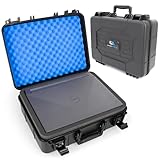
- [CRUSHPROOF HARD SHELL]: Protect your laptop from drops, bumps and everyday travel with a rugged hard shell laptop case. Fits laptops up to 14.5” x 10.5” and provides room for chargers, keyboards, mice and other accessories.
- [SHOCK-ABSORBING FOAM]: Multiple layers of protective foam help absorb impacts from all directions while creating a snug fit around your laptop. Foam dividers also create a separate storage area for accessories above the computer.
- [RUGGED TRAVEL CASE]: Built for airports, road trips, commuting and everyday transport, this heavy duty laptop case features a durable carry handle and protective hard shell to keep your computer secured wherever you take it.
- [15.6 INCH LAPTOP FIT]: Interior compartment measures 14.5” x 10.5” with two adjustable foam pieces for depth. Maximum interior height is 4” without foam. External dimensions measure 16” x 13” x 6” and the case weighs 4 lbs.
- [DURABLE CONSTRUCTION]: Reinforced plastic shell, metal hinge hardware and secure reinforced latches provide dependable protection from dust, drops and scratches. Dual quick-snap latches and optional padlock holes add an extra layer of security during transport.
Fix common resolution problems
- Black bars or a shrunken image: Use a 16:10 resolution such as 1280×800 or 1920×1200, then test fullscreen or borderless mode.
- A blurry image: Raise the render resolution or choose a higher-quality upscaling preset.
- Stutter at native resolution: Lower the resolution first, then adjust individual graphics settings if needed. The exact performance gain is game-dependent.
- Screen tearing: Because the original internal panel should not be treated as a VRR display, test the game’s frame cap and V-Sync options rather than expecting a universal tear-free setting.
4. Use FPS mode when a game benefits from mouse-like aiming
FPS mode is the original Legion Go’s most distinctive control feature. It turns the detachable right controller into a vertical, mouse-like pointing device, which can be more natural than a gamepad for shooters, strategy games, management titles, and desktop navigation.
Do these 3 things before closing this tab:
1Repair Windows errors before they cause bigger problems2Scan for outdated or missing drivers - takes under a minute3Clear out junk files and repair common Windows errorsHow to activate FPS mode
- Detach the right controller from the tablet.
- Find the mode switch on the bottom of the controller.
- Move the switch to the FPS position.
- Deploy the controller’s built-in base or kickstand.
- Place it on a reasonably hard, flat surface.
- Return to the game and test the pointer or aiming controls.
The right controller contains a mouse sensor, and Lenovo states that detached controllers automatically connect to the tablet over Bluetooth. The full procedure and switch location are shown in the official user guide.
Where FPS mode helps most
- First-person shooters that feel imprecise with a thumbstick.
- Strategy, management, and simulation games with many small interface targets.
- Launchers and menus that are awkward to operate with a conventional gamepad.
- Windows navigation when the Legion Go is connected to a monitor or television.
Think of FPS mode as mouse-like control, not a guaranteed replacement for a full-size mouse. The controller’s shape, sensor position, grip, and need for a flat surface take adjustment. It is less convenient on a bed, blanket, or while standing, and it may not be the best choice for a competitive shooter without practice.
Also, do not expect gyro aiming to work in FPS mode. Lenovo states that gyro behavior settings are unavailable under FPS mode. Use a conventional controller profile or another supported control arrangement if gyro aiming is important to you.
Why a game may recognize it differently
The Legion Go changes controller input behavior based on whether the controllers are attached:
Quick wins for a faster PC:
Clear out junk files and repair common Windows errorsFree Scan →Scan for outdated or missing drivers - takes under a minuteDriver Scan →Repair Windows errors before they cause bigger problemsFix Now →- Both controllers attached: X-input mode.
- One controller detached: dual D-input mode.
- Both controllers detached: X-input mode.
That transition can explain why a game detects the controls differently after you detach the right controller. If FPS mode is not behaving correctly, move the switch back from FPS, reattach the controller, wait for it to reconnect, and restart the game. Some games cache the input device they saw at launch. Then check the game’s control scheme and the active Legion Space controller profile.
5. Turn the Legion Go into a usable Windows mouse and keyboard
Windows is still designed primarily for a mouse and keyboard. The touchscreen helps, but launchers, File Explorer, password fields, and non-Steam games are much less frustrating when the controllers can handle basic pointer movement, clicks, scrolling, and typing.
Set up Steam’s Desktop Layout
In the current Steam desktop client, start with Steam → Settings → Controller → Desktop Layout → Edit. On some client versions, the same feature appears under Non-Game Controller Layouts → Desktop Layout → Edit. Steam supports assigning controller inputs to mouse movement, mouse buttons, scrolling, and keyboard commands; its controller configuration overview and Steam Input documentation explain the system.
Rank #4
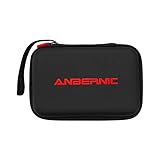
- Custom Fit for RG DS:Precisely molded shock-absorbing interior perfectly hugs your Anbernic RG DS dual-screen handheld console. The adjustable elastic straps securely hold both screens and the device body in place, preventing movement and scratches during transport.
- Triple-Layer Protection Structure:Features an anti-tangle mesh divider + elastic cushioning layer + thickened compression-resistant outer shell. Provides complete protection for dual-screen devices against drops, impacts, squeezes, and collisions during travel.
- Smart Storage Organization:Includes zippered mesh pockets and dedicated compartments to neatly store charging cables, game cartridges, stylus pens, power banks, and other accessories. Prevents tangling and keeps everything within easy reach.
- Portable & Practical Design:Lightweight EVA material combined with a sturdy hand strap allows for comfortable carrying by hand or easy packing into backpacks. Smooth dual-zipper design ensures easy opening and closing, ideal for travel, commuting, and outdoor use.
- Thoughtful Protective Gift:Designed as a practical accessory for dual-screen gaming enthusiasts, this case offers both reliable protection and everyday convenience. A high-quality choice whether treating yourself or gifting to family and friends, helping keep your gaming device in optimal condition.
A practical starting layout is:
| Controller input | Suggested Windows action |
|---|---|
| Left joystick | Mouse movement |
| Right trigger | Left mouse click |
| Left trigger | Right mouse click |
| D-pad up/down | Scroll up/down |
| A | Left click or Enter |
| B | Escape or right click |
| Legion L + B | Windows virtual keyboard |
These mappings are suggestions, not a required profile. You may prefer the right stick for pointer movement, or separate action layers for Windows and games. Steam generally needs to be running for its desktop layout to control Windows, and the layout can interfere with non-Steam games by sending mouse or keyboard input when you expect normal controller input.
The Tool Desk
Outbyte PC Repair FREERepair Windows errors before they cause bigger problemsFix Now →Outbyte Driver Updater FREEFix the driver behind crashes, sound loss and screen glitchesFind Drivers →If Steam’s desktop controls are taking over at the wrong time, open Steam → Settings → Controller → Desktop Layout → Edit, select the layout’s settings or gear icon, and disable Steam Input for the desktop layout. Steam’s wording and menu placement can change, so use the current client’s controller settings if these labels differ.
Calibrate before blaming the stick
If a joystick drifts, behaves erratically, or refuses to reach its full range:
- Attach the controllers to the tablet.
- Open Legion Space → Controllers → Joystick Settings.
- Select the affected joystick and adjust its dead zone.
- Use the relevant hardware calibration shortcut if necessary.
- Test the controller again in Windows and in a game.
Lenovo allows dead-zone values from 1% to 100% and warns that values below 5% may produce drift-like false inputs. Start with the smallest increase that stops unwanted movement. A larger dead zone ignores more of the stick’s travel, so it can hide mild drift at the cost of fine control. Dead-zone adjustment does not repair a physically damaged or worn stick.
For calibration, hold LT + LS for 7 seconds for the left controller, or RT + RS for 7 seconds for the right controller. If the controller is still unresponsive, use the reset procedure from the first tip before contacting Lenovo support.
Recommended Free Tools
Three repeatable setups to save time
Rather than searching for one permanent best setting, use a small number of profiles and adjust them when a particular game needs something different.
| Use case | Legion Space | Windows | Display and game settings |
|---|---|---|---|
| Battery-focused play | Quiet at 8 W or Balance at 15 W | Best power efficiency | 60 Hz, lower brightness, stable frame cap, and 800p or 1200p when needed |
| Balanced handheld gaming | Balance at 15 W | Balanced | Use the lowest resolution and graphics preset that maintain the target frame rate |
| Plugged-in demanding games | Performance at 20 W; test Custom at 25–30 W only if necessary | Best performance | Use 1200p or 800p with in-game upscaling; consider Full Speed Fan for sustained loads |
For every profile, check the actual result instead of assuming that a higher number is better. If the frame rate is already stable, reducing power can make the device quieter and extend battery life without changing the experience.
Before trying advanced tweaks
The original Legion Go uses shared system memory, so changing the BIOS UMA or reserved-VRAM allocation is not a universal performance fix. More reserved VRAM can help a particular game avoid a memory warning, but it also leaves less memory available to Windows and the CPU. BIOS menu names and available values can vary by firmware version. Do not blindly set the device to 6 GB, 8 GB, 10 GB, or 16 GB of VRAM without a specific game-based reason and a way to revert the change.
Best Value

- 💝【New Retro Game System】The R40 retro handheld game console is a high-performance retro video game console, equipped with a 1.2GHz 64-bit RK3326 CPU and Linux system with a ARM64bit quad-core Cortex-A35 CPU. It offers a smooth and responsive gaming experience across a variety of emulators.
- 💝【3.5 inch HD Tempered Glass Screen】The R40 Retro video game console features a 3.5 inch IPS screen covered with scratch-resistant tempered glass. The screen has a resolution of 640*480 pixels, presenting clear images and soft colors. It can accurately display the delicate details of the game graphics , effectively reducing visual fatigue and provide an immerse game experience.
- 💝【Multiple Functions】The R40 retro game console is not only a game console, which you can also play games on TV by connecting HDMI cable. Meanwhile it can use as music player, Video player, Camera. DV, Recoder,Calculator etc. Owing one game console, you can use different fucntions.
- 💝【Portable Design & Long Battery Life】Designed for portability, this mini retro game console features a compact and lightweight design. The 3000mAh rechargeable battery offers up to 10 hours of playtime, making it perfect for gaming on the go. It also includes built-in speakers and a 3.5mm headphone jack for an immersive audio experience.
- 💝【128G Storage】This retro gaming console comes can be plugged and played without an internet connection. With its 128G storage capacity, you can enjoy a vast library of games, and there's an option to insert an additional TF card to expand your game collection even further.
Likewise, do not treat disabling Core Isolation, CPU boost, Windows security features, or hidden power plans as beginner tips. Such changes can affect security, heat, battery life, and stability, and they are not necessary for the five built-in features covered here. Update through Lenovo’s official tools first, and back up important files before a BIOS update.
Useful troubleshooting branches
The game does not detect the controllers
- Reattach both controllers and restart the game.
- Check whether Steam Input or another remapper is intercepting the controls.
- Disable Steam’s desktop layout if the game is receiving mouse inputs instead of gamepad input.
- Try the attached and detached configurations separately; the Legion Go can switch between X-input and D-input behavior.
- Update Legion Space, drivers, BIOS, and controller firmware through Lenovo’s support tools.
FPS mode is not working
- Move the bottom switch out of FPS mode and back again.
- Place the controller on a hard, flat surface.
- Reattach it, wait for Bluetooth reconnection, and detach it again.
- Restart the game so it detects the input device from a clean launch.
- Check the game’s control scheme and the Legion Space profile.
The joystick still drifts after calibration
Increase the dead zone gradually in Legion Space → Controllers → Joystick Settings. If the required dead zone becomes unusually large, or the stick remains inconsistent, treat that as a possible hardware problem rather than continuing to increase the setting. Contact Lenovo support after checking for firmware updates.
The battery percentage falls while the Go is plugged in
This can occur during a sustained high-load game when the system is drawing significant power. Lenovo documents an optional BIOS setting for this edge case:
- Turn off the tablet.
- Hold the volume-up button while pressing the power button to open the Novo menu.
- Select BIOS Setup.
- Select More Settings → Configuration.
- Set Charging Speed Selection under high loading to Medium or Fast.
- Select Exit Saving Changes.
This is a troubleshooting measure, not a routine performance tweak. Charging behavior can also depend on the charger, cable, load, brightness, battery condition, and thermal mode.
The game looks blurry or has black borders
Try a 16:10 in-game resolution such as 1280×800 or 1920×1200, then test fullscreen and borderless modes. If the image is too soft, raise the in-game resolution or use a higher-quality upscaling preset. If the game tears, test its frame cap and V-Sync settings because the original internal panel should not be assumed to provide VRR.
Frequently Asked Questions
Will these tips work on the Legion Go 2 or Legion Go S?
Some principles transfer, including per-game power management, lower render resolutions, controller shortcuts, and Steam-based Windows navigation. The exact buttons, menus, TDP options, controller design, and display behavior can differ. The Legion Go 2 has an OLED display with advertised VRR, while the original 8APU1 has a 2560×1600 IPS panel with selectable 60 Hz and 144 Hz modes. The Go S also uses a different integrated-controller design. Check the relevant model’s documentation rather than applying these instructions blindly. Lenovo’s model information is available for the Legion Go 2, original Legion Go, and Legion Go S.
Should I set the Legion Go’s BIOS VRAM allocation to 6 GB or 8 GB?
There is no universally correct value. The Legion Go shares memory between the integrated GPU, Windows, and the CPU, so reserving more VRAM may help one game while reducing memory available elsewhere. Treat UMA or VRAM allocation as an advanced, game-specific experiment, record the original value, and avoid changing it as a generic first step.
How long does the original Legion Go battery last while gaming?
There is no single useful gameplay number. Lenovo lists a 49.2 Wh battery, but actual runtime changes with TDP, brightness, refresh rate, game load, Wi-Fi, frame caps, battery age, and thermal behavior. Use Quiet or Balance mode, 60 Hz, a stable frame cap, and lower brightness when battery life matters.
Does the original Legion Go have VRR?
Do not assume it does. The original 8APU1 user guide documents selectable 60 Hz and 144 Hz modes, while Lenovo explicitly advertises a 30–144 Hz variable-refresh display for the later Legion Go 2. For the original model, use frame caps and the game’s V-Sync options when troubleshooting tearing.
Free tools Windows power users keep installed
One-click scans. No signup required.
Can FPS mode use gyro aiming?
Lenovo states that gyro behavior settings are unavailable under FPS mode. FPS mode is intended to provide mouse-like control through the detached right controller’s mouse sensor. Use a conventional controller or another supported profile if gyro aiming is important.
The Bottom Line
The original Legion Go does not need a permanent maximum-performance profile. Update it first, set a frame-rate target, choose the lowest thermal mode that can maintain that target, and lower the render resolution before sacrificing every other graphics setting. Add FPS mode for mouse-like control, Steam Desktop Layout for Windows, and calibration plus sensible dead zones for reliable input. Those built-in controls deliver most of the practical improvement without risky BIOS or security tweaks.
Quick Recap
Product prices and availability are accurate as of the date/time indicated and are subject to change. Any price and availability information displayed on Amazon at the time of purchase will apply.




