What’s actually slowing this PC down?
Pick the symptom - the matching free tool is one click away.
For most Windows users, Flycast is the best Dreamcast emulator to start with: it is actively developed, offers Windows builds, and also supports arcade systems including NAOMI and Atomiswave. Choose Redream if you want the simplest setup. If you already use RetroArch for several systems, its Flycast core is a convenient alternative.
There are only a few serious current choices, and seven entries do not mean seven independent, equally maintained emulators. This list distinguishes standalone apps, RetroArch cores, a netplay-focused Flycast variant, and older projects that are best treated as troubleshooting fallbacks.
| # | Preview | Product | Price | |
|---|---|---|---|---|
| 1 |
|
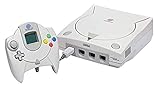
Sega Dreamcast Console (Renewed) | $219.97 | Buy on Amazon |
| 2 |

|
Sega Dreamcast Console - Model HKT-3020 | $214.98 | Buy on Amazon |
| 3 |
|
Sega Dreamcast White Console System | $199.98 | Buy on Amazon |
| 4 |
|
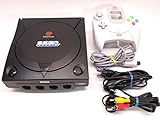
Sega Dreamcast System - Video Game Console (Black Sega Sports Edition) (Renewed) | Buy on Amazon |
Quick comparison
| Option | Status | BIOS setup | Arcade support | Netplay | Best for | Official source |
|---|---|---|---|---|---|---|
| Flycast standalone | Current; active development | HLE can run many Dreamcast games without a dumped BIOS; some cases benefit from one | NAOMI, NAOMI 2, Atomiswave, System SP | Use a specialized build for competitive workflows | Most Windows users | Flycast releases |
| Redream standalone | Current | Official site advertises normal setup without BIOS files | Limited compared with Flycast | Limited | Simplest setup | Redream |
| RetroArch + Flycast core | Current | Dreamcast BIOS optional in core documentation; arcade firmware may be needed | NAOMI, NAOMI 2, Atomiswave | Depends on workflow | Multi-system libraries | RetroArch |
| Flycast Dojo | Current specialized Flycast project | Flycast-based; requirements depend on content | Dreamcast, NAOMI, Atomiswave | Peer-to-peer netplay focus | Competitive or community play | Flycast Dojo |
| RetroArch + Redream core | Available; documentation describes it as work-in-progress | Requires boot.bin and flash.bin |
Limited | Limited | RetroArch users who specifically prefer Redream | Libretro Redream documentation |
| DEmul | Legacy; current active development is not established | Depends on build and configuration | Historically notable for arcade emulation | Limited | Specific legacy compatibility tests | No authoritative current download destination established |
| nullDC or Reicast-derived builds | Legacy and fragmented | Depends on build | Varies by build | Varies by build | Archival experimentation | No single authoritative modern Windows source established |
Flycast standalone and its RetroArch core share the Flycast project; Flycast Dojo is a specialized Flycast-based project. RetroArch is a frontend that loads cores, not a separate Dreamcast emulator. The older libretro/flycast repository is marked deprecated; use the current core distribution rather than that repository.
1. Flycast standalone: best overall
Flycast is the strongest general-purpose pick for Windows because it combines Dreamcast emulation with support for NAOMI, NAOMI 2, Atomiswave, and System SP, plus a wide set of configuration options. Its official repository lists version 2.6 as the latest stable release, dated January 10, 2026, and provides stable and development build options. See the project repository and releases.
Quick wins for a faster PC:
Fix the driver behind crashes, sound loss and screen glitchesFind Drivers →Repair Windows errors before they cause bigger problemsFix Now →Scan for outdated or missing drivers - takes under a minuteDriver Scan →#1 Best Overall
- Contains: Gray Dreamcast unit, modem, controller, power cable, and stereo a/v cable.
Flycast can use a high-level emulated BIOS for many Dreamcast setups, so a firmware dump is not always required. A real BIOS can still help with particular games or boot problems. NAOMI and Atomiswave titles may need additional firmware, such as the files documented for the Flycast core. Filename and placement requirements vary by emulator and frontend; follow the Flycast documentation for the core’s system directory.
Set it up
- Download a Windows build from the official releases page.
- Extract it to a permanent folder, then launch the Windows executable.
- Set the game and save/VMU directories, choose a renderer and resolution, and map your controller.
- Add legally obtained game files and launch one from Flycast’s browser or file menu.
- Start at native or 2× internal resolution, then raise it only if the game remains stable.
Flycast’s configuration depth is also its main drawback: a renderer or accuracy setting that fixes one game may cause performance or visual problems elsewhere. Its documentation describes alpha sorting choices: per-strip is fastest but least accurate, per-triangle is a balanced starting point, and per-pixel is the most accurate but slowest. It also documents internal resolution, mipmapping, anisotropic filtering, cable and broadcast settings, and DSP audio emulation.
When a game misbehaves
- For a black screen, verify the dump, try a real Dreamcast BIOS if available, and change the renderer.
- For transparency or geometry ordering glitches, try per-pixel alpha sorting.
- For a Windows CE game, enable Force Windows CE Mode; it enables full MMU emulation, can require more resources, and is not a guaranteed fix.
- If HLE causes boot or audio trouble, compare behavior with a properly dumped BIOS.
2. Redream standalone: easiest setup
Redream is a good choice if you want a straightforward desktop app rather than a large configuration surface. Its official site lists Windows support, high-definition rendering, save states, cheat support, automatic cover art, and widescreen codes. The site also says more than 95% of the Dreamcast library can be played from start to finish; that is Redream’s own compatibility claim, not an independently verified test result. The site advertises normal standalone use without BIOS or flash-file setup.
Pick Redream when ease matters more than arcade-system breadth or fine-grained configuration. Its smaller settings range can be an advantage for a beginner, but do not assume it is universally more compatible or accurate than Flycast: results can depend on the specific game and configuration.
Free tools Windows power users keep installed
One-click scans. No signup required.
3. RetroArch with the Flycast core: best for multi-system libraries
RetroArch is a frontend that hosts emulator cores. Its Flycast core brings the Flycast engine into the same environment as your other systems, with shared controller profiles, shaders, playlists, screenshots, remapping, and achievement integrations. That is useful if RetroArch is already part of your setup; if you only want to play Dreamcast, the frontend adds configuration and troubleshooting layers you can avoid with a standalone app.
Install the core
- Install the full Windows desktop build from the official RetroArch platform page. The page lists stable version 1.22.2 and Windows 7, 8, 8.1, 10, and 11 builds; listed Windows 7 availability does not guarantee every current core or driver will work well on that system.
- In RetroArch, open Main Menu → Online Updater → Core Downloader or Update Cores, depending on the interface, and install Sega – Dreamcast/NAOMI (Flycast). RetroArch documents core updating under Main Menu → Online Updater → Update Cores; see its cores page.
- Set the system directory. If you use firmware, place it in the documented
system/dc/location. - Load the Flycast core, select Load Content, and open your game.
- Configure controls in Settings → Input or the in-game quick menu. Save a per-game override only after confirming the basic setup works.
The Steam edition differs from the normal desktop build: RetroArch’s platform page says it does not offer the usual Core Updater and supplies selected cores through Steam. The full desktop build is the more direct choice if you want the ordinary Flycast core update workflow.
4. Flycast Dojo: best for competitive netplay
Flycast Dojo is a specialized Flycast-based project for peer-to-peer netplay across Dreamcast, NAOMI, and Atomiswave. Its official site describes that purpose and links to Windows downloads and Fightcade-related support. It is the most fitting choice when a game community’s competitive workflow calls for Dojo; for offline play, ordinary Flycast is the simpler default.
Do not treat standard standalone Flycast, RetroArch netplay, and a community’s Dojo workflow as interchangeable. Follow the setup and version guidance used by the game’s community.
Rank #3
- almost zero scratches, keeping very well.
5. RetroArch with the Redream core: a niche alternative
This option is mainly for someone already committed to RetroArch who specifically wants the Redream implementation inside it. Libretro’s Redream core documentation describes the core as work-in-progress and notes sound, compatibility, and general roughness issues. It requires OpenGL 3.3 or higher, plus both boot.bin and flash.bin in system/dc/.
- Install RetroArch and obtain the Redream core through the current Libretro distribution method.
- Set RetroArch’s video driver to OpenGL and restart it.
- Create
system/dc/and place your legally dumpedboot.binandflash.binthere. - Load the core and try a supported
.gdi,.chd, or.cdigame file.
6. DEmul: legacy fallback
DEmul is an older emulator with historical relevance to Dreamcast and arcade-system emulation. It may be worth checking when a particular legacy title behaves differently in current options, but the available evidence does not establish active development or an authoritative current Windows download. Treat old download mirrors cautiously: do not make it your first install or assume an old binary is safe just because a search result labels it popular.
7. nullDC or Reicast-derived builds: archival experimentation
nullDC and Reicast belong to an older, fragmented generation of Dreamcast emulation. Community-derived builds may still be useful for experimentation or comparing a specific game, but maintenance and download provenance vary. There is no single authoritative modern Windows release source established here, so these are poor choices for a new setup. Start with Flycast unless you have a specific archival reason to test an older build.
Independent reader supportYour contribution helps us test, update, and keep practical guides available for everyone.Game files, firmware, and saves
Use a compatible, verified dump
The Flycast RetroArch core documents support for .cdi, .gdi, .chd, .cue, .bin, .elf, .zip, .7z, .lst, .dat, and .m3u; see the format documentation. The Redream core documents .gdi, .chd, and .cdi. Prefer a GDI dump or a correctly created CHD for preservation-oriented use. A CDI may be convenient, but depending on how it was made, it can be an altered or lossy rip. An extension alone does not prove that a dump is complete or valid.
For multi-disc games, use an M3U playlist where the chosen emulator supports it. Keep filenames and disc order consistent. If a CHD fails, test the original GDI/CUE-based dump or recreate the CHD from a verified source.
Handle BIOS files legally and by emulator
BIOS requirements are not uniform. Redream’s standalone site advertises a no-BIOS normal setup; Flycast HLE can avoid a Dreamcast BIOS in many configurations; the RetroArch Redream core explicitly requires boot.bin and flash.bin. Arcade titles may need additional firmware. If you use firmware, dump it from hardware you own where local law permits; do not download unauthorized BIOS packs. A file that works in one emulator may not meet another’s filename or directory requirements.
Keep VMU saves as well as save states
Use normal in-game saves to the VMU rather than relying solely on save states. A state may stop working after an emulator update or configuration change. Periodically back up the VMU data directory, especially before changing builds.
Graphics, controllers, and performance
Choose graphics settings per game
- Start at native 640×480 or a modest increase such as 1280×960. Try 1920×1440 only if performance and image quality remain satisfactory; very high internal resolutions can reveal texture, interface, or geometry issues in some games.
- Use per-triangle alpha sorting first. Switch to per-pixel if transparency or ordering artifacts warrant the added cost.
- Enable VSync if you see tearing. Use widescreen codes or patches selectively rather than forcing every game to 16:9; missing geometry, misplaced HUD elements, or camera issues can result.
- Try mipmapping and anisotropic filtering when useful, but change one setting at a time so you can identify what caused a new problem.
Map the controller deliberately
XInput pads, including Xbox-compatible controllers, are generally a practical Windows starting point; DirectInput and generic USB pads can also work. Dreamcast’s analog triggers may need manual mapping, particularly with generic profiles. Flycast’s core documentation covers remapping and rumble, with rumble dependent on the controller and input driver. Flycast release notes also mention physical Dreamcast controller support through adapters such as DreamConn+ and DreamPicoPort; see the release notes.
Do these 3 things before closing this tab:
1Scan for outdated or missing drivers - takes under a minute2Repair Windows errors before they cause bigger problems3Fix the driver behind crashes, sound loss and screen glitchesUse an arcade stick for fighting games if that suits your play style. Light-gun games may need a mouse or light-gun-compatible setup; confirm support for the specific emulator, input device, and game rather than assuming a standard controller will provide the intended controls.
Set expectations for Windows hardware
No single reliable minimum specification covers every Windows game and configuration. Dreamcast emulation is generally light on modern PCs, but performance depends on the game, renderer, internal resolution, Windows CE mode, shaders, and texture replacements. Integrated graphics can be enough at native or modestly increased resolution; higher resolution and per-pixel sorting need more headroom. On a laptop, check its power mode and GPU drivers if you encounter stutter, and temporarily rule out background overlays. Redream’s smooth-performance statements on decade-old desktops and mobile devices are first-party claims, not a tested minimum specification.
Quick Recap
Download safely
- Use the official Flycast repository or its releases page, Redream’s official site, RetroArch’s platform page, or Flycast Dojo’s site.
- Avoid portals that wrap community software in their own installer or offer copyrighted BIOS files and game images.
- If Windows SmartScreen or antivirus flags a community build, verify that it came from the project’s official release source. Do not disable security protections indiscriminately.
Product prices and availability are accurate as of the date/time indicated and are subject to change. Any price and availability information displayed on Amazon at the time of purchase will apply.




