
PC Slower Than It Used to Be?
A free scan shows the junk files, broken settings and background clutter dragging Windows down - then fixes them in one click.Free scan · Windows 10 & 11Crashes, No Sound, or Screen Glitches?
Random freezes, missing sound and display glitches usually trace back to one bad driver. Find and replace yours safely.Free scan · under a minuteBlueStacks 5 is the best Android emulator for most Windows users. It offers the easiest general setup, Google Play access, keyboard mapping, multi-instance support, and broad compatibility. LDPlayer and MuMu Player are stronger alternatives for gaming performance, while Android Studio’s Emulator is the right choice for app development and testing.
These products are not interchangeable. Google Play Games on PC is a curated gaming platform, Android Studio is a developer tool, and Genymotion is aimed at professional testing. Choose according to what you need to run—not simply which emulator claims to be fastest.
As an Amazon Associate I earn from qualifying purchases.
Quick comparison
| Emulator | Best for | Google Play | Multi-instance | Main drawback | Official download |
|---|---|---|---|---|---|
| BlueStacks 5 | Most users and general gaming | Yes | Yes | Gaming-focused interface and promotions | BlueStacks |
| LDPlayer | Gaming performance and multiple instances | Yes | Yes | Results vary by game and renderer | LDPlayer |
| MuMu Player | Demanding games and high-refresh-rate play | Yes | Yes | Some AMD compatibility concerns | MuMu Player |
| GameLoop | Supported Tencent games | Limited | Limited | Narrower game and app use case | GameLoop |
| MEmu Play | Flexible Android versions and instances | Yes | Yes | More configuration can mean more instability | MEmu Play |
| NoxPlayer | Macros and customizable controls | Yes | Yes | Automation may violate game rules | NoxPlayer |
| Android Studio Emulator | Development and app testing | Where supported by the image | AVD-based | Overkill for casual gaming | Android Studio |
| Google Play Games on PC | Supported games through Google’s official platform | Curated catalog | No general-purpose instances | Cannot run arbitrary Android apps | Google Play Games |
| Genymotion | Professional and cloud testing | Depends on device profile | Professional workflows | Too technical and costly for most gamers | Genymotion |
1. BlueStacks 5 — best overall
Best for: Most gamers, casual app users, and anyone who wants the simplest route from installation to playing an Android game.
The Tool Desk
Outbyte PC Repair FREERepair Windows errors before they cause bigger problemsFix Now →Outbyte Driver Updater FREEFix the driver behind crashes, sound loss and screen glitchesFind Drivers →BlueStacks 5 is the safest default recommendation because it combines a mature Windows client with Google Play access, keyboard and mouse mapping, gamepad support, multi-instance management, and broad consumer-game compatibility. It is also the easiest choice when you want to run ordinary Android apps rather than a single supported PC game.
#1 Best Overall
![ZD-V+ USB Wired Gaming Controller Gamepad For PC/Laptop Computer(Windows XP/7/8/10/11) & PS3 & Android & Steam - [Black]](https://m.media-amazon.com/images/I/41Ddk2Xp33L._SL160_.jpg)
- Support PC Windows XP / 7 / 8 / 10 / 11 & PS3 & Steam
- Support Android (version 4.0 or above, and the device must fully support OTG function). Not inlciud a OTG adapter in the package.
- Support Plug and Play, only for PC games supporting Xinput mode / PS3
- Feature: Multi-mode: Xinput & DirectInput / Vibration Feedback Function / JD-SWTICH Function (exchange the functions of D-pad and Left-Stick in Xinput mode)
- USB Wired Gamepad (PS architecture) - Does not support the Xbox 360 / Xbox One / Mac OS
BlueStacks documents Android 11 instances and an Android 13 beta instance, so Android-version selection can help when an app requires a particular API level. A newer instance is not automatically the best one: older games may behave better on an older Android image. See the official BlueStacks instance documentation.
Strengths
- Google Play access and familiar Android app installation.
- Keyboard mapping, gamepad support, and gaming controls.
- Multi-instance management.
- Several Android instance types.
- Broad compatibility for general consumer use.
Weaknesses and caveats
- The interface is heavily gaming-oriented and may include promotional recommendations.
- Its stated minimum of Windows 7 or later, 4 GB RAM, and 5 GB free disk space describes installation—not smooth performance in modern 3D games.
- Some games detect or restrict emulators.
- Compatibility can differ between Android instances and graphics renderers.
Skip it if: You need a clean developer-testing environment, or if a particular game’s publisher recommends another PC client.
Download BlueStacks from the official product page.
Quick wins for a faster PC:
Scan for outdated or missing drivers - takes under a minuteDriver Scan →Clear out junk files and repair common Windows errorsFree Scan →Fix the driver behind crashes, sound loss and screen glitchesFind Drivers →2. LDPlayer — best for gaming performance and multi-instance use
Best for: Gamers who prioritize frame-rate stability, input responsiveness, and running several instances.
LDPlayer is a strong gaming alternative to BlueStacks, particularly for users who want extensive controls and multi-instance features. Published comparison coverage has placed LDPlayer 14 in an Android 14 environment and found it ahead of BlueStacks in selected game tests. That result should not be treated as a universal speed verdict: the test used a specific Windows 11 PC, Intel Core i5-13400, 32 GB RAM, RTX 3050, 1,600 × 900 resolution, and fixed CPU and memory allocations.
Performance depends on the game, Android image, renderer, CPU, GPU, RAM allocation, virtualization configuration, and background software. LDPlayer is therefore best described as an emulator worth testing when gaming performance and multiple instances matter—not as the fastest option for every PC.
Strengths and weaknesses
- Strengths: Gaming-focused controls, strong multi-instance positioning, and often good results on low- or mid-range gaming systems.
- Weaknesses: Individual games may behave differently, and anti-cheat or emulator-detection policies remain under the publisher’s control.
Download LDPlayer from its official website. Use the official domain rather than a third-party download mirror.
What’s actually slowing this PC down?
Pick the symptom - the matching free tool is one click away.
3. MuMu Player — best for demanding games and high-refresh-rate play
Best for: Players with capable hardware who want another option for graphically demanding games or high frame rates.
MuMu Player provides gaming-oriented performance controls, keyboard and gamepad support, and high-frame-rate positioning. It is particularly useful as an alternative when a specific title performs poorly in BlueStacks or LDPlayer.
MuMu’s official Windows requirements list Windows 7 or later, DirectX 11 or OpenGL 4.x, a four-core Intel i5-7500-or-better-class CPU, hardware virtualization enabled, 4 GB RAM, and available disk space. The same page recommends Intel hardware because some AMD configurations can have compatibility issues. Treat the listed minimum as a starting point, not a promise that demanding games will run smoothly.
Surface devices without hardware virtualization may not install normally. Also remember that MuMu’s Windows and macOS products are separate products; their features and terms should not be assumed to match.
Check MuMu’s Windows requirements before installing, then use the official MuMu Player site.
Rank #2

- [Ergonomics] Improved ergonomics for extended play time: As a full-featured controller, the wireless controller delivers accurate and responsive gaming speeds. Compact and ergonomic shape ensures a few hours of comfort on your PC
- [Wireless] Flexible and highly integrated game board (with USB receiver) with 2.4G wireless connection, support for Windows XP/Win 7/8/10/PS3/ (Android system must support OTG function), operating distance range 0- 10 m.
- [Improved design] 1) The new left and right shoulder button design is easy to use; 2) 12 function keys 3) Support 2 handles at the same time (requires game support)
- High-performance chip] The controller control board uses a high-performance chip, which has good stability and basically zero game delay.
- [Intelligent power saving mode] Through the intelligent sleep/wake function and power on/off button, it can effectively improve battery life and extend charging time.
4. GameLoop — best for supported Tencent games
Best for: A specific game that is officially supported or distributed through GameLoop, particularly a Tencent-associated title.
GameLoop makes more sense than a general-purpose emulator when the relevant publisher explicitly supports it. Game-specific optimization and native-feeling keyboard and mouse controls can avoid compatibility problems that occur when an unsupported emulator is used.
Its limitation is scope. GameLoop is not a good general Android environment for productivity apps, development, or unrestricted APK use. Catalog availability can change by region and title.
Do these 3 things before closing this tab:
1Repair Windows errors before they cause bigger problems2Scan for outdated or missing drivers - takes under a minute3Clear out junk files and repair common Windows errorsDo not assume GameLoop guarantees account safety or prevents bans. Emulator detection, anti-cheat, and account enforcement are controlled by the game publisher. Check the game’s current support policy before committing to it.
Download GameLoop from the official website.
5. MEmu Play — best for flexible instance management
Best for: Users who need several Android environments, older application compatibility, or extensive instance configuration.
MEmu Play offers multiple Android image options and multi-instance management. That makes it useful for separate app environments and, where permitted by a game’s rules, separate game accounts. It also provides the controls expected from a consumer gaming emulator.
The trade-off is complexity. More Android versions and configuration choices create more opportunities for instability, and multiple instances can quickly consume RAM, CPU, storage, and GPU resources. An older PC might run one lightweight instance but still struggle with a modern game or several instances at once.
Download MEmu Play from the official site.
6. NoxPlayer — best for automation-oriented controls
Best for: Users who value macros, key mapping, scripting-style controls, and emulator customization.
NoxPlayer has a familiar consumer interface, keyboard mapping, macro-oriented tools, and multi-instance capabilities. It can be a useful choice for games and apps that work reliably with its Android image.
Automation is also its main risk from a rules perspective. Macros or scripts may violate a game’s terms of service, even if the emulator itself installs normally. Do not interpret macro support as permission to automate online games.
NoxPlayer is not a first choice for Android development. Download only from the official NoxPlayer website, read installer screens carefully, and decline optional bundled components if offered.
Recommended Free Tools
7. Android Studio Emulator — best for developers and testers
Best for: Developers, QA engineers, and technical users who need configurable virtual Android devices and API levels.
Rank #3
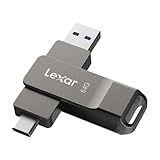
- USB-C 2-in-1 storage OTG: The Lexar JumpDrive Dual Drive D40E features USB Type-A and Type-C connectors in a slim, portable form factor for easy device compatibility
- Transfer speeds up to 100MB/s: Based on internal testing, performance may vary depending upon the host device, interface, and usage conditions. 1MB=1,000,000 bytes
- Plug and Play: Widely compatible with USB Type-C smartphones, tablets, laptops, Macs, and traditional Type-A devices, no software installation required. The 360° swivel design allows for easy switching between connectors without the hassle of losing a cap
- Durable & Compact: The Lexar D40E USB memory stick features a metal enclosure, withstands temperatures from 0° to 50° C (32°F to 122°F), and is lightweight at 26g with dimensions of 70.4 x 16.9 x 11.7mm
- Security & Warranty: Securely protects files using an advanced security software solution with 256-bit AES encryption. Backed by a Lexar 3-year limited warranty
Android Studio’s Emulator is Google’s development-focused option. Through Android Virtual Devices, you can test phones, tablets, Wear OS, Android TV, Automotive OS, and different Android API levels. It can simulate calls, SMS, location, rotation, network conditions, sensors, and other device characteristics. Where appropriate, Google Play system images are available.
This is overkill for casual gaming. Installation is more complex, and practical hardware requirements are higher. Google lists 64-bit Windows 10 as the minimum, 8 GB RAM for Android Studio alone, 16 GB RAM for Studio plus the emulator, 16 GB free disk space, processor virtualization enabled in BIOS, and a GPU for the listed emulator configuration. Windows ARM-based PCs are currently not supported by Android Studio.
Google recommends 16 GB RAM and 16 GB disk space for Android Studio plus the emulator. Use AVD Manager to create reproducible device profiles rather than treating the tool like a consumer gaming launcher.
Review Android Studio’s Windows requirements before downloading.
8. Google Play Games on PC — best official option for supported games
Best for: Players whose desired games are available through Google’s official Windows catalog.
Google Play Games on PC is a curated PC gaming platform based on Android technology, not a general-purpose emulator. It is designed for games specifically released or supported for the platform, with PC-oriented keyboard, mouse, performance, and cross-device features.
It does not replace BlueStacks or LDPlayer when you need arbitrary Android apps, unrestricted APK installation, or a configurable Android test environment. Google also provides a developer emulator for authorized Play Games on PC development and testing; that tool is not intended as a normal consumer emulator.
Free tools Windows power users keep installed
One-click scans. No signup required.
Start with the consumer Google Play Games download and check the official game requirements and ABI information. Supported games and availability can vary by region.
9. Genymotion — best for professional and cloud testing
Best for: Developers, QA teams, enterprises, and organizations testing Android apps across repeatable device profiles.
Genymotion is primarily a professional testing product. Its local and cloud options can support virtual-device profiles, automation, and CI-oriented workflows. For some teams, that is more useful than maintaining every test environment locally in Android Studio.
It is a poor choice for ordinary gaming: the workflow is more technical, and paid plans may apply for commercial or advanced use. Pricing and licensing can change, so check the official pricing page before purchasing. The Genymotion product page explains the available testing options.
Which Android emulator should you choose?
| Your need | Primary choice | Alternative |
|---|---|---|
| Best overall | BlueStacks 5 | LDPlayer |
| Low- or mid-range gaming PC | LDPlayer | BlueStacks with conservative settings |
| High-refresh-rate gaming | MuMu Player | LDPlayer |
| A specific Tencent-supported game | GameLoop | The publisher-supported option |
| Multiple instances | LDPlayer or MEmu | BlueStacks |
| Macros and key mapping | NoxPlayer | MEmu |
| Android app development | Android Studio Emulator | Genymotion |
| Official Google PC gaming | Google Play Games on PC | BlueStacks for broader app access |
| Enterprise or cloud testing | Genymotion | Android Studio Emulator |
| General Android apps and APKs | BlueStacks | LDPlayer or MuMu Player |
Windows requirements: what your PC actually needs
Current consumer emulators generally target 64-bit Windows 10 and Windows 11 in practical use, but Windows 11 is the more future-proof choice. Microsoft support for Windows 10 ended on October 14, 2025; that does not mean every emulator stopped working immediately, but new compatibility and security expectations should not be assumed indefinitely. Google documents this limitation in its Android Emulator troubleshooting guidance.
Rank #4

- USB-C 2-in-1 storage OTG: The Lexar JumpDrive Dual Drive D40E features USB Type-A and Type-C connectors in a slim, portable form factor for easy device compatibility
- Transfer speeds up to 100MB/s: Based on internal testing, performance may vary depending upon the host device, interface, and usage conditions. 1MB=1,000,000 bytes
- Plug and Play: Widely compatible with USB Type-C smartphones, tablets, laptops, Macs, and traditional Type-A devices, no software installation required. The 360° swivel design allows for easy switching between connectors without the hassle of losing a cap
- Durable & Compact: The Lexar D40E USB memory stick features a metal enclosure, withstands temperatures from 0° to 50° C (32°F to 122°F), and is lightweight at 26g with dimensions of 70.4 x 16.9 x 11.7mm
- Security & Warranty: Securely protects files using an advanced security software solution with 256-bit AES encryption. Backed by a Lexar 3-year limited warranty
Minimum versus comfortable hardware
- 8 GB RAM: Enough for one lightweight emulator and modest workloads, but multitasking may be poor.
- 16 GB RAM: A sensible baseline for modern gaming or Android Studio with one emulator.
- 32 GB RAM: Preferable for multiple instances, development alongside browser-heavy work, or demanding games.
- SSD: Strongly preferable for startup, snapshots, updates, and instance storage.
- Dedicated GPU: Helpful for demanding 3D games, though not essential for every app.
- Virtualization: Essential for good performance and required by some products.
BlueStacks lists 4 GB RAM and 5 GB free disk space as minimums, while MuMu lists 4 GB RAM with stronger processor and graphics guidance. These are installation thresholds, not realistic guarantees for modern gaming. Android Studio’s official 16 GB recommendation is a better practical baseline when development and emulation run together.
How to check virtualization and acceleration
- Open Task Manager → Performance → CPU and check whether Virtualization is enabled.
- If it is disabled, restart the PC and enter BIOS/UEFI setup. Enable Intel VT-x, Intel Virtualization Technology, AMD-V, or SVM Mode, depending on the motherboard.
- For Android Studio’s Windows Hypervisor Platform path, open Start, search Turn Windows features on or off, enable Windows Hypervisor Platform, click OK, and restart Windows.
- To check Android Studio acceleration, run:
%LOCALAPPDATA%AndroidSdkemulatoremulator -accel-checkA successful result may identify WHPX, AEHD, or another usable hypervisor. Google recommends WHPX on Windows and documents the command in its hardware-acceleration guide.
Hyper-V, WHPX, VirtualBox, VMware, Docker, and some anti-cheat software can interact in complicated ways. A VM-accelerated emulator cannot run inside another virtual machine, and incompatible virtualization configurations can prevent an emulator from starting.
How to configure an emulator for a first run
After installation, begin conservatively:
- Allocate 2–4 CPU cores to one gaming instance.
- Allocate 4–6 GB RAM on a 16–32 GB PC, leaving enough memory for Windows.
- Start at 1,920 × 1,080 or 1,600 × 900 instead of 4K.
- Use the default graphics renderer first.
- Enable high frame rate only after confirming stability.
- Cap FPS to the monitor’s refresh rate if frame pacing is inconsistent.
- Run one instance before attempting multi-instance play.
These are starting points rather than universal optimal settings. If Windows begins swapping or becomes unresponsive, reduce the emulator allocation instead of assigning more resources automatically.
Why an emulator may be slow or fail to start
Stuttering or poor performance
Check virtualization, GPU drivers, available RAM, background applications, resolution, FPS targets, and the number of running instances. Test another renderer if the emulator provides OpenGL, DirectX, or Vulkan choices. Antivirus scanning can also affect emulator load and save performance, especially around Android Virtual Device snapshots; Google discusses this in its troubleshooting documentation.
A sensible recovery order is: confirm virtualization, update graphics drivers, lower resolution and FPS, close browsers and other VMs, reduce instance count, test another renderer, and only then consider an antivirus exclusion. Exclusions reduce scanning protection, so use them only when you understand the trade-off.
The emulator will not start
- Recheck BIOS/UEFI virtualization.
- Review Hyper-V and WHPX configuration.
- Close or reconfigure VirtualBox, VMware, Docker, and other virtualization software.
- Confirm that the emulator is not running inside another VM.
- Update GPU drivers.
- Check 64-bit Windows, page-file availability, disk space, and the product’s supported Windows versions.
A game will not install or crashes
Possible causes include the wrong ARM or x86 architecture, an incompatible Android version, missing Google Play services, an unsupported device profile, renderer problems, emulator detection, Play Integrity requirements, or a publisher ban on third-party emulators.
Windows Errors? Fix Them Before They Spread
Repair common Windows errors and clear accumulated junk for a smoother, more stable PC - no reinstall needed.Free scan · no reinstallCrashes, No Sound, or Screen Glitches?
Random freezes, missing sound and display glitches usually trace back to one bad driver. Find and replace yours safely.Free scan · under a minuteTry the game’s official PC version or Google Play Games on PC first. Otherwise, test another Android instance or renderer, update Google Play services, and clear app data only after confirming that cloud saves and account synchronization are working. Never attempt to bypass anti-cheat or device-integrity controls.
Security, APKs, and sensitive accounts
An emulator is not identical to a physical Android phone. Banking, DRM, streaming, enterprise, and other security-sensitive apps may reject it because of device fingerprinting, root status, Google Play certification, or Play Integrity.
Download the emulator from the vendor’s official domain, check the installer signature where possible, read every installation screen, and decline optional offers. Avoid modified APKs and unknown download sites. Even when an emulator is legitimate, a sideloaded APK can contain malware. Use sensitive accounts only when the app and emulator combination is trusted and genuinely required.
Alternatives to a Windows Android emulator
If emulation is not the right fit, consider the game’s native Windows release, Google Play Games on PC for supported titles, Android-x86 or Bliss OS for an operating-system-style installation, or a cloud phone for remote Android access. These alternatives have different trade-offs: OS-style solutions may require a separate installation or dual boot, while cloud phones depend on network quality and subscription terms.
The Tool Desk
Outbyte PC Repair FREEClear out junk files and repair common Windows errorsFree Scan →Outbyte Driver Updater FREEFix the driver behind crashes, sound loss and screen glitchesFind Drivers →Final verdict
Choose BlueStacks 5 if you want one broadly compatible Android environment for Windows gaming and apps. Test LDPlayer or MuMu Player when frame rate, high-refresh play, or multi-instance gaming matters. Use GameLoop when the publisher supports it for your specific game. For development and QA, choose Android Studio Emulator or Genymotion rather than a gaming client. If you only need games in Google’s catalog, Google Play Games on PC is the cleaner official option.
Quick Recap
Product prices and availability are accurate as of the date/time indicated and are subject to change. Any price and availability information displayed on Amazon at the time of purchase will apply.

