If the PS VR2 Sense controller’s X button or R2 trigger is unresponsive, first reset the controller using Sony’s procedure, then check pairing, charge and button assignments if relevant. A reset can help with controller troubleshooting, but it is not a guaranteed fix for a physical fault.
Know which controls are affected
Sony labels the face button commonly called “X” as the Cross (×) button. R2 is a separate trigger. If one works in some games or menus but not others, note where the problem occurs before troubleshooting; that can help distinguish a configuration or game-specific issue from a persistent controller fault.
Reset the PS VR2 Sense controller
Sony’s US troubleshooting instructions recommend resetting the controller. The reset is a safe first step, but it does not establish that every unresponsive or stuck button has a software cause.
- Turn off the PS5.
- Find the small reset button on the back of the affected controller.
- “Use a pin or similar tool (not included) to press the reset button.”
- Reconnect the controller to the PS5 using the console’s USB cable.
- Press the PS button to reconnect it.
Follow the steps in Sony’s PS VR2 troubleshooting guide. Sony lists stuck buttons and trigger issues as separate troubleshooting categories and links to PlayStation Repairs, but its issue-specific interactive instructions are not available in the page text cited here.
#1 Best Overall

- [Comfortable foam pads] Crafted from memory foam and soft PU, it provides a softer, more comfortable feel.
- [Flexible Installation Options] There are two installation methods: use the included Globular Cluster strap for a secure fit or the stock wrist strap for familiarity. Try both and choose your preferred style for comfort.
- [Two Included Thicknesses] This mod comes with two foam pads of different thickness. You can choose the one that best matches your hand size and preferred fit for ideal comfort and support.
- [Full Charging Dock Compatibility] Seamlessly charge your controller on the dock without removing the mod. Ensure the foam pad is aligned flush with the controller’s edge to maintain proper charging functionality.
- [Easy to Install ] For best results, apply as many dots as possible as shown in the product image, wait 2 hours after application to allow the adhesive dot to set, then attach the foam pad.
Check setup, charging and assignments
These checks are most useful if the controller will not connect, appears to lose power, or a button performs the wrong action. They can identify setup or configuration issues; Sony does not say they repair a mechanical fault.
Pair the controller
Turn on the PS5, connect the controller with the included USB cable and press the PS button. Pair the left and right controllers separately. See Sony’s PS VR2 Sense controller setup instructions.
Rank #2
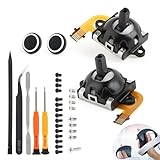
- Compatibility and Application: The Left and Right 3D Joysticks is for PlayStation VR2 joystick replacement. Our for PS VR2 handheld joystick replacement's type is Hall Effect joystick, it only suits for that controller. The replacement for PSVR2 Joystick are apply to the problem of the drifting, blind spots, dead spots, can't center, damaged or broken, long time to use, not sensitive, etc. Will better to solve the problem of drifting.
- Quality Guaranteed: For PS VR2 joystick replacement was test before shipment and for PlayStation VR2 joystick replacement are made of good quality, metal+ABS plastic material make it use more accurately and has longer working life. The controller will use as a new one after replacing for PlayStation VR2 joystick.
- Advantage of Hall Joystick: The ALPS joystick after using long time, it will has some problem:Electrical parts will wear out due to physical properties,resistance will increase and delay to operate. Our Hall Effect joystick for PS VR2 using the principle of the Hall effect and magnetic field induction, the accuracy is usually higher and can provide more accurate position detection. For PSVR2 Hall joystick has a longer life and is suitable for long-term use.
- Protection and Convenient Installation: Come with 2pcs for PS VR2 Thumbsticks cap replacement. Good replacement for your broken or cracked joystick cap.And 24 handle screws(Help to replace the controller cover’s screw during the installation). And it comes with set tool:Screwdriver、Opening Tools、Pry Tool and Tweezer. Helps to disassemble and replace for PS VR2 joystick more convenient.
- Installation Suggestion: After the joystick is installed, it may not be exactly centered with the your handle motherboard, and calibration is required to center it. Currently, the joystick can be calibrated to the center by adjusting the brush angle or adding an adjustable resistor.In mostly, the joystick offset within 5% is almost imperceptible. Generally, it will only cause a slight rotation of the perspective or automatic walking when it reaches more than 8%, so if the joystick is calibrated to 2% - 3%, it is normal to use.
Check charge
With the console on, connect each controller separately to the PS5 using the included USB cable. Sony says the status indicator slowly blinks white while charging and turns off when charging is complete.
Check custom button assignments
If Cross or R2 triggers the wrong action rather than failing to respond, open Settings > Accessibility > Controllers > Custom Button Assignments for PS VR2 Sense Controllers. Review whether custom assignments are enabled and whether the affected button has been mapped to a different function. Sony’s setup instructions explain how to select a button, choose its new function and apply the setting. Changing an assignment is a configuration check, not a physical repair.
Rank #3

- Compatible with Sony PSVR2 controllers perfectly, PSVR2 controllers feature a new look and with upgraded ergonomics feeling, are easy to Install and Remove.
- The controller will look like a gun with the kit. Good accessories for VR shooting games that help increase the fun of the game.
- Made of high-quality materials, full button entry will not scratch the equipment itself. Protect handle from being dropped and bumped. Comfortable, durable and easy to clean.
- Enhanced gaming experience: Put the game controller into this game gun, can use it to play many shooting games, this gun makes the game more real and interactive.
- Package: 1 Pair of VR Game Gun (Other devices are not included)
Install available controller software updates
Sony says PS VR2 Sense controller software updates are added when PS5 system software is updated. When pairing, follow any on-screen update prompts.
Independent reader supportYour contribution helps us test, update, and keep practical guides available for everyone.If Cross or R2 still does not work
If the problem persists after resetting and checking relevant setup settings, contact PlayStation Repairs or the seller you bought the controller from, depending on the service and warranty rules in your region. Sony’s cited guidance does not establish repair cost, coverage or turnaround time, so confirm those details with the applicable support channel.
Rank #4

- Compatibility: The non-slip silicone pad is compatible with PSVR 2 controller, providing effective protection for the handle.
- High-Quality material: Made of high-quality silicone, durable, non-slip and sweat-proof, it will not affect the control when operating the controller, and it feels more comfortable.
- Comfortable hand feel: Silicone pads are professionally designed in thickness to provide a comfortable grip that can help relieve hand joint fatigue and enhance the gaming experience.
- Easy to use: The silicone pads can be easily installed without tools, and the back side is made of nano adhesive without glue residue, which will not interfere with the controller's touch sensor.
- Package includes: 1 set of silicone patches including (L1 R1 L2 R2).
A replacement PS VR2 Sense controller is a last resort if official support or the seller cannot resolve the fault. Sony’s setup guidance identifies the controller, but does not establish current availability, price or seller quality.
Avoid opening the controller, spraying contact cleaner into it or forcing the trigger. The cited Sony guidance does not recommend those actions, and they could risk further damage.
Free tools Windows power users keep installed
One-click scans. No signup required.
Quick Recap
Product prices and availability are accurate as of the date/time indicated and are subject to change. Any price and availability information displayed on Amazon at the time of purchase will apply.




