PC Slower Than It Used to Be?
A free scan shows the junk files, broken settings and background clutter dragging Windows down - then fixes them in one click.Free scan · Windows 10 & 11Crashes, No Sound, or Screen Glitches?
Random freezes, missing sound and display glitches usually trace back to one bad driver. Find and replace yours safely.Free scan · under a minuteInstall the War Thunder Dev client separately from the live game, then sign in and connect only while Gaijin has an announced Dev Server test window open. If you see an access error, check the schedule first: the server is temporary, and it may be closed rather than broken.
Check whether the Dev Server is open
Gaijin opens the Dev Server for limited test periods and announces schedules through its official news and forum channels. A test can also close early because of technical issues. Confirm that a window is active before installing or troubleshooting.


The latest opening notice cited here scheduled the “Heavy Cavalry” test from June 5, 2026, at 16:00 GMT until June 18, 2026, at 07:00 GMT, with a warning that technical issues could bring an earlier closure. Those dates describe that test only; they do not establish whether the server is open on October 8, 2026. Read the June 2026 announcement and check Gaijin’s current notices for a new window.
Install and launch the PC Dev client
- Confirm the test window. Check Gaijin’s official news or forum announcements for an active opening.
- Get the Dev Server launcher. Use the download route linked from the official announcement or the War Thunder Wiki’s Dev Server instructions.
- Install it in a separate folder. Keep the Dev client apart from the main War Thunder installation.
- Run the launcher. Let it download the Dev version’s files.
- Sign in and connect during the open window. The test may use a recent copy of your main-server account, so its account state can lag behind your live account.
The cited instructions cover the PC launcher route. They do not establish a current, detailed process for Steam-linked accounts or consoles; check Gaijin’s current platform-specific guidance rather than assuming these steps apply unchanged.
Free tools Windows power users keep installed
One-click scans. No signup required.
#1 Best Overall
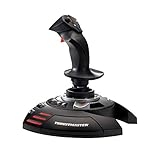
- INSTANT PLUG AND PLAY SETUP - Stop wasting time with complicated installations and start flying in seconds because this USB joystick is recognized immediately by your system with zero driver headaches, letting you jump straight into your favorite flight simulator, space sim joystick adventure, or combat flight stick scenario without any frustrating delays or technical setup.
- PRECISE ADJUSTABLE RESISTANCE CONTROL - Feel total command over every maneuver with an extremely precise flight joystick featuring adjustable resistance that lets you fine tune stick tension to match your flying style, whether you are executing gentle banking turns in a flight simulator controller session or engaging in intense dogfights that demand razor sharp responsiveness.
- SOLID WEIGHTED STABILITY BASE - Never worry about your flight stick sliding or tipping during critical moments thanks to a heavily weighted base that keeps your joystick for pc firmly planted on your desk, giving you the confidence to make aggressive inputs during turbulent helicopter controller scenarios or high speed combat engagements without any unwanted movement.
- BUILT IN THROTTLE AND RUDDER TWIST - Enjoy a complete flight control system in one device with an ergonomic integrated throttle lever for smooth speed management and a rotating handle with a built in locking system that delivers flawless rudder control, eliminating the need for separate rudder pedals or a standalone flight throttle while saving valuable desk space.
- FULLY PROGRAMMABLE BUTTONS AND PRESETS - Customize every aspect of your gaming joystick experience using twelve reprogrammable buttons, an exclusive mapping button, and a preset button with internal memory that stores your configurations, so you can instantly switch between flight sim stick profiles for different joystick for flight simulator games and aircraft types.
Linux and macOS: use the Wiki’s copied-folder method
The War Thunder Wiki documents an alternative for Linux and macOS that modifies a copy of the game folder. Configuration can be sensitive to client changes, so follow the Wiki’s current instructions and copy the syntax exactly.
- Copy the War Thunder game folder so the original remains separate.
- In the copied folder, create an empty file named
matchingdevmode. - Edit
config.blkin that copy to include this block:
yunetwork{
  curCircuit:t="dev"
  isExpertMode:b=yes
}- Start the launcher and let it download the Dev version.
See the Wiki’s Dev Server page for the documented setup.
Understand what carries over—and what does not
The Dev Server is a test environment, not a second route for advancing your live account. Gaijin’s FAQ says progress and purchases made on the Dev Server do not affect the main server. The June 2026 announcement says the test used a copy of the main-server account taken from recent days, so it may not include your latest live progress. Read Gaijin’s Dev Server FAQ.
Test content may also be unfinished. In its June 2026 notice, Gaijin listed possible inaccuracies in new vehicle characteristics and armor, missing aircraft cockpits, absent visible ground crews or icons, and incomplete localization. These were caveats for that announced build, not a promise that every Dev Server test has the same issues.
Recommended Free Tools
Rank #3

- Empire Total War Complete Edition
Troubleshoot access and connection errors
“The game hasn’t been activated for your account” or error 80022B33
Check whether the test is open before changing account or network settings. Gaijin says Dev Server access is limited to test periods, and its support page notes that error 80022B33 can be related to lack of access. See Gaijin’s 80022B33 guidance.
Quick Recap
Best Value

- New Pointstreak system that rewards players both for landing kills and completing objectives
- Weapons proficiency system that allows you to customize your favorite weapons, making them more effiecent in any map or mode
- Online/offline 2-player co-op Special Ops Survival mode that earns you experience through 16 frantic objective-based missions
- New play modes, including: Kill Confirmed mode, Team Defender mode and user generated match modes
- Integration with 'Call of Duty: Elite,' an online multiplayer oriented service launched simultaneously with Call of Duty: Modern Warfare 3
The window is open, but the connection still fails
- Make sure you launched the Dev client, not the live client.
- Confirm the announced window has not ended or closed early.
- If the problem persists, consult Gaijin’s current support instructions. Its game-ports page lists TCP ports 20443 and 33333 for playing a Dev version; do not change firewall rules unless needed and appropriate for your setup. View Gaijin’s game-ports guidance.
Product prices and availability are accurate as of the date/time indicated and are subject to change. Any price and availability information displayed on Amazon at the time of purchase will apply.




