“asteroid11.dll was not found.” If asteroid11.dll is missing, cannot be loaded, or causes an application crash, the problem is usually a damaged or incomplete Nikon software installation rather than Windows itself.
Which fix applies to you
Use the symptom that matches your screen:
- A Nikon program will not start and says
asteroid11.dllis missing: reinstall the Nikon application that displays the message. - The file disappeared after an antivirus detection: check Windows Security protection history before reinstalling.
- The Nikon program opens but crashes while browsing folders or opening images: use Event Viewer to identify the faulting executable and module.
- The error appeared after upgrading Nikon software: remove the affected application, restart Windows, and install a compatible current release.
- The installer fails or Windows shows broader corruption symptoms: run DISM, then SFC.
- You found a copy of the DLL online: do not copy it into
System32,SysWOW64, or another application folder.
What asteroid11.dll is
asteroid11.dll is an application DLL associated with Nikon software. Public installed-file records describe it as part of “Nikon File Utility” and place it in products including:
As an Amazon Associate I earn from qualifying purchases.
- Nikon NX Studio
- Nikon Transfer 2
- Picture Control Utility 2
It is not established as a Windows component. There is no verified reason to expect it in C:WindowsSystem32 or C:WindowsSysWOW64.
Quick wins for a faster PC:
Repair Windows errors before they cause bigger problemsFix Now →Fix the driver behind crashes, sound loss and screen glitchesFind Drivers →Clear out junk files and repair common Windows errorsFree Scan →The exact Nikon product depends on the installed release. A file named asteroid11.dll in a Nikon application directory is expected to be handled by that application’s installer. Its version, architecture, and dependencies can vary between releases, so a random replacement file is not a reliable repair.
#1 Best Overall

- Class leading image quality, ISO range, image processing and metering equivalent to the award winning D500
- Large 3.2” 922K dot, tilting LCD screen with touch functionality
- 51 point AF system with 15 cross type sensors and group area AF paired with up to 8 fps continuous shooting capability
- 4K Ultra HD and 1080p Full HD video with stereo sound, power aperture control, auto ISO, 4K UHD Time Lapse and more
- Focal length in 35 mm [135] format equivalent to approx; 1.5x that of lenses with FX format angle of view
Fix 1: Reinstall the affected Nikon application
This is the safest and most likely fix for a missing or damaged file.
Identify the Nikon program
Read the complete error message. It may appear when starting NX Studio, Nikon Transfer 2, or Picture Control Utility 2. If the message does not identify the program, use Event Viewer:
- Press
Windowsand type Event Viewer. - Open Event Viewer.
- Expand Windows Logs.
- Select Application.
- On the right, click Find.
- Search for
asteroid11.dll. - Open a matching Error event.
- Record Faulting application name, Faulting module name, Exception code, and the module version if shown.
A faulting-module entry means Windows blamed that module during the crash. It does not by itself prove that the DLL is defective.
Do these 3 things before closing this tab:
1Clear out junk files and repair common Windows errors2Scan for outdated or missing drivers - takes under a minute3Repair Windows errors before they cause bigger problemsRemove the damaged installation
- Close all Nikon programs.
- Press
Windows + I. - Select Apps.
- Select Installed apps on Windows 11, or Apps & features on Windows 10.
- Search for the affected Nikon product.
- Select its three-dot menu, then choose Uninstall.
- Follow the uninstall wizard.
- Restart Windows.
If the uninstaller fails, close Nikon processes in Task Manager and try again. Press Ctrl + Shift + Esc, select any Nikon process, and choose End task only when you are sure it belongs to the application you are removing.
Install Nikon software again
Download the installer from Nikon’s official Download Center. Select the package that matches the affected product and your Windows architecture. Do not substitute an installer for a different Nikon application merely because it contains a similarly named file.
Then:
- Close other applications.
- Temporarily pause antivirus protection only if Nikon’s installation instructions require it.
- Right-click the Nikon installer and select Run as administrator.
- Complete the installation wizard.
- Restart Windows.
- Open the Nikon application again.
A successful repair means the application starts without the DLL message and can perform the action that previously failed. NX Studio includes Nikon Transfer 2 in its installation, so reinstalling NX Studio can restore components used by that workflow.
If the error returns immediately, do not keep copying replacement DLLs into application folders. Continue with the quarantine and crash checks below.
Recommended Free Tools
Rank #2

- Go Beyond Your Phone: Capture lifelike colors and incredible details from dawn to dusk thanks to a superior 20.9-megapixel DX format (APS-C size) sensor several times larger than that of a typical smartphone, but still lightweight and compact enough to fit in a small bag.
- Find Your Aesthetic: At the press of the Picture Control button, choose from 31 built-in presets designed to make your photos and videos stand out. Create and save your own Picture Control presets or download bespoke Cloud Picture Controls directly to your Z50II from Nikon Imaging Cloud. Play with results in real-time as you shoot and open up a world of creative possibilities.
- Focus with Confidence: People, dogs, cats, birds and vehicles—the Z50II can automatically detect and accurately track nine distinct subjects. Plus dedicated bird and airplane modes for even greater autofocus accuracy.
- Powerful Video: Capture the scene with incredible quality and detail with 4K UHD/60p, in-camera 120p slow-motion in Full HD, built-in electronic VR and product review mode.
- Built-in Flash: Get beautifully balanced photos indoors and at night. Use Night Portrait mode to create natural-looking slow-shutter flash portraits. Share in a snap: Send photos and video to your smart device in seconds using the free Nikon SnapBridge app. Includes the NIKKOR Z DX 16-50mm f/3.5-6.3 VR lens and NIKKOR Z DX 50-250mm f/4.5-6.3 VR lens
Fix 2: Check whether antivirus quarantined the file
Security software may remove or quarantine an application DLL. Restore it only when you can verify that the file came from Nikon’s signed installer and the detection is a false positive.
For Microsoft Defender:
- Open Windows Security from the Start menu.
- Select Virus & threat protection.
- Select Protection history.
- Look for an event involving
asteroid11.dllor the Nikon installation directory. - Open the event and review the detected path and action.
- If the file was quarantined, do not download a replacement from a DLL site.
- Reinstall the Nikon application from Nikon’s official installer instead.
If the file is outside a Nikon installation directory, is associated with an unknown executable, or has been modified by an untrusted source, leave it quarantined and run a full Microsoft Defender scan.
After reinstalling, add an exclusion only if you understand the security risk and Nikon or your administrator confirms that the detection is incorrect. Repeated detections may indicate a damaged installer, an outdated Nikon release, or a genuine security problem.
Fix 3: Repair a crash rather than a missing file
Sometimes asteroid11.dll exists, but NX Studio crashes while browsing folders or opening NEF images. In that situation, replacing the file is unlikely to help.
Use Event Viewer to capture:
- The failing Nikon executable, such as
NXStudio.exe - The faulting module
- The module version
- The exception code
- The Windows version
- The Nikon product and release
Then update or reinstall the affected Nikon application. If the crash happens only with particular images, the cause may involve an image codec, a camera file, graphics hardware, a driver, or a Nikon application bug rather than a missing DLL.
Fix 4: Check Windows architecture and application compatibility
Do not mix a 32-bit DLL with a 64-bit Nikon application, or the reverse. A catalog entry that labels a file as 64-bit does not prove that it matches your installed Nikon release.
To check Windows architecture:
- Press
Windows + I. - Select System.
- Select About.
- Read System type.
Use the Nikon installer intended for that Windows edition and product. Current Nikon packages may target 64-bit Windows, while older software can have different requirements. If the Nikon installer reports that the operating system is unsupported, use Nikon’s compatibility information or contact Nikon rather than forcing a DLL into a system directory.
Rank #3

- The CMOS image sensor offers an effective pixel count of 14.2-million pixels (D3000: CCD image sensor with 10.2-million effective pixels) and enables capture of high-definition images exhibiting superior image quality with extremely detailed rendering and rich tones
- EXPEED 2 is Nikon's new image-processing engine, developed by refining the concepts, it maximises the performance of the CMOS image sensor to suppress noise in still images and movies and produces images that faithfully reproduce vivid colors
- The camera also makes the most of its standard sensitivity settings up to ISO 3200 (D3000: ISO 100-1600) and additional increases up to Hi 2 (ISO 12800 equivalent), with shooting under dim lighting, such as in the evening or indoors, as well as with sports scenes of rapidly moving subjects
- 3-inch monitor, 230,000-dot, low-temperature polysilicon TFT LCD, Eye-level penta-dach mirror type, built-in diopter adjustment (-1.7 to +0.5m-1) - D-Movie for recording and editing full-HD movies and AF-F (full-time servo AF) focus mode for high-quality movie recording
- Vibration Reduction Technology, 1080p HD Movie Recording, Live View, Auto Scene Selector, Flash Features: Slow-Sync Flash, Flash Cancel, Auto On/Off, Rear-Curtain Sync, Pop-Up Flash, Red-Eye Reduction, Fill-In Flash
Fix 5: Repair Windows components with DISM and SFC
DISM and System File Checker repair protected Windows components. They do not normally recreate a third-party Nikon DLL, so use them when Windows itself appears damaged or the Nikon installer fails because of system corruption.
- Open Start.
- Type Command Prompt.
- Right-click Command Prompt.
- Select Run as administrator.
- Run:
DISM.exe /Online /Cleanup-Image /RestoreHealth
- Wait for it to finish.
- Then run:
sfc /scannow
- Restart Windows.
- Run the Nikon installer again.
DISM should be run before SFC because SFC may need a healthy Windows component store. Microsoft documents these commands for Windows repair.
Manually repeating SFC and DISM can make it difficult to know what changed. Outbyte PC Repair can scan for system issues and show what it identifies; repair features are handled by the full version, but reinstalling the Nikon application remains the definitive fix for this application DLL.
Fix 6: Update graphics and camera-related drivers only when symptoms point there
Driver updates are relevant when NX Studio crashes during image previews, rendering, camera transfer, or other graphics-intensive tasks. They are not the first fix for a simple “file not found” message.
To check drivers manually:
- Right-click Start.
- Select Device Manager.
- Expand Display adapters.
- Right-click your graphics device.
- Select Update driver.
- Choose Search automatically for drivers.
- Also inspect Cameras, Imaging devices, or Universal Serial Bus controllers if the problem occurs during camera transfer.
- Restart Windows after installing a driver.
Do not remove a working driver merely because Event Viewer names asteroid11.dll. Update the driver only when the crash pattern supports that diagnosis.
Outbyte Driver Updater can scan for outdated drivers instead of making you hunt through multiple hardware vendors; its free scan shows detected issues, while driver installation is handled by the full version. It is optional, and reinstalling Nikon software remains the direct repair for asteroid11.dll.
Do not use regsvr32 as a routine fix
regsvr32 registers DLLs that expose registration functions such as DllRegisterServer, commonly COM or ActiveX components. There is no verified evidence that asteroid11.dll is a self-registering component.
Do not run:
regsvr32 asteroid11.dll
as a standard repair. If it reports that DllRegisterServer failed, that does not prove the file is missing or corrupt. It may simply be the wrong type of DLL.
Why DLL download sites and manual copying are unsafe
Downloading asteroid11.dll from an unknown source can provide:
Rank #4
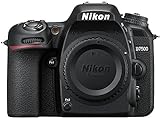
- Class leading image quality, ISO range, image processing and metering equivalent to the award winning D500
- Large 3.2” 922k dot, tilting Lcd screen with touch functionality. Temperature: 0 °c to 40 °c (32 °f to 104 °f) humidity: 85 percentage or less (no condensation)
- 51 point AF system with 15 cross type sensors and group area AF paired with up to 8 fps continuous shooting capability
- 4k ultra hd and 1080p full hd video with stereo sound, power aperture control, auto ISO, 4k UHD time lapse and more
- Built in Wi-Fi and Bluetooth for easy connectivity through the Nikon snap bridge app
- The wrong Nikon release
- The wrong architecture
- A modified or malicious file
- A DLL with missing dependencies
- A file that creates version conflicts with other Nikon components
Do not copy it into System32, SysWOW64, or another program’s directory. Manual replacement is appropriate only when Nikon Support gives you the file as part of a documented procedure, or when it is extracted from the same official Nikon installer.
Prevention
- Keep NX Studio and other Nikon applications updated through Nikon’s official Download Center.
- Avoid interrupting Nikon installations.
- Restart after major Nikon upgrades.
- Review antivirus quarantine when a Nikon component disappears.
- Keep Windows and graphics drivers current when image browsing causes crashes.
- Keep the Nikon installer that matches your product and Windows architecture.
- Record the failing executable and module before uninstalling software if the problem is a crash.
FAQ
Is asteroid11.dll a Windows file?
No verified evidence identifies it as a Windows component. Available installed-file evidence associates it with Nikon applications.
Which program installs it?
It has been found in NX Studio, Nikon Transfer 2, and Picture Control Utility 2. The exact association depends on the Nikon release installed.
Should I install Visual C++, DirectX, or .NET?
Not as the first response. A missing dependency can produce a misleading DLL error, but the complete Nikon installer is the safer way to restore the correct application files and dependencies. Install a runtime only when Nikon documentation or the application installer specifically requires it.
Free tools Windows power users keep installed
One-click scans. No signup required.
Can SFC restore asteroid11.dll?
Normally no. SFC repairs protected Windows files, while asteroid11.dll is associated with Nikon software. Use SFC for broader Windows corruption, then reinstall Nikon software.
When should I contact Nikon?
Contact Nikon when reinstalling the correct application does not resolve the error, when Event Viewer records repeated crashes, or when the problem occurs only with particular images or cameras. Provide the Nikon product version, Windows version, faulting executable, faulting module, module version, and exception code.
When should I contact Windows support?
Use Windows support when DISM or SFC reports unrepaired system corruption, Windows cannot run installers reliably, or several unrelated applications fail. For a problem limited to Nikon software, Nikon support is usually the more appropriate escalation path.
Quick Recap
Product prices and availability are accurate as of the date/time indicated and are subject to change. Any price and availability information displayed on Amazon at the time of purchase will apply.
The Tool Desk
Outbyte PC Repair FREERepair Windows errors before they cause bigger problemsFix Now →Outbyte Driver Updater FREEScan for outdated or missing drivers - takes under a minuteDriver Scan →



