Free tools Windows power users keep installed
One-click scans. No signup required.
The best free online coding game for most children is Scratch if they want to make their own games, stories, and animations. Choose Code.org for guided lessons, Blockly Games for short logic puzzles, CodeCombat for older children ready to type Python or JavaScript, and LightBot for programming logic without syntax.
These options are not interchangeable. Some are coding games, some are game-making tools, and some are gamified courses. This guide separates fully free services from free starter content and explains what children actually learn.
As an Amazon Associate I earn from qualifying purchases.
Quick comparison
| Platform | Best for | Coding style | Practical starting age | Free status | Main limitation |
|---|---|---|---|---|---|
| Scratch | Making games and animations | Block coding | About 8+, with support | Free core experience | Open-ended projects can overwhelm beginners |
| Code.org | Structured lessons | Guided block coding and creation tools | About 5–11 for beginner material; older courses also available | Free activities | Can feel more like coursework than a game |
| Blockly Games | Short programming puzzles | Visual blocks | Early readers and up | Free | Limited creative freedom |
| CodeCombat | RPG-style typed coding | Python and JavaScript | Older children and tweens | Free-to-start; verify current limits | Some content may require payment |
| LightBot | Visual programming logic | Icon-based commands | Young learners and beginners | Free activity available; editions vary | Not a game-making platform |
Age ranges here are practical starting points, not official cutoffs. Reading ability, typing confidence, and willingness to work independently matter more than a birthday.
1. Scratch: best overall for creative kids
Scratch is the strongest all-purpose choice because children can create rather than merely complete someone else’s challenges. They can build games, animations, interactive stories, music projects, and artwork with drag-and-snap blocks. The Scratch Foundation describes the platform as free and designed for creating and sharing projects without requiring programming syntax.
#1 Best Overall
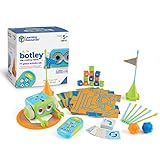
- EARLY STEM SKILLS: Botley helps your child learn early STEM skills while playing and having fun. He teaches kids to code with active, screen-free play that's perfect for promoting critical thinking and problem solving skills
- READY RIGHT OUT OF THE BOX: Botley is ready to code right out of the box! Have 5 AAA batteries and a Phillips screwdriver nearby and this coding robot will have your kid coding in minutes with code games, creativity and fun (3 AAA batteries for Botley and 2 AAA for the remote programmer, not included)
- SCREEN-FREE: Botley features completely screen-free coding: no phone or tablet required. Botley's easy-to-use remote programmer sends commands and gets him rolling. Coding for kids has never been easier
- SMART LOGIC: Botley has the ability to detect objects in front of him and avoid them. He can also follow looping commands, take on obstacle courses, and follow black-line paths. He even has hidden features to unlock. 77-PIECE ACTIVITY SET: Coding robots are great at learning new things, so Botley comes with a remote programmer, detachable robot arms, 40 coding cards, 6 double-sided tiles, 27 obstacle building pieces and a starter guide with coding challenges
Scratch introduces events, loops, conditionals, variables, broadcasts, collision responses, scoring, timers, and lives. Its tutorials, starter projects, and remixing features give beginners a way into an otherwise blank canvas.
Best first projects
- A maze game with a goal and obstacles
- A catch-the-object game with a score
- An animated story with two endings
- A clicker game with a timer
Choose Scratch when: the child wants to make something personal or keep progressing after beginner puzzles. Skip it initially when: the child needs a fixed sequence of short tasks and becomes frustrated by an empty editor.
Scratch has a moderated, kid-focused community, but public sharing still calls for adult supervision. Discuss usernames, private information, comments, and which projects should remain unpublished. Moderation is not the same as zero risk.
2. Code.org: best for structured lessons
Code.org is the best starting point when a child asks, “What do I do next?” Its free student activities provide guided challenges, self-paced tutorials, and creation tools for games, animations, apps, and websites. The current student directory broadly separates material for ages 5–11 and 11+, but those groupings should be treated as starting guidance rather than strict rules.
Code.org is particularly useful for home learning and classrooms because the child can follow a defined progression without an adult having to invent every activity. Younger learners generally begin with block-based puzzles; older learners can move toward more independent creation.
Rank #2
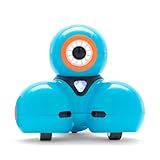
- UNBOX AND START LEARNING: Unbox Dash, your robot friend designed for kids aged 6-11, who is ready to provide a STEM advantage right out of the box. Enjoy fun and engaging coding activities with Dash the Robot, with no assembly being required.
- MASTER CODING: This kid's programmable robot can sing, dance, navigate obstacles, and respond to voice commands. Learn coding concepts like sequencing, loops, algorithms, & variables with this educational robot through hands-on play and challenges.
- APP-ENABLED LEARNING: Use the five apps for Apple iOS, Android OS, and Fire OS – including Blockly, Wonder, and Path. Dash robots for kids are perfect for classrooms, families, & friends.
- ENDLESS FUN: The box includes 1 dash robot, 2 building brick connectors, and 1 USB charging cable. Dash does not contain a camera. With increased memory and longer battery life, this kid's robot toy offers up to 5 hours of active play.
- AWARD-WINNING ROBOTS: Wonder Workshop's Dash robot is used in 40,000+ schools globally to teach STEM skills to their students. Keep kids engaged with Blockly, Wonder apps, and other toys in the kid's robot toy pack.
Choose Code.org when: you want a 20- to 40-minute lesson with clear instructions, immediate feedback, and a predictable next step. Its trade-off: following directions does not always require as much independent design as building a project in Scratch.
3. Blockly Games: best for focused logic practice
Blockly Games is a collection of browser-based games built around visual programming. It is useful for short sessions focused on sequencing, loops, conditionals, variables, procedures, planning, and debugging.
Do these 3 things before closing this tab:
1Clear out junk files and repair common Windows errors2Scan for outdated or missing drivers - takes under a minute3Repair Windows errors before they cause bigger problemsIt works well as a 10- to 20-minute warm-up or as practice after a Code.org or Scratch lesson. A child can learn one concept without first learning a large editor or project workflow.
Blockly Games is not a complete project-making environment or curriculum. It is better understood as a set of focused exercises. JavaScript must be enabled for the site to render its content.
4. CodeCombat: best free-to-start RPG coding game
CodeCombat puts coding inside an RPG-style game world and uses typed Python or JavaScript. Characters move and act according to the code the player writes, which can make syntax errors feel connected to an immediate visual result.
Rank #3

- Learn Through Play: Kids can ask mBot2 about the weather, make it sing, change the lights to make it move, or flip it over to watch it get grumpy! There are endless fun interactive features to explore with this smart coding robot for kids ages 8-12. (Coding guides included.)
- Easy to Use: Build mBot2 robotics kit from scratch following step-by-step guide. Play the STEM toys mBot2 with 8+ modes (Drive, Draw and Run, Musician, Voice Control, Code, Build, WIFI and etc.) through APP and Use blocks to code without taking care of syntax. Enjoy up to 5 hours of playtime on a single charge and switch between Bluetooth, USB and WIFI control ways. Use mBot2 robot kit anytime and anywhere.
- Coding Learning Path: Program mBot2 with 4 coding project cards and see it moves the way you wants! (No coding experience needed before). Learn 24+ cases and 8+ courses to master Scratch and Python programming, robotics, computer science, game development and data science. With ever-evolving curriculums and lifelong free programming software (with more than 16 million satisfied users), create your own unique STEM robot and projects.
- The Best in Its Class: Designed from Makeblock's mBuild platform, mBot2 coding robot comes with 10+ advanced sensors (allowing for line-following, obstacle avoidance, color identification and etc.) and expandable with 30+ modules, all supporting Internet of Things (IoT) learning. For classroom use, the WIFI module allows multiple mBot2 to complete tasks together and sharing the same programming at the same time.
- Great Gift for Kids: Simple structure, kids can easily build a robot toy for 8-12 years old kids in 30 minutes. The robot kit can help kids learn more about robotics components and toy mechanical design. Great robot assembly kit gift for graduation, birthday, Christmas, Children's Day or family entertainment time. If you have any questions while using this robotics kit for kids ages 8-12 and up, please feel free to contact us. We will reply to you as soon as possible.
This is a better fit for older children who read comfortably, type accurately, and want real programming syntax rather than blocks. Expect spelling, punctuation, capitalization, indentation, and variable mistakes to become part of the learning process.
CodeCombat should be described as free-to-start, not automatically as completely free. The amount of content available without payment can change, so check the current boundary on the official site before presenting it as a no-cost full course. Its combat and RPG theme may also be unsuitable for some families or classrooms.
5. LightBot: best for programming logic before syntax
LightBot teaches programming ideas through visual puzzle play. Its official description includes sequencing, procedures, recursive loops, and conditionals. Children plan commands to guide a character through increasingly complex situations without worrying about typing or punctuation.
LightBot is useful for learners who are ready for multi-step reasoning but not ready for a block editor or text-based code. The official site also links to a free Code Hour activity. However, LightBot has multiple editions and platforms, so do not imply that every version and level is free. Treat the free activity separately from paid products.
Which game should you choose?
If the child wants to make a game
Start with Scratch. Begin with one screen, one character, and one mechanic—such as catching objects or reaching a goal. Add variables, broadcasts, and custom blocks only after the basic interaction works.
The Tool Desk
Outbyte PC Repair FREEClear out junk files and repair common Windows errorsFree Scan →Outbyte Driver Updater FREEScan for outdated or missing drivers - takes under a minuteDriver Scan →Rank #4

- Entry-level Coding Robot Toy: mBot robot kit is an excellent educational robot toys, designed for learning electronics, robotics and computer programming in a simple and fun way. From Scratch to Arduino, this STEM projects for kids ages 8-12 helps kids to learn programming step by step via interactive software and learning resources
- Easy to Build: With clearly building instructions, this building kit can be easily built within 15 minutes. Kids will learn more about electronics, machinery, and robotics components through building mBot. You can also play this STEM projects for kids ages 8-12 as a remote control car with its multi-functions: line-follow, obstacle-avoidance and so on
- Rich Tutorials for Programming: With Offerring coding cards and lessons, children can easily use all fonctions of mBot and creat projects by themselves. Matched with 3 free Makeblock apps and mBlock software, kids can enjoy remote control, play programming games, and coding with mBot robot kit. Note that the remote controller needs a CR2025 battery(NOT INCLUDED), and the robot kit needs 4 AA batteries (NOT INCLUDED)
- Awesome Gift for Kids: Surprise your little Kids with super cool robotics kit and let them discover the secrets of programming and electronics. Being well packaged and metal material, this robot kit is a perfect learning and educational toy gift for boys and girls on Birthday, Children's Day, Christmas, Easter, Summer Camp Activities, Back To School, Home Fun Time
- Creative Robot with Add-on Packs: So many fun configuration with an open-source system, this programmable robot is compatible with rich add-on packs. mBot can be connected to 100+ electronic modules and 500+ parts from the Makeblock platform, compatible with LEGO parts
If the child needs a clear lesson path
Choose Code.org. It is the most straightforward option for a parent, teacher, or homeschooler who wants guided activities rather than an unstructured creative tool.
If the child wants quick puzzles
Use Blockly Games or the free LightBot activity. These are good for practicing one idea at a time but should eventually lead to a project-making tool.
If the child wants real Python or JavaScript
Try CodeCombat when the child can read instructions and type reliably. If syntax frustration takes over, return to blocks temporarily and explain that the programming ideas are still the same.
If the child is very young or does not read much
Start with icon-based logic activities such as LightBot-style puzzles, or consider ScratchJr if an app is acceptable. ScratchJr is primarily an app rather than a browser game, so it does not belong in the main browser shortlist.
Quick wins for a faster PC:
Clear out junk files and repair common Windows errorsFree Scan →Scan for outdated or missing drivers - takes under a minuteDriver Scan →Recommendations by age
- Under 7: visual puzzles, LightBot-style activities, or short Code.org sessions with adult help. Prioritize icons, immediate feedback, and very short instructions.
- Ages 7–9: Code.org for structure, Scratch for creative projects, and Blockly Games for focused practice.
- Ages 9–12: Scratch and Code.org for creation, Blockly Games for concepts, and CodeCombat if reading and typing are comfortable.
- Ages 12 and up: CodeCombat, Code.org creation labs, and Scratch for prototyping. Older learners can later move to a text-based workspace such as Replit, which is not a child-focused coding game.
Fully free versus free-to-start
For this guide, “free” means a child can access a meaningful learning experience without paying. It does not mean every feature, edition, or advanced level is necessarily free.
Best Value

- EASY REMOTE-CONTROLLED LEARNING PLAY: This friendly robot for kids uses a simple remote to introduce early coding ideas through playful cause-and-effect actions, building confidence and curiosity for young future coders at home or in the classroom.
- CODING ROBOTICS KIT: Open the box and jump into hands-on building as kids use the included coding cards to design command sequences for their robot, strengthening planning, logic, and sequencing skills that grow with every new challenge they create.
- MULTIPLE NEW CHALLENGES: As kids advance, this robot adds depth to their play with multi-step coding paths, 45° turns, and object-sensing reactions that encourage them to design longer routes, refine strategies, and tackle more complex problem-solving.
- MULTISENSORY FUN: Lights, sounds, and playful music give this kids robot a lot of coding options! The 16 secret code combinations offer open-ended play for curious young creators.
- EXPANSIVE 78-PIECE ROBOTICS KIT: This open-ended robot kit includes a coding robot, remote programmer, 40 coding cards, 6 double-sided boards, and stackable obstacle pieces that let kids build custom mazes, invent imaginative stories, and create fresh robots for kids adventures every time they play.
- Fully free core options: Scratch, Code.org activities, and Blockly Games.
- Free activity or starter content: CodeCombat and LightBot. Verify the current limits before relying on them for a full course.
- Separate paid alternatives: Tynker, CodeMonkey, Minecraft Education, and expanded LightBot editions. These may offer more structure or themed content, but they should not be listed as fully free without checking the current offer.
- Free apps rather than browser games: ScratchJr and Swift Playgrounds.
A free trial, locked preview, or introductory lesson is not the same as a fully free platform. Look for the paywall before assigning a service as a long-term activity.
What children actually learn
| Learning format | Examples | Primary concepts |
|---|---|---|
| Game creation | Scratch | Events, loops, variables, conditionals, debugging, design |
| Guided coding course | Code.org | Algorithms, sequencing, patterns, debugging, creation |
| Logic puzzle | Blockly Games, LightBot | Planning, procedures, loops, conditionals |
| Typed-code game | CodeCombat | Syntax, commands, functions, variables, debugging |
Badges and levels can encourage practice, but they do not prove understanding. Ask the child to predict what will happen, change one value, deliberately break the program, fix it, and explain the result.
A simple five-step way to turn play into learning
- Predict: Ask what the character or animation will do before pressing Run.
- Change one thing: Alter a speed, score, direction, or condition.
- Break it deliberately: Remove a block or change a value.
- Debug: Have the child locate and fix the problem instead of immediately supplying the answer.
- Rebuild: Ask the child to recreate one small feature without copying the original.
Accounts, devices, and supervision
Account rules, device support, and menus can change. Check the exact activity before setting it up, especially if saving work, joining a classroom, or using a tablet matters. A browser-based tool may still require JavaScript, a modern browser, an internet connection, or an account for saved projects.
Crashes, No Sound, or Screen Glitches?
Random freezes, missing sound and display glitches usually trace back to one bad driver. Find and replace yours safely.Free scan · under a minutePC Slower Than It Used to Be?
A free scan shows the junk files, broken settings and background clutter dragging Windows down - then fixes them in one click.Free scan · Windows 10 & 11For children using Scratch, decide whether projects should be shared publicly and avoid real names, locations, school details, and contact information. For classroom use, check whether the platform offers teacher dashboards, student accounts, classroom codes, independent work, or printable materials before committing to it.
What to try after the beginner stage
- Blockly Games: Move to Scratch and turn one puzzle idea into a playable project.
- Code.org puzzles: Continue into a creation lab or rebuild the concept in Scratch.
- Scratch beginner project: Add variables, broadcasts, custom blocks, levels, or a second game mechanic.
- LightBot: Move to block coding, where the child can see the same logic in a more flexible environment.
- CodeCombat introductory levels: Build a small Python or JavaScript project, provided the child is ready for a less guided environment.
Final recommendation
Start with Scratch if the child wants to create, Code.org if they need structure, and Blockly Games if they need a short logic challenge. Add LightBot for pre-syntax visual reasoning and consider CodeCombat when an older child is ready to type Python or JavaScript. This route keeps the genuinely free options clear while treating freemium products honestly.
Quick Recap
Product prices and availability are accurate as of the date/time indicated and are subject to change. Any price and availability information displayed on Amazon at the time of purchase will apply.




