The Tool Desk
Outbyte PC Repair FREERepair Windows errors before they cause bigger problemsFix Now →Outbyte Driver Updater FREEScan for outdated or missing drivers - takes under a minuteDriver Scan →There is no single best graphics preset for every PC. A sensible starting point is to keep your display at its native resolution, then lower resolution scale, shadows, or global illumination if performance is poor. Choose an upscaler supported by your GPU, and tune frame pacing separately with the frame-rate limit and V-Sync. Change one setting at a time, compare the same gameplay area, and restart the game after applying changes.
Start with your goal and hardware
Decide whether you value image clarity, higher frame rates, or steadier frame pacing most. Your GPU, display resolution, and target frame rate determine which compromises make sense; Bethesda publishes system requirements but no standardized benchmarks comparing presets or individual settings. Its graphics settings guide says higher quality improves visual fidelity at a performance cost, while lower quality increases performance. The Quality Level control changes multiple settings together; individual controls let you tune specific trade-offs.
Bethesda lists these PC requirements. They are hardware requirements, not promises of a particular resolution or frame rate:
| Requirement | Minimum | Recommended |
|---|---|---|
| CPU | AMD Ryzen 5 2600X or Intel Core i7-6800K | AMD Ryzen 5 3600X or Intel Core i5-10600K |
| Memory | 16 GB RAM | 32 GB RAM |
| GPU | AMD Radeon RX 5700 or NVIDIA GeForce GTX 1070 Ti | AMD Radeon RX 6800 XT or NVIDIA GeForce RTX 2080 |
| Operating system and API | Windows 10 version 21H1 or higher; DirectX 12 | |
| Storage | 125 GB and an SSD | |
These specifications are from Bethesda’s PC requirements page. Meeting them alone does not establish which visual settings your system can sustain.
What’s actually slowing this PC down?
Pick the symptom - the matching free tool is one click away.
#1 Best Overall

- POWERED BY RTX 5070 12GB + RYZEN 7 9700X - The GeForce RTX 5070 12GB GDDR7 graphics card pairs with an 8-core AMD Ryzen 7 9700X processor to drive smooth 1440p and 4K gameplay, giving this gaming PC the headroom for modern titles, streaming, and creative work.
- 32GB DDR5 6000MHz MEMORY & 1TB NVMe SSD - 32GB of high-speed DDR5 memory and a 1TB PCIe 4.0 NVMe solid state drive deliver quick load times, smooth multitasking, and generous storage, keeping this prebuilt gaming desktop responsive under heavy workloads.
- BUILT-IN 11.3-INCH Smart DISPLAY - An integrated smart screen shows real-time CPU and GPU temperatures, usage, and weather while you play, adding a distinctive and functional touch to your battlestation.
- 850W 80+ GOLD POWER SUPPLY, 360MM LIQUID COOLING & WiFi 7 - An 850W 80 Plus Gold certified power supply provides stable, efficient power with headroom for future upgrades, while a 360mm AIO liquid cooler, WiFi 7, and an ARGB mid-tower case keep the Ryzen 7 CPU cool and connected in a clean build.
- READY TO PLAY OUT OF THE BOX - Arrives fully assembled and tested with Windows 11 Home pre-installed, so your prebuilt gaming computer is ready to set up in minutes. Assembled in the USA, and backed by a one-year limited warranty and lifetime free technical support.
Which settings should you lower first?
If frame rates are too low, Bethesda’s guidance points to display resolution, resolution scale, shadow quality, global illumination, and DLSS or FSR mode as adjustments to try. There is no official per-setting gain or universal order that works for every GPU, so treat this as a practical sequence for testing rather than a guaranteed performance recipe.
- Keep native display resolution initially. If the GPU appears to be the constraint, test a lower display resolution or resolution scale. Lowering display resolution can improve GPU performance; resolution scale reduces the rendered resolution while retaining the display resolution, which can soften the image.
- Reduce shadows and global illumination. Bethesda identifies both as options to try for low FPS. Lower shadow quality reduces a demanding effect, while lower Lumen software quality can increase frame rate. The precise cost depends on the system.
- Try a compatible upscaler and mode. DLSS, FSR, and XeSS render at a lower resolution and upscale the image. Compare modes at your normal viewing distance: the frame-rate and image-quality balance varies with the GPU and chosen mode.
- Use Quality Level only for a broad reset. It changes several settings at once, making it harder to identify what helped. For controlled tuning, adjust individual options and avoid repeatedly returning to Auto-Detection.
Textures, shadows, and Lumen have memory or graphics-processing trade-offs in Bethesda’s settings descriptions. View distance controls how far objects and terrain appear. If you need to trim visual quality beyond the options above, adjust these individually and judge the image in the same location.
Rank #2
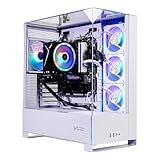
- AMD Ryzen 7 7700 3.8GHz (5.3GHz Turbo Boost) CPU Processor | 1TB NVMe M.2 SSD – Up to 30x Faster Than Traditional HDD | High-Performance Air Cooler
- NVIDIA GeForce RTX 5060 8GB GDDR7 Graphics Card (Brand may vary) | 32GB DDR5 RAM 6000 RGB Gaming Memory with Heat Spreader | Windows 11 Home 64-bit
- 802.11 AC | No Bloatware | Graphic output options include 1 x HDMI, and 1 x Display Port Promised, Additional Ports may vary | USB Ports Including 2.0, 3.0, and 3.2 Gen1 Ports | HD Audio & Mic | Free Gaming Keyboard & Mouse
- High-Performance Air Cooler: Maximum Airflow & ARGB Fans | Skytech Archangel 5 Gaming Case with Tempered Glass, White | 1 Year Warranty on Parts and Labor | Free Technical Support | Assembled in the USA
- This powerful gaming PC is capable of running all your favorite games such as Call of Duty, Fortnite, Escape from Tarkov, Grand Theft Auto V, Valorant, World of Warcraft, League of Legends, Apex Legends, PLAYERUNKNOWN’s Battlegrounds, Overwatch 2, Counter-Strike 2, Battlefield V, Minecraft, ELDEN RING Shadow of the Erdtree, Rocket League, Baldur’s Gate 3, Dota 2, HELLDIVERS 2, Monster Hunter, Terraria, Rainbow Six Siege, Black Myth Wukong, Marvel Rivals, Stellar Blade, more at Ultra settings, detailed 1080p Full HD resolution, and smooth 60+ FPS gameplay.
Choose upscaling and anti-aliasing for your GPU
Bethesda documents four upscaler choices on PC: Off, DLSS, FSR, and XeSS. DLSS requires an NVIDIA graphics card; the available choices and modes depend on hardware. The anti-aliasing menu includes Off, FXAA, TAA, and TSR, but anti-aliasing becomes inactive when an upscaling technique is enabled. Choose either an upscaler or a standalone anti-aliasing option where the menu requires it; do not expect both controls to operate at once.
DLSS and FSR also have frame-generation options, which Bethesda describes as generating full frames to raise frame rate. Frame generation is distinct from rendering more frames directly and should be evaluated separately from image quality and responsiveness. NVIDIA Reflex is another separate option: Bethesda says it reduces input latency at a small frame-rate cost.
Quick wins for a faster PC:
Scan for outdated or missing drivers - takes under a minuteDriver Scan →Clear out junk files and repair common Windows errorsFree Scan →Fix the driver behind crashes, sound loss and screen glitchesFind Drivers →Rank #3

- Smooth 1080p to 1440p Gaming: GeForce RTX 5060 8GB with DLSS 4 Multi Frame Generation, ray tracing and Reflex 2 low latency in supported games, paired with Ryzen 5 9600X up to 5.4GHz for AAA games, esports, streaming and multitasking
- Plug and Play Gaming PC: The KOTIN D32B prebuilt gaming PC desktop is fully assembled in California with Windows 11 Home and graphics card installed. No GPU installation required; remove internal protective foam, connect peripherals and start gaming
- Digital Display ARGB Cooling: This RTX 5060 gaming desktop uses a high-airflow ARGB gaming tower, 5 ARGB fans and a digital display air cooler to manage heat under load, show real-time cooling status and add a clean gaming look for home office
- DDR5 Speed and Expansion: 16GB DDR5 memory and 1TB PCIe 4.0 NVMe SSDsupport fast boot, quick game loading and smooth multitasking; B850M motherboard supports 3 M.2 slots with 1 PCIe 5.0 M.2
- Gold Power and Support: This WiFi 7 gaming PC includes Bluetooth 5.4, USB 3.2 Gen ports, USB Type-C, LAN, HD audio and a 650W 80 PLUS Gold PSU for fast connectivity and stable power, plus 1-Year Limited Warranty and Lifetime Technical Support
Set frame pacing and tearing controls separately
The frame-rate limit and V-Sync address different aspects of presentation. Bethesda describes the frame-rate limit as a way to improve frame pacing and stability. V-Sync locks frame rate to the monitor’s refresh rate to reduce screen tearing. Choose based on whether steadier pacing or reduced tearing is the priority, then test the result on your own display.
Motion blur is preference-sensitive rather than a primary performance lever in Bethesda’s guidance: disabling it can make moving objects easier to see, while enabling it makes movement appear more realistic. FOV and brightness are available for comfort and visibility, but Bethesda does not identify them as major FPS adjustments. SSR can be toggled.
Rank #4
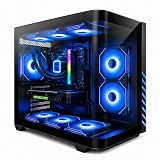
- Gaming PC / Prebuilt Gaming PC / Gaming Desktop Computer Professionally built gaming desktop computer powered by AMD Ryzen 7 8700F up to 5GHz, designed for competitive gaming, streaming, content creation, multitasking, school, office work, and smooth everyday performance in a prebuilt gaming PC setup.
- RTX 4060 Ti Gaming PC / High FPS Gaming / Streaming PC GeForce RTX 4060 Ti graphics deliver high FPS gaming performance, smooth 1080P and 1440P gameplay, fast rendering, ray tracing support, and responsive visuals for esports gaming, streaming, AAA gaming titles, and creator workstation use.
- Ryzen 7 Gaming PC / 16GB DDR5 RAM / 1TB NVMe SSD Built with 16GB DDR5 RAM and fast 1TB NVMe SSD storage for quick boot times, faster game loading, smooth multitasking, and responsive gaming desktop performance with plenty of speed for modern gaming and productivity.
- Liquid Cooled Gaming PC / 9 ARGB Fans / RGB Gaming Computer Liquid cooling and 9 ARGB cooling fans help maintain strong airflow, stable temperatures, and vibrant RGB lighting effects for reliable gaming PC performance during long gaming sessions and demanding multitasking workloads.
- WiFi 6 / Windows 11 Pro Gaming PC Equipped with WiFi 6, Windows 11 Pro, and a mechanical keyboard and mouse for a complete plug-and-play gaming tower desktop computer setup ready for gaming, streaming, work, school, and home entertainment.
Apply changes methodically
- Pick a repeatable gameplay location and note the current image and performance.
- Change one setting or related option at a time, rather than changing the entire preset and several individual controls together.
- Apply the change and exit and restart the game, as Bethesda advises for low-FPS adjustments.
- Return to the same location and compare. Keep a change only if its trade-off suits you; if it does not, restore it before testing another option.
This method will not produce a universal benchmark, but it helps distinguish the effects of your own settings and hardware.
If performance is still poor
Bethesda’s low-FPS guidance and PC performance troubleshooting suggest checking the system and game setup as well as graphics options. Work through the relevant checks:
Recommended Free Tools
- Confirm that the PC meets the game’s requirements and that the game is installed on an SSD.
- Close unnecessary background applications and install a current graphics driver.
- Disable Steam Overlay or Xbox Game Bar if relevant to your setup.
- Verify the game files.
- On a laptop or multi-GPU system, confirm the game uses the primary GPU and that power settings are appropriate.
- Try lower graphics settings, then exit and restart the game.
These are diagnostic steps, not guaranteed fixes. Bethesda Game Studios’ July 16, 2025 Update 1.2 notes reported fixes for frame-rate drops in named locations, fewer open-world hitches, and frame-time improvements in many locations, alongside optimizations to several effects and systems. Those dated notes do not establish current performance on every PC or prove that all performance issues are resolved. A September 17, 2026 Bethesda patch note is explicitly for Nintendo Switch 2 and does not establish a later PC update: Switch 2 Patch 1.1.
Quick Recap
Product prices and availability are accurate as of the date/time indicated and are subject to change. Any price and availability information displayed on Amazon at the time of purchase will apply.




