Do these 3 things before closing this tab:
1Scan for outdated or missing drivers - takes under a minute2Clear out junk files and repair common Windows errors3Fix the driver behind crashes, sound loss and screen glitchesFor most Windows users, PCSX2 Stable is the best PS2 emulator to install. It offers the strongest combination of compatibility, performance, graphics enhancements, controller support, documentation, and troubleshooting options. Choose PCSX2 Nightly when you need a recent fix, RetroArch with LRPS2 if you already use RetroArch, Play! if avoiding an external BIOS matters most, and ARMSX2 for Windows on ARM.
These are not five equally mature, independent emulators for a conventional Intel or AMD PC. PCSX2 Stable and Nightly are two release channels of the same emulator, while LRPS2 is a PCSX2-derived core running inside the RetroArch frontend. Play! is the main independent BIOS-free alternative. ARMSX2 and Iris serve specialized audiences rather than replacing PCSX2 for ordinary Windows gaming.
As an Amazon Associate I earn from qualifying purchases.
Quick comparison: the best PS2 emulators for Windows
| Choice | Best for | Windows target | External BIOS | Verdict |
|---|---|---|---|---|
| PCSX2 Stable | Almost everyone | x64 | Required | Best overall choice |
| PCSX2 Nightly | Users who want the newest fixes | x64 | Required | Technically current, with more regression risk |
| RetroArch + LRPS2 | Existing RetroArch users | x86-64 | Required | Convenient unified frontend, but more complex |
| Play! | Users who want a BIOS-free setup | x86 and x64 Windows builds | Not required or supported | Simple concept, substantially lower compatibility |
| ARMSX2 | Windows ARM64 devices | ARM64 | Required | Important ARM niche, not the default x64 download |
Experimental alternative: Iris is worth watching for emulator development, debugging, and preservation work, but its own documentation warns that many games currently run at very low or unplayable frame rates.
Version snapshot: the versions below reflect research checked on August 10, 2026. Emulator releases and menu labels change frequently, so verify the current build on the linked official release pages before installing.
#1 Best Overall

- Product Compatibility : Compatibility with Sony Playstation 1,PSX and Playstation 2 controllers to PS3/PC Controller. support Win98, Win98SE, Win Me, Win2000 & the newly announced Win XP, Win 7 together with the direct X 7.0a or above
- Easy to Use: Connect your original PS2 controller to the converter, then plug the USB into a PS3 or PC. Works perfectly with PS2 Guitar Hero devices. Windows 10 auto-installs the adapter—no drivers are needed. Compatible only with original PS2 controllers, PS3 consoles, and USB-enabled PCs/laptops. Ensure the controller is securely connected and the USB port functions properly. If issues occur, try another port or restart the system
- Enhance Game Experience : Supports Double shock real vibration function on supported games and digital/analog mode. Supports most of PC games,can be directly used with PC computer
- Perfect Design : USB Controller adapter Converter Cable for Saved you lots of cash being able to use a PS2 controller instead of buying a new PS3 controller or Wireless controller
- After Sales Support : Our product 100% extremely strictly before selling, You can give it as a gift to your family, friends, classmates and anyone, especially your children. If you have any issues for this product, please contact us by Amazon message, we will provide you satisfied solution at first time
1. PCSX2 Stable — the best PS2 emulator for most Windows PCs
PCSX2 is the clear default recommendation for Windows. It is a long-running, free, open-source PS2 emulator with mature x64 support, a large compatibility database, active development, and the widest selection of practical features.
The project says it can run most games at full speed, but that should not be interpreted as a guarantee that every title is flawless. PS2 emulation remains game-dependent. Some games need software rendering, a lower internal resolution, a per-game setting, or a particular PCSX2 build. Check the live PCSX2 compatibility database for the exact game, region, serial, CRC, and known testing notes instead of relying on an old percentage copied into a comparison article.
Why PCSX2 Stable wins
- Compatibility: It has the most mature general-purpose Windows experience in this comparison.
- Rendering choices: Hardware renderers support higher internal resolutions and enhancements, while software rendering can help with accuracy-sensitive effects and game-specific glitches.
- Useful features: PCSX2 supports custom resolutions and upscaling, virtual and shareable memory cards, save states, patches, widescreen options, controller configuration, per-game adjustments, debugging tools, and lossless internal recording. The official feature overview documents these capabilities.
- Documentation: Setup, BIOS dumping, disc dumping, compatibility, controller, and troubleshooting guides are available from the project rather than scattered across unofficial forums.
- Choice of release channel: You can use a predictable Stable build or move to Nightly when a newer fix is important.
The repository identifies PCSX2 v2.6.3 as the Stable release dated January 28, 2026, based on the research snapshot used for this guide. Check the official releases page for a newer Stable build.
Who should choose it?
Choose PCSX2 Stable if you are setting up PS2 emulation for the first time, want a family or living-room machine, or simply want the highest chance that a game-specific fix and troubleshooting information will be available. Start with the default renderer and native resolution, confirm that the game works, and then increase internal resolution or add patches gradually.
2. PCSX2 Nightly — best when you need the newest fixes
PCSX2 Nightly is not a separate emulator engine. It is the continually updated development channel of PCSX2, containing recently merged fixes and improvements before they have spent as much time in the Stable branch.
As of August 10, 2026, the latest visible Nightly in the research snapshot was v2.7.518, released August 8, 2026. This number is especially volatile; use the official release list rather than treating it as a permanent version reference.
Stable versus Nightly
| Use Stable when you want… | Use Nightly when you want… |
|---|---|
| Fewer regressions and a predictable baseline | Newly merged fixes as soon as they are published |
| Infrequent updates | To test whether a recent change fixes a particular game |
| A straightforward family or living-room installation | To help test or report problems in active development |
The official PCSX2 running guide recommends Stable for minimal regression risk and Nightly for improvements as soon as they are available. Windows users can use installed Stable builds or portable Stable and Nightly builds. Keeping a known-good Stable installation or separate portable folder makes it easier to return to a working build if a Nightly update breaks a title.
Nightly is the sensible second choice when a game has a documented recent fix, when Stable has a known issue, or when you are comfortable comparing builds. It is not automatically better for every game: a new change can occasionally regress a title that worked in Stable.
3. RetroArch + LRPS2 — best for an all-in-one frontend
RetroArch is a frontend, not itself a PS2 emulator. The PS2 component is the LRPS2 Libretro core, which Libretro describes as a heavily modified PCSX2 fork ported to the Libretro API. That distinction matters: you are choosing a different way to use a PCSX2-derived emulator, not an unrelated engine with identical behavior.
Why use LRPS2?
- One interface for PS2 and other console libraries.
- Unified controller and hotkey configuration.
- Centralized playlists, saves, overlays, and RetroArch shaders.
- A useful option for people who already maintain their games and settings in RetroArch.
Why standalone PCSX2 is easier for a first PS2 setup
RetroArch adds another layer between you and the emulator. You may need to distinguish a RetroArch setting from an LRPS2 core setting, locate the correct system directory, install core system files, and identify whether a problem comes from RetroArch, the core, the graphics driver, or the game. For a PS2-only library, standalone PCSX2 usually exposes PS2-specific controls more directly.
Rank #2

- Type: PS2 To PS3/PC Controller Converter, connect to your PS3 or PC USB Ports.
- Function: Adapter to use your PS2 controller on PS3 console or PC/Laptop, fully compatible with the console and control.
- Use: Converts PS2 or PS1 vibration controller to play with PS3 games on PS3 system, without requiring any external power or driver to operate. Easy to set up and use.
- Compatible With: All original and third party for PS2 Controller (wired and wireless), supports most of for P3 games and for P2 or P1 vibration controllers, can be directly used with PC computer.
- Application: Support wired For PS1/For PS2 hand lever and wireless For PS1/For PS2 hand lever. Applied on PC/For PS3.
LRPS2 setup on Windows
- Install the Windows x64 version of RetroArch using the official Windows installation guide.
- Open
Online Updater > Core Downloaderand download the LRPS2 or PCSX2 core. - Open
Settings > Directoryand check the location assigned toSystem/BIOS. - Inside that system directory, create the following structure:
systempcsx2bios - Place your legally dumped, extracted PS2 BIOS files in that directory. Do not leave them inside an archive.
- If the core requests additional files, use
Online Updater > Core System Files Downloader. - Load the game image and select the LRPS2 core.
Libretro documents the BIOS location, supported Windows architecture, image handling, and core installation in its LRPS2 documentation. LRPS2 is documented as an x86-64 core and is not available natively on Windows on ARM.
Windows Errors? Fix Them Before They Spread
Repair common Windows errors and clear accumulated junk for a smoother, more stable PC - no reinstall needed.Free scan · no reinstallOutdated Drivers Are Slowing You Down
One free scan finds every outdated or missing driver and matches the right update for your exact hardware.Free scan · exact hardware matchLRPS2 renderer problem
Libretro documents a known failure mode in which the D3D11 renderer can show a black screen while audio continues on some GPUs. If that happens, switch to Vulkan or another available renderer. Do not assume the game image or BIOS is immediately at fault.
4. Play! — the best BIOS-free alternative
Play! is a genuine independent PS2 emulator for Windows, macOS, UNIX, Android, iOS, and web browsers. Its defining feature is a built-in high-level emulation BIOS. An external PS2 BIOS is therefore neither necessary nor supported, which makes Play! the simplest option for readers who specifically want to avoid managing a BIOS dump.
That convenience comes with a major trade-off. Play! has lower compatibility and less predictable performance than PCSX2 on demanding commercial games, so it is not the practical replacement for PCSX2 if your priority is playing a broad PS2 library.
Play! status and compatibility
The Play! development log lists v0.68, dated December 3, 2024, as its latest named Stable release in the research snapshot, while current development builds are also available through the project’s GitHub Actions and repository. Check official downloads and the project repository before choosing a build.
Free tools Windows power users keep installed
One-click scans. No signup required.
Use the Play! compatibility tracker for individual games. Its statuses include Nothing, Loadable, Intro, Ingame, and Playable. A game reaching its title screen is not the same as a game being completable, and Playable does not necessarily mean that every enhancement or peripheral works perfectly.
Play! Windows setup
- Download a Windows build from Purei or the official project repository.
- Install the current Visual C++ redistributable if Windows reports missing runtime libraries.
- Open Play! and add or open a legally dumped disc image.
- Do not search for a PS2 BIOS or add one to the emulator; Play! uses its built-in HLE BIOS.
For command-line use, the project documents options including:
--disc "disc image path"
--elf "elf file path"
--state "slot number"
--fullscreen
Play! is a reasonable experiment for lightweight titles, cross-platform testing, or anyone who cannot or does not want to use an external BIOS. For the highest compatibility on a normal Windows x64 PC, choose PCSX2 instead.
5. ARMSX2 — the Windows ARM64 option
ARMSX2 matters because a Windows-on-ARM computer is not the same target as a conventional x64 gaming PC. ARMSX2 is based on PCSX2 and is intended to provide native ARM64 recompilation. Its documentation explains that upstream PCSX2’s high-performance JIT recompilers were x86-64-only, creating the need for an ARM64-focused project.
The ARMSX2 release page lists ARMSX2 2.6.5.9 as the latest release on July 28, 2026, alongside frequent Nightly builds in the research snapshot. Verify that the asset you download is specifically for Windows ARM64; do not assume that an Android release asset or a generic PCSX2 x64 build is the correct package.
Rank #3
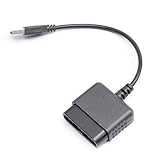
- ★Controller adapter allows PlayStation 2 controllers to be used with the PlayStation 3 consoles or PC | Vibration function supported in compatible games
- ★Easy to use, just connect PS2 controller to the adapter then plug the USB cable into an available port on your PS3 or PC | For best results plug directly in device and not in to USB hub
- ★Does not provide the motion sensing capability featured on PS3's wireless controller | Games requiring motion sensing abilities will not be compatible with adapter
- ★ Compatible with only original PS2 Controllers, PS3 console, and desktops/laptops with an USB Port
- ★Package Contents: 1x Controller Adapter
What to expect from ARMSX2
- It is a meaningful choice for a Windows ARM64 desktop or laptop.
- It is PCSX2-derived, not a wholly unrelated emulator engine.
- Compatibility, packaging, and Windows-specific support should be checked for the exact device and release.
- It still requires a BIOS dump from the user’s own PS2.
- It should not be the default download for ordinary Intel or AMD Windows PCs.
If you own a standard x64 Windows computer, PCSX2 Stable remains the safer recommendation. If you own Windows ARM hardware, ARMSX2 is the project to investigate first, subject to the exact build’s support and compatibility.
Where Iris fits: promising experimental software, not a normal replacement
Iris is an open-source PS2 emulator and debugger built from scratch for Windows, Linux, and macOS. It supports ISO, BIN/CUE, CHD, and CSO/ZSO images, Vulkan rendering, input remapping, shaders, memory-card tools, and debugging features. Its latest listed release in the research snapshot is Iris 0.20-alpha, released March 1, 2026; see the release page for current builds.
Iris is interesting for emulator developers, debugging, preservation research, unusual PS2-based systems, and technically curious users. It is not a sensible general-purpose choice for a Windows gamer who simply wants to play PS2 games. The project explicitly warns that most games may run at very low or unplayable frame rates because major EE/VU JIT work is still missing.
Building Iris on Windows also has a complication: its instructions require GCC or MinGW because the project uses inline assembly that MSVC does not support. CMake and the Vulkan SDK are also required. That makes it considerably less approachable than a normal PCSX2 download.
PCSX2 hardware requirements on Windows
Do not reduce PS2 emulation to the claim that it runs on any modern PC. PCSX2’s official requirements page separates minimum, moderate, and heavy workloads. The figures are guidance rather than a universal FPS guarantee because PS2 games vary significantly in CPU and GPU difficulty.
| Tier | Official guidance | What it means in practice |
|---|---|---|
| Minimum-level | Latest Windows 10, with the page specifying Windows 10 21H2 LTSC or 22H2; x86-64 CPU with SSE4.1, PassMark single-thread score of at least 2,000, four physical cores with SMT; Vulkan 1.1, Direct3D 11, or OpenGL 3.3; PassMark G3D score around 600 or higher; 8 GB RAM. | Basic PCSX2 use at native or modest settings, depending heavily on the game. |
| Moderate | Windows 11; x86-64 CPU with AVX2, PassMark single-thread score of at least 2,500, six physical cores; Vulkan 1.3, Direct3D 12, or OpenGL 4.6; about 4 GB VRAM; 16 GB RAM. | A more comfortable target for upscaling and a broader range of titles. |
| Heavy | CPU single-thread target of at least 3,000, GPU target around 12,000 G3D Mark, and about 8 GB VRAM. | Relevant to demanding games, high internal resolutions, and aggressive enhancements. |
CPU single-thread performance is especially important because emulation work is not equivalent to simply having many CPU cores. A PC that handles lightweight 2D titles may still struggle with a demanding 3D game. Increasing internal resolution shifts more work to the GPU, and current GPU drivers are recommended.
If Windows reports a missing or outdated GPU driver during this process, Outbyte Driver Updater is an optional way to help check for the relevant hardware-driver update.
Quick wins for a faster PC:
Fix the driver behind crashes, sound loss and screen glitchesFind Drivers →Clear out junk files and repair common Windows errorsFree Scan →Scan for outdated or missing drivers - takes under a minuteDriver Scan →Older Windows and 32-bit systems
Current PCSX2 builds are not intended for every older Windows installation:
- 32-bit support ended after Stable v1.6.0.
- Windows 7, 8, and 8.1 support ended after Stable v1.6.0.
- Windows 10 21H1 and earlier support ended after Stable v2.4.0.
If your PC falls into one of those categories, do not assume that a random download site offering an old executable is safe or equivalent to current PCSX2.
BIOS and game files: what you need before setup
PCSX2 requires a BIOS dump
Yes, PCSX2 requires a PS2 BIOS and cannot play games without one. The emulator does not provide BIOS files, and the project says there is no open-source replacement. The BIOS must be dumped from the reader’s own PS2 console using the procedure in the official BIOS guide.
BIOS filenames and regions can differ. The files must be extracted from any archive and must be complete and valid. Do not use a search result offering a downloadable “PS2 BIOS”; those files are not an ordinary PCSX2 setup component and may be illegal, modified, or bundled with malware.
What’s actually slowing this PC down?
Pick the symptom - the matching free tool is one click away.
Rank #4

- 【Product Compatibility】: Compatibility with Sony Playstation 1,PSX and Playstation 2 controllers to PS3/PC Controller. support Win98, Win98SE, Win Me, Win2000 & the newly announced Win XP, Win 7 together with the direct X 7.0a or above.
- 【Easy to Use】: Just connect PS2 controller Converter, then plug the USB cable into an available port on your PS3 or PC, Uses this with a guitar hero device for the PS2 and it works flawlessly. Windows 10 recognizes the adapter and will automatically set it up, Didn’t need to install any drivers , Compatible with only original PS2 Controllers, PS3 console, and desktops/laptops with an USB Port.
- 【Enhance Game Experience】:Supports Double shock real vibration function on supported games and digital/analog mode.Supports most of PC games,can be directly used with PC computer.
- 【Perfect Design】:USB Controller adapter Converter Cable for Saved you lots of cash being able to use a PS2 controller instead of buying a new PS3 controller or Wireless controller
- 【After Sales Support】:Our product 100% extremely strictly before selling, You can give it as a gift to your family, friends, classmates and anyone, especially your children.If you have any issues for this product, please contact us by Amazon message, we will provide you satisfied solution at first time.
Dump games from discs you own
Use original PS2 discs that you legally own and dump them to ISO or another supported image format. PCSX2 can boot a physical disc directly, but a properly dumped image is generally more convenient and easier to verify. The project’s disc-dumping guide explains that PS2 discs are unencrypted CDs or DVDs and can be dumped with a standard optical drive that supports the relevant media.
A bad dump can cause a freeze, black screen, failed load, or missing data even when the emulator itself is working correctly. Laws concerning personal backups and emulator use vary by jurisdiction. PCSX2 states its own expectations in its legal and piracy policy; readers should check local law rather than treating this article as individualized legal advice. In the United States, 17 U.S.C. §117 is a relevant statutory source, but it does not answer every emulator or game-copying situation.
How to set up PCSX2 on Windows
- Download from an official source. Use the PCSX2 website or the project’s official GitHub releases. Choose the Stable installer for the simplest setup, a Stable portable build for a self-contained installation, or a Nightly portable build for newer fixes.
- Install the current x64 Visual C++ runtime if needed. If Windows reports missing runtime libraries or the program fails to launch, install the current x64 Microsoft Visual C++ redistributable and try again.
- Launch the Qt interface. The Windows executable is
pcsx2-qt. - Complete the first-run wizard. Select the appropriate folders and point PCSX2 to the legally dumped BIOS files.
- Add your games. Open
Settings > Game List, add the directory containing your game images, and enable recursive scanning if you want PCSX2 to search subfolders. - Start a game. Use
System > Start Filefor an ISO or other image, orSystem > Start Discfor an optical disc. - Begin conservatively. Use the default hardware renderer and native or modest internal resolution. Raise the resolution only after confirming that the title is stable.
These paths and the distinction between installed and portable builds are documented in PCSX2’s official running guide.
Fast Boot
Fast Boot is enabled by default and skips the PS2 BIOS startup sequence. If a game, diagnostic procedure, or troubleshooting step needs the original BIOS screen, open Settings > BIOS > Fast Boot and disable it. PCSX2 also notes that disabling Fast Boot can help if the shortcut causes a problem.
Recommended Free Tools
What to do when a PS2 game fails
Do not immediately change several speed hacks or download an unofficial patch. Work through the likely causes in a controlled order.
Black screen, crash, or failure to load
- Verify the game image. Open the game’s properties and use the dump verification feature. PCSX2’s troubleshooting guide says a green check indicates a valid dump, while a red cross means the game should be dumped again. See the general troubleshooting guide.
- Check the live compatibility entry. A valid dump can still belong to a title with an emulator bug or a known game-specific requirement.
- Try another renderer. Hardware rendering is normally preferred, but Vulkan, Direct3D, and OpenGL can behave differently on a particular GPU and game.
- Reduce enhancements. Temporarily disable widescreen, 60 FPS, texture, and other patches, and return to native resolution.
- Test Stable against Nightly. If the problem began after an update, the new build may have introduced a regression. Conversely, a Nightly may contain a fix absent from Stable.
- Check the BIOS. Confirm that the dump is complete, extracted, detected, and from a real PS2.
Slow emulation, stutter, or audio crackle
First distinguish the game’s displayed frame rate from emulation speed. A title can display 60 FPS while emulating below full speed, and PS2 games do not all use the same native frame rate across titles or regions. Crackling audio often accompanies emulation that is not keeping up.
Use this order:
- Check whether the title has a known performance issue in the compatibility database.
- Update GPU drivers.
- Lower internal resolution and disable demanding enhancements.
- Try Vulkan, Direct3D 11, Direct3D 12, or OpenGL where supported.
- Compare Stable and Nightly if the problem appeared after an update.
- Avoid blindly enabling every speed hack. A hack may improve one game while causing timing, sound, or graphical problems in another.
If emulation is at full speed but audio still crackles, compare renderer and build behavior, then consult the official troubleshooting material rather than assuming that a higher displayed FPS means the emulator is healthy.
Graphics glitches
Hardware rendering is usually the best starting point, but software rendering can fix effects that depend on more accurate behavior and may be much slower. Upscaling can expose bugs that are invisible at native resolution, and widescreen patches can introduce problems of their own. A game marked Playable does not necessarily mean that every enhancement, region, cutscene, peripheral, or rendering mode works perfectly.
The Tool Desk
Outbyte Driver Updater FREEFix the driver behind crashes, sound loss and screen glitchesFind Drivers →Outbyte PC Repair FREERepair Windows errors before they cause bigger problemsFix Now →PCSX2 will not start
Check that Windows is 64-bit and supported, the x64 Visual C++ runtime is installed, and GPU drivers are current. PCSX2’s Windows troubleshooting page also calls out antivirus software and certain Windows shell or UI modifications as possible causes of startup and crash problems.
BIOS is not detected
- Confirm that the BIOS was dumped from a real PS2.
- Extract the files from any archive.
- Confirm that PCSX2 is pointed to the correct BIOS directory.
- Check that the dump is complete and not corrupted.
- Do not confuse standalone PCSX2’s BIOS folder with RetroArch’s
systempcsx2biosfolder.
RetroArch opens but LRPS2 does not
- Confirm that the LRPS2 core is installed through
Online Updater > Core Downloader. - Confirm that the BIOS files are extracted under
systempcsx2bios. - Install required core system files through the Core System Files Downloader if prompted.
- Check that the image format is supported.
- Switch away from D3D11 if you have the documented black-screen-with-audio problem.
Controllers and pressure-sensitive PS2 buttons
Standard Xbox and other XInput controllers are suitable for ordinary digital and analog input once mapped. DualShock 4, DualSense, and third-party controllers can require different mappings or driver behavior, so do not assume that a controller will use the same profile as an Xbox pad.
Pressure-sensitive PS2 buttons are a special case. PCSX2’s current controller documentation states that pressure sensitivity is available only with original DualShock 3 controllers; third-party controllers do not provide that feature through PCSX2. Games that rely on pressure-sensitive face buttons may therefore behave differently from ordinary games.
Guitar controllers, steering wheels, light guns, EyeToy cameras, dance mats, multitaps, and other PS2 accessories need separate consideration. A general-purpose controller recommendation should not be read as a promise that every original PS2 peripheral is supported equally.
Do these 3 things before closing this tab:
1Clear out junk files and repair common Windows errors2Fix the driver behind crashes, sound loss and screen glitches3Repair Windows errors before they cause bigger problemsBest Value

- Work with wired controllers for Sony Playstation 1, Playstation 2, PS One, PSX.
- Not support real vibration function for Dual Shock and Dual Shock 2.
- Switch digital / analog mode by pressing ‘analog’ button.
- Easy and convenient to use, simply hot-plug the USB socket of PC / laptop and install the driver, then it works perfect!
- Note: driver must be installed before using the adapter, buttons mapping must be set up before playing the games.
How compatibility labels should be understood
Different projects use different labels, and none should be treated as a universal quality score:
- Boots: The emulator can start the title.
- In-game: The title gets beyond introductory screens into gameplay.
- Playable: The game can generally be completed without an emulator-caused blocker, according to that project’s definition.
- Perfect: Where a database uses this category, no known meaningful emulation problem has been recorded under its criteria.
Be skeptical of unqualified claims such as “98% compatibility.” The exact result changes as entries are added or reclassified, and a percentage may not distinguish booting from completing a game. LRPS2 documentation includes an approximately 97.4% figure tied to a 2020 snapshot, not a current universal measurement. Use the live PCSX2 database or the Play! tracker for the game you actually want to play.
Projects not included as current top Windows choices
Generic search results often mix Windows recommendations with Android-first emulators such as NetherSX2 or AetherSX2. They do not belong in a Windows-focused list unless a legitimate, maintained Windows build exists.
Do not download packages that bundle a BIOS or copyrighted game images, use “PCSX4” branding, make unsupported compatibility claims, or lack an identifiable upstream project and release history. Download emulators from their official project pages and avoid modified executables from file-hosting sites.
Quick wins for a faster PC:
Fix the driver behind crashes, sound loss and screen glitchesFind Drivers →Repair Windows errors before they cause bigger problemsFix Now →Scan for outdated or missing drivers - takes under a minuteDriver Scan →DobieStation is historically relevant, but its public upstream mirror has not been actively pushed since July 2021. It is therefore not a sensible current top-five recommendation for ordinary Windows users compared with PCSX2, Play!, Iris, or ARMSX2.
Which emulator should you choose?
| Your situation | Recommendation |
|---|---|
| First-time Windows user with an Intel or AMD PC | PCSX2 Stable |
| You need a newly merged fix or want to test current development | PCSX2 Nightly, with Stable available as a fallback |
| You already manage several systems in RetroArch | RetroArch + LRPS2 |
| You specifically want to avoid an external BIOS | Play!, with lower compatibility expectations |
| You use Windows on ARM64 | ARMSX2, after verifying the exact Windows ARM64 build |
| You develop emulators, debug games, or study preservation | Iris, understanding that it is alpha software and performance-limited |
| You want the broadest compatibility on ordinary Windows hardware | PCSX2 Stable or Nightly, checked against the specific game |
Frequently Asked Questions
Can I use PCSX2 without a PS2 BIOS?
No. PCSX2 requires a BIOS and does not provide one. Dump it from your own PS2 using the instructions in the official BIOS guide. If avoiding an external BIOS is your priority, Play! uses a built-in HLE BIOS instead, but compatibility is lower.
Should I install PCSX2 Stable or Nightly?
Start with Stable for the most predictable experience. Use Nightly when you need a recent fix or improvement, accepting that a new build can occasionally regress a game. Keeping a known-good Stable build makes rollback straightforward.
Do I need an ISO to play PS2 games on Windows?
PCSX2 can start a physical disc with System > Start Disc, but dumping an original disc to a verified image is generally more convenient. Use discs you legally own and check the dump if the game freezes or fails to load.
Why does a game fail in PCSX2 even though my computer is powerful enough?
Performance is only one part of compatibility. The game image may be corrupt, the selected renderer may expose a game-specific issue, an enhancement patch may be incompatible, or the title may require software rendering or a particular PCSX2 build. Verify the dump, check the live compatibility entry, reduce enhancements, switch renderers, and compare Stable with Nightly.
The Bottom Line
Install PCSX2 Stable unless you have a specific reason not to. Move to Nightly for a recent fix, choose LRPS2 only if RetroArch’s unified frontend is valuable to you, and choose Play! only when its BIOS-free design outweighs its lower compatibility. Windows ARM64 users should investigate ARMSX2, while Iris belongs primarily to emulator developers and preservation-minded experimenters.
Quick Recap
Product prices and availability are accurate as of the date/time indicated and are subject to change. Any price and availability information displayed on Amazon at the time of purchase will apply.




