
Use your television’s Game Mode (or Game Optimizer/low-latency equivalent), enable automatic low-latency switching when the TV and console support it, and disable picture processing that adds delay. On PS5, the relevant control is Settings > Screen and Video > Video Output > ALLM. Keep VRR enabled only when your TV, console output and game combination supports it; there is not yet an official GTA 6-specific VRR, frame-rate or input-lag specification.
Rockstar has announced Grand Theft Auto VI for PlayStation 5 and Xbox Series X|S on November 19, 2026. The settings below reduce avoidable television processing delay, but no official source provides a measured GTA 6 input-lag figure or promises a particular reduction.
As an Amazon Associate I earn from qualifying purchases.
What is confirmed about GTA 6 and input lag
Rockstar’s official announcement states: “Grand Theft Auto VI is coming November 19 to PlayStation 5 and XBOX Series X|S.” You can read the announcement on Rockstar’s Newswire. It establishes the platforms and launch date, not a frame-rate target, graphics-mode split, VRR implementation or measured controller-to-screen latency.
Recommended Free Tools
That distinction matters when choosing settings. A low-latency television mode removes processing the TV would otherwise add. It cannot guarantee a particular result from the game, console workload, display panel or network connection. Until Rockstar publishes GTA 6 performance details, treat Game Mode and ALLM as latency-avoidance settings, not as a promise of a specific number of milliseconds.
#1 Best Overall

- 【Plug and Play with ZeroDrop Tech】This wireless HDMI transmitter and receiver offers true plug and play functionality. Bluetooth hdmi connect devices effortlessly in under 3 seconds, no messy cables/wifi/apps/bluetooth/settings required. ZeroDrop Technology ensures zero latency for smoother operation, keeping your workspace tidy while delivering seamless, high-quality streaming
- 【400FT/120m Range & 5G + 2.4G Dual-Band Stability & Dynamic Stability Equalizer Engine】Experience a transmission range of up to 400ft (120m) with our wireless HDMI transmitters and receivers 4k, you can use it as you wish without restrictions. Wireless HDMI adapter featuring an advanced dual-band chip (5.8G + 2.4G) and the Dynamic Stability Equalizer Engine, this system delivers strong anti-interference performance and stable signal transmission under all conditions
- 【Wireless Mirroring & Extended Display】The wireless HDMI transmitter and receiver choose between mirroring or extending your screen to adapt to your needs. Effortlessly project content from laptops, cameras, or TV set-top boxes to HDTVs, projectors, or monitors, offering a versatile, multi-functional experience
- 【4K Decoding & LDS Antenna Ultra-Speed Transmission】Our wireless HDMI connector supports 4K decoding and 1080P Full HD output at 60Hz for immersive visuals—ideal for gaming, meetings, or home theater experiences. The integrated LDS antenna enables HD+ ultra-speed transmission, elevating your viewing experience
- 【Support Max 1RX to 12TXs & 5 Set Simultaneously】Our wireless hdmi transmitter and receiver kits support one receiver connecting up to 12 transmitters. Up to 5 sets can be used in the same environment without signal interference.It's a must-have for speakers, photographers, office managers,gamers, streamers, DJs, event planners, small business owners, teachers, and home theater fans—easily expand your devices and experience the convenience of our wireless hdmi kit
Recommended settings at a glance
| Setting | Recommended choice | Why | Important qualification |
|---|---|---|---|
| Picture mode | Game Mode, Game Optimizer or the TV’s low-latency mode | These modes bypass or reduce image processing that can delay the picture. | The label and available controls vary by television model. |
| Auto Low Latency Mode (ALLM) | On, Auto or enabled on both devices when supported | The console can signal the TV to switch into its low-latency mode while playing. | HDMI 2.1 alone does not prove that a particular input supports ALLM. |
| Motion smoothing | Off in Game Mode | Frame interpolation adds processing and can add delay or visible artifacts. | Some TVs hide this control or disable it automatically in Game Mode. |
| Noise reduction, MPEG reduction and similar filters | Off or the lowest processing option | These filters analyze and alter the image before displaying it. | Menu names differ; do not disable a control you need for another source without noting the change. |
| VRR | Use only when the TV, console output and game support it correctly | VRR synchronizes a compatible display’s refresh rate to the console output. | Sony says results vary by display and game, and Rockstar has not documented GTA 6 VRR support. |
| HDMI cable | Use the included PS5 cable, or a compatible Ultra High Speed HDMI cable when required | A suitable cable helps the devices negotiate supported features. | Replacing a working cable alone is not shown to reduce input lag. |
Start with the television’s Game Mode
Why Game Mode is the first setting
Televisions often apply motion interpolation, sharpening, noise reduction, dynamic contrast and other picture processing in their standard modes. Each operation can require additional analysis before a frame appears. Game Mode is the manufacturer’s preset for shortening that path. Depending on the brand, it may be called Game, Game Optimizer, Low Latency, Auto Game or a similar term.
Choose the mode for the HDMI input connected to your console, not merely a global picture preset. Some televisions store separate settings for each input and for SDR, HDR and Dolby Vision signals. If GTA 6 presents a different signal type from your console dashboard, check that the low-latency mode remains active after the game starts.
How to set it manually
- Turn on the console and select the HDMI input it uses.
- Open the TV’s picture-mode menu. Look for Game Mode, Game Optimizer, Low Latency or an equivalent gaming preset.
- Apply that mode to the current HDMI input. If the TV asks whether to apply it to all inputs, choose the option that matches how you use the set.
- Confirm after launching a game that the TV has not returned to Standard, Cinema, Filmmaker or another processing-heavy mode.
- Recheck the menu in HDR as well as the normal dashboard. A TV can expose separate profiles for each signal.
The exact menu path cannot be stated universally because manufacturers organize these controls differently. Use the manual for your TV model and verify the HDMI input’s feature list rather than assuming every port behaves identically.
Enable ALLM when your equipment supports it
What ALLM does
Auto Low Latency Mode lets a console send a signal that asks a compatible television to enter its low-latency picture mode during gameplay. Sony describes the feature and its relationship with VRR on its PS5 features page. On some TVs, ALLM is presented as automatic Game Mode switching rather than with the acronym itself.
Leave the TV’s automatic game detection or ALLM option enabled if your model provides it. If the TV has an explicit “Game Mode on signal” or “Auto Game” choice, that is the equivalent to look for. Automatic switching is useful when you also watch films or use other sources, because the TV can leave Game Mode for those sources and re-enter it for the console.
Rank #2
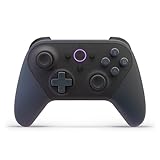
- BUILT FOR AMAZON LUNA – Designed for the best experience on Luna, Amazon's cloud gaming service.
- WORKS ACROSS YOUR DEVICES – Windows, Mac, Fire TV, Fire tablet, iPhone, iPad, Chromebook, and Android devices.
- SEAMLESS SCREEN SWITCHING – When playing on Luna, pause your game on one screen then pick up right where you left off on another.
- CONNECT VIA WIFI – Connects directly to Amazon’s custom game servers using Cloud Direct technology for low-latency gameplay.
- CONNECT VIA BLUETOOTH – Use Luna Controller as game controller on any Bluetooth-compatible device.
Do not infer ALLM from an HDMI 2.1 label
Sony’s support guidance warns that HDMI 2.1 by itself does not guarantee ALLM. A television can advertise HDMI 2.1 bandwidth while omitting ALLM, supporting it only on selected inputs, or requiring a particular firmware or menu setting. Check the manual for the exact model and HDMI port. A manufacturer document from Philips describes automatic console configuration and lists ALLM on supported equipment, but that documentation should not be generalized to every Philips television or every other brand.
PS5: exact ALLM path
On PS5, open Settings > Screen and Video > Video Output > ALLM. Sony documents this path in its PS5 resolution guide.
What’s actually slowing this PC down?
Pick the symptom - the matching free tool is one click away.
- From the PS5 home screen, open Settings.
- Select Screen and Video.
- Choose Video Output.
- Set ALLM to On when your TV is compatible. If you prefer the console to request low latency only when appropriate, use the automatic option when your software version presents one.
- Return to the game and check the TV’s information banner or picture menu to confirm that Game Mode engaged.
Sony also notes that VRR output can cause a compatible TV to switch to low-latency mode even when the PS5’s ALLM setting is Off. That behavior does not make ALLM unnecessary: it depends on the display, output signal and the way the TV implements VRR.
Xbox Series X|S: use the equivalent automatic or manual mode
The supplied documentation gives a detailed menu path for PS5, not Xbox. Do not copy the PS5 path onto an Xbox console. On Xbox Series X or Series S, enable the television’s automatic low-latency or game-detection feature when the set supports it, then use the Xbox’s video-output compatibility screens to confirm the display accepts the desired signal. The wording and location of Xbox options can change with system software and region.
If the TV does not switch automatically, select Game Mode manually for the HDMI input used by the Xbox. The result you are looking for is the television’s low-latency picture profile, not a particular menu label. Consult the TV manual first when the set has multiple HDMI inputs or identifies only some of them as supporting advanced gaming features.
Rank #3
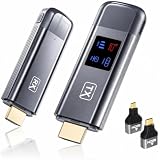
- 【Plug-and-Play & HD Image Quality】 The Wireless HDMI Transmitter and Receiver requires no WiFi, app, or Bluetooth connection. Simply plug and play with setup completed within 10 seconds, eliminating the need for HDMI cables. Supporting 4K decoding, 1080P output, and 60Hz refresh rate, it delivers smooth and clear video streaming to your TV, monitor, or projector.
- 【5.8G+2.4G Dual-Band Wireless Transmission】The wireless HDMI transmitter and receiver features a 5.8G+2.4G dual-band chip and LDS antenna for stable, high-speed video and audio transmission. Easily stream content from PC, laptop, camera, or other HDMI devices to TV, monitor, or projector with smooth performance and low latency. Enjoy extended wireless transmission up to 400ft in open areas.
- 【Mirror & Extend Dual Display Modes】 The wireless HDMI transmitter and receiver supports both mirror mode and extended screen mode, allowing you to switch freely based on your needs. Mirror your screen for presentations, meetings, or entertainment, or extend your display for improved multitasking. Enjoy smooth video and audio transmission with low latency and clear image quality.
- 【Metal Housing & Compact Design】 The HDMI transmitter and receiver features a durable metal housing for enhanced protection and a premium look. Its compact and portable design makes it easy to carry and ideal for home theaters, outdoor movie nights, business presentations, and classroom teaching. Supports both extended and mirror modes, with one-click connection and disconnection for simple operation.
- 【LED Display】 The HDMI wireless transmitter and receiver features an LED digital display, allowing you to monitor connection status and signal strength in real time. Easily identify and troubleshoot connection issues for a smoother user experience. The package includes 1 transmitter, 1 receiver, 1 user manual, 1 quick guide, 2 HDMI converters, 2 Type-C cables, and 1 extended cable. Backed by a 2-year warranty and customer support.
VRR: useful technology, but not a confirmed GTA 6 latency fix
What VRR changes
Variable refresh rate synchronizes a compatible display’s refresh timing with the console’s output. Sony describes VRR as a feature requiring a compatible PS5 output and display, with results that vary by television and game. It can reduce tearing and make uneven frame delivery appear smoother. Those benefits are different from a guaranteed reduction in controller-to-screen latency.
Crashes, No Sound, or Screen Glitches?
Random freezes, missing sound and display glitches usually trace back to one bad driver. Find and replace yours safely.Free scan · under a minuteWindows Errors? Fix Them Before They Spread
Repair common Windows errors and clear accumulated junk for a smoother, more stable PC - no reinstall needed.Free scan · no reinstallWhy GTA 6 support is still unknown
Rockstar’s cited announcement does not state whether GTA 6 will support VRR, which frame-rate modes it will offer, or how those modes will behave on PS5 and Xbox Series X|S. Do not turn VRR on because you expect a confirmed GTA 6-specific latency improvement. Enable it when your display and console support it, then keep it if the game looks stable and the TV remains in its low-latency mode. If you see flicker, dropouts, brightness changes or an unexpected picture mode, compare the game with VRR disabled and follow the television manufacturer’s troubleshooting guidance.
VRR and ALLM are separate controls
ALLM asks the TV to use a low-latency picture mode. VRR synchronizes refresh timing. A setup can support one without the other, and turning VRR on does not prove that ALLM is available. On PS5, Sony says VRR output may itself trigger a low-latency switch even when ALLM is Off; that is a display behavior, not evidence that every VRR implementation works the same way.
Check the HDMI port and cable before changing everything else
Use the port documented for gaming features
Read the television manual for the exact HDMI input that supports the features you want. Port capabilities can differ on the same television: one input may support the highest refresh bandwidth, while another supports only basic 4K signals. Labels printed beside the socket are useful clues but are not a substitute for the model’s specifications.
Keep the supplied PS5 cable unless there is a compatibility problem
Sony recommends the HDMI cable supplied with the PS5. Sony’s guidance says a compatible Ultra High Speed HDMI cable supporting HDMI 2.1 should support ALLM. A replacement is sensible when the existing cable is damaged, too short for the installation, or unable to carry the signal your TV and console negotiate. The available evidence does not show that changing a functioning cable by itself lowers input lag.
Do these 3 things before closing this tab:
1Repair Windows errors before they cause bigger problems2Fix the driver behind crashes, sound loss and screen glitches3Clear out junk files and repair common Windows errorsRank #4

- 120Hz Outdoor TV: The Sylvox 2025 Gaming Series Outdoor TV features a 120Hz refresh rate, supports VRR and ALLM, and is equipped with HDMI 2.1 and USB 3.0 ports to enjoy smoother and clearer gaming modes outdoors.
- Smart TV: Compatible with Google TV OS, this smart outdoor TV offers a wide range of apps, Chromecast, and personalized recommendations, ensuring a smarter and more personalized viewing experience.
- Support Google Assistant: Just hold down the remote control and ask Google, you will receive instant answers on the screen, making it easier to control and interact with the TV.
- Weatherproof TV: Designed to withstand temperatures from -22° to 122°F (-30° to 50°C), this Sylvox outdoor TV ensures worry-free entertainment year-round, rain or shine.
- IP55 waterproof & All-Metal Construction: With a durable metal body, this outdoor TV is waterproof, corrosion-resistant and scratch-resistant, guaranteeing a longer lifespan and reliable performance.
Eliminate unnecessary devices while diagnosing
For a clean test, connect the console directly to the TV’s documented gaming input rather than passing it through an AV receiver, switch or capture device. External equipment can add its own processing or fail to pass ALLM, VRR or the required bandwidth. Once the direct connection works, add devices back one at a time and verify which feature stops working.
Picture-processing controls worth checking
Game Mode is the principal setting. If the TV still reports a high-latency or non-game profile, inspect the following controls inside the game picture preset:
- Motion interpolation or smoothing: set it Off. Interpolation creates additional frames and requires analysis.
- Noise reduction and MPEG noise reduction: set them Off or to the lowest option for the console input.
- Super resolution, edge enhancement and heavy sharpening: disable them if they remain active in Game Mode.
- Dynamic contrast, black enhancement and automatic scene optimization: use the TV’s low-processing option. These features can alter the image between frames and may make brightness changes more distracting.
- Film, cinema or cadence detection: disable it for the game input unless the television automatically removes it in Game Mode.
- Overscan: choose the setting that displays the full console image, often called Just Scan, Screen Fit, Full Pixel or 1:1. This is primarily a geometry setting, but it avoids scaling surprises.
Menus vary considerably, and some controls are locked or automatically managed in Game Mode. Do not chase every picture option if the TV is already in its documented low-latency profile; excessive changes can make the image worse without improving response.
A settings-first setup procedure
For either console
- Find the TV manual for the exact model and identify which HDMI input supports the console’s required features.
- Connect the console directly to that input with the supplied cable or a compatible Ultra High Speed HDMI cable.
- Set the input to Game Mode, Game Optimizer, Low Latency or the model’s equivalent.
- Turn off motion interpolation and unnecessary noise-reduction or enhancement filters inside that game profile.
- Enable ALLM or automatic game switching on the TV if offered.
- Start the console and confirm that the TV has not reverted to a general-purpose picture mode.
- Enable VRR only if the TV and console report compatibility. Treat the result as a display-and-game behavior to verify, not a GTA 6 guarantee.
PS5 verification
- Open Settings > Screen and Video > Video Output > ALLM.
- Set ALLM to On or the available automatic choice when the TV supports it.
- Review the PS5 video-output information for compatibility warnings.
- Launch the game and check the TV’s on-screen status or picture menu for Game Mode.
Xbox verification
- Use the Xbox video settings and compatibility information to confirm what the connected TV accepts.
- Leave automatic low-latency switching enabled on the TV when available.
- If automatic switching fails, select the TV’s Game Mode manually for the Xbox input.
- Test VRR separately rather than changing it at the same time as several other options.
Troubleshooting when input still feels delayed
The TV keeps leaving Game Mode
Check whether ALLM is supported on that exact HDMI input and whether the console is connected through a device that blocks the signal. If automatic switching is unavailable, make Game Mode the manual preset for the console input. Confirm the mode again after switching between the dashboard and a game; some TVs save separate SDR and HDR profiles.
ALLM is missing from the PS5 menu
The option may be unavailable because the connected display does not report ALLM compatibility, the cable or intermediate device is not passing the required signal, or the console is connected to an input without the feature. HDMI 2.1 branding alone is not sufficient. Verify the TV manual, connect the PS5 directly, and test the documented gaming input.
Best Value

- 【2300 ANSI Ultra Brightness – Designed for Day & Night Entertainment】 Enjoy a bright, detailed picture from morning sunlight to movie nights with 2300 ANSI lumens. Whether watching 4K movies, live sports, gaming, or streaming, the high brightness output keeps images clear and vibrant in living rooms, bedrooms, offices, classrooms, and outdoor movie spaces.
- 【4K Decoding & 6-Color LED Technology – Bring Cinema Home】 Experience stunning detail with 4K decoding, a 23,000:1 contrast ratio, and 98% DCI-P3 color coverage. The advanced 6-color LED light source delivers richer colors, deeper blacks, and lifelike images—turning any wall into a large-screen home theater for movies, sports, and gaming.
- 【3D ToF AI Smart Setup – Instant Clear Image Anywhere】 Enjoy effortless setup with advanced 3D ToF sensors, AI autofocus, auto keystone correction, obstacle avoidance, and screen alignment. The projector automatically adjusts the image in seconds—even when moved—so you always get a sharp, perfectly fitted picture. Short throw design projects a large 110-inch screen from only 2.5m away, ideal for bedrooms and small spaces.
- 【Built-in Google TV with 10,000+ Apps – No Extra Streaming Device Needed】 Stream your favorites instantly with built-in Google TV. Access 10,000+ apps including Netflix, Disney+, Prime Video, YouTube, Hulu, HBO and more. With Google Assistant voice control, simply power on and start streaming—no Fire Stick, TV box, or additional cables required.
- 【38W Dolby Audio & Wireless Connectivity – Complete Entertainment Setup】 Built-in 38W Dolby Digital Plus speakers deliver powerful bass, clear dialogue, and immersive sound for movies, gaming, sports, and karaoke. Connect easily with HDMI ARC, Bluetooth 5.2, WiFi 6, USB, and NFC mirroring to enjoy flexible entertainment without complicated setups.
VRR causes flicker or instability
Turn VRR off temporarily and compare the picture. If the problem disappears, keep VRR disabled for that display-and-game combination until a compatible firmware or configuration is available. You can still use Game Mode and ALLM independently.
The image is fast but looks worse
Game presets sometimes use a brighter or less accurate picture. Adjust brightness, contrast and color after the latency setup is stable, but avoid re-enabling processing filters that the game preset removed. If HDR uses a separate profile, calibrate that profile rather than abandoning Game Mode for the whole input.
There is delay only online
Television input lag and network latency are different. If local menus and offline actions respond promptly but online actions arrive late, investigate the network connection and game-server conditions separately. Changing the TV picture mode cannot remove an internet delay.
How to evaluate the result without inventing a number
No cited official source provides a GTA 6 input-lag measurement, and there is no reliable way to infer one from the game’s release announcement. Use repeatable observations instead of assuming a percentage improvement:
- Compare the same console input with Game Mode on and off.
- Make only one change at a time, beginning with the picture mode.
- Use a familiar offline game or console interface to judge button-to-screen response before GTA 6 is released.
- Record whether the TV changes modes when the game launches and whether VRR introduces instability.
- After adding a receiver, switch or cable, repeat the check to identify whether that device altered feature negotiation.
This method tells you whether your television is applying a different processing path. It does not create a universal GTA 6 latency figure, because panel response, console output and the game’s own rendering behavior remain separate variables.
What to expect at launch
As of Rockstar’s August 6, 2026 announcement, GTA 6 is scheduled for November 19, 2026 on PS5 and Xbox Series X|S. Rockstar has not, in the cited material, published launch frame-rate modes, VRR support or a measured input-lag result. Revisit the game’s official technical notes and your TV manufacturer’s firmware notes when those details become available.
The durable preparation is therefore straightforward: use the correct HDMI input, select the TV’s low-latency picture mode, let ALLM switch it automatically when supported, and treat VRR as an optional compatibility feature rather than a guaranteed GTA 6 fix.
Free tools Windows power users keep installed
One-click scans. No signup required.
Quick Recap
Product prices and availability are accurate as of the date/time indicated and are subject to change. Any price and availability information displayed on Amazon at the time of purchase will apply.

