Quick wins for a faster PC:
Fix the driver behind crashes, sound loss and screen glitchesFind Drivers →Clear out junk files and repair common Windows errorsFree Scan →bfgcommon.dll is a private file used by the Big Fish Games App or its older Game Manager. If Windows says bfgcommon.dll is missing, not found, or could not be loaded, reinstalling the Big Fish software is usually the correct fix, not downloading a replacement DLL.
The file normally belongs inside the Big Fish installation, often in a bfgclient folder. It is not a Windows component and should not be copied to System32, SysWOW64, or registered with regsvr32.
As an Amazon Associate I earn from qualifying purchases.
What bfgcommon.dll is
Historical Big Fish Game Manager installations commonly placed the file in one of these locations:
C:Program Filesbfgclientbfgcommon.dll
C:Program Files (x86)bfgclientbfgcommon.dll
The exact location depends on how the application was installed and whether the program is 32-bit or 64-bit. The file is associated with the Big Fish client and its companion programs, including bfgclient.exe, bfgprocess.exe, and bfggameservices.exe.
#1 Best Overall

- Fun-Filled Decks: Embrace the fun with six different games in one set! The set, designed for 2-6 players, contains decks for Old Maid, Go Fish, Slap Jack, Crazy 8's, War, and Silly Monster Memory Match, providing hours of entertainment and learning opportunities.
- Child-Friendly Design: Each card in this set is crafted with vibrant, bright colors and easy-to-understand symbols, tailored to engage and captivate young minds.
- Skill-Building Games: Not just for fun, these card games are a stealthy way to build essential skills. These games provide educational benefits such as learning colors, numbers, and reading skills, while also encouraging memory and matching skills.
- Big Cards for Little Hands: Our cards are extra big - it's easy to hold and play! They make an ideal gift for aged 4 and older boys and girls.
- Fun on the Fly: These funny family card games for kids and adults, are your pocket-sized partners for entertainment anywhere. Road trip? Sleepover? Camping Trip? A quick visit to Grandma? Just pop them in your bag and you're set for a fun time, anytime.
It is not part of Windows, Microsoft Visual C++, DirectX, or .NET. The program that installed it owns the file, so the repair should target that program.
File and version identification
| Item | What you should know |
|---|---|
| File | bfgcommon.dll |
| Type | Private application DLL |
| Associated software | Big Fish Games App or Big Fish: Game Manager |
| Usual folder | A Big Fish bfgclient installation folder |
| Current app guidance | Big Fish identifies PC Game Manager version 4.0.0.0 as the required updated version |
| Older public metadata | A third-party listing describes an older 32-bit build as version 3.3.0.2 and approximately 1.5 MB |
| Replacement rule | Do not treat the older metadata as a universal file specification |
The public version and size information does not establish what every current Big Fish installation should contain. Do not use it to select a replacement file from an unrelated source.
Fix 1: Reinstall the Big Fish Games app
This is the most likely solution when the error appeared after an update, failed download, disk cleanup, moving an old game, or an incomplete reinstall.
Do these 3 things before closing this tab:
1Scan for outdated or missing drivers - takes under a minute2Clear out junk files and repair common Windows errors3Fix the driver behind crashes, sound loss and screen glitchesBefore uninstalling, make sure you know your Big Fish account details. Your purchased games can normally be downloaded again through the app’s Purchase History.
On Windows 11
- Press Windows + I to open Settings.
- Select Apps.
- Select Installed apps.
- Search for Big Fish Games App or Big Fish: Game Manager.
- Select the three-dot button beside it.
- Choose Uninstall, then confirm.
- Restart Windows.
- Download the current Big Fish Games app from Big Fish Games’ official download page.
- Run the installer.
- Sign in to your account.
- Open Purchase History and reinstall the affected game.
On Windows 10
- Open Start > Settings.
- Select Apps.
- Select Apps & features.
- Choose Big Fish Games App or Big Fish: Game Manager.
- Select Uninstall and confirm.
- Restart the computer.
- Download and install the current app from Big Fish Games’ official website.
- Sign in and reinstall the game from Purchase History.
You can also use Control Panel > Programs > Programs and Features on either version of Windows if the app does not appear in Settings.
How to tell whether it worked
Start the Big Fish app first, then launch the affected game. The repair worked if the app opens without the DLL message and the game can be downloaded or started normally.
If only one game still fails while the Big Fish app works, uninstall and reinstall that individual game through Purchase History. Repairing Windows is not the right next step for a failure isolated to one game.
The Tool Desk
Outbyte PC Repair FREEClear out junk files and repair common Windows errorsFree Scan →Outbyte Driver Updater FREEScan for outdated or missing drivers - takes under a minuteDriver Scan →Rank #2
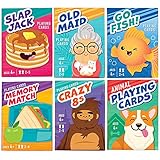
- KIDS 6 IN 1 FUN PACK CARD GAMES: Our classic card games set contains fun decks of Go Fish, Old Maid, Crazy Eights, Memory Match, Slap Jack, Animal themed Playing Cards(can be used to play War game); Each deck is individually boxed; Instructions included for each game (except animal playing cards)
- CUTE DESIGNS: Smile, learn, laugh and play with our cute and colorful designs and characters; The trendy, thoughtful designs make these classic card games a must have
- STURDY: Cards are made from quality cardboard with blue core construction, and plastic-coated for a smooth feel and extra durability
- STANDARD POKER SIZE: 2.5” x 3.5” (63mm x 88mm), not jumbo; Designed for small hands; Fine motor skill builder - Ages 4+
- FUN EDUCATIONAL CARDS: Teach little ones about numbers, careers, animals, and color recognition, deduction skills, reading and matching; keep their minds sharp while having fun
Fix 2: Remove leftover Big Fish cache files
A normal reinstall can leave behind damaged cache data. Use this step only after uninstalling the Big Fish app and restarting Windows.
- Close the Big Fish app and any game processes.
- Press Windows + R.
- Enter:
text

   %LOCALAPPDATA%Big Fish
- Press Enter.
- Look for a clearly identified Big Fish cache folder.
- Delete only the relevant cache folder. Big Fish’s older instructions refer to a folder named
cef3.1180.823, but the folder can differ between releases. - Restart Windows.
- Install the current Big Fish app again.
- Sign in and reinstall the affected game.
Do not delete unrelated folders from AppData. If you cannot identify a Big Fish cache directory, skip this step and use a clean reinstall instead.
If the error remains after the cache cleanup, check whether the original bfgclient directory was recreated and whether the application is launching from the expected installation path.
Fix 3: Check Windows Security quarantine
Antivirus software may have removed or blocked an application DLL. This is more likely when the error began immediately after a security scan.
Crashes, No Sound, or Screen Glitches?
Random freezes, missing sound and display glitches usually trace back to one bad driver. Find and replace yours safely.Free scan · under a minuteWindows Errors? Fix Them Before They Spread
Repair common Windows errors and clear accumulated junk for a smoother, more stable PC - no reinstall needed.Free scan · no reinstall- Open Start and search for Windows Security.
- Open it and select Virus & threat protection.
- Select Protection history.
- Review recent detections.
- Look for an event that names
bfgcommon.dllor a file inside the Big Fish installation folder. - Expand the event and review the file path and detection details.
Restore or allow the file only if all of these are true:
- The path belongs to the Big Fish installation you recognize.
- The file came from the official Big Fish installer or a verified backup.
- The detection is clearly a mistaken block rather than an active malware warning.
If you are uncertain, do not restore the quarantined file. Remove the Big Fish installation and download it again from Big Fish Games’ official source. Allowing a malicious file can put the computer at risk.
After reinstalling, update Windows Security and run a full scan. A file with the correct name outside the expected Big Fish directory is not automatically legitimate.
Rank #3

- MORE CARDS, MORE PLAYERS: 104 cards (26 sea creatures- 4 cards of each) 1 instruction card, for 2-8 players
- REAL IMAGES & FUN ANIMAL FACTS: Our ocean theme matching cards feature real pictures and interesting facts, a fun and educational kids game
- MULTIPLE GAME OPTIONS: Can also be used for Memory Matching Games, Old Maid and more
- FUN TEACHING TOOL: Our sea life go fish cards provide a fun and educational way for toddlers, pre k, preschoolers, and elementary students to learn about sea life, and improve their memory matching skills; Great for homeschooling, classroom prize
- STANDARD SIZE: Our go fish ocean animal flash cards are 2.5" x 3.5", a great size for little hands
Fix 4: Check whether a dependency is the real problem
Windows may mention bfgcommon.dll even when the named file exists. The message “The specified module could not be found” can mean either that the requested DLL is missing or that a dependency required by it cannot be loaded.
Recommended Free Tools
This can happen after:
- A damaged Big Fish update
- A partially completed game installation
- Antivirus removal
- Moving the game or client folder manually
- Mixing files from different releases
- Using a file with the wrong architecture
First, reinstall the complete Big Fish app rather than replacing only the named DLL. If the error separately identifies a file such as an msvcp or msvcr component, repair that specifically through its official Microsoft or application source. There is no verified basis for installing a particular Visual C++ Redistributable, DirectX package, or .NET version solely because bfgcommon.dll is mentioned.
A 32-bit Big Fish program generally needs the matching 32-bit application files, even on 64-bit Windows. Do not combine a 32-bit DLL from one release with executables from another release.
Fix 5: Repair Windows components only when other programs are also failing
SFC and DISM repair protected Windows components. They normally do not restore a private Big Fish DLL, so use them when several unrelated applications are failing or Windows itself shows corruption symptoms.
- Open Start.
- Search for Command Prompt.
- Select Run as administrator.
- Run this command:
text

   DISM.exe /Online /Cleanup-Image /RestoreHealth
What’s actually slowing this PC down?
Pick the symptom - the matching free tool is one click away.
- Wait for it to finish.
- Run:
text

   sfc /scannow
- Restart Windows.
- Try the Big Fish app again.
Run DISM before SFC. If SFC reports that it found and repaired corrupted files, restart and retest. If it reports that it could not repair some files, repeat the Big Fish reinstall rather than assuming SFC will supply bfgcommon.dll.
Repeating SFC and DISM without knowing what changed can waste time when the problem is actually a damaged third-party installation. Outbyte PC Repair can show what its free scan identifies, while repairs are performed by the full version; reinstalling Big Fish remains the definitive fix for this application-specific DLL.
Fix 6: Use System Restore after a known system change
System Restore is relevant if the error started immediately after a software installation, Windows change, or update and other applications were affected too. It does not guarantee that the DLL itself will be restored.
Rank #4

- UNFILTERED ADULT FUN; Take the classic Go Fish card game and crank it up with outrageous offensive prompts, and the iconic “Go F Yourself!” shout. This deck of cards for ages 17+ delivers raw laughs, and the right dose of party game chaos for daring players
- 52 HILARIOUS CARDS; Enjoy 13 sets of 4 in this wild card deck with bold hilarious prompts like AN ACCOHOLIC DAD, 81-CURIOUS THOUGHTS, and ANY BITCOIN, YOU FORGAVE LOSER. These playing cards are each crafted for outrageous storytelling and relentless card-collecting puns
- QUICK & EASY GAMEPLAY: 15–30 min rounds for 2–10 players—perfect indoor game for parties, bar nights, travel, camping, or game night. Ask for cards, collect sets, and if they don’t have it, they’ll scream GO F YOURSELF! It’s the ultimate Go F Yourself Go Fish card game
- PERFECT PARTY ICEBREAKER: Great idea for bachelorette games, girls night, adult game nights, get-togethers, or couple gifts, this funny game sparks laughter, conversation, and camaraderie—no experience required, just a sense of humor and thick skin
- BUILT TO LAST; Featuring 52 sturdy, intentionally misspelled CAADS with collectible quality, this deck of cards withstands repeated play while embracing its rude, tongue-in-cheek charm. Great gag gifts for women, men, and other fun gifting occasions, or bar-top laughs
- Press Windows + R.
- Enter:
text

   rstrui.exe
- Press Enter.
- Select Next.
- Choose a restore point from before the problem began.
- Select Scan for affected programs if available.
- Review the programs and drivers that will be changed.
- Select Next, then Finish.
- Allow Windows to restart.
Personal files are not normally removed, but installed programs, drivers, and system settings can be reverted. If the problem concerns only Big Fish Games, reinstalling the Big Fish app is safer and more targeted.
Fix 7: Investigate drivers or Windows Update only for broader symptoms
Do not reinstall graphics or chipset drivers merely because bfgcommon.dll appears in an error dialog. Driver work is justified when multiple applications fail, the problem began directly after a driver update, or Device Manager reports a device error.
Check Device Manager
- Right-click Start.
- Select Device Manager.
- Expand categories such as Display adapters, Sound, video and game controllers, and System devices.
- Look for a yellow warning icon.
- Right-click the affected device and select Properties.
- Read the Device status message under the General tab.
- Use Update driver only when the device itself reports a problem.
- Restart Windows and retest the Big Fish app.
Outbyte Driver Updater can reduce the manual work of hunting through many driver versions: its free scan identifies what it finds, while driver installation is handled by the full version. It is not required for an isolated Big Fish DLL error.
Also install pending Windows updates through Start > Settings > Windows Update, but do not expect Windows Update to supply bfgcommon.dll.
What not to do
Do not download a random DLL
Random DLL download sites can provide malware, the wrong version, or the wrong architecture. A manually copied file can also leave the original Big Fish installation damaged, so the same error returns later.
The safe sources are the official Big Fish Games app installer, an exact official installer package, or a verified backup from the same Big Fish installation. If a file must be restored manually, it belongs in the application’s own folder, not a global Windows directory.
Do not copy it to System32 or SysWOW64
System32 and SysWOW64 are not general-purpose storage locations for application files. Copying a private Big Fish DLL there can create conflicts and does not repair the application’s missing dependencies.
Do not run regsvr32 on it
regsvr32 is for DLLs that provide registration interfaces such as DllRegisterServer, commonly for COM or ActiveX components. It is not a general DLL repair command, and there is no Big Fish instruction requiring bfgcommon.dll to be registered.
Best Value

- Trade Paper
- 7/1/2013
- DAVID C. COOK
- Game - Jonah Go Fish Jumbo Card Game
Running this is normally irrelevant:
regsvr32 bfgcommon.dll
It can produce another error about a missing entry point or dependency.
If the error still appears
Before contacting Big Fish support, record:
- The complete error message
- Whether the failing program is the Big Fish app or one game
- The executable path shown by the error
- Your Windows version
- The installed Big Fish app version
- Whether
bfgcommon.dllexists in thebfgclientfolder - Any Windows Security quarantine event
- Whether reinstalling the app and clearing its cache changed the message
Big Fish’s Dr. Felix diagnostic tool can collect information about app and game failures. Use it after the reinstall and cache steps have failed.
FAQ
Is bfgcommon.dll a Windows file?
No. It is an application-private DLL associated with Big Fish Games software.
Which program installed it?
It is historically associated with Big Fish: Game Manager, and newer installations may use the Big Fish Games App name.
Why does the message say the specified module cannot be found when the file exists?
The named file may be present while one of its dependencies is missing, damaged, or incompatible. Reinstall the complete Big Fish package instead of copying one DLL.
Should I install a Visual C++ or DirectX package?
Only if the error separately identifies that component or the official application installer requires it. bfgcommon.dll alone does not prove that a particular runtime is needed.
Should I use the 32-bit file on 64-bit Windows?
Use the file that belongs to the exact Big Fish build. A 32-bit application can run on 64-bit Windows, but its DLL must match the application and release.
What is the safest first step?
Uninstall the Big Fish Games App or Game Manager, restart Windows, install the current official app, and reinstall the affected game through Purchase History.
Quick Recap
Product prices and availability are accurate as of the date/time indicated and are subject to change. Any price and availability information displayed on Amazon at the time of purchase will apply.
Free tools Windows power users keep installed
One-click scans. No signup required.




