Yes, but only if you have earned no trophies in that game. PlayStation lets you delete trophy information for a game with zero earned trophies. Once you have earned at least one, Sony says it cannot be removed from your trophy list. If you only want to keep a game out of other players’ view, use the privacy controls instead; hiding does not erase trophies.
Delete a game’s trophy information
Sony’s trophy support instructions provide deletion steps for PS5, PS4, and the PlayStation App. The game must have no earned trophies for the Delete option to be available.
- PS5: From the home screen, select your profile picture, choose Trophies, select the game, press the options button, and choose Delete.
- PS4: From the function screen, select Trophies, select the game, press OPTIONS, and choose Delete.
- PlayStation App: Open Profile > Trophies, tap the game, and select Delete.
If the game has an earned trophy, Sony says its trophy information cannot be deleted. There is no documented way to remove only one earned trophy while keeping the rest.
Hide a game from other players instead
Hiding is a visibility setting, not deletion. Your trophy information remains; what other people can see depends on the console’s privacy controls.
#1 Best Overall
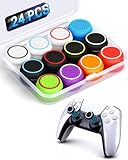
- ✔️【NO REMOVAL NO DAMAGE: JUST SNAP & GRIP】CCFREELIFE Silicone Thumb Grip caps are designed to stretch right over your existing thumbsticks. No messy residue, no risk of damaging your controller. It’s the easiest, most reversible mod you can do
- 🎮 【PERFECT FIT FOR PS5 PS4 Xbox: LIKE A SECOND SKIN】Engineered exclusively for these controllers. CCFREELIFE premium ps5 ps4 joystick caps contour perfectly to your PS5 DualSense and PS4 DualShock thumbsticks, delivering a seamless, Natural like feel that other caps can’t match
- 🛡️【ENHANCED GRIP & WEAR PROTECTION: DOMINATE LONGER】Conquer slippery thumbs and daily wear. CCFREELIFE silicone protrusions on these controller stick grips provide a locked-in feel that seriously improves your control. Plus, they act as a durable shield against scratches, shine, and grime. Play harder and protect your gear—no slip, no quit
- 🌈 【12 COLOR SET: YOUR CONTROLLER, YOUR VIBE】 Why settle for one look? With 24 pieces (12 color pairs) controller thumb grips, you get stealthy blacks, clean whites, and popping brights. Mix, match, or rotate to fit your mood, your game, or your squad’s style. Your setup just got a major glow-up
- 💲【MONEY SAVER: THE SMART FIX, NOT THE EXPENSIVE ONE】A new controller costs a fortune. Don’t replace—upgrade. These joy stick thumb grip covers makes your old, worn-out controller feel fresh, sticky, and totally renewed
PS5
Go to Settings > Users and Accounts > Privacy > View and Customise Your Privacy Settings > Hide your games from other players, then select the games to hide. According to Sony’s PS5 hide-games guidance, activity for games on this list is not displayed to other players. Hiding a game from your Game Library is a separate action and does not hide it from your profile.
PS4
Go to Settings > Account Management > Privacy Settings > Hidden games and select the games. Sony’s PS4 hide-games guidance says information about a hidden game does not appear in activities, your profile, or your trophy list. However, other PS4 players may still see what you are playing under Now Playing. Sony points to appearing offline as a way to prevent that visibility.
Rank #2

- INCREASED ACCURACY - Mixed height combo for faster target acquisition and increased precision on the right, as well as better control and maneuvering on the left
- IMPROVES COMFORT & GRIP - Non-slip, proprietary rubber compound offers exceptional grip and requires less force which reduces wrist, hand and thumb fatigue
- ONE HIGH-RISE (CONCAVE) THUMBSTICK - That adds 10.0 mm for increased accuracy on right analog
- ONE MID-RISE (CONCAVE) THUMBSTICK - On the left analog for enhanced control with in-game movement while adding a nominal height of 6.5 mm
- VERSATILE - The added grip and comfort works well across your entire library of games and protects stock thumbsticks from wear and tear *Packaging May Not Reflect Updated Compatibility
Which option should you use?
| Your goal | Action | What it does |
|---|---|---|
| Remove a game’s trophy information | Delete it from Trophies | Available only when you have earned zero trophies in that game. |
| Keep a game less visible to other players | Use the console’s hidden-games privacy setting | Limits what other players see; it does not erase earned trophies. On PS4, Now Playing may remain visible. |
The direct answer is the same whether you call it deleting trophies, removing a game from your trophy list, or clearing it from your profile: earned trophies cannot be deleted through Sony’s documented control. Use privacy settings if your concern is what friends can see.
Quick Recap
Rank #4

- OPTIMIZE AIM – Black Galaxy Performance Thumbsticks help you make smaller more precise movements while Precision Rings, which come in 3 strengths, to create resistance and shock absorption while playing allowing you to increase you in-game sensitivity
- PERFORMANCE THUMBSTICKS – have been ergonomically designed to improve comfort reducing wrist, hand, and thumb fatigue
- PRECISION RINGS - made from a unique material that adds resistance to your stock thumbsticks so you can take more accurate shots, even at max in-game sensitivities
- INCREASE ACCURACY – Mixed height Performance Thumbsticks for faster target acquisition and increased precision on the right, as well as better control and maneuvering on the left
- IMPROVE CONTROL - Precision Rings compact to cushion your stick, adding resistance and preventing you from over-shooting your target. Rings allow you to increase your in-game sensitivity, so you can react more quickly during battle
Rank #3

- INCREASED ACCURACY - Mixed height combo for faster target acquisition and increased precision on the right, as well as better control and maneuvering on the left
- IMPROVES COMFORT & GRIP - Non-slip, proprietary rubber compound offers exceptional grip and requires less force which reduces wrist, hand and thumb fatigue
- ONE HIGH-RISE (CONCAVE) THUMBSTICK - That adds 10.0 mm for increased accuracy on right analog
- ONE MID-RISE (CONCAVE) THUMBSTICK - On the left analog for enhanced control with in-game movement while adding a nominal height of 6.5 mm
- VERSATILE - The added grip and comfort works well across your entire library of games and protects stock thumbsticks from wear and tear *Packaging May Not Reflect Updated Compatibility
Product prices and availability are accurate as of the date/time indicated and are subject to change. Any price and availability information displayed on Amazon at the time of purchase will apply.
Do these 3 things before closing this tab:
1Scan for outdated or missing drivers - takes under a minute2Clear out junk files and repair common Windows errors3Fix the driver behind crashes, sound loss and screen glitches



