Recommended Free Tools
No—not with the current official Roblox Windows application. Roblox’s published computer requirements specify 64-bit Windows 10 or Windows 11. If your computer runs 32-bit Windows 10, you must either reinstall Windows in 64-bit mode on compatible hardware or play Roblox on another supported device.
Before changing anything, check whether the problem is the Windows installation or the processor itself. A PC can have a 64-bit-capable processor while still running 32-bit Windows.
| # | Preview | Product | Price | |
|---|---|---|---|---|
| 1 |
|
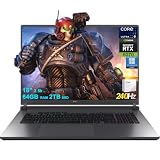
ASUS ROG Strix G18 G815 Gaming AI Laptop 18" 2560x1600 240Hz (100% DCI-P3) Intel 24-core Ultra 9... | $3,179.00 | Buy on Amazon |
| 2 |
|
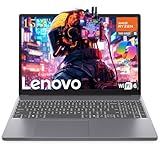
Lenovo 15 Gaming Laptop, AMD Ryzen 5 7535HS, 8GB DDR5, 256GB PCIe SSD | $579.99 | Buy on Amazon |
Check whether Windows 10 is 32-bit or 64-bit
- Press Windows key + I to open Settings.
- Select System.
- Select About.
- Find System type.
You may see one of these results:
- 32-bit operating system, x64-based processor: Your current Windows installation is 32-bit, but the processor may support 64-bit Windows.
- 64-bit operating system, x64-based processor: Your Windows architecture is suitable for Roblox, assuming the other requirements are met.
- 32-bit operating system, x86-based processor: The processor is 32-bit only. Software cannot convert it into a 64-bit processor.
The important result for Roblox is 64-bit operating system. Seeing “x64-based processor” alone is not enough because the installed copy of Windows may still be 32-bit.
Microsoft lists different baseline memory requirements for Windows 10—1 GB for 32-bit Windows and 2 GB for 64-bit Windows—but those are Windows installation requirements, not a guarantee that Roblox will install or run well. See Microsoft’s Windows 10 requirements and support information.
#1 Best Overall
- 64GB RAM | 2TB SSD
- Equipped With The Most Powerful and Fast Intel 24-core Ultra 9 275HX Processor
- 18" 2.5k (2560x1600) IPS 240Hz (100% DCI-P3, 3ms, Anti-glare), Dedicated NVIDIA GeForce RTX 5070 8GB GDDR7 Graphic
- 3 x USB-A 3.2, 1 x Thunderbolt 4, 1 USB-C 3.2, 1 x HDMI 2.1 FRL, 1 x RJ45 Ethernet
- Windows 11 Professional, 4-zone RGB Backlit Keyboard, Wi-Fi 7, Smart Amp, Dolby Atmos, FHD IR Camera, Auth USB-C Hub
Roblox’s current Windows requirements
Roblox’s current published computer requirements specify:
| Requirement | Published guidance |
|---|---|
| Operating system | 64-bit Windows 10 or Windows 11 |
| Web browsers | Chrome, Firefox, or Microsoft Edge |
| Graphics | DirectX 10 or higher feature-level support |
| Processor | A recent processor, identified by Roblox as 2005 or newer, with at least 1.6 GHz |
| Memory | At least 1 GB recommended on Windows 10 or Windows 11 |
| Storage | At least 300 MB recommended |
| Internet | 4–8 Mbps recommended for a single-use household |
These figures are Roblox’s published guidance, not a promise of smooth performance in every experience. Large or graphically demanding Roblox games may perform poorly on old hardware even after the client installs. Read the complete Roblox computer hardware and operating-system requirements.
If your processor supports 64-bit Windows
If Settings reports “32-bit operating system, x64-based processor,” the practical route is to move to a 64-bit Windows installation. This is an operating-system architecture change, not a Roblox setting.
Prepare before reinstalling Windows
- Back up documents, photos, downloads, saved games, and other personal files.
- Save browser bookmarks and confirm that you know passwords or recovery methods for important accounts.
- Check that the computer has compatible 64-bit drivers for its graphics, network, audio, and chipset hardware.
- Confirm that you have the correct Windows license or installation media.
- Check the PC’s complete hardware against the requirements of the Windows edition you plan to install.
Moving from 32-bit Windows to 64-bit Windows commonly requires a clean installation. Do not assume that every existing 32-bit Windows installation can be upgraded in place without reinstalling or removing applications and data.
Do these 3 things before closing this tab:
1Fix the driver behind crashes, sound loss and screen glitches2Clear out junk files and repair common Windows errors3Scan for outdated or missing drivers - takes under a minuteChoose the Windows version carefully
Roblox lists 64-bit Windows 10 as supported, but Windows 10 reached the end of Microsoft’s normal support on October 14, 2025. Where the hardware qualifies, Windows 11 is the preferable target because it remains the newer supported Windows platform. However, do not assume that every x64-based processor meets Windows 11’s additional hardware requirements.
After installing 64-bit Windows:
- Run Windows Update as far as the edition permits.
- Install the correct graphics driver from the PC or graphics-hardware manufacturer.
- Restart the computer.
- Download Roblox from the official Roblox download page, or install the current Microsoft Store application.
Install Roblox on supported 64-bit Windows
- Open Roblox’s official website in Chrome, Firefox, or Microsoft Edge.
- Sign in to your Roblox account.
- Open an experience and select Play, or use the official download page.
- Download and run the Roblox installer when prompted.
- Return to the experience and select Play again.
- If Windows displays a security prompt, allow the official Roblox application only if you recognize the publisher and installation source.
Do not install Roblox Studio expecting it to act as the normal player application. Studio is Roblox’s creation tool for making experiences. Its setup documentation is available from Roblox Creator Documentation.
What about the Microsoft Store version?
Roblox distributes a newer Microsoft Store application named Roblox – Windows. Roblox distinguishes it from the older Store application, which is named only Roblox and uses a light-gray icon. The newer app uses a blue icon.
If you use the Store route, install Roblox – Windows, sign in successfully, and then uninstall the older application if it remains installed. Roblox says your account information—such as Robux, friends, and inventory—is tied to your Roblox account rather than the old local application. Details are in Roblox’s guide to the new Microsoft Store app.
The Tool Desk
Outbyte PC Repair FREEClear out junk files and repair common Windows errorsFree Scan →Outbyte Driver Updater FREEScan for outdated or missing drivers - takes under a minuteDriver Scan →However, the Store app is not a documented workaround for 32-bit Windows. It is an alternative distribution channel, while Roblox’s computer requirements still specify 64-bit Windows 10 or Windows 11. Installing the Store version will not change a 32-bit Windows installation into a supported environment.
Rank #2
- GAME ANYWHERE, ANYTIME - Powerful AMD Ryzen 5 processor handles your favorite games effortlessly while staying cool and quiet. Perfect for dorm rooms, coffee shops, or your gaming setup at home. Lightweight design means you never have to choose between portability and performance.
- NEVER RUN OUT OF SPACE AGAIN - Massive 8GB RAM means no more closing apps to free up memory, while the huge 256GB SSD stores 50+ AAA games plus all your photos, videos, and school files. Everything loads instantly - no more waiting around.
- BEAUTIFUL VISUALS THAT POP - Stunning 15.3" Full HD+ screen makes everything look incredible - from Netflix binges to intense gaming sessions. Large enough for productivity work, sharp enough for detailed gaming, and comfortable for hours of use.
- ALL-DAY BATTERY LIFE FOR GAMING & PRODUCTIVITY - Enhanced battery technology delivers up to 8+ hours of mixed use and extended gaming sessions. Smart power management automatically optimizes performance vs. battery life, so you can game, work, and stream longer between charges
- NEXT-GEN CONNECTIVITY & EFFICIENT CHARGING - WiFi 6 for lag-free online gaming, Bluetooth 5.3 for wireless accessories, HDMI for external displays, and fast-charging Type-C port. Built-in webcam and optimized power delivery make this perfect for gaming, streaming, and video calls on the go.
If the processor is 32-bit only
If the system type shows a 32-bit processor, there is no supported software fix for running the current Roblox Windows client on that computer. Compatibility mode, administrator privileges, browser changes, and driver updates cannot provide a 64-bit operating system or processor.
Your realistic options are:
- A newer Windows computer running 64-bit Windows.
- A supported Mac.
- A compatible Android or iOS phone or tablet using the official Roblox app.
- A supported Xbox console.
- A compatible ChromeOS device with ChromeOS 53 or newer and the Google Play Store enabled.
Roblox officially lists Linux as unsupported. Platform availability and requirements can vary by device, region, and current Roblox support, so use official Roblox app stores and support pages rather than unofficial launchers.
If 64-bit Windows is installed but Roblox still will not start
Architecture is no longer the first suspect if Settings already reports a 64-bit operating system. Try these steps in order:
- Install available Windows updates.
- Update the graphics driver and restart the PC.
- Try the official Roblox website installation path.
- If using Microsoft Store, confirm that the app is named Roblox – Windows, not the older app named only Roblox.
- Check whether Windows Firewall or security software is blocking Roblox. Do not disable protection permanently; create an exception only when you understand what is being blocked.
- Restart the computer and try again.
- Uninstall and reinstall Roblox from an official source if the local installation is damaged.
Roblox identifies its local Windows files under:
C:Users<Your Windows Username>AppDataLocalRobloxFor a diagnosed connectivity problem, Roblox’s guidance also refers to UDP ports 49152–65535. Ordinary users should not broadly open these ports or disable their firewall without a specific network diagnosis. Consult Roblox’s guidance on third-party applications and antivirus restrictions.
Fixes that do not solve the architecture problem
- Compatibility mode: It can change legacy application behavior, but cannot turn 32-bit Windows into 64-bit Windows.
- Run as administrator: Administrative privileges do not change the operating-system architecture.
- Another browser: A supported browser may help website issues, but it cannot make the Windows client compatible.
- The Microsoft Store app: The current Store app is not a documented bypass for 32-bit Windows.
- Old Roblox installers: They may be unsafe, unavailable, or unable to connect to the current Roblox service.
- Cracked clients and modified launchers: Random downloads can expose your account, files, or personal information to malware.
- Linux or Wine workarounds: Roblox officially lists Linux as unsupported, so these should not be treated as reliable or supported solutions.
Frequently Asked Questions
Can Roblox run on 32-bit Windows 10?
No. Roblox’s current published PC requirements specify 64-bit Windows 10 or Windows 11. A 32-bit Windows installation is not officially supported.
What does “32-bit operating system, x64-based processor” mean?
It means Windows is installed in 32-bit mode, but the processor may be capable of running 64-bit Windows. You would normally need to reinstall Windows in 64-bit mode before installing Roblox.
Will the Microsoft Store version of Roblox work on 32-bit Windows?
The Microsoft Store version, named Roblox – Windows, is not documented as a 32-bit workaround. Roblox’s PC requirements still specify 64-bit Windows 10 or Windows 11.
Can I use Roblox Studio to play Roblox on 32-bit Windows?
No. Roblox Studio is the creation tool, not the normal player application, and it does not remove the Windows architecture requirement.
The Bottom Line
32-bit Windows 10: the current Roblox Windows client is unsupported. x64-based processor: back up your files and consider a supported 64-bit Windows installation. 32-bit-only processor: use another supported Windows PC, Mac, mobile device, Xbox, or compatible ChromeOS device. Avoid unofficial launchers and old installers.
Quick Recap
Product prices and availability are accurate as of the date/time indicated and are subject to change. Any price and availability information displayed on Amazon at the time of purchase will apply.




