Yes—but there is no single reset procedure for every SCUF controller. The right method depends on the model and whether you need to recover a frozen controller, restore settings, or clear its pairing. Identify your model first, then follow the matching instructions below; some resets preserve profiles, while others erase settings or require pairing again.
Before you reset, identify your controller and the kind of reset you need
SCUF controllers use different reset methods. A recessed button may restart one model without erasing profiles; a button combination on another may restore settings or clear pairing data. Check the model name on the controller or its documentation, and use the official guide for that model and problem.
As an Amazon Associate I earn from qualifying purchases.
- Frozen or unresponsive: Prefer the model’s recovery or manual-reset procedure if it is intended to preserve saved settings.
- Incorrect settings or mappings: Use a procedure that explicitly restores settings or remapping defaults, and check what it clears first.
- Pairing trouble: Determine whether the reset removes pairing data or simply restarts the controller; you may need to reconnect afterward.
How to reset a SCUF Omega (PS5)
SCUF documents three different Omega procedures. Its Omega reset guide recommends starting with the manual reset when the controller is simply frozen or unresponsive. SCUF Gaming Support says this is the only method of the three that will not delete saved profiles and other settings.
| Method | How to do it | What SCUF says it changes |
|---|---|---|
| Manual reset | Remove the faceplate. Find the small hole below the Circle Button and press the recessed reset button with a long, thin object such as a paper clip. | Recovers a stuck controller and does not reset profiles. |
| Soft reset | Turn the controller off, then hold X + PS Button for five seconds. The controller starts back up while you hold the buttons. | Restores profiles, mappings, lighting effects, trigger and thumbstick settings, brightness, automatic sleep settings, polling rate, and calibration data to factory defaults. |
| Hard reset | Turn the controller off, then hold Circle + Triangle + PS Button for five seconds. | Restores the same settings as the soft reset and restores controller pairing data to factory defaults. |
If a wireless Omega is not detected by PlayStation, SCUF also advises reconnecting the wireless receiver, trying another USB port, checking that the platform switch is set to PS5, and allowing an overheating dongle more airflow.
#1 Best Overall

- Built for PS5 Consoles: Officially Licensed PlayStation 5 performance controller, engineered for easy setup and low-latency connectivity. Designed to meet Sony Interactive Entertainment’s exacting performance standards for input response, power management, and wireless stability you can trust
- 11 Additional Inputs: x4 rear paddles, x2 side action buttons, G-Keys; all fully customizable for personalized gameplay, faster reactions, and more control at your fingertips
- New SCUF Mobile App: Customize almost every input on your controller. Full control over your trigger and thumbsticks response curves, action (Triangle, Circle, Square, and Cross) buttons, and true 0% thumbstick deadzone. Directly from your phone (iOS & Android) to your controller in real time
- Endurance TMR Thumbsticks: Delivers increased durability, preventing the wear and tear that causes drift and/or jitter while consistently providing precision and smooth control
- Omron Mechanical Switches: Faster activating, mouse-like clicks across Instant Triggers, Instant D-Pad, and Instant Action Buttons. Utilising Omron switches for the most durable, consistent, and crisp feeling possible
How to reset a SCUF Envision (PC)
The Envision has a recessed reset switch under the faceplate next to the A and B buttons. SCUF says to use a 0.9 mm SCUF Key, toothpick, paper clip, or similar non-sharp object. This is an Envision-specific recovery procedure, not a general SCUF reset.
- Expose the reset button by removing the faceplate.
- Press the recessed button for about three to five seconds.
- Connect the controller to the PC with its USB cable, then press Start.
SCUF describes this as recovery for a stuck controller; it does not reset profiles.
Rank #2
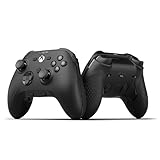
- FASTER GAMEPLAY: Features four rear paddles so you can react faster in-game and with our instant triggers that eliminate trigger pull, shaving milliseconds off your reaction time. And when you're on PC, activate the 1k Hz polling rate for lightning-fast inputs
- MULTIPLE WAYS TO CONNECT: Switch between low-latency wireless, Bluetooth, or ultra-fast wired. No matter how you play, Valor Pro keeps your connection stable so you can stay locked in
- TAILORED FUNCTIONALITY: Customize your inputs and adjust the TMR thumbstick deadzones directly from your Xbox or PC using the SCUF app; Built for total control with no need to pause
- ULTIMATE CUSTOMIZATION: Show off your personality and coordinate your controller with your space. With a wide range of colors, designs, and swappable faceplates and thumbsticks, it’s easy to create a look that’s all you
- MORE COMFORT: Utilizing over a decade of expertise our performance grip provides ultimate non-slip comfort, and the new wraparound bumpers have more surface area for faster movements
How to troubleshoot a SCUF Instinct (Xbox and PC)
SCUF’s Instinct guidance offers separate steps for connectivity, paddle behavior, and other problems. These steps are not described as a universal factory reset.
Do these 3 things before closing this tab:
1Repair Windows errors before they cause bigger problems2Fix the driver behind crashes, sound loss and screen glitches3Clear out junk files and repair common Windows errors- Connectivity: Hold Home until the controller turns off, then turn it back on.
- Paddles: If they are not working as expected, press the small button on the back with a small pin or SCUF Key.
- Other issues: Remove the battery and/or unplug the controller, wait about a minute, then reconnect power.
How to reset a SCUF Valor (Xbox)
The Valor procedure uses its profile and thumbstick controls; it does not require a pin tool.
Rank #3

- FASTER GAMEPLAY: Features four rear paddles so you can react faster in-game and with our instant triggers that eliminate trigger pull, shaving milliseconds off your reaction time. And when you're on PC, activate the 1k Hz polling rate for lightning-fast inputs.
- MULTIPLE WAYS TO CONNECT: Switch between low-latency wireless, Bluetooth, or ultra-fast wired. No matter how you play, Valor Pro keeps your connection stable so you can stay locked in.
- TAILORED FUNCTIONALITY: Use the audio control system to change volume levels on the fly and save up to three remapping configurations with the flip of a switch.
- ULTIMATE CUSTOMIZATION: Show off your personality and coordinate your controller with your space. With a wide range of colors, designs, and swappable faceplates and thumbsticks, it’s easy to create a look that’s all you.
- MORE COMFORT: Utilizing over a decade of expertise our performance grip provides ultimate non-slip comfort, and the new wraparound bumpers have more surface area for faster movements.
- With the controller powered on, hold the Profile Button until the profile status LED flashes. This enters remapping mode.
- Hold both thumbsticks down for three seconds.
- Look for the profile LED to pulse white, which SCUF identifies as confirmation of success.
How to unpair a SCUF Nomad (mobile)
Hold the Home Button and Bluetooth Button together for five seconds. SCUF says this unpairs the Nomad from the device. Then forget the controller in the device’s Bluetooth settings and pair it again.
Independent reader supportYour contribution helps us test, update, and keep practical guides available for everyone.How to reset a SCUF Impact or Infinity4PS Pro (PS4 and PC)
SCUF’s cited PS4 procedure is for a specific troubleshooting issue, not a universal reset for every Impact or Infinity4PS Pro problem. Button location can also vary by context: one set of Impact instructions places the reset beneath the last paddle (P4), while the cited PS4 guide locates it on the back near the L2 shoulder button. Check the support instructions for your exact model and issue before pressing a recessed button.
Rank #4

- Anti-drift Hall effect thumbsticks prolong the life of your controller
- Four rear, remappable paddles keep your thumbs on the sticks for faster reactions
- Five fully remappable G-Keys for advanced macros and Corsair iCUE integration
- Two unique side-mounted SAX buttons are designed to provide additional configurability and fit the natural placement of your fingers
- OMRON mechanical button switches operate like a mouse click for instant activations
- Turn off the PS4.
- Locate the recessed reset button specified for your model and issue. In the cited PS4 procedure, it is on the back near L2.
- Press it with a small unfolded paper clip for two to three seconds.
- Connect the controller to the console by USB and press PS to log in.
What to expect from a legacy SCUF Vantage reset
The older SCUF Vantage manual describes a reset button beneath the faceplate on the right side, pressed with a 0.9 mm SCUF Key. It says the reset clears wireless pairing, restores paddle and Sax Button mappings to default, and restarts the controller. Because this is legacy guidance, verify the exact Vantage version and button placement before proceeding.
Do you need a reset tool?
Only use a tool when your model’s instructions call for a recessed switch. For the Envision and some Impact-family procedures, SCUF names a SCUF Key, toothpick, paper clip, or similar implement. A suitable non-sharp object may be enough where the guide allows it. Button-combination resets such as the Omega soft or hard reset and the Valor procedure do not call for one. Do not assume a particular third-party tool is endorsed or compatible with every SCUF model.
Quick Recap
Product prices and availability are accurate as of the date/time indicated and are subject to change. Any price and availability information displayed on Amazon at the time of purchase will apply.




