There is no single best graphics card for SOLIDWORKS. For commercial work, the safest choice is a professional workstation GPU listed in the SOLIDWORKS Hardware Certification database for your exact computer, operating system, SOLIDWORKS release, and driver. A consumer GeForce or Radeon card can be a sensible lower-cost option for students, hobbyists, and small assemblies, but it may not offer the same certification, feature recognition, or official support.
Your decision changes again if you use SOLIDWORKS Visualize for GPU rendering. Modeling, viewport display, and rendering do not stress a GPU in exactly the same way, so the right card depends on assembly complexity, monitor resolution, RealView usage, and the Visualize rendering engine.
As an Amazon Associate I earn from qualifying purchases.
What the GPU actually does in SOLIDWORKS
The graphics card primarily affects the interactive display: rotating, zooming, panning, selecting, and manipulating models. It also influences shaded-with-edges performance, RealView, Ambient Occlusion, transparency, shadows, appearances, and other enhanced viewport effects.
GPU capability becomes more important when an assembly contains millions of visible triangles, when several high-resolution monitors are connected, or when Enhanced Graphics Performance is enabled. However, a faster GPU does not automatically accelerate every SOLIDWORKS operation. Rebuilds, feature-tree activity, mates, many simulation workloads, file management, and some assembly operations can remain limited by CPU performance, memory, storage, or network access.
#1 Best Overall

- System Compatibility Note: 2-slot card, 271x112x39mm, single 8-pin power, 200W TDP. Verify chassis clearance and PSU capacity before purchase.
- Dedicated Support: Please contact us directly through Amazon for any product questions or assistance you may require.
- 24GB GDDR6 on 192-Bit Bus: Massive 24GB memory with 456 GB/s bandwidth – ideal for LLMs, AI inference, 3D rendering, and generative design.
- Intel Xe2-HPG Architecture: Built on Intel's next-gen architecture with 20 Xe cores and 160 XMX engines for AI acceleration (197 INT8 TOPS).
- PCIe 5.0 Support: PCI Express 5.0 x16 interface for maximum bandwidth with the latest workstation platforms.
A balanced workstation is therefore more important than simply buying the most expensive graphics card. A high-end GPU will not fix slow rebuilds caused by a heavily dependent feature tree, insufficient RAM, thermal throttling, or a slow PDM connection.
Professional GPU versus gaming GPU
| Consideration | Professional GPU | Gaming GPU |
|---|---|---|
| SOLIDWORKS certification | More likely to appear in the official certification database | May be absent from the database |
| Driver validation | Workstation drivers and documented combinations | Consumer-focused driver ecosystem |
| RealView and official feature support | Safer choice when certified display features matter | May work, but recognition and support are less certain |
| Price and raw performance | Often costs more; the premium buys support and validation rather than universal speed | Usually attractive performance per dollar |
| VRAM and configurations | Often available in workstation-oriented configurations | Frequently offers strong hardware value at a lower price |
| Warranty and support | Commonly available through business workstation vendors | Varies by board partner and retailer |
| Best fit | Commercial, supported, predictable deployments | Budget-conscious users who accept more uncertainty |
Gaming GPUs are not automatically unusable, and professional GPUs are not automatically faster in every task. The distinction is between raw benchmark performance, certified support, driver validation, and feature availability. Those are separate questions.
Why SOLIDWORKS certification matters
SOLIDWORKS certification is not simply a ranking of fast graphics cards. The database records tested combinations of:
Free tools Windows power users keep installed
One-click scans. No signup required.
- System vendor and model
- Operating system
- Graphics card
- SOLIDWORKS release
- Recommended driver
- Test notes and feature information
The SOLIDWORKS 2026 database includes professional families from NVIDIA RTX PRO, AMD Radeon PRO, and Intel Arc Pro, as well as numerous mobile workstation systems. A card appearing in the database still does not mean that every desktop, laptop, operating system, or driver combination is certified.
Always verify the complete combination rather than searching only for a GPU family. Start at the official certification lookup, filter for your SOLIDWORKS version, select the system model, confirm the operating system and GPU, and read the recommended-driver and test-note fields.
RealView, Ambient Occlusion, and Enhanced Graphics Performance
RealView is a display-quality feature, not a universal measure of SOLIDWORKS performance. It can make materials, lighting, and appearances easier to evaluate, but it does not make CPU-limited rebuilds faster.
Official recognition of RealView and other enhanced features can depend on the certified hardware-and-driver combination. A card may run SOLIDWORKS successfully while failing to expose RealView or lacking official support for a particular display feature. SOLIDWORKS notes that users of SOLIDWORKS 2020 and later may need an applicable patch when a professional graphics card is not recognized for RealView and Enhanced Graphics Performance. Check the certification page and release notes before attempting other fixes.
Unofficial registry modifications are not a sound purchasing strategy. They may be invalidated by updates and can complicate support. If RealView matters to your work, buy a certified configuration instead.
How assembly size and display resolution affect GPU choice
File size alone is a poor way to predict graphics requirements. A smaller file can contain unusually complex geometry, while a larger assembly may display efficiently. More useful factors include:
Rank #2

- System Compatibility Note: This 2-slot card measures 271 x 112 x 39 mm and requires a single 12V-2x6-pin power connector. Please verify chassis and PSU compatibility before purchase.
- Dedicated Support: Please contact us directly through Amazon for any product questions or assistance you may require.
- Professional Intel Arc Pro B70 GPU: Built on the Intel Xe2-HPG architecture, it features 32 Xe cores and 256 XMX engines, designed to accelerate AI, rendering, and complex visualization workloads.
- Massive 32GB GDDR6 VRAM: Equipped with 32GB of high-speed GDDR6 memory on a 256-bit bus, running at 19 Gbps, which allows for handling large AI models and complex datasets locally.
- High-Performance Engine Clock: Delivers an engine clock of 2540 MHz, providing the compute power needed for demanding professional applications and AI inference.
- Visible triangle count
- Number of simultaneously visible components
- Complex appearances, textures, transparency, and edges
- Display mode and whether Enhanced Graphics Performance is enabled
- Monitor resolution and monitor count
- Use of RealView, Ambient Occlusion, shadows, and other effects
Small parts and assemblies on one 1080p monitor generally need less GPU headroom than large layouts shown across two or three 4K displays. Higher resolution increases the amount of image data the GPU must render, while multiple displays and complex textures can increase memory pressure.
There is no universal VRAM requirement for ordinary SOLIDWORKS modeling. VRAM needs rise with resolution, visual effects, textures, multi-monitor use, and GPU rendering. More VRAM helps only when memory is actually the limitation; it will not repair CPU bottlenecks, inadequate system RAM, poor cooling, or incorrect drivers.
Quick wins for a faster PC:
Scan for outdated or missing drivers - takes under a minuteDriver Scan →Clear out junk files and repair common Windows errorsFree Scan →Fix the driver behind crashes, sound loss and screen glitchesFind Drivers →GPU tiers by SOLIDWORKS workload
Entry level: students, hobbyists, and small assemblies
Entry-level professional cards are suitable for small parts, small assemblies, single 1080p displays, and basic modeling without heavy Visualize rendering. Current examples visible in the certification database include NVIDIA RTX PRO 1000 and RTX PRO 2000 Blackwell, RTX 1000/2000 Ada, AMD Radeon PRO W6400 and W7600-class products, and selected Intel Arc Pro models.
These are examples, not blanket recommendations. Verify certification for the exact system and SOLIDWORKS release. A consumer GPU may also be adequate for this workload if the user accepts less certain support and feature recognition.
Midrange: regular professional modeling
Midrange cards fit medium assemblies, regular RealView or enhanced display use, one or two high-resolution displays, and occasional rendering. Examples include NVIDIA RTX PRO 2000, 3000, and 4000-class cards, RTX 4000 Ada, and AMD Radeon PRO W7700 or W7800-class products where the complete system combination is certified.
This tier is often the practical balance for professional users who need predictable viewport behavior without paying for a high-end card their assemblies will not use.
High-end: large assemblies, 4K, and intensive display workloads
High-end GPUs make sense for large assemblies with more than 10 million visible triangles, complex imported meshes, several high-resolution displays, demanding RealView use, or frequent GPU rendering. Examples include NVIDIA RTX PRO 4500, 5000, and 6000-class cards and AMD Radeon PRO W7900-class hardware.
They can be poor value for small-part modeling or workflows dominated by rebuild time. The card should be justified by the workload, not by its position at the top of a product stack.
As a workload-sizing reference, Puget Systems gives the following starting points for SOLIDWORKS 2019 with Enhanced Graphics Performance enabled:
Rank #3

- ATTENTION BUYERS: EXPORTING this item outside the U.S. requires strict compliance with the Bureau of Industry and Security (BIS) U.S. Export Administration Regulations (EAR). Non-compliance carries fines up to $1 MILLION PER VIOLATION AND UP TO 20 YEARS IMPRISONMENT for both the buyer and seller. To uphold our regulatory obligations, we strictly follow BIS "Know Your Customer" guidance by screening each order and immediately aborting transactions showing unresolved regulatory red flags. ***
- [Double-Flow-Through Design] The RTX PRO 6000 Blackwell features a double-flow-through cooling design, optimizing efficiency and airflow to sustain peak performance under 600W power loads. | [5th Gen Tensor Cores] Deliver up to 3X the performance of the previous generation and support for FP4 precision for faster AI model processing times with reduced memory usage, enabling local fine-tuning of LLMs and generative AI | [4th Gen Ray Tracing Cores] Double the ray-triangle intersection rate of the previous generation to create photoreal, physically accurate scenes and immersive 3D designs with RTX Mega Geometry, which enables up to 100X more ray-traced triangles.
- [PCIe Gen 5] Support for PCIe Gen 5 provides double the bandwidth of PCIe Gen 4, improving data-transfer speeds from CPU memory and unlocking faster performance for data-intensive tasks like AI, data science, and 3D modeling. | [GDDR7 Memory] With 96 GB of GPU memory and 1.8 TB ps bandwidth, it can tackle massive 3D and AI projects, fine-tune AI models locally, explore large-scale VR environments, and drive larger multi-app workflows.
- [DisplayPort 2.1] Achieve unparalleled visual clarity and performance, driving high resolution displays at up to 8K at 240 Hz and 16K at 60 Hz. Increased bandwidth enables seamless multi-monitor setups while HDR and higher color depth support ensures superior color accuracy for precision work, such as video editing, 3D design, and live broadcasting.
- [NVIDIA Blackwell Streaming Multiprocessor] The new SM features increased processing throughput, and new neural shaders that integrate neural networks inside of programmable shaders | DLSS 4: Multi Frame Generation ensures ultra-smooth frame pacing for lifelike simulations. | [Universal MIG] Divide a single RTX PRO 6000 Blackwell into multiple isolated instances, each with dedicated resources, allowing for concurrent execution of multiple workloads, optimized GPU utilization, and secure isolation of different applications or users. [WARRANTY] 3 YR Manufacturer's Warranty. Bulk OEM Packaging. Retail Packaging is NOT included.
| Workload | 1080p starting point | 4K starting point |
|---|---|---|
| Small assembly, under 1 million triangles | NVIDIA A1000 or higher | RTX PRO 2000 or higher |
| Medium assembly, over 1 million triangles | RTX PRO 2000 or higher | RTX PRO 4000 or higher |
| Large assembly, over 10 million triangles | RTX PRO 4500 or higher | RTX PRO 5000 or higher |
These figures are a workload-sizing framework, not universal minimums or an official current Dassault buying table. The results can differ across SOLIDWORKS releases, drivers, display modes, and assemblies. See Puget Systems’ workload guidance for the stated conditions.
NVIDIA RTX PRO, AMD Radeon PRO, or Intel Arc Pro?
NVIDIA RTX PRO
NVIDIA RTX PRO families are a strong route for buyers prioritizing certified drivers, enterprise workstation support, and Visualize workflows that benefit from NVIDIA and CUDA support. Current certification entries include RTX PRO 1000 through RTX PRO 6000 Blackwell and multiple RTX Ada Generation families.
Do not assume the newest model is automatically certified for your system. Check the exact entry in the SOLIDWORKS database before ordering.
AMD Radeon PRO
Radeon PRO W6400, W6600, W7600, W7700, W7800, W7900, and mobile families are represented in current certification listings. AMD can be particularly relevant for SOLIDWORKS 2026 Visualize users considering Stellar Fast rendering, but the rendering-engine requirements must be checked carefully.
AMD is not automatically supported by every Visualize engine or mode. Confirm the required architecture, Vulkan features, driver, and VRAM for your chosen workflow.
Recommended Free Tools
Intel Arc Pro
The SOLIDWORKS 2026 database includes Intel Arc Pro B50 and B60 options. They are worth considering as emerging professional alternatives, but conservative enterprise buyers should validate the exact certification record and available benchmark evidence before standardizing on them.
Choosing a GPU for SOLIDWORKS Visualize
Visualize changes the buying decision because GPU rendering depends on the selected rendering engine, GPU architecture, driver, VRAM, cooling, and sustained power limits.
For SOLIDWORKS 2026:
- Stellar Accurate requires an NVIDIA GPU based on at least Maxwell, a recommended driver version of 538.78 supporting CUDA 12.2, and at least 4 GB of video memory.
- Stellar Fast supports NVIDIA Turing-or-newer GPUs with RT cores, or AMD RDNA 2-or-newer GPUs meeting the required Vulkan ray-tracing extensions.
- AMD ProRender Accurate requires a GPU and driver supporting Vulkan and at least 4 GB of VRAM.
- If no suitable GPU is available, Visualize can fall back to CPU rendering.
These requirements come from the SOLIDWORKS Visualize 2026 documentation. SOLIDWORKS 2026 also adds native AMD GPU acceleration for Stellar Fast on qualifying RDNA 2-or-newer hardware. That does not mean every AMD card supports every engine.
For a modeling-first workstation, prioritize certified graphics, a stable driver, strong single-thread CPU performance, adequate RAM, fast storage, and sufficient VRAM for the intended displays. For modeling plus GPU rendering, first identify the engine you will use, then verify its architecture and driver requirements.
What’s actually slowing this PC down?
Pick the symptom - the matching free tool is one click away.
Rank #4
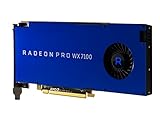
- Performance redefined
- Features for a truly immersive experience
- Bus Type: PCI Express 3.0 x16
Visualize Boost can place rendering on dedicated computers on the same network, allowing a rendering machine to offload work from the main workstation. The documentation covers this option alongside the Visualize system requirements.
How to check certification and install the right driver
- Record your SOLIDWORKS major version and service pack.
- Record the Windows edition and version.
- Open the SOLIDWORKS Hardware Certification page.
- Filter by SOLIDWORKS version, system vendor, and system model.
- Select the exact graphics card and confirm the operating system.
- Read the recommended driver and test notes.
- Download that driver branch from the workstation or GPU vendor.
- Recheck the record after a major SOLIDWORKS service pack, GPU replacement, or operating-system change.
Do not assume that the newest consumer driver is the best driver for SOLIDWORKS. Requirements vary by release, GPU, operating system, certification record, and Visualize engine.
Benchmark evidence: what it can and cannot tell you
The official SOLIDWORKS benchmark resources cover different kinds of evidence. SPECapc for SOLIDWORKS evaluates a broad mixture of graphics and CPU functionality, while SOLIDWORKS Visualize benchmark tables isolate GPU changes under defined scenes, render settings, hardware, and software configurations.
Those Visualize results show materially shorter render times as NVIDIA workstation GPU class increases, with further reductions possible when additional GPUs are used in the tested configurations. That does not guarantee the same result for every scene or user. Third-party testing can help compare alternatives, but it should supplement—not replace—the exact certification check.
The Tool Desk
Outbyte Driver Updater FREEScan for outdated or missing drivers - takes under a minuteDriver Scan →Outbyte PC Repair FREERepair Windows errors before they cause bigger problemsFix Now →Complete workstations versus individual components
For business deployment, a complete certified workstation can be worth more than a faster unverified card installed in a generic chassis. Dell Precision, HP Z and ZBook, and Lenovo ThinkStation and ThinkPad P systems appear among the system families represented in the certification database.
Buying a complete workstation can simplify driver validation, warranty support, cooling, power delivery, laptop display behavior, and replacement planning. Check the exact model and GPU combination rather than assuming that every configuration within a product family has identical certification.
Independent reader supportYour contribution helps us test, update, and keep practical guides available for everyone.How to troubleshoot a slow or unstable graphics experience
“The card is powerful, but SOLIDWORKS is still slow”
- Check whether the bottleneck is CPU-limited rebuilds, mates, or feature-tree operations.
- Check system RAM and paging.
- Confirm that SOLIDWORKS is using the discrete GPU rather than integrated graphics.
- Verify the certified driver and SOLIDWORKS release.
- Check whether Enhanced Graphics Performance is enabled when appropriate.
- Reduce unnecessary transparency, shadows, RealView effects, and visible components as a diagnostic.
- Check laptop power mode, temperatures, and sustained clock speeds.
- Investigate network, PDM, and antivirus delays.
SOLIDWORKS recommends keeping antivirus software updated and considering exclusions for relevant SOLIDWORKS file types and locations where appropriate. Any exclusions should follow your organization’s security policy. See the official benchmark and performance guidance.
“The GPU is certified, but RealView is missing”
Check the exact workstation model, driver version, SOLIDWORKS service pack, and entry in the certification database. Inspect SOLIDWORKS System Information, verify that the display is connected to the discrete GPU, and consider whether a dock, remote-desktop session, or virtualized environment is changing GPU behavior. For SOLIDWORKS 2020 and later, check the documented patch path before pursuing unsupported modifications.
Outdated Drivers Are Slowing You Down
One free scan finds every outdated or missing driver and matches the right update for your exact hardware.Free scan · exact hardware matchWindows Errors? Fix Them Before They Spread
Repair common Windows errors and clear accumulated junk for a smoother, more stable PC - no reinstall needed.Free scan · no reinstall“A gaming GPU benchmarks well but has display glitches”
This is a risk rather than a certainty. A consumer card may work well in one release and behave differently after a driver or SOLIDWORKS update. If official support and predictable behavior matter, select a certified workstation configuration instead of relying on anecdotal success or unofficial RealView activation.
Best Value

- Professional AI & Creator Workstation: AMD Radeon AI PRO R9700 GPU with 32GB GDDR6 is engineered for AI development, professional content creation, and compute-intensive workloads.
- Massive 32GB Memory Capacity: 32GB of GDDR6 memory on a 256-bit bus provides ample bandwidth for large AI models, 8K video editing, and complex 3D rendering.
- Advanced RDNA 4 with AI Accelerators: 64 Compute Units with 3rd Gen Ray Tracing and dedicated 2nd Gen AI Accelerators for groundbreaking AI performance and visual computing.
- Professional Blower Cooling: Efficient single blower design exhausts heat directly out of the chassis, ideal for multi-GPU workstation and server configurations.
- Enterprise-Grade Thermal Solution: Vapor chamber heatsink with industrial Honeywell PTM7950 thermal interface material ensures reliable cooling under sustained professional loads.
A practical buying strategy
- Define the workload: small parts, medium assemblies, large assemblies, multi-monitor work, or Visualize rendering.
- Record the display setup: resolution, number of monitors, docking hardware, and connection method.
- Check the certification database: verify the complete system, GPU, operating system, SOLIDWORKS release, and driver.
- Choose the lowest tier that provides suitable headroom: avoid paying for a high-end card that your assembly and display setup cannot use.
- Budget for the whole workstation: CPU responsiveness, RAM, cooling, storage, power delivery, and support can matter more than another GPU tier.
- Separate modeling and rendering decisions: a card ideal for the viewport is not necessarily ideal for every Visualize engine.
Choose a certified professional GPU when SOLIDWORKS is mission-critical, RealView or Ambient Occlusion matters, downtime is expensive, IT needs a documented configuration, or the system will handle large assemblies and several high-resolution displays. Consider a consumer GPU for student, hobbyist, or occasional use with small or moderate assemblies when the buyer accepts possible feature and support limitations.
Pre-purchase checklist
- SOLIDWORKS major version and service pack
- Windows edition and version
- Desktop or laptop form factor
- Typical assembly complexity and visible triangle count
- Number and resolution of monitors
- RealView, Ambient Occlusion, transparency, and Enhanced Graphics Performance usage
- SOLIDWORKS Visualize engine and rendering mode
- Required VRAM and supported architecture
- Power-supply capacity and physical card dimensions
- Laptop cooling and sustained power limits
- Vendor warranty and workstation support
- Exact certification record and recommended driver
Frequently Asked Questions
Is GeForce good for SOLIDWORKS?
It can be adequate for students, hobbyists, and small or moderate assemblies, but the exact model may not be certified. Choose a professional certified GPU when official support, RealView recognition, and predictable drivers matter.
Is RTX PRO better than GeForce for SOLIDWORKS?
RTX PRO is generally the safer choice for certified workstation deployments and support. It is not automatically faster in every SOLIDWORKS operation, so the premium should be justified by certification, stability, features, or workload size.
Do these 3 things before closing this tab:
1Scan for outdated or missing drivers - takes under a minute2Clear out junk files and repair common Windows errors3Fix the driver behind crashes, sound loss and screen glitchesHow much VRAM does SOLIDWORKS need?
There is no universal amount for ordinary modeling. Resolution, monitor count, textures, visual effects, assembly complexity, and Visualize rendering determine the requirement. More VRAM does not fix CPU, RAM, network, or driver bottlenecks.
Does SOLIDWORKS use the GPU for simulation?
Some simulation workflows can use GPU acceleration, but many simulation and solver operations remain CPU- or memory-limited. Choose the GPU based on the specific solver and workload rather than assuming a graphics upgrade will speed up every simulation.
Do I need a workstation GPU for RealView?
Official RealView recognition depends on the certified hardware, driver, SOLIDWORKS release, and system combination. A consumer card may display models successfully, but a certified professional configuration is the safer choice when RealView support is important.
Is AMD good for SOLIDWORKS?
Certified Radeon PRO cards are valid professional options. For Visualize 2026 Stellar Fast, qualifying AMD RDNA 2-or-newer hardware also requires the relevant Vulkan ray-tracing extensions and sufficient VRAM.
What GPU is best for SOLIDWORKS Visualize?
The answer depends on the rendering engine. Check the engine-specific CUDA, Vulkan, architecture, driver, and VRAM requirements before choosing. NVIDIA is useful for workflows that depend on CUDA, while qualifying AMD hardware is supported for Stellar Fast in SOLIDWORKS 2026.
Does a laptop GPU perform like the desktop version?
No. Mobile GPUs with similar names can have lower power limits, different cooling, shared thermal capacity, and different external-display behavior. Verify the complete laptop/GPU/driver combination in the certification database.
Should I upgrade the GPU or CPU first?
Upgrade the GPU first when viewport interaction, high-resolution displays, RealView, or GPU rendering is the bottleneck. Upgrade the CPU first when rebuilds, feature-tree operations, mates, or solver work dominate your waiting time.
Can I use an uncertified GPU?
Yes, it may run SOLIDWORKS, especially for lower-risk workloads, but certification, driver validation, feature recognition, and official support may differ. Treat it as a calculated compromise rather than an equivalent substitute.
Windows Errors? Fix Them Before They Spread
Repair common Windows errors and clear accumulated junk for a smoother, more stable PC - no reinstall needed.Free scan · no reinstallOutdated Drivers Are Slowing You Down
One free scan finds every outdated or missing driver and matches the right update for your exact hardware.Free scan · exact hardware matchQuick Recap
Product prices and availability are accurate as of the date/time indicated and are subject to change. Any price and availability information displayed on Amazon at the time of purchase will apply.




