chusbdll.dll is a third-party GCAN/GC-GD USB-CAN runtime file, not a Windows component. If Windows says it is missing or cannot load it, reinstall the complete GCAN driver and application package instead of downloading the DLL by itself.
What this file actually does
GCAN documentation identifies CHUSBDLL.DLL as part of the USB-CAN driver software used by GCAN hardware. Applications such as GCANTools, ECANTools, CAN Test, CAN Pro, and some OEM programs built around the same driver package may load it when they communicate with a USB-to-CAN adapter.
The file normally works at the user-mode application layer. The same installation may also contain a kernel driver, such as USBCANWDM.sys, which allows Windows to communicate with the adapter. These are separate components. Restoring chusbdll.dll alone may remove one startup error while leaving the device driver or hardware connection broken.
It is not part of the normal Windows System32 or SysWOW64 component set. There is no universal file version, size, checksum, or installation path that applies to every GCAN product. Different hardware generations and OEM packages can contain different builds.
#1 Best Overall
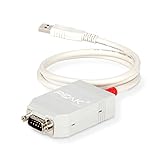
- MPN: IPEH-002021
- USB 1.1 , 2.0 , and 3.0 compatible
- Supports baud rates up to 1M
- 9-pin Male SUB-D. Storage Temperature-( -40°C) to +100°C
- Supports all interrupt and port addresses configurations of the USB interface
Typical messages include:
CHUSBDLL.DLL not found- “The program can’t start because chusbdll.dll is missing from your computer”
- “The code execution cannot proceed because chusbdll.dll was not found”
- “Open device failed”
- “Start device failed”
- A message saying that no CAN hardware is installed
The first two Windows loader messages are common forms of missing-DLL errors. They are not necessarily the exact wording produced by GCAN software.
Causes and symptoms
| What you see | Most likely cause | Best next action |
|---|---|---|
The application fails immediately with chusbdll.dll missing |
GCAN software or its driver package was never installed | Reinstall the complete official package |
| The error began after copying the program to another computer | Application files were copied without the driver/runtime folder | Run the original installer instead |
| Device Manager shows an unknown USB-CAN device | The kernel driver is missing, mismatched, or damaged | Remove and reinstall the GCAN driver |
| The application opens but cannot find the adapter | The DLL may be present, but the hardware driver, cable, or device setup is not working | Check Device Manager and reconnect the adapter |
| The problem started after antivirus activity | The file may have been quarantined or blocked | Inspect Protection history before restoring anything |
| A 32-bit program fails after a 64-bit package was installed | The application and DLL architectures do not match | Install the package required by that application |
| Replacing the DLL changes nothing | The problem is in the driver, application, hardware, or package | Rebuild the complete installation |
Fix 1: Reinstall the complete GCAN package
This is the most likely and safest repair. GCAN’s own troubleshooting guidance treats a missing CHUSBDLL.DLL error as a driver-installation problem.
- Disconnect the USB-CAN adapter.
- Uninstall the affected GCAN application from Settings > Apps > Installed apps on Windows 11, or Settings > Apps > Apps & features on Windows 10.
- If the software has its own uninstaller, use it as well.
- Download the USB driver or GCANTools package from the official GCAN or GC-GD support channel associated with your adapter.
- Extract the download if it is compressed.
- Right-click the installer and select Run as administrator.
- Use the bundled installation option when available. Otherwise run the installer supplied for your system and application.
- Restart Windows.
- Reconnect the adapter directly to the computer rather than through an unpowered hub.
- Start the GCAN application again.
GCAN packages may include DriverSetup.exe for 32-bit software or Windows environments and DriverSetup64.exe for 64-bit components. Follow the package documentation rather than renaming files or mixing installers from different products.
Check whether the reinstall worked
Open Device Manager:
- Press Windows key + X.
- Select Device Manager.
- Expand Universal Serial Bus controllers, Ports (COM & LPT), or the category used by the adapter.
- Look for
GCAN USBCAN Device. - Confirm that it has no yellow warning triangle or question mark.
- Open the GCAN program and test whether it can open the adapter.
If the device appears normally but the application still reports chusbdll.dll missing, the Windows driver may be repaired while the application’s user-mode files are still incomplete. Uninstall and reinstall the application from its original installer instead of copying a DLL into a system folder.
What’s actually slowing this PC down?
Pick the symptom - the matching free tool is one click away.
Fix 2: Match the application and Windows architecture
A 64-bit version of Windows can run many 32-bit applications. Therefore, “64-bit Windows” does not automatically mean that every application needs a 64-bit DLL.
First check the operating system:
- Open Settings.
- Select System.
- Select About.
- Read System type.
Then determine which version of the GCAN application you are using. An older 32-bit program may require the 32-bit chusbdll.dll, while a newer 64-bit application may use a separate file such as CHUSBDLL64.dll.
Do not rename CHUSBDLL64.dll to chusbdll.dll. Do not copy a file from another GCAN model or OEM application unless that software’s documentation specifically says the packages are interchangeable.
If you are unsure, remove the current GCAN software and install the complete package that matches the application supplied with your adapter. After installation, verify both the application directory and Device Manager.
Outdated Drivers Are Slowing You Down
One free scan finds every outdated or missing driver and matches the right update for your exact hardware.Free scan · exact hardware matchPC Slower Than It Used to Be?
A free scan shows the junk files, broken settings and background clutter dragging Windows down - then fixes them in one click.Free scan · Windows 10 & 11Rank #2

- MPN: IPEH-004022
- DUAL CAN & CAN FD PROTOCOL SUPPORT: Seamlessly connects your PC to CAN networks with support for both CAN FD (up to 12 Mbps) and High-Speed CAN 2.0 (up to 1 Mbps, ISO 11898-2) for precise monitoring and field diagnostics.
- 500V GALVANIC ISOLATION: Built with robust galvanic isolation up to 500 V to protect your equipment against electrical noise, ground loops, and voltage spikes in harsh industrial or automotive environments.
- PLUG-AND-PLAY USB CONNECTIVITY: Features high-speed USB 2.0 integration (compatible with USB 1.1 and 3.0) and standard D-Sub 9-pin CAN assignment according to CiA 102 specifications for hassle-free setup.
- INCLUDES DIAGNOSTIC & DEV SOFTWARE: Comes bundled with the PCAN-View CAN monitoring software for Windows alongside the PCAN-Basic API, enabling rapid custom software and control firmware development.
Fix 3: Check the application’s own installation folder
Windows searches several locations when an application loads a DLL, beginning with locations associated with that application. A vendor runtime file is often placed beside the program executable or in a vendor-specific subfolder, not in System32.
To inspect the correct location:
- Open Settings > Apps > Installed apps.
- Find the GCAN, GCANTools, CAN Test, CAN Pro, or OEM application.
- Use its available menu to open or repair the installation when that option exists.
- Alternatively, right-click the program shortcut and select Open file location.
- Look for the application executable and its supplied driver/runtime folders.
- Do not delete or replace files manually unless the vendor installer instructs you to do so.
If the folder contains the program but no related driver files, the application was probably copied incompletely or installed without its USB-CAN support package. Reinstall from the original vendor package.
Fix 4: Check Windows Security quarantine
Antivirus software can quarantine a file, but a detection is not automatically a false positive. Verify the installer and its source before restoring anything.
- Open Windows Security.
- Select Virus & threat protection.
- Select Protection history.
- Find the event involving
chusbdll.dllor the GCAN installer. - Read the detection name and file path.
- If the file came from the official, unmodified GCAN package, scan the installer and confirm that the application is expected.
- Restore or allow the file only when you have verified its origin.
- Reinstall the complete package if the file was removed.
- If Windows Security repeatedly blocks it, leave the protection enabled and contact GCAN or the application vendor.
After restoring a verified file, launch the application and check Device Manager. If the adapter still has a warning icon, antivirus was not the only problem.
Fix 5: Remove the stale GCAN device and reinstall its driver
A broken driver installation can leave Windows showing the adapter while the application cannot use it.
- Disconnect the USB-CAN adapter.
- Press Windows key + X and open Device Manager.
- Expand the category containing the adapter.
- Right-click the GCAN or unknown USB device.
- Select Uninstall device.
- If offered, select Attempt to remove the driver for this device.
- Confirm the removal.
- Restart Windows.
- Run the official GCAN
DriverSetup.exeorDriverSetup64.exeas administrator. - Reconnect the adapter after installation completes.
If the device is not visible, select View > Show hidden devices in Device Manager and remove an old, greyed-out GCAN entry only when you are certain it belongs to the disconnected adapter.
Success means Device Manager shows GCAN USBCAN Device without a warning icon and the application can open the device. If Windows reports that no driver is available, the package may be incompatible with the adapter model or Windows architecture.
For manual driver cleanup, version hunting and checking several hardware drivers can become repetitive. Outbyte Driver Updater can scan for outdated drivers and show what needs attention; its full-version driver installation is optional, and reinstalling the GCAN package remains the definitive fix for this vendor-specific DLL.
The Tool Desk
Outbyte Driver Updater FREEFix the driver behind crashes, sound loss and screen glitchesFind Drivers →Outbyte PC Repair FREERepair Windows errors before they cause bigger problemsFix Now →Fix 6: Repair or reinstall the application
If Device Manager is correct but only one GCAN-based program fails, repair that program.
Rank #3
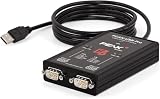
- MPN: IPEH-004061
- 500V isolation
- Open Settings > Apps > Installed apps.
- Select the affected application.
- Choose Advanced options if available.
- Select Repair and wait for Windows to finish.
- Start the program and test the adapter.
- If Repair is unavailable or ineffective, uninstall the application.
- Restart Windows.
- Install the complete application and USB-CAN driver package from the original vendor or OEM source.
This is especially important for software copied from another computer. Copying an executable and a few support files does not necessarily reproduce the driver service, application directory, architecture-specific DLLs, or device configuration.
Fix 7: Use DISM and SFC only for broader Windows corruption
chusbdll.dll is not a Windows system DLL, so System File Checker is unlikely to recreate it. These tools are appropriate when other Windows components are also damaged, or when the failure began after a wider system problem.
Open an elevated Command Prompt:
- Open Start.
- Type
Command Prompt. - Right-click Command Prompt.
- Select Run as administrator.
- Run:
DISM.exe /Online /Cleanup-Image /RestoreHealth
- Wait for it to complete.
- Then run:
sfc /scannow
- Restart Windows.
- Reinstall the GCAN application if
chusbdll.dllis still missing.
Microsoft recommends running DISM before SFC. If either command reports errors it cannot repair, save the result and continue with the vendor-package reinstall rather than repeatedly running the same commands.
Free tools Windows power users keep installed
One-click scans. No signup required.
When manually checking Windows components and repeating DISM or SFC does not reveal what changed, Outbyte PC Repair can scan for broader system issues; its full-version repair is optional, and reinstalling the GCAN program remains the definitive fix for this third-party file.
Independent reader supportYour contribution helps us test, update, and keep practical guides available for everyone.Fix 8: Consider System Restore after a recent change
Use System Restore only when the error began after a known driver, software, or Windows change and a suitable restore point exists.
- Press Windows key + R.
- Type
rstrui.exe. - Press Enter.
- Select Choose a different restore point if available.
- Select a point created before the problem began.
- Select Scan for affected programs.
- Review the changes.
- Select Next > Finish.
System Restore does not replace the need to install the correct GCAN package. After restoration, reconnect the adapter and check Device Manager.
Why random DLL downloads and regsvr32 are poor fixes
Downloading chusbdll.dll from an unrelated DLL website can provide the wrong version, wrong architecture, or a modified file. It may also leave the kernel driver, application libraries, and device registration absent. Use the official GCAN or GC-GD software package, or the package supplied by the OEM application vendor.
Recommended Free Tools
Do not copy the file indiscriminately into System32 or SysWOW64. The correct location is determined by the application installer.
regsvr32 is also not a general DLL repair command. Microsoft documents it for DLLs that provide the DllRegisterServer entry point, typically registerable COM components. A USB-CAN runtime DLL is not automatically a COM registration DLL. Running:
Rank #4

- MPN: IPEH-002022
- USB 1.1 , 2.0 , and 3.0 compatible
- Supports baud rates up to 1M
- 9-pin Male SUB-D
- Supports all interrupt and port addresses configurations of the USB interface
regsvr32 chusbdll.dll
will usually not repair a missing driver or adapter. If Windows reports that DllRegisterServer is missing, that means the file is not registerable through that command.
Frequently asked questions
Is chusbdll.dll a Windows file?
No. It is associated with GCAN/GC-GD USB-CAN software and related OEM applications. It should not be treated as a standard Windows component.
Which programs use it?
GCANTools, ECANTools, CAN Test, CAN Pro, GCAN USB-CAN utilities, and some OEM applications using the same USB-CAN driver package may use it. Not every program with a similar name necessarily uses the same build.
Should I place it in System32?
Normally no. Reinstall the complete application and driver package so the installer places each component where the software expects it.
Why does Device Manager look normal while the application still fails?
Device Manager checks the Windows device-driver layer. The application also needs its user-mode DLLs and other runtime files. One layer can work while the other is incomplete.
Can I substitute CHUSBDLL64.dll?
No. It is a separately named 64-bit file found in some related packages. Do not rename it or use it as a replacement without explicit vendor instructions.
Quick wins for a faster PC:
Scan for outdated or missing drivers - takes under a minuteDriver Scan →Repair Windows errors before they cause bigger problemsFix Now →Fix the driver behind crashes, sound loss and screen glitchesFind Drivers →What should I send GCAN support if nothing works?
Provide the exact application name, adapter model, Windows version, system architecture, complete error text, installation path, Device Manager status, and any antivirus detection name. This information helps distinguish an incompatible legacy driver from a damaged installer or blocked installation.
Quick Recap
Product prices and availability are accurate as of the date/time indicated and are subject to change. Any price and availability information displayed on Amazon at the time of purchase will apply.




