Recommended Free Tools
cnhl2414.dll is associated with Canon CanoScan LiDE 110 scanner software, not with Windows, DirectX, or the Microsoft Visual C++ runtime. The safest fix is to remove the damaged Canon software, restart Windows, and reinstall Canon’s official LiDE 110 Scanner Driver Ver. 17.0.5 (Windows) package.
Canon lists that TWAIN scanner driver for Windows XP through Windows 10, including 32-bit and 64-bit editions. The package is 9.16 MB and was last updated on 13 April 2016. Canon does not list Windows 11 on that driver page, so Windows 11 compatibility cannot be assumed.
As an Amazon Associate I earn from qualifying purchases.
Fix 1: Reinstall the official Canon LiDE 110 driver
Time needed: 15–25 minutes
This is the most likely solution when the file was removed, damaged, left behind after an upgrade, or separated from the rest of the Canon installation.
Windows Errors? Fix Them Before They Spread
Repair common Windows errors and clear accumulated junk for a smoother, more stable PC - no reinstall needed.Free scan · no reinstallCrashes, No Sound, or Screen Glitches?
Random freezes, missing sound and display glitches usually trace back to one bad driver. Find and replace yours safely.Free scan · under a minute- Write down the name of the program showing the error. It may be Canon scanning software, an image application using TWAIN, or an old Canon utility.
- Disconnect the CanoScan LiDE 110 from USB.
- Open Settings.
- Select Apps > Installed apps.
- Search for Canon, CanoScan, or LiDE 110.
- Select the relevant Canon scanner software, choose the three-dot menu, and select Uninstall.
- If nothing relevant appears, open Control Panel > Programs > Programs and Features and check there.
- Restart Windows.
- Go to Canon’s official support site and search for CanoScan LiDE 110. Select LiDE 110 Scanner Driver Ver. 17.0.5 (Windows).
- Download the self-extracting
.exeinstaller. - Right-click the downloaded file and select Run as administrator if Windows requests elevated permission.
- Follow the installer prompts. Canon’s installer decompresses and installs the driver automatically.
- Restart Windows again.
- Reconnect the scanner directly to the computer.
- Open the application that originally displayed the error and select the LiDE 110 as its TWAIN source.
A successful repair means the application starts without mentioning cnhl2414.dll, and the scanner appears in the application’s import or scan menu. If the installer refuses to run, remove the old Canon package again, restart, and retry with the scanner disconnected.
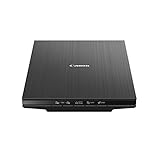
#1 Best Overall

- Scanner type: Document
- Connectivity technology: USB
- With Auto Scan Mode, the scanner automatically detects what you're scanning
- Digitize documents and images
Canon specifically advises reinstalling the scanner driver when scanning stops after an operating-system upgrade. The same procedure is appropriate after a failed driver update or an uninstall performed by a cleanup utility.
Fix 2: Check whether Defender quarantined the file
Time needed: 5–10 minutes
Antivirus software can quarantine a file after a scan, an update, or a change in detection rules. Do not restore a DLL merely because its filename appears in an error message.
- Open Windows Security from the Start menu.
- Select Virus & threat protection.
- Select Protection history.
- Review recent entries for a Canon installer, scanner component, or
cnhl2414.dll. - Expand an entry to view its path and action.
- If the file came from the official Canon installer, first run a current security scan and confirm that the installer was downloaded from Canon.
- Restore or allow the item only when you are confident it is a legitimate Canon component.
- Reinstall the complete Canon driver package afterward rather than relying on the restored standalone file.
If Defender repeatedly quarantines the same component, stop using that installer and investigate the detection. Microsoft warns that restoring a genuine threat can cause Defender to detect it again.
Free tools Windows power users keep installed
One-click scans. No signup required.
Fix 3: Confirm the scanner and driver in Device Manager
Time needed: 5–10 minutes
This separates a missing application file from a USB or device-driver problem.
Rank #2

- Enjoy high speed scanning in as fast as 8 seconds, with the included USB Type-C cable. With USB Type-C the Cano scan lied 400 has one cable for data and power.
- Preserve detailed photos and images thanks to 4800 x 4800 dpi resolution, and with image enhancements, such as color restore and dust removal, Your photos will continue to look great.
- Enjoy ease of use with 'EZ' Buttons. With auto scan mode, the Scanner automatically detects what you are scanning; built-in PDF buttons, scan and save multi-page pdf's that are editable and searchable
- Paper size: 8.27 x 11.69, 8.50 x 11.69
- Reconnect the scanner.
- Right-click Start and select Device Manager.
- Expand Imaging devices, Cameras, and Universal Serial Bus controllers.
- Look for the CanoScan LiDE 110 or an entry with a yellow warning icon.
- Right-click the relevant entry and select Properties.
- Read the message under Device status.
- Open the Driver tab and note the provider and driver date.
- If the device is missing or has an error, right-click it and select Uninstall device. Do not select an option to remove unrelated USB controllers.
- Restart Windows.
- Reinstall the official Canon package before reconnecting the scanner again, if the installer requests that order.
Windows Update or the Microsoft Update Catalog may offer CanoScan LiDE 110 driver entries. Those can help with device detection, but Canon’s complete package remains the preferred source when an application specifically reports cnhl2414.dll.
When manually comparing installers, remember that third-party metadata commonly describes this file as 32-bit, version 1.0.3.0, and approximately 0.1 MB. Canon does not individually document the DLL filename, and the architecture metadata is not consistent across public indexes. Do not replace a 32-bit component with an arbitrary 64-bit file, or vice versa.
Outbyte Driver Updater can reduce the manual work of hunting through old hardware drivers; its free scan identifies outdated drivers, while the full version performs the driver installation. Reinstalling Canon’s complete package remains the definitive repair for a Canon-specific DLL.
Do these 3 things before closing this tab:
1Clear out junk files and repair common Windows errors2Scan for outdated or missing drivers - takes under a minute3Repair Windows errors before they cause bigger problemsFix 4: Check whether the problem is an application dependency
Time needed: 10–20 minutes
The error may come from a Canon utility or a TWAIN application that loads the scanner component, rather than from Windows itself.
- Note the exact program named in the error dialog.
- Start another scanning application, if one is installed.
- Try scanning through the Windows scanning interface or another trusted TWAIN application.
- If scanning works elsewhere, reset or reinstall the application that failed.
- Check that application’s own requirements for Microsoft Visual C++ Redistributable or other runtimes.
- Install a Microsoft runtime only when the application documentation or installer identifies it as required.
cnhl2414.dll is not a Visual C++ runtime filename. There is no reliable evidence that it belongs to DirectX, .NET, Windows, or a game. Installing unrelated runtimes usually does not recreate a Canon scanner component.
Rank #3

- IMPRESSIVELY SHARP - Produce incredibly sharp, high-resolution scans of any photo or document in just 8 seconds thanks to Canon’s unique LiDE technology.
- SPECIALIZED FUNCTIONALITY - Start scanning instantly with specialised EZ functions that Auto Scan, copy, email and produce PDFs at the touch of a button.
- EASY FUNCTIONALITY - Take advantage of the 5 EZ buttons and create hassle-free multiple-page PDFs without using your PC or laptop.
- AUTO DOCUMENT FIX - Ensure distortion-free results with Auto Document Fix and Auto Photo Fix to get pristine results every time.
- COMPACT DESIGN - Enjoy the effortless adaptability and compact nature of the CanoScan LiDE 400 scanner in your home or office – the vertical stand attachment keeps even more desk space free.
If the same error appears only in one Windows account, test the scanner from a new local Windows profile. A damaged per-user TWAIN or Canon configuration may be responsible. If the error appears for every account, focus on the Canon installation, device driver, or operating-system support.
Fix 5: Repair Windows components with DISM and SFC
Time needed: 15–30 minutes
Use these commands when other Windows files are also failing, Windows features behave incorrectly, or the problem began with broader system corruption. They repair protected Windows components; they will not normally restore a third-party Canon DLL.
What’s actually slowing this PC down?
Pick the symptom - the matching free tool is one click away.
- Open Start and type Command Prompt.
- Right-click Command Prompt and select Run as administrator.
- Run:
DISM /Online /Cleanup-Image /RestoreHealth
- Wait for DISM to finish successfully.
- Run:
sfc /scannow
- Wait until verification reaches 100 percent.
- Restart Windows.
- Test the Canon application again.
If SFC reports that it repaired files, restart and retest. If it reports that it could not repair some files, run DISM again, restart, and repeat SFC once. Then reinstall the Canon driver if cnhl2414.dll is still missing.
Outbyte PC Repair can make the manual process of identifying damaged Windows components less repetitive; its free scan shows detected problems, while repair is performed by the full version. It is not a substitute for reinstalling the Canon program that owns the missing component.
Fix 6: Use System Restore after a known change
Time needed: 20–40 minutes
System Restore is appropriate when the error began immediately after a driver installation, cleanup tool, application removal, or Windows update and a restore point exists.
- Open Start and search for Create a restore point.
- Open the result.
- Select System Restore.
- Choose a restore point created before the scanner stopped working.
- Review the affected programs and drivers.
- Confirm the restore and allow Windows to restart.
System Restore normally does not remove personal documents, but it can remove recently installed programs and drivers. Afterward, reinstall the official Canon driver if necessary.
Quick wins for a faster PC:
Repair Windows errors before they cause bigger problemsFix Now →Scan for outdated or missing drivers - takes under a minuteDriver Scan →Why the error appears
The common triggers are:
| Trigger | What it usually means | Correct response |
|---|---|---|
| Incomplete Canon installation | The application cannot find one of its scanner components | Reinstall the complete LiDE 110 package |
| Windows upgrade | An older scanner driver was left partially installed | Remove the old package, restart, and reinstall |
| Driver update or cleanup tool | A Canon file was removed without the application being fully repaired | Reinstall Canon software |
| Antivirus action | The component may be quarantined | Check Protection history and verify the installer |
| Windows 11 use | Canon’s published package does not claim Windows 11 support | Try available Windows Update drivers, cautiously test compatibility mode, or use a supported Windows installation |
| Missing dependency | The invoking application needs another component | Check that application’s documentation instead of guessing |
Commonly reported messages include:
- “The program can’t start because cnhl2414.dll is missing from your computer.”
- “cnhl2414.dll was not found.”
- “Error loading cnhl2414.dll. The specified module could not be found.”
- “The code execution cannot proceed because cnhl2414.dll was not found.”
Other wording, including “not designed to run on Windows” or “missing or corrupted,” is often reproduced by third-party file indexes and is not confirmed as Canon’s standard wording.
Independent reader supportYour contribution helps us test, update, and keep practical guides available for everyone.Do not download, copy, or register this DLL
Do not download cnhl2414.dll from a random DLL website. A loose file can contain malware, have the wrong version, use the wrong architecture, or fail because another Canon component is also missing. Copying it into C:WindowsSystem32 or C:WindowsSysWOW64 can create conflicts and does not repair the installer, TWAIN configuration, or device registration.
regsvr32 is also normally irrelevant. It is intended for self-registering COM and OLE DLLs. A scanner-driver DLL may not export DllRegisterServer, producing an error that the entry point was not found. Use Canon’s installer instead of registering this file manually.
Best Value
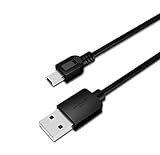
- USB PC/DC Power +Data Cable Cord For Canon CanoScan LiDE 100 110 200 210 Scanner
- This cable connects your digital camcorder to USB-ready computer, USB hub or photo printer/dock for pictures transferring.
- Foil and Braid Shielding to reduce EMI/RFI Interference; Oxygen free copper core with environmental-friendly recyclable plastic
- Twisted-Pair construction to ensure high-speed, error-free data transfer; Up to 480 Mbits/sec transfer; USB 1.0, 1.1 & 2.0 compatible.
- Length & weight: 3 feet, light and easy to carry. Length & weight: 3 feet, light and easy to carry.
If the scanner still fails
Identify the executable requesting the file:
- Read the full error dialog and note the application name.
- Open Event Viewer.
- Select Windows Logs > Application.
- Check entries created at the time of the failure.
- Note the failing application and module names.
- Reinstall or repair the application named there.
If the scanner works in another application, the hardware and basic driver may be functioning; the original application may have a stale TWAIN configuration. If every application fails on Windows 11, the scanner may simply be outside Canon’s published support range. Compatibility mode is only a workaround and is not guaranteed to work. A supported Windows installation or a newer scanner may be the practical resolution.
The Tool Desk
Outbyte PC Repair FREERepair Windows errors before they cause bigger problemsFix Now →Outbyte Driver Updater FREEScan for outdated or missing drivers - takes under a minuteDriver Scan →FAQ
Is cnhl2414.dll a Windows system file?
No. It is associated with Canon CanoScan LiDE 110 software. Treating it as a general-purpose Windows DLL leads to the wrong repair.
Which product uses cnhl2414.dll?
Public metadata associates it with the Canon CanoScan LiDE 110. Canon’s public driver page confirms the matching scanner package but does not list this DLL filename individually.
Should I put the file in System32?
No. Let Canon’s installer place components where the scanner software expects them.
Does SFC restore cnhl2414.dll?
Normally no. SFC repairs protected Windows files, not missing files from a Canon driver package.
Will installing Visual C++ fix it?
Not usually. The filename is associated with Canon scanner software, not with the Visual C++ runtime. Install a runtime only when the affected application specifically identifies it as missing.
Can I use the LiDE 110 on Windows 11?
Canon’s published package lists Windows through 10, not Windows 11. Windows 11 may work through available drivers or compatibility workarounds, but Canon does not establish support for it on that package page.
Quick Recap
Is regsvr32 cnhl2414.dll required?
Normally no. Reinstall the Canon driver instead.
Product prices and availability are accurate as of the date/time indicated and are subject to change. Any price and availability information displayed on Amazon at the time of purchase will apply.




