“The program can’t start because cnhl830.dll is missing from your computer. Try reinstalling the program to fix this problem.”
cnhl830.dll is a Canon Inkjet WIA Driver component used by Canon printer and scanner software. It is not normally a Windows system file, Visual C++ runtime, DirectX component, or .NET file. The safest fix is to remove the damaged Canon driver package and install the correct package for your exact printer or scanner model.
Which fix applies to you
Use this order:
- The error appears in IJ Scan Utility or scanning software: reinstall the Canon MP Driver and IJ Scan Utility, then check the Windows Image Acquisition service.
- The error began after a Windows upgrade, driver update, failed uninstall, or system restore: remove the old Canon package before installing the current model-specific driver.
- Your antivirus recently quarantined the file: inspect quarantine and verify the original path and signer. Do not download a replacement DLL.
- Printing and scanning both fail: reinstall the complete Canon printer/scanner package and check Device Manager for a driver error.
- Other Windows programs also report missing or damaged files: run DISM followed by SFC.
- The file exists but Windows still cannot load it: check its location, digital signature, architecture, and the exact application named in the error.
What cnhl830.dll is
Public file indexes identify cnhl830.dll as Canon Inkjet WIA Driver, associated with CANON INC. WIA means Windows Image Acquisition, the Windows driver model used by scanner software and many multifunction printers.
Canon does not appear to publish this DLL as a standalone download. The file is supplied as part of a Canon printer or scanner driver installation, so the correct replacement depends on the device model and driver package.
Do these 3 things before closing this tab:
1Fix the driver behind crashes, sound loss and screen glitches2Clear out junk files and repair common Windows errors3Scan for outdated or missing drivers - takes under a minute#1 Best Overall

- Stay organized: Easily covert your paper documents into digital formats (searchable PDF, JPG, and more) or scan directly to the cloud (Dropbox, Google Drive, OneDrive, Box, QuickBooks Online, Evernote, SharePoint, and more)
- Space saving design: Upright, with top feed and top eject, and a built-in cable organization system
- Reliably handles many different document types: Receipts, photos, business cards, plastic or embossed cards, reports, contracts, long documents, thick or thin documents, and more
- Fast and efficient: Scans both sides of a document at the same time, in color, at up to 25 pages-per-minute, with a 30 sheet automatic feeder, and one-touch operation
- Broad compatibility: Supports Windows and Mac; TWAIN driver also included
Reported metadata for this file comes from public indexes and may describe only one older build. It should not be treated as a universal version, size, or architecture specification. A reported legacy copy is 32-bit, but the correct architecture depends on the Canon software and Windows package installed on the computer.
The filename alone does not prove that every copy is safe. A genuine file should normally be located within a Canon installation directory and have a valid Canon digital signature.
Fix 1: Reinstall the Canon driver and scanning software
This is the primary fix for cnhl830.dll errors.
Remove the existing Canon installation
- Disconnect the printer or scanner’s USB cable.
- Press Windows + R.
- Type
appwiz.cpland press Enter. - In Programs and Features, locate Canon MP Drivers.
- Select it and choose Uninstall.
- If listed, also uninstall Canon IJ Scan Utility.
- Remove other Canon software for the affected device only if the uninstall process identifies it as part of the same driver package.
- Restart Windows.
Do not reconnect the USB cable during this part. Windows may install a generic driver before the Canon installer has placed all required components.
Install the correct package
- Identify the exact model printed on the device.
- Go to Canon’s official Software and Drivers support page.
- Search for that model.
- Select the installed Windows version and architecture when prompted.
- Download the current MP Drivers, scanner driver, or equivalent model-specific package.
- Download IJ Scan Utility if Canon lists it separately.
- Run the Canon installer as an administrator.
- Reconnect the device only when the installer requests it.
- Restart Windows after installation.
Test the result by opening IJ Scan Utility and selecting the Canon device. Try a preview scan, followed by a normal scan. If both work without the missing-DLL message, the Canon package has restored the component correctly.
The Tool Desk
Outbyte Driver Updater FREEScan for outdated or missing drivers - takes under a minuteDriver Scan →Outbyte PC Repair FREEClear out junk files and repair common Windows errorsFree Scan →If the installer says the device is unsupported, returns an error, or does not detect the printer, confirm the model number and Windows version. Do not substitute a driver for a similar-looking Canon model.
Manually hunting through driver versions is error-prone, especially when several Canon packages are installed on one machine. Outbyte Driver Updater can scan for outdated or missing drivers; its free scan identifies issues, while repair or driver installation is handled by the full version. For this Canon-specific file, the exact model package from Canon remains the authoritative fix.
Fix 2: Check the Windows Image Acquisition service
A missing or malfunctioning WIA service can make Canon scanning software fail even after the driver has been reinstalled.
- Press Windows + R.
- Type
services.mscand press Enter. - Find Windows Image Acquisition (WIA).
- Double-click it.
- Set Startup type to Automatic or Automatic (Delayed Start) if available.
- If Service status is stopped, select Start.
- Click Apply, then OK.
- Restart IJ Scan Utility and test the scanner.
If WIA refuses to start, note the error shown in the service dialog. Check Event Viewer by right-clicking Start, selecting Event Viewer, and reviewing Windows Logs → System around the time of the failure.
Recommended Free Tools
Rank #2

- STAY ORGANIZED – Easily convert your paper documents into digital formats like searchable PDF files, JPEGs, and more.Power Consumption : 2.5W or less (Energy Saving Mode: 0.7W). Suggested Daily Volume : 500 scans..Does it contain liquid: no
- CONVENIENT AND PORTABLE –lightweight and small in size, you can take the scanner anywhere from home offices, classrooms, remote offices, and anywhere in between
- HANDLES VARIOUS MEDIA TYPES – Digitize receipts, business cards, plastic or embossed cards, reports, legal documents, and more
- FAST AND EFFICIENT – No technical hurdles or complicated setups here; easily scan both sides of a document at the same time, in color or black-and-white, at up to 12 pages-per-minute, and with a 20 sheet automatic feeder
- BROAD COMPATIBILITY – Works with both Windows and Mac devices, be it laptop or computer
WIA is a Windows service, not an optional DLL download. Enabling Windows Fax and Scan under Settings → System → Optional features → View features may provide an additional scanning application, but it will not replace an incorrect Canon driver or repair a damaged Canon installation.
Fix 3: Check Device Manager and remove stale driver entries
Use Device Manager when the device is listed with a warning icon or when reinstalling the package appears to complete but scanning still fails.
- Right-click Start and select Device Manager.
- Expand Printers, Print queues, Imaging devices, and Cameras.
- Look for the Canon device or an entry with a yellow warning icon.
- Right-click the affected entry and select Uninstall device.
- If shown, select Attempt to remove the driver for this device.
- Click Uninstall.
- Restart Windows.
- Run the model-specific Canon installer again.
Also check View → Show hidden devices. A faded entry can represent an old installation, but do not remove unrelated printers, cameras, or imaging devices. If you are unsure which entry belongs to the Canon hardware, disconnect the device, refresh Device Manager, and identify the entry that disappears.
A successful repair usually results in a named Canon device with no warning icon. Windows should also detect the scanner inside IJ Scan Utility rather than showing a missing cnhl830.dll message.
Windows Errors? Fix Them Before They Spread
Repair common Windows errors and clear accumulated junk for a smoother, more stable PC - no reinstall needed.Free scan · no reinstallCrashes, No Sound, or Screen Glitches?
Random freezes, missing sound and display glitches usually trace back to one bad driver. Find and replace yours safely.Free scan · under a minuteFix 4: Check antivirus quarantine safely
Security software may quarantine a driver component after a detection, cleanup operation, or false positive.
- Open Windows Security from the Start menu.
- Select Virus & threat protection.
- Choose Protection history.
- Locate the event involving
cnhl830.dll. - Expand the event and record the detected path, threat name, and action taken.
- Do not choose Allow on device solely because the filename is familiar.
Compare the path with the Canon installation directory and check the file’s signature:
- Right-click the file, if it still exists.
- Select Properties.
- Open the Digital Signatures tab.
- Select the signer and choose Details.
- Confirm that Windows reports a valid digital signature.
If the file is missing, reinstall the Canon package instead of restoring an isolated copy from quarantine. If the quarantined file was in a temporary folder, an unrelated application directory, or an unsigned location, leave it quarantined and run a full security scan.
Rank #3
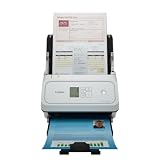
- Fast and Efficient: Scans both sides of a document at the same time, in color, at up to 45 pages per minute, with a 60 sheet automatic feeder, and one touch operation. Innovative Feeding System.
- Reliably Handles Many Different Document Types: Receipts, business cards, reports, contracts, long documents, thick or thin documents, and more. Monochrome LCD Display.
- Designed exclusively for the included Canon CaptureOnTouch software;TWAIN and ISIS drivers are not supported.
- Easy Setup: Simply connect to your computer using the supplied USB-C cable.
- Bundled Software: Includes easy-to-use Canon CaptureOnTouch scanning software.
Fix 5: Verify the file location and architecture
To inspect a copy that remains on the computer:
- Press Ctrl + Shift + Esc to open Task Manager.
- Open the Details tab and identify the Canon process that reports the error, if one is running.
- Right-click it and select Open file location.
- Search the relevant Canon installation directories for
cnhl830.dll. - Right-click the file and select Properties.
- Check Details and Digital Signatures.
A file in System32 is not automatically correct. Location alone does not establish that the DLL belongs to Canon or matches the application architecture.
Free tools Windows power users keep installed
One-click scans. No signup required.
A 32-bit Canon application may require a 32-bit component even on 64-bit Windows. Do not replace it with an arbitrary 64-bit DLL. Install the architecture selected by Canon’s model-specific installer and the application that invokes the file.
Fix 6: Repair Windows components with DISM and SFC
Use Windows repair commands when cnhl830.dll errors occur alongside other damaged Windows behavior, failed updates, or missing protected system files. These commands do not reinstall third-party Canon driver files.
- Right-click Start.
- Select Terminal (Admin) or Command Prompt (Admin).
- Approve the User Account Control prompt.
- Run:
DISM.exe /Online /Cleanup-Image /Restorehealth
- Wait for DISM to finish.
- Then run:
sfc /scannow
- Restart Windows.
- Reinstall the Canon driver if the DLL error remains.
Microsoft recommends running DISM before SFC. DISM repairs the Windows component store, while SFC checks protected Windows system files. If SFC reports no integrity violations, that does not prove that the Canon DLL is present because Canon’s driver files are not generally protected Windows system files.
Repeating SFC without knowing what changed is not a reliable way to repair a third-party driver. Outbyte PC Repair can scan for broader Windows issues; its free scan shows detected problems, while repair is performed by the full version. It is optional, and reinstalling the Canon package remains the correct action for this Canon-specific component.
Do not register or download the DLL manually
Do not use this command as a general repair:
regsvr32 cnhl830.dll
regsvr32 applies to DLLs that expose registration entry points such as DllRegisterServer. A WIA driver component may instead be installed and registered through the Canon installer or driver package. If the file does not support self-registration, Windows will report that the entry point was not found.
Downloading cnhl830.dll from a random DLL website is risky because the file may contain malware, belong to the wrong Canon driver generation, use the wrong architecture, or lack required dependencies. Copying it into System32 or an application folder often leaves the underlying driver registration and package installation broken.
Use the official Canon support page for the exact model. If Windows components are also damaged, use Microsoft’s official repair guidance rather than replacing system files individually.
Rank #4

- Scanner type: Document
- Connectivity technology: USB
- With Auto Scan Mode, the scanner automatically detects what you're scanning
- Digitize documents and images
If the error continues after reinstalling
Check these items in order:
- Read the complete error and note which executable displays it.
- Confirm that the Canon model in the installer exactly matches the hardware.
- Check whether the error appears only in IJ Scan Utility or also in printing software.
- Confirm that WIA is running.
- Review Device Manager for warning icons.
- Check the Canon installation log, if the installer provides one.
- Review Event Viewer → Windows Logs → Application for the failing program.
- Determine whether a dependent DLL, rather than
cnhl830.dll, is the actual missing component. - Check whether antivirus removed the file again after installation.
- If the device is old, check whether Canon provides a package for the installed Windows release.
System Restore is a fallback when the failure started immediately after a known driver or Windows change and no compatible current Canon installer is available. It should not be the first repair method.
What’s actually slowing this PC down?
Pick the symptom - the matching free tool is one click away.
FAQ
Is cnhl830.dll a legitimate file?
It is a real Canon-related component identified as part of the Canon Inkjet WIA Driver. A particular copy is trustworthy only when its location, signature, and installation history are consistent with Canon software.
Is it part of Windows or Visual C++?
There is no evidence that cnhl830.dll is a native Windows, Microsoft Visual C++, DirectX, or .NET file. It is associated with Canon printer and scanner software.
Which Canon model installed it?
No public evidence identifies one universal Canon model. Different Canon products and driver generations may install different builds, so identify the device and reinstall its exact package.
Does the error affect printing or scanning?
It most strongly points to Canon scanning or WIA functionality, but a shared Canon driver installation can affect related printer software or background components. The application named in the error is the best clue.
Should I use a Visual C++ Redistributable?
Not as the primary fix. Installing a Microsoft runtime may help only when a separate Canon application dependency is missing. Reinstall the Canon driver and utility first.
What if the DLL exists but the error remains?
Check the digital signature, path, architecture, WIA service, and the application named in the message. A dependency or incomplete Canon registration may be the real problem.
Quick Recap
Product prices and availability are accurate as of the date/time indicated and are subject to change. Any price and availability information displayed on Amazon at the time of purchase will apply.




