It is not established by the official sources cited here whether uninstalling Minecraft: Bedrock Edition on Windows deletes locally saved worlds. To protect a world you care about, export it to a separate location before uninstalling. Minecraft provides an official Windows export procedure for keeping a local copy or transferring a world to another Windows PC.
How to export a Bedrock world before uninstalling
- Open Minecraft and select Play.
- On the Worlds tab, select the pencil icon beside the world you want to preserve.
- In General Settings, find File Management and select Export World.
- Select Export World again, choose a save location, and export the file.
- Keep the exported file somewhere separate from the game installation before you uninstall. You can choose a location such as an external drive, but Minecraft does not require or recommend a particular device.
Minecraft Help describes this export as a way to keep a local copy or transfer the world to another Windows PC. It does not say that reinstalling Minecraft will automatically restore worlds. Minecraft Help: Managing Data and Game Storage in Minecraft.
| # | Preview | Product | Price | |
|---|---|---|---|---|
| 1 |

|
Seagate 2TB Game Drive for Xbox | USB 3.0 (STKX2000400) | $139.99 | Buy on Amazon |
| 2 |
|
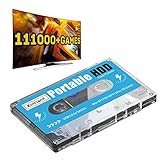
Kinhank 500G Portable External Game Hard Drive Disk, Built-in 111000+ Games, Batocera 33 Game... | $39.99 | Buy on Amazon |
What the uninstall guidance does—and does not—say
The available official guidance does not directly answer whether a normal Windows uninstall removes Minecraft Bedrock’s local world files. Microsoft’s general Windows instructions explain how to uninstall apps, but do not specify what happens to Bedrock world saves: Microsoft Support: Uninstall or remove apps and programs in Windows.
Minecraft’s uninstall help article found here is specifically about Java Edition, so it cannot establish what happens to Bedrock worlds: Minecraft Help: Uninstall Minecraft: Java Edition. This article concerns Minecraft: Bedrock Edition on Windows PC, not Java Edition, Xbox, or mobile.
The Tool Desk
Outbyte PC Repair FREERepair Windows errors before they cause bigger problemsFix Now →Outbyte Driver Updater FREEFix the driver behind crashes, sound loss and screen glitchesFind Drivers →#1 Best Overall
- BUILD YOUR GAME VAULT 2TB of capacity to build the ultimate Game Vault without sacrificing titles. Store your library to seamless move games between your internal storage and your Seagate External Game Drive. *Games cannot be played directly off of the external hard drive*
- XBOX-CERTIFIED Compatible with Xbox Series X, Xbox Series S, and all generations of Xbox One.
- BRILLIANT DESIGN A bold and refined design, crafted to compliment your Xbox
- LIGHT IT UP A built-in LED bar illuminates your gaming center in Xbox green
- WARRANTY Enjoy peace of mind with the included 3-year Rescue Data Recovery Services and 1-year limited warranty
Can Realms protect or transfer a local world?
Realms provides a separate, explicit way to upload a single-player Bedrock world and download it on another device. Minecraft’s transfer instructions require an active Realms trial or paid subscription and recommend updating Minecraft on both devices before transferring. The downloaded world appears on the destination device as a copy. See Minecraft Help’s Realms transfer instructions.
Using the same Microsoft account does not, by itself, mean that every local PC world is uploaded or synced to Realms. The transfer process requires you to upload the particular world. Realms’ automatic backup policy applies to Realm worlds, not all locally saved PC worlds: Minecraft Help: Managing Your Realms World.
Rank #2
- 【Plug and Play】: No need for any drivers, just a data cable connection, the computer will instantly turn into a game console, you can enjoy the joy of games anytime, anywhere.
- 【111000+ Games】: 84 game collections and simulators are pre-installed, 111000+ games including 5000+ 3D games are built-in. You can also add games yourself, which is very convenient.
- 【Batocera 33 System】: The latest Batocera 33 system is pre-installed, which can be directly read in the Windows system, which is convenient for adding and deleting games.
- 【Wide Compatibility】: The 500G HDD is compatible with Windows XP, Windows Vista, Win7-10/Mac OS 10.2, suitable for PC, Laptop, etc.
- 【USB 3.0 High-speed Transmission】: USB 3.0 interface, fast transmission, save more time, backward compatible with earlier versions such as USB2.0, this HDD hard drive supports 26 languages, English, French, German, etc.
How long Realm backups are retained
Minecraft Help’s Realms policy, current guidance accessed in 2026, describes the following save schedule and retention periods. These rules concern Realm worlds only; they are not a backup guarantee for a local world that has not been uploaded.
Quick Recap
| Realm save or backup timing | Retention described by Minecraft Help |
|---|---|
| A save every 30 minutes, when the player selects Save & Quit, and when the player disconnects | The four most recent saves are retained. |
| Older saves from the last 24 hours | One save every four hours. |
| Saves from one to eight days ago | One save per day. |
| Saves from nine to 36 days ago | One save per week. |
| Saves from 37 to 121 days ago | One save per month. |
| Saves from 122 or more days ago | Not retained. |
| After a Realms subscription expires | The Realm world can be downloaded within 18 months; its associated backups are deleted after 30 days. |
Which backup option fits?
- Choose Export World if you want a file saved locally to a location you select, without relying on an active Realms subscription.
- Choose the Realms transfer route if you want the documented cloud-mediated method and have an active trial or paid subscription. Upload the chosen world explicitly; do not assume local worlds are already there.
Product prices and availability are accurate as of the date/time indicated and are subject to change. Any price and availability information displayed on Amazon at the time of purchase will apply.




