What’s actually slowing this PC down?
Pick the symptom - the matching free tool is one click away.
Yes—Dragon Age: The Veilguard is a good handheld game when configured for realistic hardware limits. On Steam Deck LCD and OLED, start with Low settings, AMD FSR Balanced, dynamic resolution, and a 30-fps target. On the ROG Ally, ROG Ally X, and Lenovo Legion Go, use 720p output, the highest performance mode when plugged in, FSR Balanced, dynamic resolution, and ray tracing disabled. The goal is consistent frame pacing, not a guaranteed 60 fps.
The game is officially Steam Deck Verified, but Verified does not mean high settings or a locked 60 fps. The detailed settings below come from launch-era hands-on testing published on October 31, 2024, so menu behavior and performance may differ with later game updates, drivers, BIOS versions, SteamOS releases, and individual handheld models.
As an Amazon Associate I earn from qualifying purchases.
Before you launch
Dragon Age: The Veilguard requires 100 GB of storage, DirectX 12, and 16 GB of system memory on the Steam listing; an SSD is preferred. Those Windows requirements are a publisher/store baseline rather than a perfect prediction of Steam Deck performance, because SteamOS handheld hardware does not map directly to the listed desktop GPUs.
- Install the game on the Deck’s internal SSD or fast compatible storage.
- For a Windows handheld, plug in the charger before using its highest-power profile.
- Keep the device awake during the first launch.
- Allow shader compilation to finish before judging performance.
The game may appear to hang on a black screen during shader compilation. A ROG Ally-family device or Legion Go may show a visible progress bar, while Steam Deck can remain black during the process. Do not immediately force-close it. If the game remains stuck well beyond several minutes, restart it and use Steam’s installation-verification option.
#1 Best Overall

- 【All-in-One Handheld】 The ultimate portable console in your hands. Enjoy retro games, remote play, cloud gaming, and Android titles on a lightweight handheld with responsive controls and a stunning 7” display. More than just a game console — it's a powerful all-in-one entertainment device.
- 【Cloud Gaming + Remote Play】 Cloud Gaming – Instantly play AAA titles over Wi-Fi with subscriptions to Xbox Cloud Gaming (Beta), GeForce NOW, Amazon Luna, PlayStation Plus Premium, and Boosteroid. Remote Play – Stream games locally from your own devices using Moonlight, PlayStation Remote Play, Steam Link or PXPlay.【Need buyer's subscriptions to Xbox or PlayStation.】
- 【Emulator Retro Games + Android Games】 Emulation – Enjoy retro classics with enhanced compatibility and smoother performance on PS2, GameCube, and other popular systems. Android Games – Run most local games with ease, offering more ways to play on a larger screen with console-style controls."
- 【Capacitor Digital Joystick + Switchable Modes】 abxylute One Pro is the first handheld to feature cutting-edge digital joysticks—taller, larger, and more advanced, with an extended input range. Switch between Circle Mode for ultra-precise 0.2% tracking, or Square Mode for broader input—tailored to different play styles."
- 【4K Video Output + Dual Speakers】 Connect to an external display or AR glasses for up to 4K gaming with full controller support, or enjoy immersive gameplay on the built-in 1080P 7” display—perfect for couch play or gaming on the go. Upgraded audio drivers deliver deeper, clearer vocals, and rich, immersive sound in every in-game moment."
Changing major graphics or texture settings can trigger another, usually shorter, shader-compilation pass. Restart after making substantial changes and let that pass finish before troubleshooting stutter.
BioWare says the PC version supports Steam features, Steam Cloud, controller remapping, dynamic resolution scaling, FSR 2.2, XeSS, DLSS, and frame generation. See the official PC features overview for the supported options.
Best Steam Deck settings
These settings apply as a starting point to both Steam Deck LCD and OLED. The OLED model does not automatically render the game faster; the main differences are its display and battery characteristics. Treat 30 fps as the correct baseline for either model.
The Tool Desk
Outbyte PC Repair FREEClear out junk files and repair common Windows errorsFree Scan →Outbyte Driver Updater FREEFix the driver behind crashes, sound loss and screen glitchesFind Drivers →Display
| Setting | Recommendation |
|---|---|
| Window Mode | Fullscreen |
| VSync | Off |
| Triple Buffering | Off |
| Upsample Method | AMD FSR |
| Upsample Quality | Balanced |
| Render Scale | 100% |
| Dynamic Resolution Scaling | On |
| Target Frames Per Second | 30 |
| Minimum Resolution Scale | 83% |
| Field of View | 100% or personal preference |
| HDR | Disabled or unavailable, depending on the display |
Graphics
| Setting | Recommendation |
|---|---|
| Graphics Preset | Low |
| Texture Quality | Low |
| Texture Filtering | Low |
| Lighting Quality | Low |
| Contact Shadow | On |
| Ambient Occlusion | HBAO |
| Screen Space Reflections | Off |
| Volumetric Lighting | Low |
| Sky Quality | Low |
| Ray-traced Reflections | Off |
| Ray-traced Ambient Occlusion | Off |
| Ultra Ray Tracing | Off |
| Level of Detail | Low |
| Strand Hair | Off |
| Terrain Quality | Low |
| Terrain Decoration Quality | Low |
| Visual Effects Quality | Low |
| Depth of Field | Cinematics |
| Vignette | Off |
| Motion Blur | Off |
| Post Processing Quality | Low |
This profile prioritizes stable delivery over visual detail. A mostly consistent 30 fps is generally preferable to an unstable 40–60 fps in a story-focused action RPG.
If the Deck image looks too soft
Try a higher-quality FSR mode before raising expensive lighting, reflection, or ray-tracing settings. If performance is unstable, lower the minimum resolution scale gradually while keeping dynamic resolution enabled. Change one setting at a time, then restart and allow shader compilation to complete.
Rank #2

- XBOX EXPERIENCE BROUGHT TO LIFE BY ROG The Xbox gaming legacy meets ROG's decades of premium hardware design in the ROG Xbox Ally. Boot straight into the Xbox experience just like a console.
- XBOX GAME BAR INTEGRATION Launch Game Bar with a tap of the Xbox button or play your favorite titles natively from platforms like Xbox Game Pass, Steam, Epic Games, or Windows games on the go.
- ALL YOUR GAMES, ALL YOUR PROGRESS Powered by Windows 11, the ROG Xbox Ally gives you access to your full library of PC games from Xbox and other game stores. With Xbox Play Anywhere, you can pick up right where you left off on your PC or Xbox and jump back into the game anytime.
- NEVER STOP GAMING Powered by ultra-efficient AMD Ryzen Z2 A processor, the ROG Xbox Ally offers console-caliber performance and can game for hours, even away from a wall outlet.
- GAME-READY STORAGE AND FAST MEMORY Store your full library and multitask seamlessly with 512GB SSD and 16GB of LPDDR5 6400MHz RAM. The ROG Xbox Ally makes playing any game in the palm of your hand possible.
Best ROG Ally, Ally X, and Legion Go settings
These Windows handhelds have more tuning headroom, but their results depend on sustained TDP, cooling, memory allocation, drivers, display resolution, and whether the device is plugged in. The documented baseline uses maximum TDP, 720p output, and selective Medium or High settings. That is best treated as a plugged-in profile, not a battery recommendation.
Device-level setup
- Use the highest available performance profile when plugged in.
- Set the output resolution to 1280×720 rather than driving a 1080p or 1600p panel natively.
- Use a 60 Hz display mode where appropriate.
- On compatible AMD handhelds, AFMF may improve apparent smoothness. It generates frames; it does not remove the latency or rendering limitations of a low base frame rate.
- If the firmware exposes a reserved-VRAM setting, test changes cautiously. More VRAM can help some games but leaves less memory for Windows and other applications.
The exact VRAM value should not be treated as universal. Firmware and BIOS behavior differs by model. If crashes or worse performance appear after changing it, return to the previous setting.
Display
| Setting | Recommendation |
|---|---|
| Window Mode | Fullscreen |
| Resolution | 1280×720 |
| Refresh Rate | 60 Hz |
| Frame Rate Limit | Uncapped when using an external frame-generation or driver-level limiter; otherwise use a cap matching your target |
| VSync | Off |
| Triple Buffering | Off |
| Upsample Method | AMD FSR |
| Upsample Quality | Balanced |
| Render Scale | 100% |
| Dynamic Resolution Scaling | On |
| Target Frames Per Second | 30 |
| Minimum Resolution Scale | 76% |
Graphics
| Setting | Recommendation |
|---|---|
| Texture Quality | Medium |
| Texture Filtering | High |
| Lighting Quality | High |
| Contact Shadow | On |
| Ambient Occlusion | Off |
| Screen Space Reflections | Off |
| Volumetric Lighting | Medium |
| Sky Quality | Low |
| Ray-traced Reflections | Off |
| Ray-traced Ambient Occlusion | Off |
| Ultra Ray Tracing | Off |
| Level of Detail | Medium |
| Strand Hair | Off |
| Terrain Quality | High |
| Terrain Decoration Quality | High |
| Visual Effects Quality | Medium |
| Depth of Field | Cinematics |
| Vignette | Off |
| Motion Blur | On |
| Post Processing Quality | High |
These choices create a Custom preset rather than matching one of the game’s named presets. If the result is unstable, return to a 30-fps cap, lower the minimum resolution scale, and disable motion blur, strand hair, and any reflections before reducing textures or lighting.
Choosing a frame-rate target
For Steam Deck, use 30 fps. Do not infer 60-fps performance from the Steam Deck Verified badge.
On the Ally, Ally X, Legion Go, and comparable Windows handhelds, 30 fps remains the safe baseline. A 40–60 fps target may be possible at 720p with aggressive upscaling and maximum power, but it depends on the specific device and scene. There is no reliable universal frame-rate figure for every model.
Rank #3
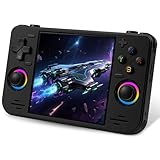
- 【Massive Preloaded Game Library & Powerful Emulation】This RF40H retro handheld game console supports over 20 emulators and comes pre-installed with over 20,000 retro classic games, perfectly recreating the arcade and home console gaming experience. A high-performance quad-core processor ensures smooth gameplay, eliminating lag. Relive your nostalgic memories! NOTE: This product is not suitable for people under 12 year old.
- 【Vibrant 4.0-Inch IPS Display for Immersive Play】Enjoy every pixel-perfect moment on the brilliant 4.0-inch IPS screen. Featuring a 720x720 high-definition resolution, wide viewing angles, and tempered glass protection, it delivers crisp, vibrant visuals with rich colors. Whether it's fast-paced action or detailed RPGs, the UYTGXEN retro game console handheld brings your gaming adventures to life.
- 【Supports WiFi for Connect & Compete】Our RF40H retro gaming console supports WiFi connectivity, allowing you to say goodbye to single-player games and enjoy online multiplayer battles with friends, or connect a wired controller for instant couch co-op gaming. Equipped with high-fidelity stereo speakers or a dedicated 3.5mm headphone jack, immerse yourself in a rich and dynamic audio experience, bringing every explosion and classic sound effect to life. Keep your hand held game console fresh and exciting.
- 【Open-Source Linux System】Take control with the versatile open source Linux system. Tech-savvy users can customize the interface, add new emulators, and manage their game library with greater freedom. With 64GB of built-in storage, you can add your favorite ROMs anytime to create the ultimate personal game collection.
- 【All-in-One Portable Design & Long-Lasting Battery】Your perfect travel companion! Designed for ultimate portability, this sleek retro game console fits comfortably in your hands and slips into any bag. Fueled by a robust 4000mAh rechargeable battery, it delivers an impressive 6-8 hours of continuous gameplay on a single charge—perfect for long commutes, trips, or gaming sessions anywhere.
A 40-fps target also benefits from a display refresh mode that divides evenly into 40 Hz, 80 Hz, or 120 Hz. That is a general frame-pacing principle, not a guarantee of a particular Veilguard result. Frame generation can make movement look smoother, but a stable native 30 fps may feel better than generated frames built on an inconsistent base rate.
Outdated Drivers Are Slowing You Down
One free scan finds every outdated or missing driver and matches the right update for your exact hardware.Free scan · exact hardware matchPC Slower Than It Used to Be?
A free scan shows the junk files, broken settings and background clutter dragging Windows down - then fixes them in one click.Free scan · Windows 10 & 11Battery-friendly profile
For travel, start with a 30-fps cap and a lower TDP rather than chasing the highest possible number. Keep FSR Balanced and dynamic resolution enabled, and disable ray tracing, strand hair, screen-space reflections, and other heavy effects. Medium textures are worth testing only if memory behavior remains stable.
Maximum TDP is a performance setting, not a free upgrade: it increases heat, fan noise, and battery drain. It is most appropriate for plugged-in play. If battery life matters more than image quality, disable frame generation and keep the conservative 30-fps target.
Independent reader supportYour contribution helps us test, update, and keep practical guides available for everyone.Troubleshooting handheld problems
Black screen on first launch
- Wait for shader compilation to finish.
- Keep the device awake and plugged in if possible.
- Do not force-close the game immediately.
- If it remains stuck well beyond the expected compilation period, restart the game.
- Verify the installation through Steam if the problem continues.
Stutter after changing settings
Restart the game and allow the second shader-compilation pass to finish. Avoid repeatedly changing several graphics categories at once. Return to the relevant baseline profile, then adjust a single option and test again.
Unstable frame rate
- Confirm the intended performance profile and, on Windows handhelds, check whether the device is thermal-throttling.
- Set a 30-fps target.
- Disable ray tracing, strand hair, screen-space reflections, and motion blur.
- Enable dynamic resolution scaling.
- Lower the minimum resolution scale.
- Reduce textures or lighting if GPU or memory pressure remains high.
Poor image quality
Move from FSR Performance toward Balanced or Quality, then raise the minimum resolution scale gradually. Preserve resolution where possible by keeping ray tracing and expensive reflections disabled. Perceived sharpness varies with panel size, viewing distance, upscaler mode, and how often dynamic resolution reduces the internal image.
Recommended Free Tools
Rank #4

- Kids Friendly Design: This P30S handheld game console is specially designed for kids. It has a stylish arcade - like appearance. The body fits a child's hand, and the game settings also cater to kids psychology, thus being very attractive.
- Excellent Gaming Experience: Equipped with a 3.0 - inch high - definition screen and excellent speaker sound, it provides an excellent visual and auditory experience for video games. This handheld game console is small and lightweight, convenient for kids to use and carry. Its ergonomic design ensures a comfortable grip, allowing children to fully enjoy the games.
- Rich Collection of Classic Games: This retro handheld game console contains 220 interesting kids video games, including various types such as entertainment, sports, and adventure games, just like those found in many retro game consoles. While playing these games, kids can cultivate skills such as hand - eye coordination, thinking, and problem - solving.
- Convenient Rechargeable and Long - lasting Battery: The video game console is equipped with an 860mAh lithium - ion battery. It ensures that kids can play games without interruption, because there is no need for frequent battery replacement, which is very suitable for playing portable games outdoors. It is a great addition to the world of handheld games for children and can bring more fun to them.
- Absolutely Surprising Gift: Our handheld game toy is a surprising gift for kids, teenagers, and even adults. It is the best gift for birthdays, Christmas, Halloween, and Thanksgiving. Customer satisfaction is our top priority. Our customer support team will serve you wholeheartedly.
Excessive heat or battery drain
Lower TDP and cap the game at 30 fps. Disable frame generation if its extra power use is not worth the perceived smoothness. Brightness and audio changes can help marginally, but they will not fix an unnecessarily aggressive GPU power profile.
Crashes after changing VRAM allocation
Revert the VRAM setting. Reserved graphics memory reduces what Windows can use, and the best value varies by handheld, firmware, game build, and workload. Do not assume that allocating more is always faster.
Controls or interface problems
Use the game’s controller configuration and remapping options. BioWare says controller and keyboard/mouse inputs can be switched during play, with support for remapping and class-specific keybinds. Controller functionality and readable interface text are also part of the Steam Deck Verified assessment.
Which handheld is the best fit?
- Steam Deck: The simplest console-like option, with official Verified status and a clear 30-fps/Low-settings target. Steam Cloud can also move progress between PC and Deck.
- ROG Ally or Ally X: Better suited to readers willing to tune Windows, use higher-power modes, render at 720p, and optionally test AMD frame generation. The trade-off is more configuration, heat, and battery drain.
- Lenovo Legion Go: Offers a larger display and Windows flexibility, but its high native panel resolution makes 720p upscaling especially relevant.
- Other AMD handhelds: Compare sustained TDP, cooling, integrated GPU, total RAM, display resolution, and VRR support. An AMD APU alone does not guarantee results equivalent to an Ally, Ally X, or Legion Go.
If you already own a capable gaming PC, Steam Remote Play is another practical option; the Steam version supports Steam Cloud and Remote Play. If buying hardware specifically for this game, prioritize the handheld’s sustained performance and battery behavior over panel resolution alone. Official product information is available from Valve, ASUS, and Lenovo.
The practical verdict
Dragon Age: The Veilguard can run well on gaming handhelds, but the winning approach is conservative. Set the Steam Deck to Low, FSR Balanced, dynamic resolution, and 30 fps. Set higher-power Windows handhelds to 720p with FSR Balanced, dynamic resolution, ray tracing off, and maximum power mainly when plugged in.
Start with those profiles, let shader compilation complete, and change only one setting at a time. A stable frame rate and consistent frame pacing matter more here than an impressive but unreliable frame-rate number.
Quick Recap
Product prices and availability are accurate as of the date/time indicated and are subject to change. Any price and availability information displayed on Amazon at the time of purchase will apply.




