ekfpixguid.dll is a legacy Kodak application file, not a Windows system component. If Windows says ekfpixguid.dll is missing, not found, or could not be loaded, repair the Kodak program that calls it rather than downloading a replacement DLL.
What ekfpixguid.dll is
The file is described as NIF KIES GUID Library and is associated with NIF KIES, an imaging component developed by Eastman Kodak Company. It is a third-party application DLL used by older Kodak imaging software.
As an Amazon Associate I earn from qualifying purchases.
The file has been found alongside Kodak image-processing components including:
ekfpixaudio.dllekfpixexif.dllekfpixio130.dllekfpixjpeg.dllekfpixpsets.dll
The most likely parent software is Kodak EASYSHARE or related digital-camera software. That relationship is plausible from the surrounding Kodak files and documentation, but the exact application that triggers the error is not publicly established by filename alone.
#1 Best Overall

- Dock Photo Printer: The KODAK Dock Plus is a home photo printer that produces high-quality 4x6” prints directly from compatible smartphones. Featuring an integrated docking station, users can place their phone on the printer for better connection while simultaneously charging the device during printing.
- Genuine 4PASS dye sublimation printing: Each photo is produced in three color layers and finished with a clear protective lamination layer. In approximately 55 seconds, you receive a smooth, detailed print designed to resist fingerprints, water, and fading for long-lasting quality.
- Easy to Use: Print photos quickly without complicated setup or technical steps. Simply power on, connect wireless bluetooth, and start printing within seconds. The Dock Plus is built for straightforward operation, making it ideal for first time users and everyday photo printing.
- Home Printing Station: Designed for stable desktop use, this dock photo printer connects to a power outlet for consistent performance and larger 4x6” prints. Ideal for home printing, photo albums, framing, family events, and everyday picture printing.
- KODAK Photo Printer APP: Featuring integrated Bluetooth connectivity, this portable printer connects to compatible iOS and Android devices through the KODAK Photo Printer app. Edit, crop, and customize your photos before printing for creative results.
| Property | Finding |
|---|---|
| File | ekfpixguid.dll |
| Description | NIF KIES GUID Library |
| Product | NIF KIES |
| Publisher | Eastman Kodak Company |
| Type | Third-party application DLL |
| Windows component | No evidence that Microsoft ships it |
| Architecture | Reported by third-party metadata as Win32, meaning 32-bit |
| Current official DLL download | None located |
Older Kodak installers sometimes placed application files in C:WindowsSystem32. That location does not make ekfpixguid.dll part of Windows.
Kodak’s EASYSHARE cameras and software have been discontinued and are no longer directly supported. As a result, the original Kodak CD, an installer already saved on your computer, or a reputable archive may be the only practical source for the complete application.
Is ekfpixguid.dll safe?
The filename and reported publisher point to an old Kodak component, but those details do not authenticate every copy. Malware can use a familiar filename, alter a genuine file, or place a file in an unexpected folder.
Quick wins for a faster PC:
Clear out junk files and repair common Windows errorsFree Scan →Fix the driver behind crashes, sound loss and screen glitchesFind Drivers →Repair Windows errors before they cause bigger problemsFix Now →Check the specific copy before restoring or allowing it:
- Press Windows + E to open File Explorer.
- Search for
ekfpixguid.dll. - Right-click the file and select Properties.
- Open the Digital Signatures tab, if present.
- Select the signature and click Details.
- Confirm that Windows reports the signature as valid and that the signer corresponds to Eastman Kodak Company.
- Open the General or Details tab and note the file location and description.
- Right-click the file and choose Scan with Microsoft Defender.
A copy in the Kodak program’s installation folder is more plausible than one in a random temporary folder, a user-profile subfolder, or an unrelated application directory. A missing signature does not automatically prove malware because very old software was not always signed, but it means you should not trust the file based only on its name.
First, identify the program that needs the file
Do not begin by copying ekfpixguid.dll into Windows folders. First determine what starts the error.
Check the error window
If the message appears while opening Kodak EASYSHARE, an old Kodak image viewer, or a camera utility, that program is the first repair target.
Write down:
- The application name
- The full path shown in the error, if any
- Whether the error appears during startup, login, photo import, or when opening an image
- Whether the message says the file is missing or that a specified module could not be found
“Specified module could not be found” can mean that ekfpixguid.dll exists but another dependency is missing.
Check installed applications
On Windows 11:
- Open Start > Settings.
- Select Apps > Installed apps.
- Search for Kodak, EASYSHARE, NIF, or the name shown in the error.
- Select the three-dot menu beside a matching program.
- Choose Advanced options, if available.
- Note the installation location and whether Repair is offered.
On Windows 10:
- Open Start > Settings.
- Select Apps > Apps & features.
- Search for Kodak or EASYSHARE.
- Select the program and choose Advanced options, Modify, Repair, or Uninstall, depending on what Windows provides.
If no Kodak program is listed, check Control Panel > Programs > Programs and Features. Very old installers may appear there instead of in Settings.
Also inspect the application’s shortcut:
- Right-click the shortcut.
- Select Properties.
- Read the path in Target.
- Click Open File Location.
- Look for the Kodak executable and nearby DLL files.
This identifies the application directory without guessing which copy of the DLL Windows should use.
Rank #2

- Instant Photo Printing: The KODAK Mini 2 Retro is a portable photo printer designed to turn smartphone pictures into high quality prints in seconds. Whether capturing family moments, travel highlights, journaling pages, or creative projects, this mini printer lets you print real photos anytime, anywhere.
- Genuine 4PASS dye sublimation printing: Each photo is produced in three color layers and finished with a clear protective lamination layer. In approximately 55 seconds, you receive a smooth, detailed print designed to resist fingerprints, water, and fading for long-lasting quality.
- Easy to Use: Print photos quickly without complicated setup or technical steps. Simply power on, connect wireless bluetooth, and start printing within seconds. The Mini 2 Retro is built for straightforward operation, making it ideal for first time users and everyday photo printing.
- Print Anytime, Anywhere: Small enough to fit in your hand, bag, or even a pocket, the Mini 2 Retro is built for on-the-go printing. Ideal for parties, trips, school projects, scrapbooks, and spontaneous moments where you want real prints without waiting.
- KODAK Photo Printer APP: Featuring integrated Bluetooth connectivity, this portable printer connects to compatible iOS and Android devices through the KODAK Photo Printer app. Edit, crop, and customize your photos before printing for creative results.
Fix 1: Repair the Kodak application
Repair is the safest first action when Windows offers it because it can restore missing application files without requiring you to find a separate DLL.
What’s actually slowing this PC down?
Pick the symptom - the matching free tool is one click away.
- Open Start > Settings > Apps > Installed apps on Windows 11, or Apps > Apps & features on Windows 10.
- Find the Kodak or EASYSHARE program.
- Open its available options.
- Select Advanced options > Repair, or choose Modify > Repair if the installer provides that button.
- Follow the repair wizard.
- Restart Windows.
- Launch the Kodak program again.
A successful repair should restore the program’s files and allow it to open without the ekfpixguid.dll message.
If Repair is unavailable, fails, or the error returns, continue with a complete reinstall. Do not copy a DLL from another computer unless you are reinstalling the exact same Kodak program from matching original media and have verified the file.
Fix 2: Reinstall the complete Kodak software
A full reinstall is the most likely definitive fix when the Kodak application was partially removed, its files were deleted, or the installer configuration is damaged.
Remove the existing installation
- Close the Kodak program.
- Open Start > Settings > Apps > Installed apps on Windows 11.
- On Windows 10, open Settings > Apps > Apps & features.
- Select the Kodak application.
- Choose Uninstall.
- Complete the removal wizard.
- Restart the computer.
If it is not listed in Settings, open Control Panel > Programs > Programs and Features, select the Kodak entry, and choose Uninstall.
Do not manually delete the entire C:WindowsSystem32 folder or remove unrelated Kodak DLLs. The uninstaller should remove the application through its normal configuration.
Install from a trustworthy source
Use, in this order:
- The original Kodak installation CD or DVD.
- An installer supplied with the camera or saved from the original purchase.
- A reputable archival source that preserves the complete Kodak installer and provides its provenance.
There is no verified current official Kodak installer specifically for ekfpixguid.dll. Avoid any site offering only the DLL as a download.
After installation:
- Right-click the Kodak setup file.
- Select Run as administrator.
- Complete the installation.
- Restart Windows.
- Open the Kodak program.
- Test the action that previously produced the error.
If the installer will not start, right-click it, select Properties, open Compatibility, choose Run this program in compatibility mode, and test an older Windows version. Compatibility mode may help the installer or application launch, but it cannot guarantee that discontinued Kodak software will work correctly on current Windows.
Fix 3: Check Microsoft Defender quarantine
Antivirus software may have quarantined a genuine old DLL, especially if the file is unsigned or comes from obsolete software. Do not restore it automatically.
- Open Start and search for Windows Security.
- Open Virus & threat protection.
- Select Protection history.
- Find the event involving
ekfpixguid.dll. - Expand the event and review its path, threat name, and action.
- Compare the path with the Kodak program’s installation folder.
- Scan the Kodak installer and the full computer before restoring anything.
Restore the file only if you have verified that it belongs to the Kodak installation and the installer or original media is trustworthy. If Defender detects the file again, leave it quarantined and do not create an exclusion merely to suppress the warning.
Rank #3
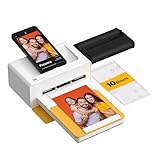
- Dock Photo Printer: The KODAK Dock Plus is a home photo printer that produces high-quality 4x6” prints directly from compatible smartphones. Featuring an integrated docking station, users can place their phone on the printer for better connection while simultaneously charging the device during printing.
- Genuine 4PASS dye sublimation printing: Each photo is produced in three color layers and finished with a clear protective lamination layer. In approximately 55 seconds, you receive a smooth, detailed print designed to resist fingerprints, water, and fading for long-lasting quality.
- Easy to Use: Print photos quickly without complicated setup or technical steps. Simply power on, connect wireless bluetooth, and start printing within seconds. The Dock Plus is built for straightforward operation, making it ideal for first time users and everyday photo printing.
- Home Printing Station: Designed for stable desktop use, this dock photo printer connects to a power outlet for consistent performance and larger 4x6” prints. Ideal for home printing, photo albums, framing, family events, and everyday picture printing.
- KODAK Photo Printer APP: Featuring integrated Bluetooth connectivity, this portable printer connects to compatible iOS and Android devices through the KODAK Photo Printer app. Edit, crop, and customize your photos before printing for creative results.
The better repair is usually to remove the old installation and reinstall the complete program from trusted media. A restored DLL can still be corrupt, incomplete, or accompanied by other missing files.
Fix 4: Check architecture and dependencies
ekfpixguid.dll is reported as a 32-bit Win32 component. A 32-bit DLL normally belongs with a 32-bit Kodak application. It is not made compatible by copying it into every Windows DLL folder.
On 64-bit Windows:
C:WindowsSystem32is the normal system directory for 64-bit system components.C:WindowsSysWOW64supports 32-bit Windows components.- A 32-bit application may keep its own DLLs in its installation folder.
These names are confusing, so do not use the folder name alone to decide where a third-party DLL belongs. Do not copy ekfpixguid.dll into both directories.
Crashes, No Sound, or Screen Glitches?
Random freezes, missing sound and display glitches usually trace back to one bad driver. Find and replace yours safely.Free scan · under a minuteWindows Errors? Fix Them Before They Spread
Repair common Windows errors and clear accumulated junk for a smoother, more stable PC - no reinstall needed.Free scan · no reinstallIf the file is present beside the Kodak executable but Windows still reports “specified module could not be found,” a dependency may be missing. Reinstall the complete Kodak program rather than trying unrelated runtime packages.
Do you need Visual C++, DirectX, or .NET?
Not by default. No reliable evidence identifies ekfpixguid.dll as part of a Microsoft Visual C++ redistributable, DirectX, or .NET installation. Installing those packages without evidence from the Kodak installer is unlikely to repair this particular file.
If the Kodak installer explicitly reports a missing Microsoft prerequisite, install that prerequisite only from Microsoft and only in the architecture requested by the installer.
Fix 5: Run the Program Compatibility Troubleshooter
Very old Kodak software may fail because its installer or executable expects an older Windows environment.
Recommended Free Tools
- Open Start > Settings.
- Select System > Troubleshoot > Other troubleshooters.
- Find Program Compatibility Troubleshooter.
- Select Run.
- Choose the Kodak application from the list, or browse to its executable.
- Follow the recommended tests.
- Select Test the program when prompted.
- If the application works, save the compatibility settings.
This can help with launch behavior, permissions, or older compatibility assumptions. It cannot replace a missing Kodak file, repair a damaged installation, or make obsolete software fully supported.
If the program still fails, use a supported older Windows environment for the legacy application and transfer photos through Windows’ built-in file and camera import methods.
Fix 6: Scan and repair Windows components
System File Checker repairs protected Windows files. It does not normally restore an arbitrary third-party Kodak DLL, so use these commands as a secondary step rather than the primary fix.
Rank #4

- Instant Photo Printing: The KODAK Mini 2 Retro is a portable photo printer designed to turn smartphone pictures into high quality prints in seconds. Whether capturing family moments, travel highlights, journaling pages, or creative projects, this mini printer lets you print real photos anytime, anywhere.
- Genuine 4PASS dye sublimation printing: Each photo is produced in three color layers and finished with a clear protective lamination layer. In approximately 55 seconds, you receive a smooth, detailed print designed to resist fingerprints, water, and fading for long-lasting quality.
- Easy to Use: Print photos quickly without complicated setup or technical steps. Simply power on, connect wireless bluetooth, and start printing within seconds. The Mini 2 Retro is built for straightforward operation, making it ideal for first time users and everyday photo printing.
- Print Anytime, Anywhere: Small enough to fit in your hand, bag, or even a pocket, the Mini 2 Retro is built for on-the-go printing. Ideal for parties, trips, school projects, scrapbooks, and spontaneous moments where you want real prints without waiting.
- KODAK Photo Printer APP: Featuring integrated Bluetooth connectivity, this portable printer connects to compatible iOS and Android devices through the KODAK Photo Printer app. Edit, crop, and customize your photos before printing for creative results.
First, open an elevated Command Prompt:
- Open Start.
- Type
Command Prompt. - Right-click Command Prompt.
- Select Run as administrator.
- Approve the User Account Control prompt.
Run DISM first:
DISM.exe /Online /Cleanup-image /Restorehealth
Wait for it to finish. Then run:
sfc /scannow
Restart Windows after both commands complete and test the Kodak program again.
Free tools Windows power users keep installed
One-click scans. No signup required.
If either command reports that it could not complete, restart the computer and repeat the command once. If Windows programs other than the Kodak software are also failing, investigate broader system corruption. If only the Kodak application fails, return to repairing or reinstalling that application.
Repeatedly running SFC and DISM will not manufacture a missing Kodak file. They are useful when Windows itself is damaged, not as a replacement for the Kodak installer.
If manually hunting through repair steps and interpreting repeated SFC/DISM results is slowing you down, Outbyte PC Repair can scan for system issues and show what needs attention; its free scan identifies problems, while repair is handled by the full version. Reinstalling the Kodak program remains the definitive fix when that application owns the missing file.
Independent reader supportYour contribution helps us test, update, and keep practical guides available for everyone.Fix 7: Check drivers only when the Kodak device is also failing
A camera driver problem can prevent photo transfer, but it does not establish that a driver owns ekfpixguid.dll. This is an application DLL, so reinstalling a camera or USB driver is not the first fix for this error.
The Tool Desk
Outbyte PC Repair FREERepair Windows errors before they cause bigger problemsFix Now →Outbyte Driver Updater FREEFix the driver behind crashes, sound loss and screen glitchesFind Drivers →If the camera is also missing from Windows:
- Connect the camera or card reader.
- Right-click Start and select Device Manager.
- Expand Portable Devices, Cameras, Imaging devices, and Universal Serial Bus controllers.
- Find the device with the error icon.
- Right-click it and choose Uninstall device.
- If offered, select the option to remove the driver package.
- Restart Windows.
- Reconnect the device and allow Windows to detect it again.
If the device manufacturer provides a current driver, obtain it from that manufacturer rather than from a driver-download site. Do not install a driver merely to replace ekfpixguid.dll.
Finding the correct legacy driver among many hardware entries can be tedious; Outbyte Driver Updater can scan and identify outdated drivers, with installation handled by the full version. For this file, repairing or reinstalling the Kodak application is still the definitive step.
Fix 8: Remove obsolete Kodak startup entries
If the error appears every time you sign in but you no longer use Kodak software, restoring the DLL may be unnecessary.
First uninstall the Kodak application through Settings or Control Panel. Then check for leftovers:
Do these 3 things before closing this tab:
1Repair Windows errors before they cause bigger problems2Fix the driver behind crashes, sound loss and screen glitches3Clear out junk files and repair common Windows errors- Open Settings > Apps > Startup.
- Turn off any clearly identified Kodak startup entry.
- Press Ctrl + Shift + Esc to open Task Manager.
- Select Startup apps.
- Disable an obsolete Kodak entry if it remains.
- Open Task Scheduler from Start.
- Review Task Scheduler Library for clearly identified Kodak tasks.
- Disable or delete only tasks that belong to the uninstalled Kodak application.
Do not remove an unknown entry solely because its name contains a short or unfamiliar string. If the DLL is located in a temporary folder or unrelated program directory, scan it before making changes.
Fix 9: Use System Restore only after identifying the change
If the error began immediately after an update, software removal, or configuration change, System Restore may help when a suitable restore point exists.
- Open Start and search for Create a restore point.
- Open the result.
- Select System Restore.
- Choose a restore point created before the error began.
- Select Scan for affected programs.
- Review the changes.
- Continue only if the restore point is appropriate.
- Restart Windows and test the Kodak program.
System Restore rolls back system files and settings without removing personal files, but it is not a substitute for reinstalling a discontinued application. If no suitable restore point exists, cancel the process.
Best Value

- BOLD, VIBRANT COLOR – Combination Ink Cartridge Prints High Quality Full Color Photographs; Compatible With Kodak Dock Printer
- UNIQUE D2T2 INNOVATION – Advanced Dye Diffusion Transfer Technology Applies Colors Quickly & Evenly; Maximum Gradation Reduces Blurring & Distortion
- LONG LASTING PRINTS – Unique 4th Layer Overcoat Laminates Paper to Preserve Image Quality; Creates Humidity & Fingerprint Resistant Finish That Won’t Fade
- EASY MAINTENANCE – Simple Cartridge Refills are Effortless to Remove & Replace; Pull With Two Fingers to Eject, Then Insert New Cartridge to Resume Printing
- MULTIPLE REFILL PACKS – Choose From Photo Increments of 40, 80, or 120; Great for Printing Portrait Photos, Landscapes, Family Pictures, Greeting Cards & More
What not to do
Do not download the DLL separately
Random DLL download sites may provide:
- The wrong build
- A modified file
- The wrong architecture
- An unsigned copy
- A file that does not include the DLL’s dependencies
- Malware disguised with a familiar filename
Even a genuine copy may not match the Kodak application installed on your computer. It often leaves the damaged installation unchanged and can create a different loader error.
Free tools Windows power users keep installed
One-click scans. No signup required.
Use the original Kodak media, a complete trusted installer, or remove the obsolete application if it is no longer needed.
Do not copy it into Windows folders
Do not manually place the file in System32, SysWOW64, or multiple folders. The Kodak executable should load its matching application files from its own installation directory. Manual copying can hide the real cause and make later cleanup harder.
Do not register it with regsvr32
regsvr32 is intended for DLLs that provide registration entry points such as DllRegisterServer. A normal application-support DLL does not become repaired because it has a .dll extension.
Do not run:
regsvr32 ekfpixguid.dll
unless Kodak documentation for that specific program explicitly requires registration. Otherwise, an entry-point error is likely, and the command does not restore missing dependencies.
Do not use Device Manager to repair the DLL
Device Manager manages hardware drivers. It cannot restore an application DLL belonging to Kodak software. Use it only when the camera or another physical device is separately missing or malfunctioning.
FAQ
Is ekfpixguid.dll part of Windows?
No reliable evidence shows that Microsoft ships it. It is associated with Kodak’s NIF KIES imaging components. Its historical presence in C:WindowsSystem32 reflects an old third-party installation.
Which program uses ekfpixguid.dll?
Public evidence points to Kodak imaging software, especially the discontinued EASYSHARE ecosystem and related camera utilities. It does not establish one exact application or a complete list of programs that use the file.
Is this a Microsoft Visual C++ or DirectX file?
No. It is reported as a Kodak NIF KIES component. Do not install unrelated Microsoft runtimes unless the Kodak installer specifically identifies one as missing.
The Tool Desk
Outbyte PC Repair FREEClear out junk files and repair common Windows errorsFree Scan →Outbyte Driver Updater FREEFix the driver behind crashes, sound loss and screen glitchesFind Drivers →Why does Windows say “specified module could not be found” when the file exists?
The message can mean that a dependency required by ekfpixguid.dll is missing, or that the file is corrupt or incompatible. Reinstall the complete Kodak application instead of replacing only the visible DLL.
Can I use a DLL from another computer?
Only if it came from the exact same Kodak application and matching installation media, and you have verified it. In practice, reinstalling the complete application is safer and more reliable.
Should I keep the old Kodak software?
Keep it if you still need its workflow and can install it from trusted media. If you no longer use it, uninstall it and remove its obsolete startup entry rather than restoring a file that nothing needs.
What if none of these steps works?
The Kodak application may be incompatible with current Windows or may require installation in an older supported environment. Transfer photos using Windows’ built-in import methods, or run the legacy application in a separate older Windows environment rather than weakening current Windows with an unverified DLL.
Crashes, No Sound, or Screen Glitches?
Random freezes, missing sound and display glitches usually trace back to one bad driver. Find and replace yours safely.Free scan · under a minutePC Slower Than It Used to Be?
A free scan shows the junk files, broken settings and background clutter dragging Windows down - then fixes them in one click.Free scan · Windows 10 & 11Quick Recap
Product prices and availability are accurate as of the date/time indicated and are subject to change. Any price and availability information displayed on Amazon at the time of purchase will apply.




