The Tool Desk
Outbyte PC Repair FREEClear out junk files and repair common Windows errorsFree Scan →Outbyte Driver Updater FREEScan for outdated or missing drivers - takes under a minuteDriver Scan →HDMI is the better default for modern gaming. It carries video and audio, works with PCs, consoles and TVs, and supports current features such as HDR, variable refresh rate and high-refresh 4K when the source, display and cable all support them. DVI is still useful for an older 1080p high-refresh monitor—particularly one that reaches 120 or 144 Hz only through native dual-link DVI-D—but it is a poor choice for a new gaming setup.
The connector alone does not determine image quality, frame rate or input lag. The right choice depends on your exact GPU output, monitor input, resolution, refresh rate, color settings and required features.
As an Amazon Associate I earn from qualifying purchases.
HDMI vs DVI at a glance
| Feature | HDMI | DVI |
|---|---|---|
| Digital video | Yes | Yes with DVI-D and the digital portion of DVI-I |
| Audio | Yes, through the same cable | Normally video only |
| HDR | Supported by suitable versions and devices | Generally unsuitable for modern HDR gaming |
| VRR, FreeSync and G-SYNC | Possible, depending on the specific implementation | Not a dependable modern feature |
| 1080p high refresh | Often supported, but monitor input limits matter | Possible, especially with dual-link DVI |
| 4K gaming | Practical with HDMI 2.0 at 60 Hz and HDMI 2.1 at higher refresh rates, if supported end to end | Not a practical modern choice |
| Console support | Standard | Rare or absent |
| Current relevance | Widespread | Legacy and increasingly uncommon |
Quick decision: use HDMI if both devices have it and you want audio, HDR, VRR, a console connection or modern high-bandwidth gaming. Use DVI when an older monitor specifically needs native dual-link DVI-D for its advertised high-refresh mode and you do not need those newer features. For many PC gaming monitors, DisplayPort is also worth checking before choosing either.
What are HDMI and DVI?
HDMI
HDMI is a digital multimedia interface designed to carry uncompressed video and audio over one cable. It is common on graphics cards, gaming monitors, laptops, televisions, consoles, AV receivers and capture devices.
#1 Best Overall

- IN THE BOX: (1) 6-foot HDMI to DVI cable adapts an HDMI (input) to a DVI (output)
- DEVICE COMPATIBLE: Works with all HDMI or DVI-D 24+1 equipped devices, also compatible with DVI-I 24+5 equipped devices It cannot support 4K/60 Hz(UHD)
- EASY CONNECTION: Bi-directional cable connects HDMI-equipped devices or connects DVI-equipped devices to HDMI-enabled devices
- DURABLE DESIGN: Gold-plated connectors deliver optimal conductivity; net jacket offers an extra layer of protection
HDMI capabilities vary by specification and implementation. HDMI 2.1 documentation includes features such as 4K at 120 Hz, variable refresh rate (VRR), Auto Low Latency Mode, Quick Frame Transport, eARC and dynamic HDR. HDMI’s official overview also associates Ultra High Speed HDMI cables with the 48 Gbps signaling used by HDMI 2.1-class features: HDMI’s HDMI 2.1 overview.
As of the HDMI Forum’s June 25, 2025 overview, HDMI 2.2 raises the specification’s maximum bandwidth to 96 Gbps. That is a specification ceiling, not proof that a particular GPU, monitor or cable supports every HDMI 2.2 feature. Ordinary 4K/120 gaming does not automatically require HDMI 2.2; verify the actual hardware specifications: HDMI 2.2 specification overview.
DVI
DVI is an older digital display interface primarily designed for computer monitors. It can provide a clean digital image, but its variants are easy to confuse:
Recommended Free Tools
- DVI-D carries digital video only.
- DVI-I carries digital and analog signals.
- DVI-A is analog-only and is largely obsolete.
- Single-link DVI has fewer data channels and lower bandwidth.
- Dual-link DVI adds data channels and can support higher resolutions or refresh rates.
A DVI connector’s appearance does not tell you its full capability. Check the monitor manual, GPU specification and cable wiring. Intel’s reference material compares the approximate bandwidth of HDMI and DVI variants: Intel’s display-interface support article.
Resolution and refresh-rate limits
There is no single maximum resolution or refresh rate for “HDMI” or “DVI.” The result depends on the HDMI version, single- or dual-link DVI, color depth, chroma format, timing, GPU output, monitor electronics, cable and any adapter or dock in the signal path.
Approximate figures help explain the difference. Intel lists HDMI 1.0–1.2 at 4.95 Gbps raw bandwidth and 3.96 Gbps effective bandwidth, while dual-link DVI is approximately 9.90 Gbps raw and 7.92 Gbps effective. Newer HDMI generations substantially increase the available bandwidth; HDMI 2.0 is commonly suitable for 4K/60 in compatible configurations, HDMI 2.1 provides up to 48 Gbps, and HDMI 2.2 specifies up to 96 Gbps.
Rank #2
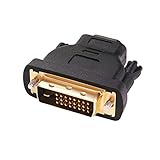
- Bi-directional DVI-HDMI adapter m/f is a great video accessory between HDMI and DVI device (as DVI to HDMI adapter for monitor, or HDMI to DVI adapter for monitor)
- Compact DVI-D to HDMI adapter supports high resolutions up to 4k@30Hz, 1920x1200 and 1080p Full HD (can’t handle144Hz); audio must be transmitted separately (DVI-D does not natively support audio, not support analog signal)
- HDMI converter used as DVI source to HDMI monitor adapter (DVI computer to HDMI monitor), also as HDMI source to DVI monitor (HDMI computer to DVI monitor); compatible with DVI video card, game console PS3/PS4, TV, projector, laptop, cable box
- 4k monitor adapter to HDMI DVI features gold plated connectors to resist corrosion and increase durability; dvi male to hdmi female adapter fit in both Female DVI-I (24+5) and Female DVI-D (24+1)
- Small DVI to hdmi connector conversion coupler with grip treads and screws makes an easy hook-up and a secure dvi-hdmi adapters connection; HDMI cable or DVI cable is required (sold separately)
Typical gaming examples
- 1080p at 60 Hz: Both HDMI and DVI-D handle this easily in compatible systems.
- 1080p at 120 or 144 Hz: Either connection may work, but some older gaming monitors reserve their full refresh rate for dual-link DVI and limit HDMI to 60 Hz or another lower mode.
- 1440p at 60 Hz: Dual-link DVI can support some configurations, but the exact monitor timing and GPU output matter.
- 1440p at high refresh: Modern HDMI or DisplayPort is usually the better choice. Do not assume a DVI adapter can provide dual-link bandwidth.
- 4K at 60 Hz: HDMI 2.0 can support common 4K/60 configurations when the source, display and color mode fit within the available bandwidth.
- 4K at 120 Hz: HDMI 2.1 or a suitable DisplayPort implementation is the practical route. DVI should not be recommended for this use.
These are typical examples, not guarantees. A monitor may limit one input even when another input supports a higher mode.
Does HDMI improve gaming performance?
HDMI does not increase FPS by itself. Frame rate is mainly determined by the GPU, CPU, game settings and resolution. It also does not inherently have lower input latency than DVI.
If HDMI and DVI deliver the same uncompressed resolution, refresh rate, color format and display mode, their visible image should be effectively equivalent. The practical advantage of HDMI is that it is more likely to enable the mode and features you actually want: a higher resolution, HDR, VRR, audio, console compatibility or modern copy-protection support.
DVI can appear “faster” only in a specific situation—for example, when an older 1080p monitor reaches 144 Hz through dual-link DVI but is limited to 60 Hz through HDMI. In that case, the benefit comes from the usable refresh rate, not from DVI being intrinsically lower-latency.
Audio, HDR and adaptive sync
Audio
HDMI carries digital audio and video over one cable. DVI normally carries video only, so DVI users generally need separate 3.5 mm, optical, USB or motherboard audio connections. HDMI-to-DVI conversion may preserve video while losing audio at the DVI display. Some graphics hardware has unusual audio behavior through DVI-shaped outputs, but that is not standard DVI capability. Sony explains the usual distinction between the interfaces here: Sony’s HDMI and DVI support article.
HDR and color
HDMI is substantially more suitable for modern HDR gaming. HDR requires support from the game, operating system, GPU, display and the entire connection path; an HDMI version number alone does not guarantee it. DVI’s legacy PC-video design makes it a poor choice for HDR.
Rank #3

- IN THE BOX: (1) 3-foot HDMI to DVI cable adapts an HDMI (input) to a DVI (output)
- DEVICE COMPATIBLE: Works with all HDMI or DVI-D 24+1 equipped devices, also compatible with DVI-I 24+5 equipped devices It cannot support 4K/60 Hz(UHD)
- EASY CONNECTION: Bi-directional cable connects HDMI-equipped devices or connects DVI-equipped devices to HDMI-enabled devices
- DURABLE DESIGN: Gold-plated connectors deliver optimal conductivity; net jacket offers an extra layer of protection
Bandwidth can also affect color depth and chroma. Chroma subsampling such as 4:2:0 may allow a higher-resolution signal to fit, but it can make desktop text look soft or fuzzy. Tom’s Hardware discusses this trade-off in its display-interface comparison: HDMI, DisplayPort and DVI comparison.
If an HDMI image looks washed out, check for an RGB full-range versus limited-range mismatch, a television-style output setting, incorrect color format, HDR problems or an unsuitable monitor input mode. HDMI does not inherently produce worse color than DVI.
VRR, FreeSync and G-SYNC
Adaptive sync is device- and implementation-dependent. HDMI 2.1 formally includes VRR, and some earlier HDMI implementations support vendor-specific or platform-specific adaptive-sync behavior. A monitor may support FreeSync over HDMI but not over DVI.
What’s actually slowing this PC down?
Pick the symptom - the matching free tool is one click away.
DVI should not be chosen when VRR is a requirement. Older proprietary synchronization arrangements exist, but they are not a safe general recommendation. Check the monitor manual and the GPU control panel for the exact input being used. Do not infer VRR support from the connector shape.
When DVI is still the better choice
DVI remains a sensible choice in a narrow legacy scenario:
- You own an older 1080p gaming monitor whose maximum refresh rate is available only through dual-link DVI.
- Your graphics card has a native dual-link DVI-D output.
- You are satisfied with SDR video and do not need audio through the display cable.
- You do not need modern VRR, HDR, console support or high-resolution gaming.
- The DVI connection actually exposes the monitor’s intended 120 or 144 Hz mode.
For competitive gaming on an older 1080p display, this can be perfectly usable. There is no need to replace the monitor simply because it uses DVI if it delivers the resolution and refresh rate you want.
Rank #4
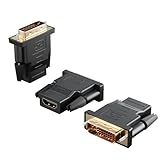
- Bi-directional Versatility: Our DVI to HDMI Adapter seamlessly bridges legacy and modern AV systems, allowing dual-mode connectivity between computers with DVI ports and HDMI-equipped displays (monitors/HDTVs/projectors), or conversely, HDMI devices (Blu-ray players/gaming consoles/TV boxes) to DVI monitors. Note: An HDMI cable (sold separately) is required to complete the setup. This flexibility makes it ideal for hybrid home theaters, office presentations, and gaming rigs.
- Value Three-Pack: Each order includes three premium DVI to HDMI Adapters—ideal for multi-device setups in home theaters, gaming stations, and office workstations. Never worry about switching a single adapter between different displays and sources again. This value pack allows you to connect multiple devices simultaneously or share with family and colleagues. Keep one at home, one in the office, and one for business trips and meetings—always be prepared for any professional connectivity scenario.
- Premium Build for Uninterrupted Performance: Engineered with 24K gold-plated connectors that resist oxidation and ensure corrosion-free, stable signal transmission. Encased in high-grade PVC molding, the adapter boasts anti-slip texture, drop resistance, and durability for daily use. The DVI to HDMI Adapter guarantees reliable performance in long-term installations or on-the-go scenarios.
- Crystal-Clear 4K & Full HD Support: Experience stunning visuals with support for resolutions up to 4K@30Hz and 1080P@60Hz. Whether you’re streaming movies, gaming, or delivering professional presentations, this adapter delivers sharp, lag-free video quality. Note: Audio requires separate transmission via alternative channels.
- Ultra-Portable & Plug-and-Play: Weighing just ounces and featuring a compact form factor, this DVI to HDMI Adapter slips effortlessly into bags or pockets. Its travel-friendly build ensures compatibility with mobile workstations, conference room projectors, and home entertainment setups without sacrificing space or convenience. No drivers or software needed—supports both DVI (24+1) and DVI (24+5) female ports for instant connectivity.
HDMI and DVI adapters: what works and what does not
DVI-D to HDMI and HDMI to DVI
Basic HDMI-to-DVI or DVI-D-to-HDMI conversion often works because the interfaces use compatible digital signaling for suitable modes. It is commonly adequate for ordinary single-link resolutions and refresh rates.
PC Slower Than It Used to Be?
A free scan shows the junk files, broken settings and background clutter dragging Windows down - then fixes them in one click.Free scan · Windows 10 & 11Outdated Drivers Are Slowing You Down
One free scan finds every outdated or missing driver and matches the right update for your exact hardware.Free scan · exact hardware matchHowever, a passive adapter does not create extra bandwidth. A DVI-to-HDMI adapter cannot magically turn a single-link DVI connection into dual-link DVI, and it will not automatically add VRR, HDR or audio. HDMI audio may be unavailable when the signal terminates at a DVI monitor.
Dual-link DVI
High-refresh DVI setups require dual-link support throughout the relevant chain. That means the monitor input, GPU output and cable must support dual-link operation, with the required pins populated. A single-link cable, passive adapter or single-link GPU output can cap the refresh rate.
Active dual-link DVI adapters are specialized devices for newer GPUs connected to older monitors. They may have maximum-refresh limits, driver issues, display-detection problems or inconsistent support. They are a last-resort bridge, not an equivalent replacement for a native port. If an active adapter costs a substantial portion of a replacement monitor, upgrading the display may be the better long-term choice.
DVI-I and VGA adapters
DVI-I includes analog pins, so a passive DVI-to-VGA adapter can work when the source provides the required analog signal. DVI-D is digital-only and cannot produce analog VGA through a simple passive adapter.
Quick wins for a faster PC:
Repair Windows errors before they cause bigger problemsFix Now →Scan for outdated or missing drivers - takes under a minuteDriver Scan →Clear out junk files and repair common Windows errorsFree Scan →How to choose the right connection
- Check the exact GPU model. Current graphics cards generally emphasize HDMI and DisplayPort, while DVI is more common on older or legacy products. Port layouts vary by model and board partner. NVIDIA’s comparison pages are useful starting points: NVIDIA GeForce specifications.
- Check the exact monitor model. Look for the maximum resolution and refresh rate listed separately for HDMI, DVI and DisplayPort.
- Identify the required features. Decide whether you need audio, HDR, VRR, ALLM, HDCP compatibility or a console connection.
- Choose a native connection where possible. Native HDMI or DisplayPort is usually more reliable than inserting an adapter, dock, receiver, KVM or converter.
- Match the cable to the mode. For HDMI 2.1-class 4K/120, use a certified Ultra High Speed HDMI cable. For high-refresh dual-link DVI, use a genuine dual-link cable with the correct pins.
- Confirm the result in software. In Windows display settings and the GPU control panel, verify the intended resolution, refresh rate, HDR state and adaptive-sync status.
Troubleshooting common problems
HDMI is stuck at 60 Hz
<
- Check whether that monitor’s HDMI input is limited to 60 Hz.
- Confirm Windows and the GPU control panel are set to the desired refresh rate.
- Enable any high-refresh option in the monitor’s on-screen menu.
- Try the correct HDMI port and a shorter certified cable.
- Temporarily remove a dock, receiver, KVM or adapter.
- Disable HDR or reduce color depth briefly to identify a bandwidth limit.
- Compare the monitor’s HDMI and DisplayPort specifications rather than relying on the connector label.
DVI is stuck at 60 Hz
- Confirm that the monitor requires dual-link DVI for 120 or 144 Hz.
- Confirm that the GPU has native dual-link DVI-D rather than a single-link or adapter-based output.
- Use a correctly wired dual-link cable.
- Check whether the monitor’s driver or EDID exposes the high-refresh mode.
- Try native HDMI or DisplayPort if the monitor supports it.
There is no sound
First confirm that the monitor has speakers or an audio output. DVI normally requires a separate audio path, and HDMI-to-DVI may deliver video without audio at the DVI display. Also check the operating system’s selected playback device.
Best Value

- Bi-Directional HDMI to DVI cable: Connect source devices with an HDMI interface (such as Laptop, Desktops, Blu-ray Player, Xbox, PS3, PS4, Wii, etc.) to DVI equipped HDTV, Monitor,Projector; or connect a DVI equipped source device to a display device that supports HDMI. Kindly note: Please select the correct signal source: DVI signal source or HDMI signal source. If you select an incorrect signal source, it will cause the cable not to work or the monitor not to display any image
- Support Multitasking : For example, allow you to play games on your computer and watch movie on TV at the same time
- High Performance: 24K gold-plated full metal connector is corrosion-resistant, aluminum foil and braid double-shielded structure are anti-interference,oxygen-free copper wire core ensures optimal signal transmission
- Resolution 1080P: Supports resolutions at 800x600, 1024x768, 1280x1024, 1600x1200, 1920x1200, and 1080p for high resolution LCD and LED monitors
- NOTE: The DVI connector of the cable is not fitted for audio capability, however, so audio will need to be transmitted through a separate audio cable or through a fiber-optic (Toslink) cable
There is no signal
Power off the PC and display, reseat both ends, select the correct monitor input and remove adapters temporarily. Then test a lower resolution or refresh rate. If the direct connection works but the adapter does not, the converter—not necessarily the GPU or monitor—is the limiting component.
There is no VRR
Verify that the monitor supports FreeSync, G-SYNC or Adaptive-Sync over the selected input. Enable it in the monitor menu and GPU driver. If the feature is unavailable over DVI, use the supported HDMI or DisplayPort input.
Should you use HDMI, DVI or DisplayPort?
- Choose HDMI for modern gaming PCs, consoles and TVs; audio; HDR; VRR; ALLM; or 4K at 120 Hz and other high-bandwidth modes.
- Choose DVI for an older high-refresh 1080p monitor when native dual-link DVI is the connection that actually provides its advertised refresh rate.
- Prefer DisplayPort for many PC-monitor setups when it offers the required resolution, refresh rate and adaptive-sync support. It is often the more flexible PC-oriented option, including for high-refresh 1440p and 4K displays. See DisplayPort’s interface comparison and DisplayPort’s compatibility FAQ.
Do not buy a cable based only on a label such as “HDMI 2.1.” The source, display, cable category, port implementation, firmware, color mode and any adapter in between all matter. Likewise, do not assume that every DVI connector supports dual-link or high refresh.
Final verdict
For a new gaming setup, choose HDMI when it is the best-supported port on the monitor and GPU; for many PC monitors, also compare DisplayPort. HDMI is the clear winner for audio, consoles, HDR, VRR and modern high-bandwidth gaming.
DVI is not useless. It remains a good solution for an older 1080p high-refresh display that requires native dual-link DVI-D, provided you do not need modern display features. The decisive question is not which connector sounds faster—it is which connection supports your monitor’s intended resolution, refresh rate and features without a troublesome adapter.
Quick Recap
Product prices and availability are accurate as of the date/time indicated and are subject to change. Any price and availability information displayed on Amazon at the time of purchase will apply.




