Quick wins for a faster PC:
Clear out junk files and repair common Windows errorsFree Scan →Fix the driver behind crashes, sound loss and screen glitchesFind Drivers →To add ROMs to RetroArch, put legally obtained game files in a folder the app can access, then use Import Content → Scan Directory to build a playlist. If you only want to launch one game, choose Load Content instead. Either way, you need a compatible core to run the game.
Before scanning: make the files and core available
- Store the game files somewhere RetroArch can access. ROM files can be anywhere in the accessible file system. For convenience, set Settings → Directory → File Browser to the folder containing them. Storage access varies by platform; Android may require you to select and authorize a folder through the system file picker. See RetroArch’s directory configuration guide.
- Install or choose a compatible core. RetroArch uses cores to run content. When available, cores can be installed through Online Updater; package-managed versions may require a different installation method. See Installing Cores.
- Update scan data if you want automatic recognition. In Online Updater, update Databases and Core Info Files. Restart RetroArch if you have just updated those files. Some releases already include database files. The official content-import guide explains the scan workflow.
RetroArch’s import guide assumes that users obtained their content legally; RetroArch does not provide copyrighted game files.
Choose how you want to add or launch the game
| Method | Use it when | What to expect |
|---|---|---|
| Scan Directory | You want RetroArch to recognize games and create a console playlist. | Automatic scans rely on database matches and can omit unrecognized files. |
| Manual Scan | You want a custom playlist or need to include content that has no database match. | You can set the directory, system name, file extensions and core. Metadata or thumbnails may be unavailable unless names match the relevant collections. |
| Load Content | You want to launch a file without first creating a playlist. | Browse to and select the file. RetroArch may ask you to choose a compatible core. |
Playlist creation and launching are separate: scanning makes entries for a playlist, while Load Content starts a selected file directly. See Starting a Game and Launching Content.
Scan a folder to create a playlist
- Open Import Content. Depending on the interface and version, it may appear under Playlists or directly on the main menu. If it is hidden, check Settings → User Interface → Menu Item Visibility. The User Interface guide covers menu navigation.
- Select Scan Directory, then browse to the folder containing your files and select it.
- Wait for the scan to finish, then open the playlist RetroArch created and select a game. If no core is already associated with the entry, choose one that supports the game’s system.
The directory scan is recursive, so it can also find files in subfolders. A strict automatic scan adds files it can match to the database by checksum or disc serial; a file that does not match may be skipped.
The Tool Desk
Outbyte Driver Updater FREEScan for outdated or missing drivers - takes under a minuteDriver Scan →Outbyte PC Repair FREERepair Windows errors before they cause bigger problemsFix Now →#1 Best Overall

- Multiple Simulator Support: Compatible with more than 20 formats of games, supports open source RetroArch system and allows downloading games in relevant formats
- Advanced Gaming Features: Supports archiving and reading, searching for games, checking recently played games, collecting favorite games, supporting dual controllers, and wifi online battles
- High-Definition Display: Features a 5-inch IPS high-definition screen with 1280x720 high resolution, offering both full screen and original resolution display options
- Long-Lasting Battery Performance: Built-in 5000mAh Lithium battery with Type-C USB 5V/1.5A recharging capability, providing up to 5 hours of continuous battery life
- Storage and Expandability: Comes with 128GB TF card pre-installed and supports external TF card expansion up to 256GB maximum capacity
Use Manual Scan when automatic recognition misses files
Choose Import Content → Manual Scan when you need entries that do not depend on a database match, or want to customize the playlist. Set the content directory and, as needed, the system name, file extensions and core. Manual entries can still launch if a compatible core supports the content, but database-dependent metadata may be absent. Thumbnail matching may also depend on entry names matching the thumbnail collection. The ROMs, Playlists, and Thumbnails guide explains the relationship between playlists and thumbnails.
Load one game without making a playlist
Choose Load Content, browse to the game file and select it. If RetroArch asks which core to use, select one compatible with the game’s original system. More than one core may accept the same file extension, so the extension alone may not identify the right choice.
Rank #2

- 【EmuELEC & RGBOX Dual Systems – Massive Game Library】Experience the best of both worlds with this versatile handheld game console, featuring a unique dual-system design. Boot into EmuELEC (EE) – an open-source retro gaming system – and instantly enjoy 5,000 pre-loaded classic games, ready to play right out of the box. Switch to the RGBOX system to browse and download 20000+ retro games directly on the device via 2.4G WiFi. With built-in WiFi and system-level download support, you can easily expand your collection without needing a computer.
- 【 Powerful RK3562 Chip – Smooth 3D & Ported Games】Powered by the advanced Rockchip RK3562 quad-core processor with 64GB storage (expandable up to 512GB). this powerful handheld emulator delivers exceptional performance for 3D games and ported games – allowing you to enjoy larger, more complex classics with smooth, seamless gameplay.
- 【Stunning IPS Display & Precision Controls】RG43H Pro handheld retro game console features a vivid 4.3-inch IPS screen with 1024×768 resolution, delivering crisp and colorful visuals for classic video games. Equipped with cavity stereo speakers and a 3.5mm headphone jack, it offers rich audio for a fully engaging experience. Designed for comfort and responsiveness, this handhled game console includes dual 3D joysticks, shoulder buttons, and classic action keys. The built-in vibration motor adds tactile immersion, while RGB ambient lighting on the joysticks enhances the interactive feel.
- 【 4000mAh Battery, HDMI Output & Smart Connectivity】A robust 4000mAh battery supports extended playtime, meeting the endurance needs of any retro game console handheld. Plug into any TV via HDMI and transform your RG43H Pro from a portable handheld into a full-fledged home gaming console – enjoy your favorite classics on the big screen with friends and family. Built-in 2.4G WiFi and OTG support via the Type-C port also enable seamless connectivity and expand your gaming possibilities.
- 【 Portable & Versatile Gaming Companion】Engineered for true on-the-go entertainment, the RG43H Pro retro gaming console is ultra-compact and lightweight, fitting effortlessly into your bag or pocket. Whether commuting, traveling, or relaxing at home, it delivers instant access to a vast library of video games, making it the ideal portable handheld game console for gaming anytime, anywhere.
Handle disc-based and multi-disc games correctly
CUE/BIN games
For a CUE/BIN disc image, load the .cue file rather than the BIN alone. The cue sheet describes the disc’s tracks. Libretro recommends not zipping disc images for RetroArch use. See Disc Images: CUE, CHD and M3U.
Multi-disc games
To keep a multi-disc game together, create an M3U text file that lists each disc’s CUE or CHD file, then scan or load the M3U. This can produce one game entry, and the core’s disc-control feature can be used to switch discs.
Crashes, No Sound, or Screen Glitches?
Random freezes, missing sound and display glitches usually trace back to one bad driver. Find and replace yours safely.Free scan · under a minutePC Slower Than It Used to Be?
A free scan shows the junk files, broken settings and background clutter dragging Windows down - then fixes them in one click.Free scan · Windows 10 & 11Quick Recap
Best Value

- 【Retro Handheld Game Console】Relive classic gaming moments with the retro handheld game console! Powered by the RK3326 64‑bit quad‑core processor for smooth 2D/3D gameplay – bringing you endless fun.
- 【4.0-inch HD Tempered Glass Screen】Equipped with a vibrant 4.0-inch HD IPS screen with a 720×720 resolution, delivering vivid colors and sharp visuals that bring games to life.
- 【Powerful & Stable Linux System】Built on an open-source Linux system, this video game handheld console offers exceptional performance. It blends robust processing power with unwavering stability and advanced security features.
- 【Portable Design & Powerful 4000mAh Battery】This lightweight and portable retro game console is equipped with a 4000mAh battery, providing a long battery life of 6-8 hours, making it the ideal companion for travel, waiting in line, or relaxing at home.
- 【Dual 3D Joysticks】The handheld game console features dual 3D joysticks. The grip design on both sides has been optimized, coupled with responsive buttons, offering a comfortable and precise control experience.
Rank #4

- 128GB STORAGE & 31,000+ GAMES — This retro handheld game console includes a 128GB TF card preloaded with more than 31,000 classic and fifth-generation 3D games. Its open-source Linux system provides a straightforward interface, so you can browse the game library and start playing without a complicated setup. Built-in Wi-Fi also supports two-player gaming with compatible games and devices.
- RK3562 PERFORMANCE & ACTIVE COOLING — Powered by a Rockchip RK3562 quad-core processor running at up to 2.0GHz, the handheld supports responsive emulation across classic and 3D gaming systems. Built-in active cooling and ventilation help manage heat during longer sessions for more consistent performance.
- 5.5-INCH IPS DISPLAY & HDMI OUTPUT — Enjoy clear detail, rich color, and wide viewing angles on the fully laminated 1280 × 720 IPS screen. The anti-glare finish improves visibility in different lighting conditions, while the HDMI port lets you connect the console to a compatible TV or monitor for big-screen gaming.
- HALL CONTROLS, RGB LIGHTING & VIBRATION — Hall-effect L1/L2/R1/R2 controls provide precise and consistent input, while dual 3D joysticks support smooth analog movement. Customizable 16-million-color RGB light rings and a built-in vibration motor add visual atmosphere and tactile feedback to supported games.
- 5000mAh BATTERY FOR GAMING ON THE GO — The built-in 5000mAh battery provides up to 8 hours of playtime under applicable conditions, making it a practical gift for adult retro gaming fans. Actual runtime varies by game, screen brightness, volume, Wi-Fi, RGB lighting, and vibration use. For safe charging, use the included cable with a 5V/2A power source and do not use a power source that supplies more than 5V.
Rank #3
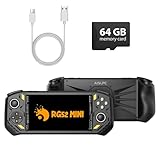
- 【Portable Dual System&RGBOX Dual Systems & RK3562 Chip Performance】 EmuELEC&RGBOX Dual Systems with Powerful RK3562 Chip: Experience seamless gaming with flexible dual-system support. Powered by the advanced Rockchip RK3562 quad-core Cortex-A53 2.0GHz processor and 2+4GB RAM, this console delivers fast, responsive performance, smooth multitasking, and enhanced capabilities for a wide range of emulators.
- 【5.5-Inch IPS Full HD Display】 5.5-Inch HD IPS Fully Laminated Display:** Immerse yourself in crystal-clear visuals on the vibrant 5.5-inch IPS screen with a sharp 720x1280 HD resolution. The fully laminated display and anti-glare finish ensure excellent color reproduction and wide viewing angles, significantly reducing eye strain for comfortable extended gameplay. Whether playing classic 2D titles or fifth-generation 3D games, every frame is rendered with stunning clarity and detail.
- 【RG52MIN Compatible with multi retro game】NEW Upgrade RG52MIN handheld game console , 64GB Built in 5000+ classic games, support more than 10+ game format, open source systems and downloading games in relevant formats. RG52MINI Supports 2D&fifth-generation 3D games and ported games, which can be played immediately after addition. RGBOX can also access the RGBOX APP via a WiFi downloader to play over 22,000 classic retro game for a richer gaming experience, Built-in 2.4G WiFi enables wireless local multiplayer for head-to-head battles or co-op play with friends – no extra accessories needed.
- 【All-in-One Multi-Function Game Console】 Precise Controls with Dual 3D Joysticks & Immersive Audio: Take command with dual 3D joysticks featuring a confirmation key and responsive mechanical buttons, including Hall linear triggers for precise analog control. The built-in vibration motors provide tactile feedback, while the joystick ambient lights offer 7 customizable color combinations to enhance your gaming atmosphere. Rich, dynamic audio is delivered through the hi-fi BOX cavity speaker or a private 3.5mm headphone jack.
- 【Fast Charging & Expandable Storage】 5000mAh Battery, Expandable Storage & Multiple Output Options: Enjoy up to 8 hours of gameplay on a single charge thanks to the powerful 5000mAh polymer lithium battery, with convenient USB Type-C fast charging. Expand your storage up to 1TB via the TF card slot. Connect to a larger screen with the HDMI output for TV play, or use the TYPE-C port for OTG, charging, and DP output, offering versatile connectivity for any gaming setup.
Troubleshoot missing or unlaunchable games
- The scan finishes, but a game is missing: A strict scan may have found no database match. Update Databases and Core Info Files, then try again; if the file remains unmatched, use Manual Scan. A manually added entry can still be playable if a core supports it.
- The ROM folder is not visible: RetroArch can only scan storage it can access. Set its File Browser directory to the folder, and on Android follow the system’s folder-access prompt if one appears. Exact permission behavior varies by app and Android version; the ScummVM core guide documents one example of Android storage access, not a universal rule for every RetroArch build.
- The game appears but will not start: Check that a compatible core is installed and selected. Some systems also require BIOS or other system files in RetroArch’s configured system directory; see Directory Configuration.
- RetroArch offers several cores: Choose one intended for the game’s original system. The same extension can be used by cores that support different content.
- A disc game fails or has no audio: For CUE/BIN, load the CUE file so RetroArch can use its track information. Avoid treating the BIN as a complete substitute for the cue sheet.
- A multi-disc game appears as separate entries: Use an M3U listing the discs’ CUE or CHD files, then scan the M3U.
- A game has no thumbnail: Thumbnail display is optional, and a manual playlist’s names may need to match the thumbnail collection.
Product prices and availability are accurate as of the date/time indicated and are subject to change. Any price and availability information displayed on Amazon at the time of purchase will apply.




