To protect game progress, check whether the specific game supports cloud saves, then keep a separate copy when you can. A backup of the game installation is not necessarily a backup of its saves: the steps and risks differ across Steam, Xbox, PlayStation, and Nintendo Switch.
Know what you are backing up
Three different things are often called a “game backup,” but they serve different purposes:
- Installation backup: a copy of a game’s program files, useful when reinstalling. It may not include progress.
- Cloud save or synchronization: save data stored or synchronized through a platform account. Availability depends on the platform and the individual game.
- Manual save-file copy: a separate copy of accessible save files, such as one kept on an external drive. You must locate the correct files and restore them yourself.
Before choosing a method, identify the game, the device you are protecting, and whether you want to recover progress on that device or continue on another. The method must cover the game’s actual save data, not just its installation.
Back up saves on Steam and PC
Check the game’s cloud-save support
Steam Cloud is not automatic coverage for every game or every file. Developers configure which files and locations a game synchronizes. Steamworks explains that configured files can sync after a game exits and download before launch on another computer; the game’s settings determine what is included. Check the specific title’s Steam listing or support information rather than assuming its saves are covered. Steamworks: Steam Cloud
#1 Best Overall
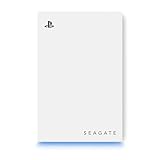
- OFFICIALLY LICENSED Built with matching firmware to seamlessly work with all models of PS5 and PS4.
- PS5 READY Store your PS5 games and transfer them to the console when it’s time to play.
- WORKS WITH PS4 Store and play all your PS4 games directly from the external hard drive.
- BUILD YOUR GAME VAULT 5 TB of capacity means no more sacrificing, deleting or redownloading games.
- NO TOOLS REQUIRED Launch into action in under two minutes with easy plug-and-play setup.
If the game does use Steam Cloud, let it finish synchronizing before switching devices. A cloud/local conflict means the copies differ. Steam warns that choosing to play through such a conflict can lose data, and says Steam Support may not be able to recover lost saves. Compare the available copies and select deliberately; do not simply choose one to get past the prompt. Steam Support: Steam Cloud
Keep manual copies of saves the cloud does not cover
Steam’s Backup Feature is for game files, and applies to games downloaded, installed, and patched entirely through Steam; some games involving third-party installers or downloads are incompatible. Valve says its game backups do not include saved games or certain custom files, such as multiplayer maps and configuration files. For third-party games, save locations vary by developer. Steam Support: Backup Feature
Rank #2

- 【Plug-and-Play Expandability】 With no software to install, just plug it in and the drive is ready to use in Windows(For Mac,first format the drive and select the ExFat format.
- 【Fast Data Transfers 】The external hard drives with the USB 3.0 cable to provide super fast transfer speed. The theoretical read speed is as high as 110MB/s-133MB/s, and the write speed is as high as 103MB/s.
- 【High capacity in a small enclosure 】The small, lightweight design offers up to 500GB capacity, offering ample space for storing large files, multimedia content, and backups with ease. Weighing only 0.35 Lbs, it's easy to carry "
- 【Wide Compatibility】Supports PS4 5/xbox one/Windows/Linux/Mac and other operating systems, ensuring seamless integration with game consoles,various laptops and desktops .
- Important Notes for PS/Xbox Gaming Devices: You can play last-gen games (PS4 / Xbox One) directly from an external hard drive. However, to play current-gen games (PS5 / Xbox Series X|S), you must copy them to the console's internal SSD first. The external drive is great for keeping your library on hand, but it can't run the new games.
- Find the game’s save location using the game developer’s support guidance or the game’s own documentation. Do not assume every title stores saves in the same folder.
- Close the game before copying files so the save is not being changed during the copy.
- Copy the relevant save folder or files to separate storage, such as an external drive. Keep the original files unchanged until you have verified the copy.
- To restore, make a safety copy of the current save first. Then put the chosen backup in the corresponding location, following the game’s instructions.
An external SSD is one practical option for storing a manual PC save copy; it does not automate synchronization or provide a cloud backup. Steam’s guidance is to copy files that its game backup omits and restore them to their corresponding folders. Steam Support: Backup Feature
Back up saves on Xbox
Microsoft describes Xbox game saves as data stored locally and synchronized to the cloud when the device connects. Xbox Play Anywhere lets supported games share progress across Windows devices, Xbox consoles, PCs, and handheld devices. This is not a promise that every title supports shared progress across every device: check whether the specific game is supported and connect the device so synchronization can occur. Microsoft Learn: Game Saves
The Tool Desk
Outbyte Driver Updater FREEScan for outdated or missing drivers - takes under a minuteDriver Scan →Outbyte PC Repair FREERepair Windows errors before they cause bigger problemsFix Now →Rank #3

- Extra storage to capture and collect your best in-screen game captures.Specific uses: Gaming
- Speed up to 250 MB/s rated at 7200RPM with active cooling technology to help you stay in the game.
- Features two 7.5W USB Type-A charging ports to charge your gaming gear and accessories.
- Purpose-built for gamers based on WD_Black quality and reliability.
Back up saves on PlayStation
PlayStation support documents PS Plus cloud storage for PS5 and PS4 saved data, with settings for automatic synchronization or upload. Check the current account eligibility and applicable terms for your region, then review the save-data settings on your console. The support instructions describe platform options; they do not establish that subscription terms are identical everywhere. PlayStation Support: PS5 and PS4 cloud storage
Back up saves on Nintendo Switch
Nintendo Save Data Cloud requires Nintendo Switch Online. Nintendo’s support instructions describe downloading a backup from a game menu or through System Settings. Before confirming a download, verify that the cloud copy is the one you want: Nintendo says downloading it overwrites the existing console save for that game, and the overwritten data cannot be recovered. Nintendo Support: Downloading Save Data Cloud backups
Rank #4
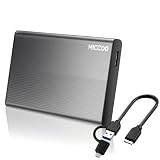
- 【Stable Transfer Performance for Everyday Use】Powered by a 5400 RPM hard drive and USB 3.0 connectivity, this 500GB portable hard drive is suitable for everyday file transfers, photo and video backups, music, and document storage. No additional driver is required for most computers. Simply connect the drive, wait for your system to recognize it, and start transferring or backing up your files.
- 【What’s in the Box & How to Connect】The package includes one portable external hard drive, one USB 3.0 Micro-B to USB-A cable, one USB-A to USB-C adapter, and one user manual. For devices with a USB-A port, connect the USB-A end of the cable directly to your computer and the Micro-B end to the drive. For devices with a USB-C port, plug the USB-A end into the included USB-A to USB-C adapter, then connect it to your device. The drive is powered directly through the USB connection, so no external power adapter is required.
- 【Wide System Compatibility】Pre-formatted in NTFS, this portable hard drive provides full read and write access on Windows 11/10. It also supports macOS, ChromeOS, and Linux. macOS can normally read NTFS drives but may not support writing. For full read and write access across both Windows and macOS, back up your files and reformat the drive to exFAT.
- 【Xbox & PS4 Storage Support】Compatible with supported Xbox and PS4 consoles. Since the drive is pre-formatted in NTFS, reformatting may be required depending on the console model and intended use. Media files, system backups, and extended game storage may have different format requirements. Connect the drive directly to your console and complete the setup through its storage settings. Formatting will erase all existing data, so back up important files first.
- 【Aluminum Alloy Shell & Compact Design】Built with an aluminum-alloy metal enclosure, this portable hard drive has a solid, clean feel while remaining slim and easy to carry. Measuring approximately 4.65 × 2.99 × 0.51 in and weighing approximately 0.36 lb, it fits easily into a backpack, laptop bag, or desk drawer. The built-in activity indicator lets you check when the drive is connected or transferring data. Suitable for everyday use at home, in the office, at school, or while traveling.
If a backup is missing or recent progress has not appeared in Save Data Cloud, consult Nintendo’s troubleshooting guidance before restoring an older copy. Nintendo Support: Save Data Cloud troubleshooting
Independent reader supportYour contribution helps us test, update, and keep practical guides available for everyone.Choose a method and restore carefully
When deciding how to protect or move progress, check these points for the particular game and account:
Best Value
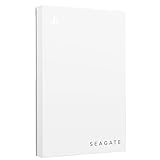
- Officially licensed: adapted firmware for seamless use with all PS5 and PS4 models.
- BLUE LIGHTING The blue LED lighting sets the scene for the hard drive.
- FOR YOUR GAME COLLECTION With 5 TB of storage, you no longer have to delete games and download them again.
- Perfect to take with you. Super lightweight - ideal for taking your entire game collection.
- Compatible with PS5: save all your PS5 titles and transfer them to the console to play.
- Coverage: Does the title support this method, and which save files does it include?
- Storage: Is the copy local, synchronized to a platform cloud, or separately copied by you?
- Access: Does using it depend on an account, network connection, or membership?
- Restore effect: Will restoring overwrite the current save, and can that overwrite be reversed?
- Recoverability: Can you identify and restore the manual copy for this particular game?
Before replacing any save, compare the available copies and preserve the one you may need. A cloud copy can be older than the local save, and a restore can overwrite progress; neither “cloud” nor “backup” alone guarantees that the newest or desired version is selected.
Quick Recap
Product prices and availability are accurate as of the date/time indicated and are subject to change. Any price and availability information displayed on Amazon at the time of purchase will apply.




