Open Steam’s Settings > Storage to see your configured library locations and the games installed in them. From there, you can add a library on another drive, move installed games between libraries, or repair a library folder. If Steam stops recognizing games already on a drive, add the existing library location before downloading anything again.
Check where Steam games are installed
- Open the Steam client and select Steam > Settings > Storage.
- Review the listed library locations and the games installed in each one. Steam’s default installation drive is shown in this view.
Steam’s instructions describe Storage as the place to view and manage library locations, but the exact labels or layout may vary by operating system or client version. See Steam Support’s Moving a Steam Installation and Games guide.
Add a library on another drive
- In Settings > Storage, select the plus button to add a library location.
- Choose a folder on the drive you want to use and complete Steam’s prompts.
- When installing a new game, select the desired configured library location in the install options.
Adding a library gives Steam another location for installations; it does not itself free space on an existing drive. To reclaim space, move or uninstall games you no longer need on that drive.
Move an installed game to another library
The destination must already be configured as a Steam library. Steam documents two ways to move a game:
The Tool Desk
Outbyte PC Repair FREEClear out junk files and repair common Windows errorsFree Scan →Outbyte Driver Updater FREEFix the driver behind crashes, sound loss and screen glitchesFind Drivers →#1 Best Overall

- Customize your drive’s RGB lighting with the downloadable WD_BLACK Dashboard (Windows only) to show off your style and make every play personal.
- Kick loading into overdrive with a USB 3.2 Gen2x2 interface and speeds up to 2,000MB/s. (Based on read speed. 1 MB/s = 1 million bytes per second. Based on internal testing; performance may vary depending upon host device, usage conditions, drive capacity, and other factors.)
- Compatible with PlayStation 5 and Xbox Series X|S consoles. {Compatible with PlayStation 4 Pro or PS4 with system software version 4.50 or higher, PlayStation 5 (Play and store PS4 games; archive PS5 games), Xbox One, and Xbox Series X|S (Play and store Xbox One games; archive Xbox Series X|S games).}
- Keep more of the latest and largest titles installed and ready to launch with capacities of up to 2TB. (1TB = 1 trillion bytes. Actual user capacity may be less depending on operating environment.)
- Built with WD_BLACK toughness thanks to a shock-resistant structure, this durable drive can survive a drop of up to two-meters.
| Route | Steps | Best fit |
|---|---|---|
| Storage settings | Open Settings > Storage, choose the source drive, select one or more games, then choose Move and the destination library. | Moving several games, or managing them by source drive. |
| Game properties | In your Library, right-click the game, choose Properties > Installed Files > Move Install Folder, then select the destination library. | Moving one specific game from its own Library entry. |
Steam says its move feature transfers the installation without requiring a fresh download. Its guidance documents both routes but does not state that either is faster. For the official instructions, see Moving a Steam Installation and Games.
Restore games Steam shows as uninstalled
- Check that the game files are still present in the expected library folder. Do not delete or overwrite the folder while troubleshooting.
- Open Settings > Storage and use the plus button to add the existing library folder, especially if it was on an alternate drive or location.
- Check whether Steam recognizes the games after the library is added. If it still does not, Steam’s support instructions recommend reinstalling the affected games.
Steam’s recovery guidance is available at Installed games are appearing as uninstalled.
Rank #2
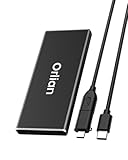
- High-speed Transmission Speed: Equipped with a solid-state drive that supports the USB 3.1 Gen 2 standard, the read speed can reach up to 500MB per second, and the write speed can reach up to 450MB per second, the performance of solid-state drives is much faster.. This enables fast file access and a smooth gaming experience, thereby providing a more efficient and enjoyable usage experience.
- Portable and Lightweight: The product is small in size, light in weight, easy to carry, and convenient to use. The metal design allows for quick heat dissipation.
- Durable Design: Designed with aluminum alloy material, featuring waterproof, dustproof and shockproof functions,stand wear and tear.
- Wide Compatibility: The external SSD can be easily connected to various Type-C devices such as Windows, Mac, iPad Pro, iPhone, and Android devices via USB-C and USB-A interfaces, enabling convenient and fast file transfer.
- What You Get:1 x 500GB Pocket-sized solid-state drive, 1 xUSB-A to Type-C data converter, 1 x USB-A to Type-C data cable (8.66 Inch), 1 x storage bag
Repair a library or verify a game’s files
These are troubleshooting options for problems, not steps normally needed for a successful move.
- Repair a library folder: Open Settings > Storage, select the library’s options menu, and choose Repair Folder if that option is available.
- Check a game’s files: In the Library, right-click the game and choose Properties > Installed Files > Verify Integrity of Game Files.
Steam lists these actions in its Update & Installation Issues guidance.
Do these 3 things before closing this tab:
1Repair Windows errors before they cause bigger problems2Fix the driver behind crashes, sound loss and screen glitches3Clear out junk files and repair common Windows errorsRank #3

- READY FOR ANY BATTLE. Keep your mind on the match, not on lag or low storage, with up to 2TB[1] capacity and read speeds up to 800MB/s[2].
- GO BANANAS WITH PEELY. Flaunt your Fortnite infatuation with a drive wrapped in a custom-designed Peely skin.
- PICKAXE INCLUDED. Build or break stuff with a stylish pickaxe, redeemable in-game and included with purchase of this drive.[5]
- SURVIVE THE STORM SURGE. This durable drive features up to two-meter drop protection[4] and a secure rubber hook that latches to your backpack.
- GAME-TESTED, GAME-READY. Hundreds of hours of rigorous testing help make sure your drive is worthy of your wins.
Make room without changing update settings
Storage and download scheduling are separate controls. To manage when games update, open Steam > Settings > Downloads and review the available update behavior and automatic-update schedule. Changing update timing does not reclaim disk space; moving or uninstalling selected games does.
Steam explains download and update controls in Managing Steam Downloads & Updates.
Rank #4

- Capacity Display Variance: 1TB external ssd often appears as around 931GB on Windows. MacOS can show full 1 TB capacity. This is binary calculation difference and doesn’t affect SSD hard drive actual physical storage
- 1050 MB/s Speed: Instantly access to your files with blazing-fast 10Gbps external SSD read up to 1050MB/s and write up to 1000MB/s. LED Light indicates USB SSD instant activity
- Data Security: Solid state drives S.M.A.R.T. health diagnostics and adaptive TRIM optimizing data block management ensures consistent write speeds and extends the longevity of the portable SSD
- USB-C & USB-A Cable: Both cables featuring rapid USB 3.2 Gen2, this USB SSD effortlessly bridges devices, enabling seamless cross-platform file transfers and backup between computers, smartphones, tablets and iPhone
- Always Fast: No slowdowns for large file transfers. With SLC caching (25% of current available capacity allocated as high-speed cache), this external SSD delivers steady 10Gbps for transfers within the cache capacity
Protect game files and saves before uninstalling Steam
Steam warns that uninstalling the Steam client can delete installed game content. If you want to retain those installations, move the steamapps folder somewhere outside the Steam directory before uninstalling.
Keeping steamapps does not guarantee that every save is preserved. Steam Cloud saves are handled separately, and non-Cloud saves for third-party games may be stored in a Documents folder or another location chosen by the game developer. Check the save location for each game before deleting or moving data. See Steam Support’s Uninstall Steam instructions.
Best Value

- High-speed Performance: Designed for casual gamers and everyday use, this external SSD with up to 1050MB/s accelerates large file transfers, media editing, and backup processes outperforming traditional hard drives
- Built to Last: Perfect for travel and all types of weather with IP55 water and dust resistance. Plus, it's drop resistant up to 7.5 ft (2 meters). This portable drive is designed for durability and reliability wherever you go
- Broad Compatibility: External drive connects effortlessly with Windows, Mac, iPad Pro, Chromebooks, Android, Linux, PS4, PS5, and Xbox via USB-C and USB-A for easy and fast file transfers
- High-Capacity Storage: Store all your photos, videos, backups, and more with this compact 1TB SSD. It's perfect for students, everyday users, and anyone needing secure and reliable storage for their files
- Bonus Software Included: Enjoy three months of Mylio Photos plus and Acronis True Image when you purchase and register your external drive
When an external drive causes trouble
Steam cautions that external hard drives can cause performance problems or disconnect unexpectedly. If an external drive is causing Steam or game issues, Steam recommends using an internal drive instead. Its guidance does not specify a particular drive type, model, or capacity. Read Steam’s Moving a Steam Installation and Games article.
Quick Recap
Product prices and availability are accurate as of the date/time indicated and are subject to change. Any price and availability information displayed on Amazon at the time of purchase will apply.




