Crashes, No Sound, or Screen Glitches?
Random freezes, missing sound and display glitches usually trace back to one bad driver. Find and replace yours safely.Free scan · under a minuteWindows Errors? Fix Them Before They Spread
Repair common Windows errors and clear accumulated junk for a smoother, more stable PC - no reinstall needed.Free scan · no reinstallTo connect a standard Nintendo Switch or Switch OLED to a computer for live gameplay, use the dock and a USB HDMI capture card. The correct chain is Switch → dock → HDMI → capture card → USB → computer. A USB-C cable alone does not normally transmit the Switch’s live video signal.
For live Nintendo Switch gameplay, you cannot normally connect the console directly to a computer with a USB-C cable. For a standard Nintendo Switch or Nintendo Switch OLED, the supported setup is:
As an Amazon Associate I earn from qualifying purchases.
Switch console → Switch dock → HDMI cable → USB HDMI capture card → USB 3.x → computerThe USB connection is between the capture card and the computer—not between the Switch and the computer. The dock supplies the Switch’s HDMI video output, and software such as OBS Studio displays, records, or streams the signal.
This answer depends on your Switch model. The original Nintendo Switch and Nintendo Switch OLED support TV mode when used with a compatible dock. The Nintendo Switch Lite does not support TV mode, so it cannot use this ordinary dock-and-capture-card method. Switch 2 uses a separate dock and power/video-accessory setup; do not automatically substitute original Switch accessories.
#1 Best Overall

- Lightweight and Portable: With pocket-size and Aluminium alloy light weight(1.5oz) design, which is much more portable and lightweight than official switch dock.
- 4K@60Hz HDMI Output: The Switch 2 TV dock supports 4K@60Hz and 1080P (1920x1080) display output, delivering exceptionally crisp visuals on your screen. Experience stunning 4K Ultra HD graphics with smooth 60Hz playback,This setup elevates the gaming experience for all enthusiasts.Perfect replacement for official switch 2 dock
- 4-in-1 Docking Station: 4 Ports, Widely Compatible Switch TV Adapter - Switch HDMI adapter with usb 3.0 port, usb 2.0 port, 4K HDMI 2.0 output port and pd charging port, Upgraded 4 IN 1 Switch Dock designed for Nintendo Switch and more USB C Device.
- Widely Compatible: Perfect support for Nintendo Switch2/1/OLED,ipad/ipad pro/ Mac Book Air/Mac Book Pro, iPhone 17, Samsung Galaxy and more USB C devices So you can turn any place into a workplace and enjoy vivo video in Huge TV or monitor anywhere.
- Play While Charging: This USB C docking station features a USB-C 100W charging port, allowing you to charge and play simultaneously.
What you need
- A Nintendo Switch or Nintendo Switch OLED that supports TV mode
- The compatible Nintendo Switch dock
- The dock’s compatible AC adapter, connected directly to a wall outlet
- A high-speed HDMI cable from the dock to the capture card
- A USB HDMI capture card with HDMI input and USB output
- A USB 3.x port and compatible USB cable for connecting the capture card to the computer
- OBS Studio or the capture card’s compatible viewing, recording, or streaming software
- Optionally, a second HDMI cable and a TV or monitor for low-latency passthrough
Nintendo’s TV-mode instructions identify the compatible dock, AC adapter, and high-speed HDMI cable as required equipment. Capture-card setup guidance adds the capture device, computer, second HDMI cable when passthrough is used, and USB connection to the computer. See the documented Nintendo Switch capture-card connection layout.
If you are buying the bridge between the dock and PC, look for a USB HDMI capture card, not merely a USB-C cable. The capture card must have an HDMI input for the dock’s signal and a USB computer connection.
How to connect a Nintendo Switch to a computer
- Power the dock. Connect the compatible Nintendo Switch AC adapter to the dock and plug it directly into an outlet. A dock that is not properly powered may fail to provide TV-mode video.
- Connect the dock to the capture card. Plug one end of an HDMI cable into the dock’s HDMI OUT port and the other end into the capture card’s HDMI IN port. Do not reverse these ports.
- Connect optional passthrough. If the capture card has HDMI OUT, connect it to a TV or monitor with a second HDMI cable. This gives you a direct display for playing while the computer receives a USB capture feed.
- Connect the capture card to the computer. Use the capture card’s USB cable and connect it to a compatible USB 3.x port. Avoid relying on an unpowered hub while diagnosing detection or performance problems.
- Dock the console. Place the Switch in the dock and wake it to the HOME Menu. The console should switch from its handheld screen to the dock’s HDMI output.
- Open your capture software. In OBS Studio, add a Video Capture Device source and select the capture card. OBS describes a game-capture device and Video Capture Source as the normal route for bringing console footage into a computer; its guidance is available in the OBS game-capture FAQ.
- Choose video settings if necessary. Open the source properties and select an available resolution and frame rate. The choices depend on the capture card, console output, USB connection, and computer.
- Configure audio. Select the capture card’s audio input if OBS does not automatically receive game sound. Enable audio monitoring only if you need to hear the game through the computer.
Can you use the computer as the Switch’s screen?
Yes. OBS or the capture card’s application can show the captured feed in a window on the computer. However, a software preview can introduce noticeable delay. It may be acceptable for recording or streaming, but it is not always ideal for responsive gameplay.
For the most responsive experience, connect the capture card’s HDMI OUT to a TV or monitor and play from that display. The computer can then handle recording, streaming, overlays, and scene composition while the passthrough display shows the signal directly. This is why a second HDMI cable and a separate display are useful, although they are not required merely to view the feed in OBS.
Why a USB-C cable alone does not work
A direct USB-C-to-USB cable from the Switch to a computer is not the normal live-video solution. It may support charging, accessories, or other functions supported by the relevant hardware and software, but it does not replace the dock’s HDMI output and a capture device for live gameplay capture.
Rank #2
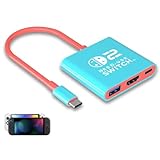
- Switch TV Dock Adapter - Support nintendo switch 1 and oled and steam deck and nintendo switch 2 tv dock mode paly. Compatible with switch 2 the latest firmware 21.0.0 version update.
- 4K HDMI Output Dock - For nintendo switch 2 and steam deck dock mode, the adapter output 4K60HZ high quality video. For old nintendo switch 1,Only supports native 1080P60HZ resolution.
- USB A 3.0 Input Port - The switch tv dock adapter come with one USB-A 3.0 input port, support access wired controller / dance pad / gamecube adapter / charging dock and other usb expansion device.
- Plug and Play on TV - First wake up switch console and then connect power adapter and hdmi cable. and then play happy on tv mode.NOTE:Switch 1 need 15v2.6a / Switch 2 need 20v3a PD charger.
- For More Devices - The switch tv dock adapter support nintendo switch 1 2 and steam deck dock mode well. Also compatible with Rog Ally, Legion Go and new ipad or mac or Samsung dex station.
The original Switch console does not provide the standard HDMI video-output path needed for direct capture from the console itself. In the supported workflow, the dock converts the docked console’s TV-mode output into the HDMI signal that the capture card receives.
Likewise, OBS cannot create a video signal that the computer has never received. Installing OBS without capture hardware will not make a direct USB connection produce live Switch gameplay.
Quick wins for a faster PC:
Scan for outdated or missing drivers - takes under a minuteDriver Scan →Repair Windows errors before they cause bigger problemsFix Now →Fix the driver behind crashes, sound loss and screen glitchesFind Drivers →Why you usually cannot plug the dock into a laptop HDMI port
Most laptop HDMI ports are outputs: they send the laptop’s picture to a TV or monitor. They do not accept an HDMI signal from a Switch dock. Unless a computer specifically has an HDMI input designed for video capture, connecting the dock’s HDMI output to that port will not display the Switch.
A USB HDMI capture card is the usual solution because it converts the dock’s HDMI signal into a USB video device that the computer can select in OBS or compatible software.
Switch Lite: the important limitation
The Nintendo Switch Lite cannot use this standard setup. Nintendo does not support TV mode on the Lite, and it cannot be placed in a dock for ordinary HDMI output. OBS also identifies the Lite as incompatible with game-capture devices for this reason.
Rank #3

- Innovative Detachable Design: Compared to other chargers, this 45W AC adapter features a detachable cable. If the cable fails, you only need to replace the cable itself—not the entire unit. This makes it an eco-friendly and economical choice
- 45W Fast Charging: Designed as a replacement for the original Switch AC adapter, this 45W USB C charger delivers high-speed charging for the Switch, Switch OLED, Switch Lite, and Steam Deck. It can charge your switch from 0% to 50% in 1 hour, offering greater stability and higher efficiency than standard 39W charger
- Supports TV Mode: Output: 20V/2.25A, 15V/3A, 15V/2.6A, 12V/3A, 9V/3A, 5V/1.5A; Input: 100-240V~50/60Hz 1.2A. It provides stable, high-output power for the Switch when used in TV Mode via the dock. Gaming Freely Anywhere with included 5 ft / 1.5 m Extra-Long Cable
- Wide Compatibility: Compatible with Switch, Switch OLED, Switch Lite, Steam Deck, Switch 2 console, Switch TV dock, Switch pro controller, Xbox Elite2, PS5 Controller, iPhone 17 16 15 Series, iPad (USB-C Port), and other more USB-C device. Please note: Not support switch 2 TV dock mode
- Reliable Multiple Protections: Built-in multiple safeguards and cooling system to protect against overcharging, overheating, short circuiting, overcurrent, overvoltage and spark, intelligently monitoring temperature to safeguard your devices, ensuring safe charging while Gaming
No ordinary USB-C cable adds the missing TV-output capability. If your console is a Switch Lite, a capture-card purchase will not solve the problem unless you are using an unusual hardware modification outside the normal consumer setup.
Recommended Free Tools
Switch 2: do not assume the original setup is interchangeable
Nintendo Switch 2 should be treated as a separate hardware generation. Nintendo’s Switch 2 TV-mode instructions specify the Switch 2 dock, Switch 2 AC adapter, and Ultra High Speed HDMI cable, and caution against automatically substituting original Switch accessories.
The general capture principle remains easy to understand—send the console’s docked HDMI output to a capture device, then connect that device to the computer—but verify the dock, power adapter, HDMI requirements, capture-card compatibility, and software support for Switch 2 before buying equipment.
Independent reader supportYour contribution helps us test, update, and keep practical guides available for everyone.Fix missing video or audio
If the computer does not detect the capture card
- Confirm that the capture card’s USB cable is connected firmly.
- Try another USB port, preferably a USB 3.x port that meets the capture card’s requirements.
- Connect the device directly to the computer rather than through a hub.
- Check the capture card’s operating-system, driver, and USB requirements.
- Close other applications that may already be using the capture device, then reopen OBS.
If OBS detects the card but the screen is black
- Confirm the dock is connected to power with its compatible AC adapter.
- Check that the dock cable is connected to the capture card’s HDMI IN, not HDMI OUT.
- Make sure the Switch is seated in the dock and awake.
- Test the dock and HDMI cable directly with a TV or monitor. If the TV also shows no picture, troubleshoot the dock, power, console, or HDMI cable before troubleshooting OBS.
- Reopen the capture-card source properties and choose a supported resolution or frame rate.
- Try a different HDMI cable or capture-card input if available.
If video works but game audio is missing
Check whether headphones are plugged into the Switch’s headphone jack. When the docked Switch has headphones connected directly to the console, game sound may not be sent through HDMI to the capture card or passthrough display. Remove the headphones, connect them to the TV or monitor if appropriate, or use software monitoring in OBS. Software monitoring can add latency, so it is usually less desirable for playing than listening through the passthrough display.
Also verify that OBS is receiving the capture card’s audio source and that the source and system mixer are not muted.
Free tools Windows power users keep installed
One-click scans. No signup required.
Rank #4

- [Compatibility]: The SiWiQU dock only works with Nintendo Switch/Switch OLED. The switch docking station is not work with Nintendo Switch 2 (2025). (NOTE: Only docking station included, no cable or charger.)
- One-touch Display Switching: Press the TV/Tabletop Mode button at the back of the dock, you can choose Tabletop Mode or TV Output Mode.
- Special Design: The guide notch have a spring buffer function, You don't have to worry about damaging the port over time when docking the console in. The switch fits into the dock tight and secure (NOT compatible with protective cases). The anti-skid pad at the bottom prevents it from sliding around or falling over by accident.
- Charge While Playing: The charging stand allows the Switch system to be charging while in TV or tabletop mode. Built in smart original chip, having Short-circuit Protection, Over Power Protection, Recovery Protection and Overheating Protection.
- Portable and Lightweight: This Switch dock with classic red and blue colour match is only 109g(0.24lb), 7.5 in * 2.3 in * 1.3 in size, which is much more portable and lightweight than official dock. Its work capability is the same as official standard.
Which setup should you choose?
| Goal | Required arrangement | Important trade-off |
|---|---|---|
| Record or stream Switch gameplay | Dock HDMI OUT → capture-card HDMI IN → capture-card USB → computer | Requires capture hardware and compatible software |
| Play using the computer display | Use the same arrangement and view the source in OBS | Preview latency may be noticeable |
| Play with the most responsive display | Add capture-card HDMI OUT → TV or monitor | Requires a second HDMI cable and display |
| Connect a Switch Lite | No ordinary docked capture path | TV mode is unsupported |
The short answer
If you have an original Nintendo Switch or Switch OLED, connect the console to its powered dock, run HDMI from the dock to a USB HDMI capture card, and connect the capture card to the computer with USB 3.x. Select the capture card as a Video Capture Device in OBS. A USB-C cable directly from the Switch to the computer is not a substitute, and a laptop’s ordinary HDMI port is usually not an input.
Frequently Asked Questions
Can I connect my Nintendo Switch directly to my computer with USB-C?
No. A direct USB-C-to-USB connection is not the normal live-video path for an original Nintendo Switch or Switch OLED. Use the dock’s HDMI output, a USB HDMI capture card, and then USB from the capture card to the computer.
Can I plug the Switch dock’s HDMI cable into my laptop?
Usually no. Most laptop HDMI ports are outputs, not inputs. Use a USB HDMI capture card unless your computer specifically has a purpose-built HDMI input.
Can I capture a Nintendo Switch Lite on my PC?
No. The Switch Lite does not support TV mode and cannot use the ordinary dock-and-capture-card workflow. A normal USB cable cannot add TV output.
What’s actually slowing this PC down?
Pick the symptom - the matching free tool is one click away.
Can I play the Switch on my computer screen through OBS?
Yes, but the OBS preview may have latency. For more responsive play, connect the capture card’s HDMI OUT to a TV or monitor and use the computer for recording or streaming.
The Bottom Line
USB alone is not the video connection. For a docked Switch or Switch OLED, the reliable chain is dock HDMI OUT → capture-card HDMI IN → capture-card USB → computer. Use OBS to view or record it, and use HDMI passthrough to a TV or monitor if you want to avoid relying on a delayed software preview. Switch Lite has no standard TV-mode capture path, and Switch 2 accessories should be checked separately.
Quick Recap
Product prices and availability are accurate as of the date/time indicated and are subject to change. Any price and availability information displayed on Amazon at the time of purchase will apply.




